Table of Contents
When you make a call on your iPhone, other notifications still appear and are sent to you. Many people are interested in turning off notifications completely when making a call on their iPhone.
When you make a call on your iPhone, other notifications still appear and send to you. Many people often ignore this problem, but some people are interested in completely turning off notifications when making calls on iPhone. Although there is no option to automate this problem, you can still do it manually by following the instructions below.
Turn on Do Not Disturb on iPhone
The best, easiest, and most practical way to turn off all notifications while you're on a call is to turn on Do Not Disturb mode. This will turn off all text and app notifications so you can make calls without being interrupted by notifications.
Or you can also turn on silent mode on iPhone when making calls. This mode will mute new notifications but still display them temporarily as banners.
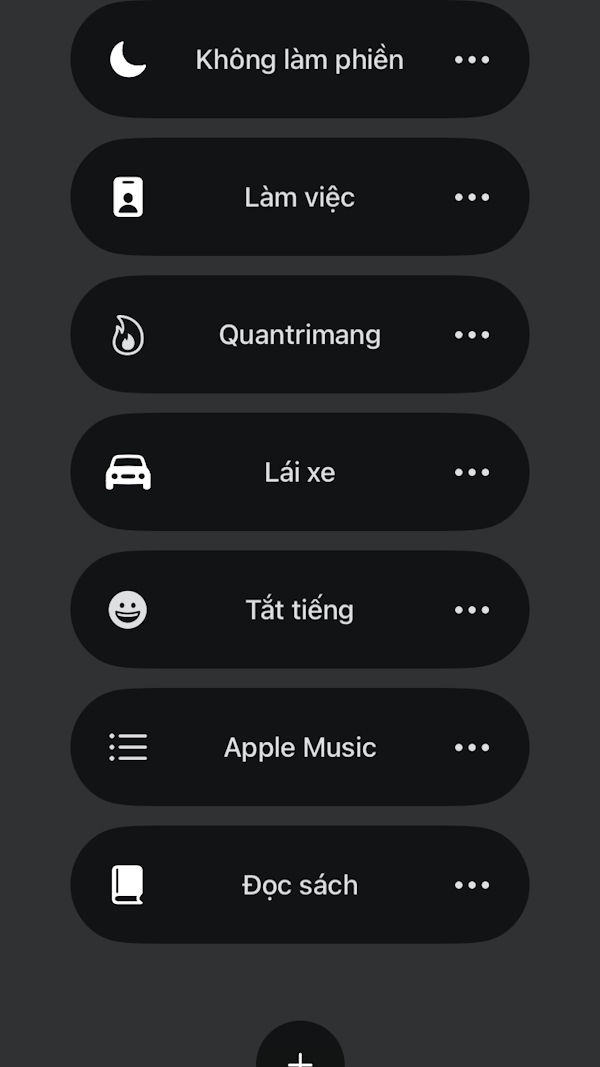
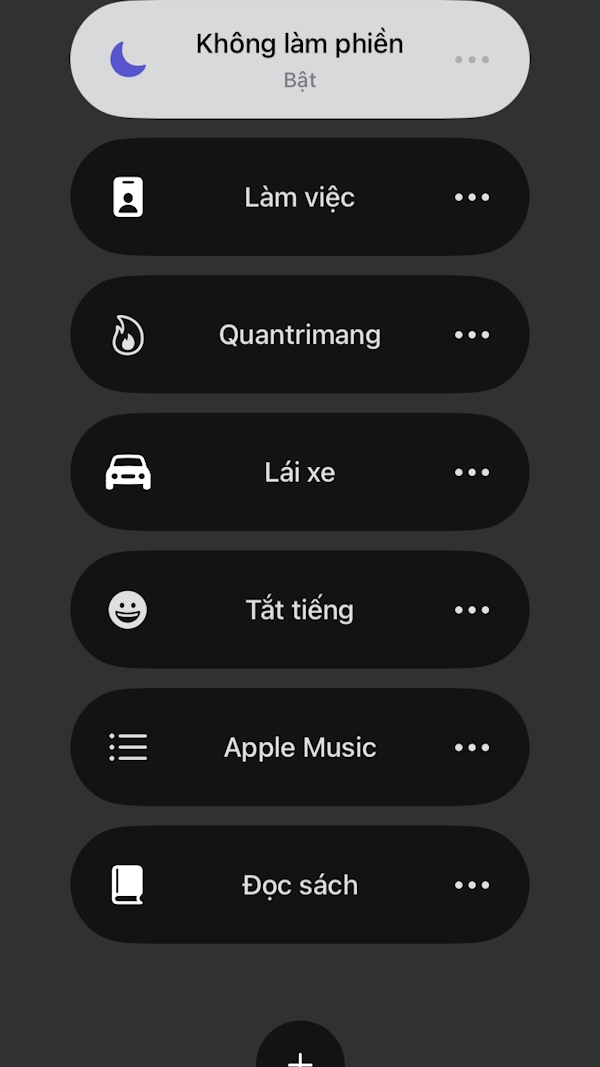
Turn off app notifications on iPhone
For annoying applications, you can turn off notifications of those applications. We should turn off notification sounds and banner notification content on the lock screen in case we do not need to receive notifications.
- How to customize notifications on iPhone
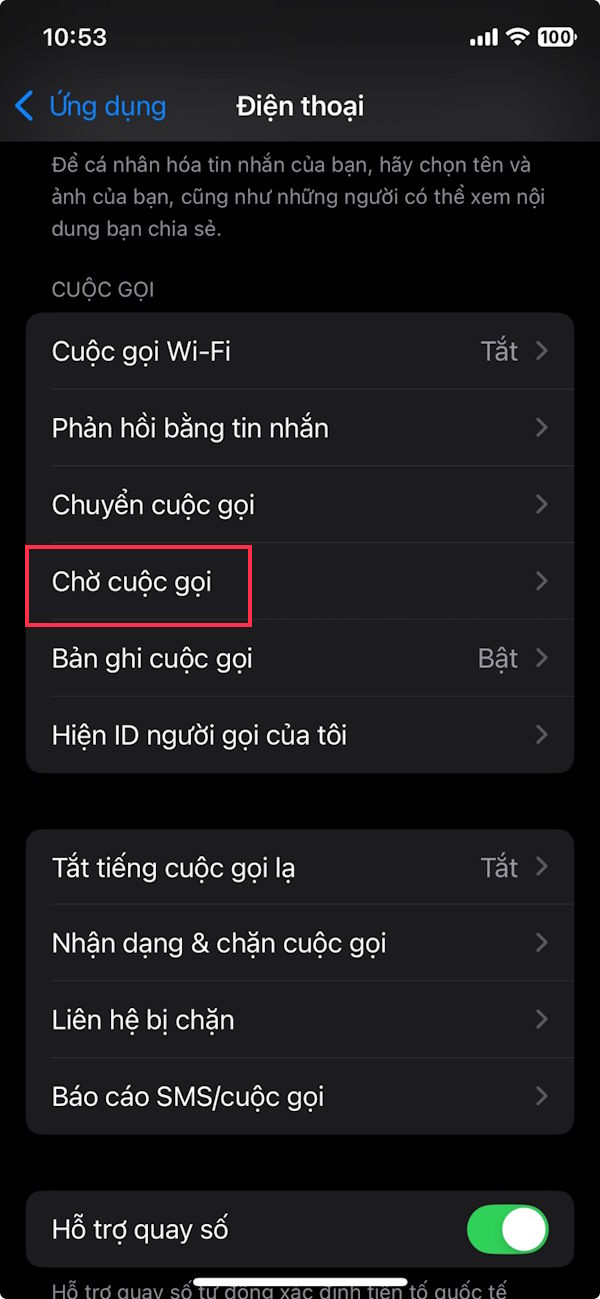
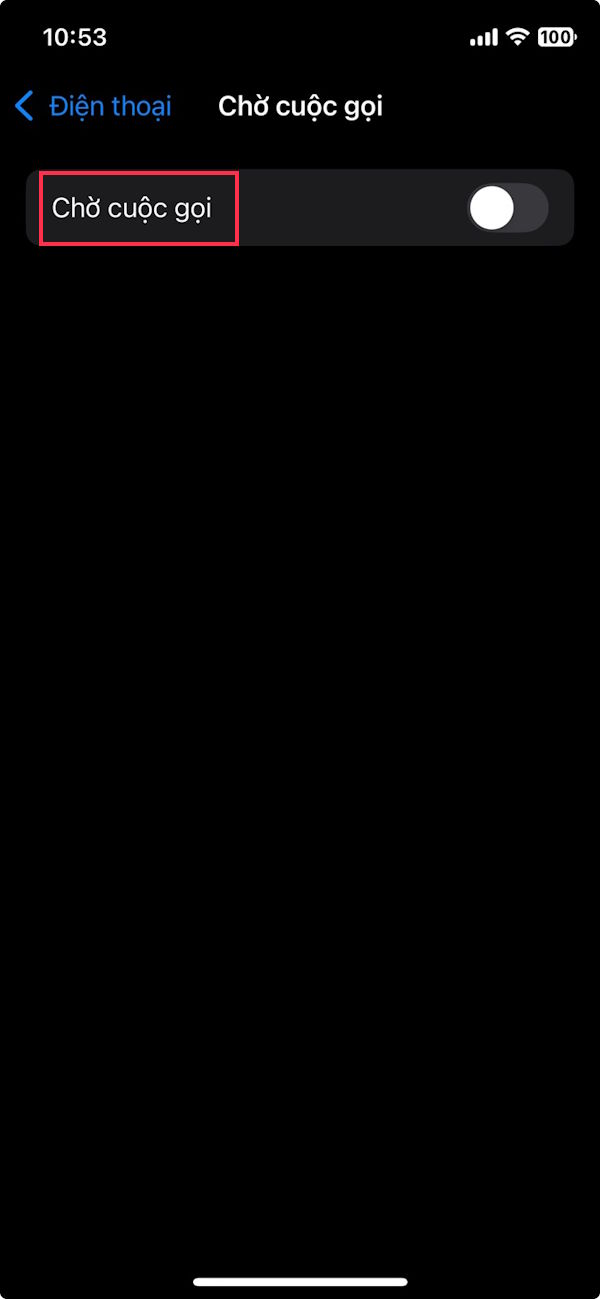
Turn off iPhone call waiting
When you're on an important call and someone calls, their call will appear on hold on your screen. If you don't need this feature, you can adjust it in Settings.
We tap on The Phone app , then Tap on the Call Waiting setting And turn this setting off.
In general, to turn off all notifications on iPhone, Do Not Disturb mode is more suitable. And after the call ends, you must remember to turn off Do Not Disturb mode to receive all notifications as before.
FAQ
How do you turn off all notifications when calling on iPhone: step-by-step guide?
In practical terms, when you make a call on your iPhone, other notifications still appear and are sent to you. Many people are interested in turning off notifications completely when making a call on their iPhone.
What should you check before getting started?
Review the requirements, compatible device or software version, and any warnings described in the guide before making changes.
What should you do if the steps do not work?
Repeat the steps in order, confirm that your app or system is up to date, and review the troubleshooting details provided above.
Related Articles
 How to Turn Off iPhone Application Notifications?5 minutes read
 How to Turn Off iPhone Notifications on Mac3 minutes read
 How to Turn Off Promotional Notifications from iPhone Wallet3 minutes read
 How to Prevent Notifications from Making iPhone Screen Light4 minutes read
 How to Turn Off Notifications in Standby iPhone Mode3 minutes read
 3 Ways to Turn Off Instagram Notifications to Avoid Being Disturbed: Top Picks6 minutes read
Reader Comments 0
Sign in with email or Google to join the discussion.