Table of Contents
Windows 11 has more than one Bluetooth notification. The classic “Alert me when a new Bluetooth device wants to connect” option controls an incoming pairing request; Swift Pair can show a separate prompt when a compatible nearby device is ready to pair. Identify the prompt you are seeing before changing a setting. Neither switch is the same as turning Bluetooth off.
Change the classic incoming-connection alert
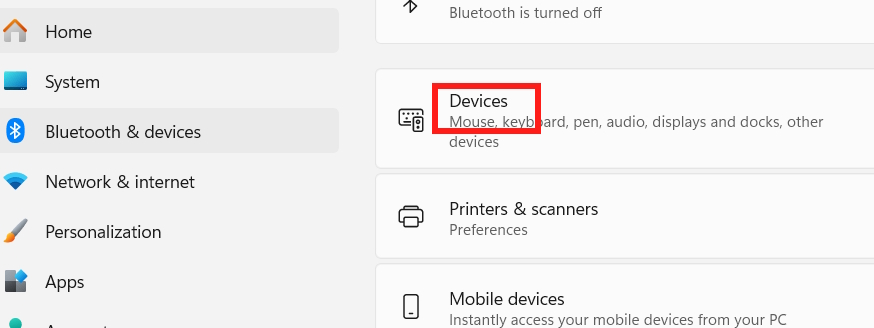
- Press Windows + I and open Bluetooth & devices > Devices.
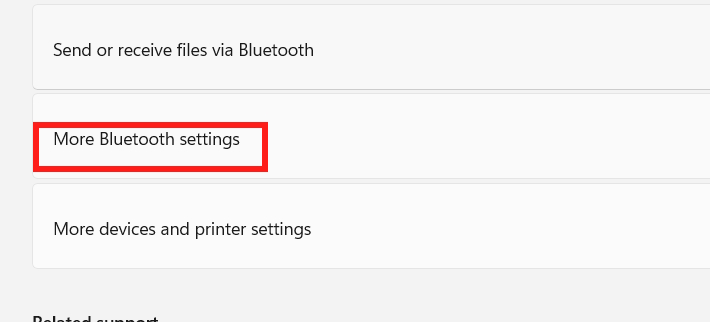
- Under Related settings, choose More Bluetooth settings. If it is not visible, scroll down or look for the related Bluetooth settings link on your Windows build.
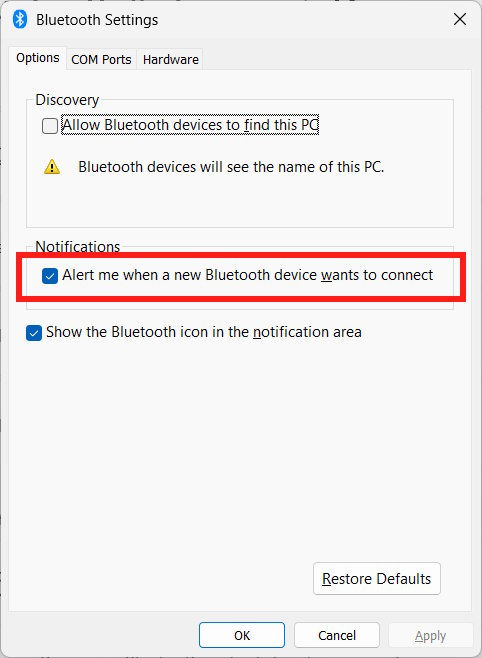
- Open the Options tab. Clear Alert me when a new Bluetooth device wants to connect to stop that request alert, or select it to restore the alert. Choose Apply and OK.
If you still receive a popup inviting you to pair a nearby device, it may be Swift Pair instead. Follow TipsMake's Swift Pair notification guide to turn off Show notifications to connect using Swift Pair in Bluetooth & devices > Devices. You can still initiate a pairing manually from Settings.
If the prompt keeps appearing
Check whether the accessory is repeatedly entering pairing mode or an unknown device is trying to connect. Do not approve a pairing request you do not recognize. For a device you own, use Settings > Bluetooth & devices > Add device and follow Microsoft's pairing instructions. TipsMake's Windows 11 Bluetooth setup guide covers the basic connection steps.
Related Articles
 Use Bluetooth on Mac: How to Turn on Bluetooth on Mac10 minutes read
 How to Turn on Bluetooth on Win 109 minutes read
 The Simplest Way to Turn Bluetooth on and Off on Windows 118 minutes read
 How to Connect a Bluetooth Device on Windows7 minutes read
 Instructions on How to Set Up Bluetooth on Windows 108 minutes read
 How to Set Up and Manage Bluetooth Devices in Windows: Practical Guide9 minutes read
Reader Comments 0
Sign in with email or Google to join the discussion.