Table of Contents
Learn how to enable enhanced notifications to manage Android notifications with clear steps.
One such feature on the Google Pixel 10 Pro completely changed the way people handle notifications. When it first popped up, it wasn't particularly striking or attention-grabbing. But over time, its impact became apparent. It became more manageable, notifications no longer distracted you, and once you got used to it, going back to the old way wasn't annoying anymore. It was a small setting, but it made a surprisingly big difference.
What does the Enhanced Notifications feature do?
Help important information stand out
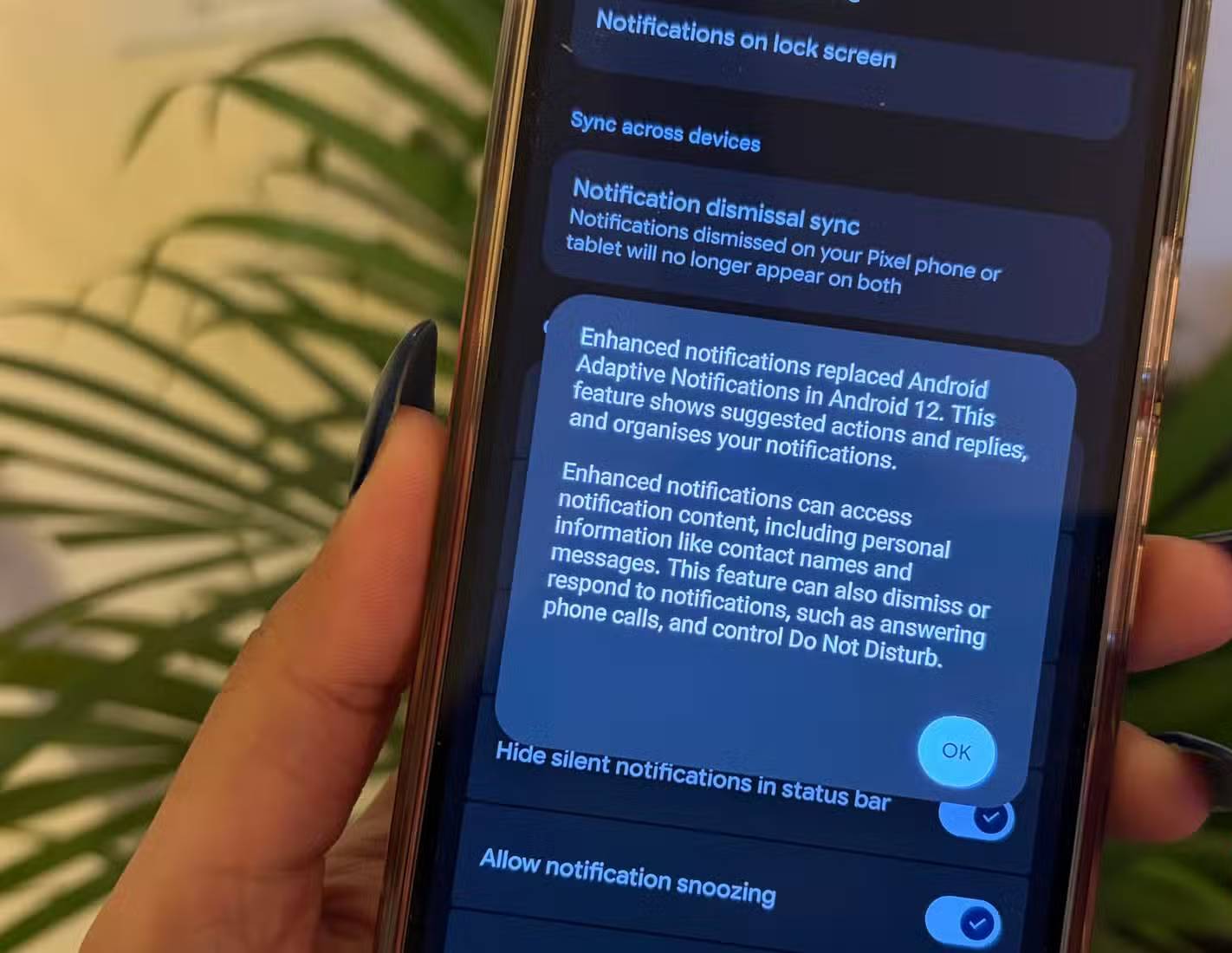
On Google Pixel phones, this feature is called Enhanced Notifications, and it replaced Adaptive Notifications in Android 12. Essentially, it's designed to make notifications less cluttered and more helpful, rather than constantly prompting you to check your phone.
In everyday use, this means your phone starts displaying smarter, more contextually relevant suggestions right within notifications. For example, if your boss texts asking, "Are you on your way?", you might see quick reply options like "I'm on my way" or "I'm running late" without opening the app. If a delivery app updates your order status, notifications will show helpful actions like tracking the package or contacting support, right when needed.
Enhanced Notifications also works in the background to organize alerts, making important ones stand out while less important ones fade away. Over time, this also reduces the habit of unlocking your phone every time you receive a notification. And once you do receive an important notification, enabling this setting will also help you respond more intelligently.
Warning : To do all of this, the feature needs access to notification content, including your personal information such as contact names, message texts, or call details.
Using this context, it can perform simple actions on your behalf, such as ignoring irrelevant notifications, suggesting replies, answering or rejecting phone calls, and even managing interruptions by adjusting Do Not Disturb settings as appropriate.
How to enable Enhanced Notifications
A simple action that takes only a minute but yields daily results
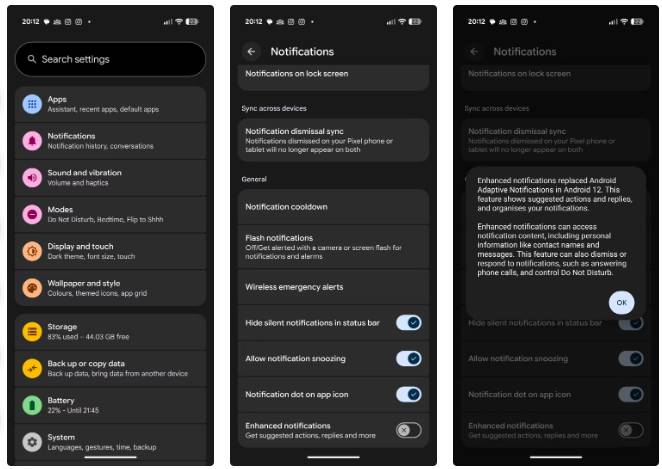
To enable these features, simply follow these easy steps. It only takes a minute:
- Open the Settings app on your smartphone.
- Go to the Notifications section.
- Scroll to the bottom of the page.
- In the General section, turn on Enhanced Notifications .
- A pop-up window will appear explaining the function of this feature. Please take some time to read it carefully, then click OK to confirm.
And that's it! Enhanced Notifications are now enabled on your phone. This will make notifications less annoying and much more useful.
A quiet phone would be better
Pixel phones are packed with AI features, many of which rely on cloud connectivity to function optimally. Enhanced Notifications is one such feature, often overlooked, even by Pixel users. Part of the reason is that it wasn't designed to make an immediate impact. It's a subtle tweak, and its true value is revealed gradually through daily use, rather than as a noticeable, instantaneous change.
Once activated, it will subtly intervene to reduce the noise, allowing important notifications to reach you without constantly interrupting the present moment. Over time, you'll find yourself responding more purposefully and having better control over what needs your attention.
In a world where every brand tries its best to showcase its AI capabilities, this is a rare example of doing the opposite. It doesn't interfere, assists when needed, and fades into the background when not required. And frankly, that's exactly how AI on smartphones should work.
Final Thoughts
Use this guide as a practical checklist for how to enable enhanced notifications to manage android notifications. Work through the steps in order, verify each result, and adjust the options to match your needs.
FAQ
What do you need before following this How to Enable Enhanced Notifications to Manage Android Notifications guide?
Review the required tools, accounts, settings, or materials mentioned in the article. Learn how to enable enhanced notifications to manage Android notifications with clear steps.
What are the main steps for how to enable enhanced notifications to manage android notifications?
Follow the sections in order, especially What does the Enhanced Notifications feature do?, Help important information stand out, How to enable Enhanced Notifications. Complete each step before continuing and verify the result as you go.
What should you do if the process does not work as expected?
Recheck the prerequisites, update the relevant app or service, review the settings, and repeat the step that caused the issue. Use any troubleshooting notes included in the guide.
Related Articles
 5 Reasons to Enable Enhanced Protection in Chrome6 minutes read
 How to Enable Flash Notifications on Android6 minutes read
 How to Enable Enhanced Anti-spoofing Windows 10?5 minutes read
 How to Enable 'Enhanced Safe Browsing' on Google Chrome: Step-by-Step Guide7 minutes read
 How to Enable Priority Notifications on iPhone - Create Notification Vibration3 minutes read
 How to Enable Notification Cooldown on Android 163 minutes read
Reader Comments 0
Sign in with email or Google to join the discussion.