Table of Contents
While its answer engine impresses in both research quality and speed, many of Perplexity's powerful features are often overlooked.
Perplexity has quickly become an alternative to conventional search engines. While its answer engine is impressive in both research quality and speed, many of Perplexity's powerful features are often overlooked.
You can use Perplexity to automate tasks that run based on specified time criteria, turn useful research topics into shareable pages, create custom spaces for different projects, and upload documents to summarize them instantly. Perplexity is more than just a search engine, and understanding these features can help you get the most out of it.
Visit Perplexity Download Perplexity from the Google Play Store Download Perplexity from the App Store
Focused search
Set up search sources
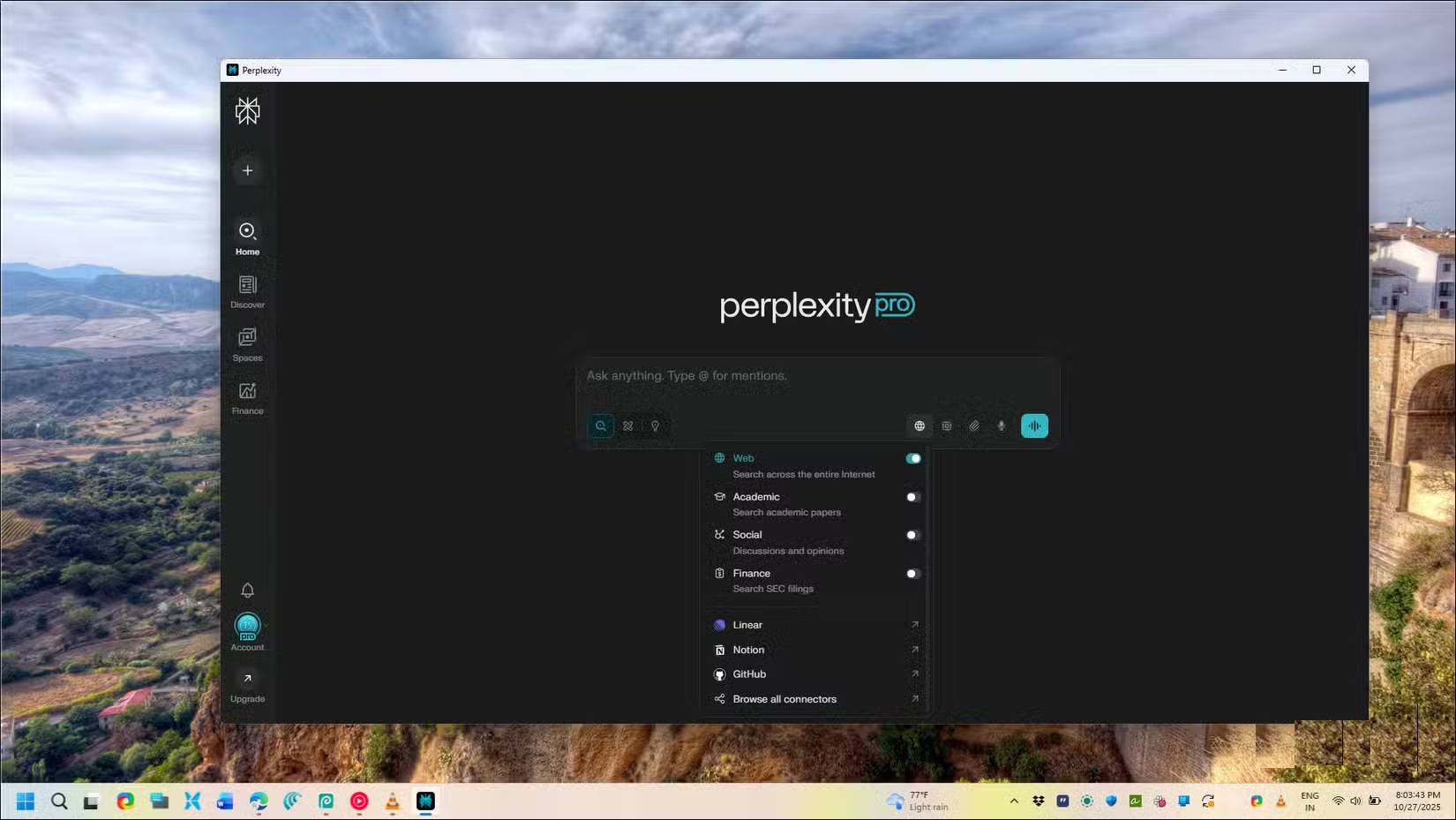
Most people use Perplexity's default web search engine for everything, but what you might not know is that you can also control the search source. The Choose Search option (formerly Focus mode) lets you limit your search to specific types of sources.
For example, in a new topic search, click the Globe icon ( Set a source for search ) and select Web To see general Internet results, Academic To see peer-reviewed articles from databases like PubMed , Social To see Reddit discussions and forums, or Finance To see SEC filings and market data.
This targeting makes a significant difference in the quality of your results. When researching health topics, switching to Academic mode will filter out blog posts and give you evidence-based studies. And when you need real-world user experience on a product, Social mode pulls information from discussion forums where people share honest feedback.
Perplexity Spaces
Organize projects with custom guides
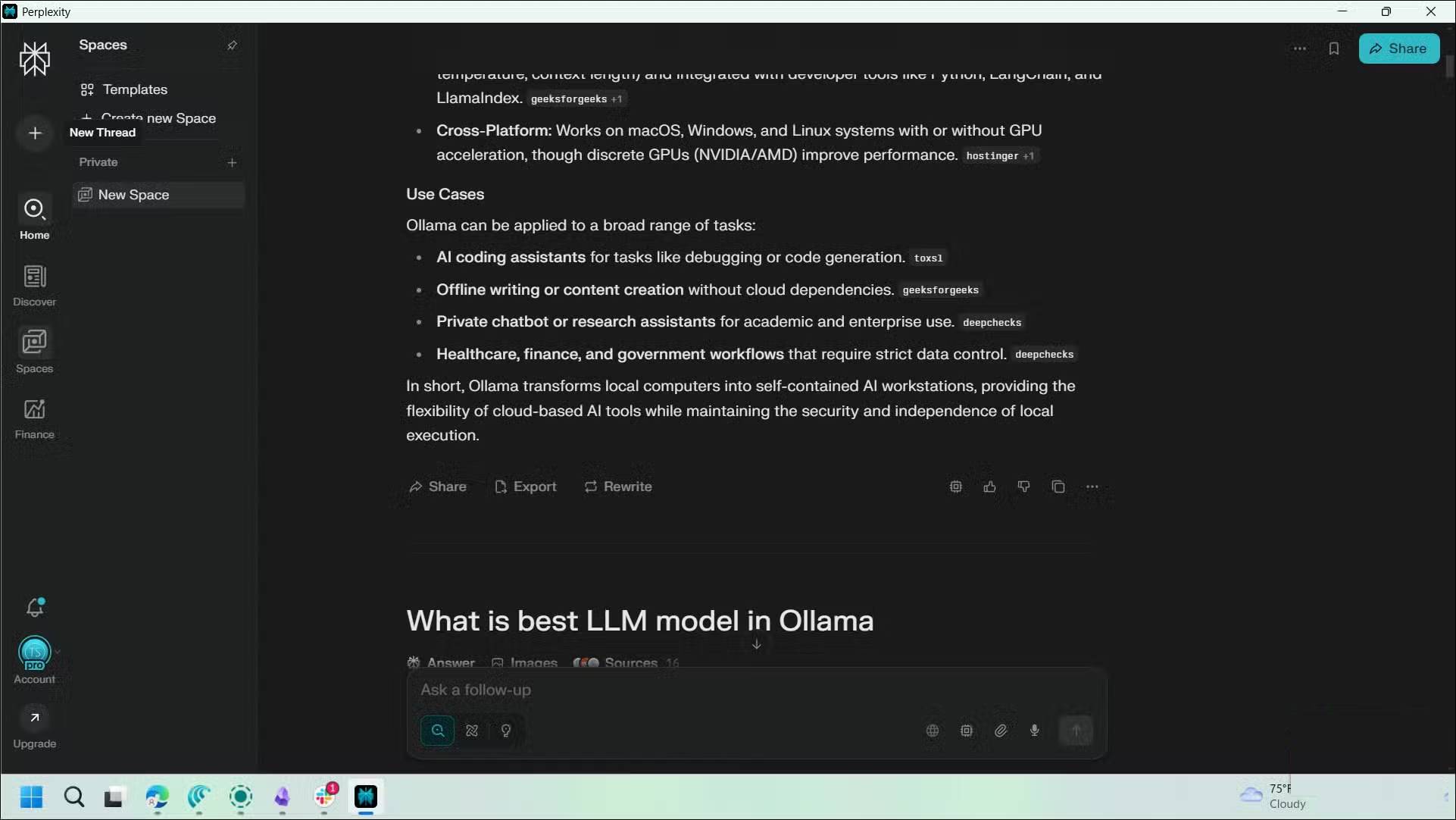
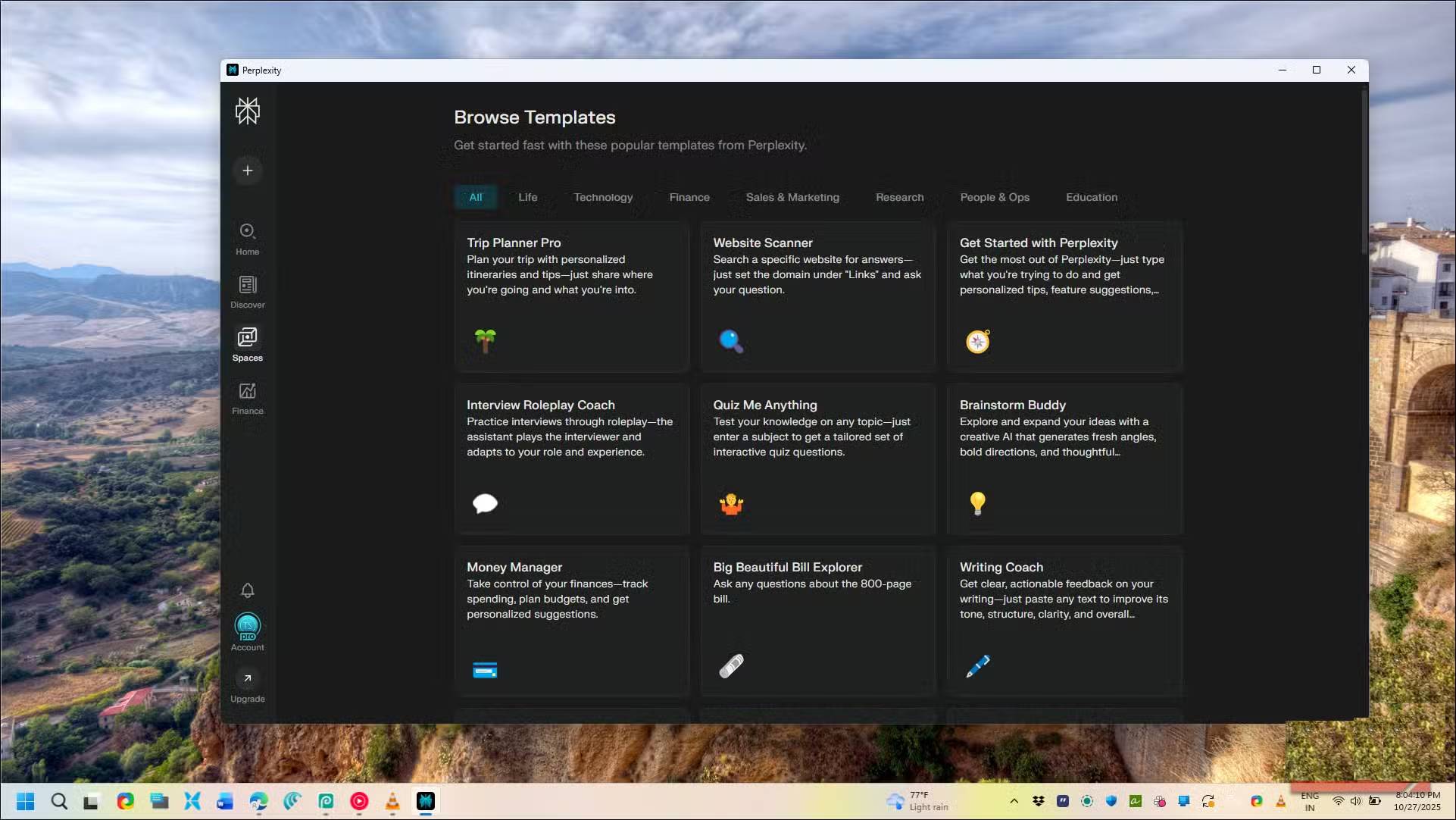
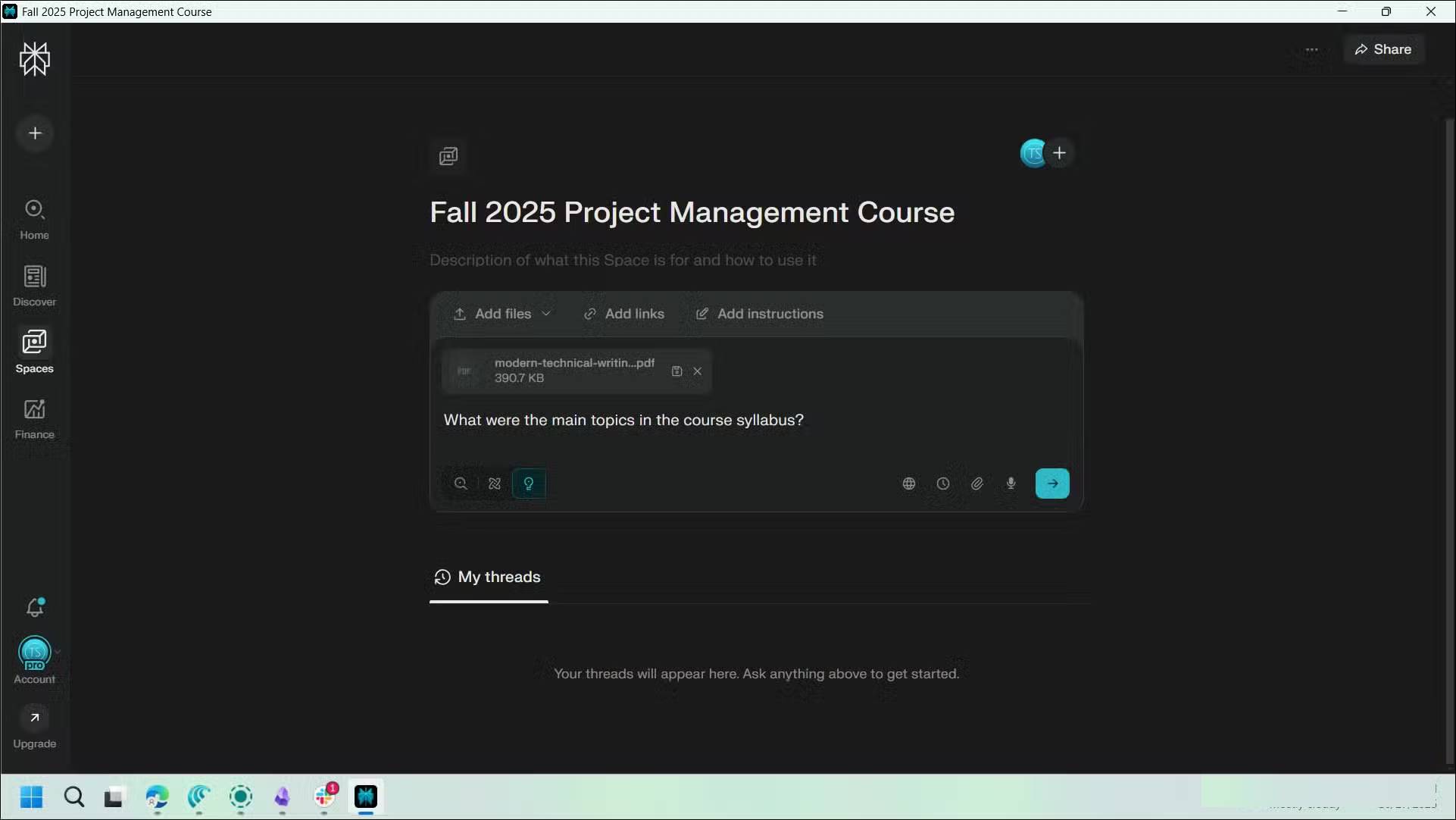
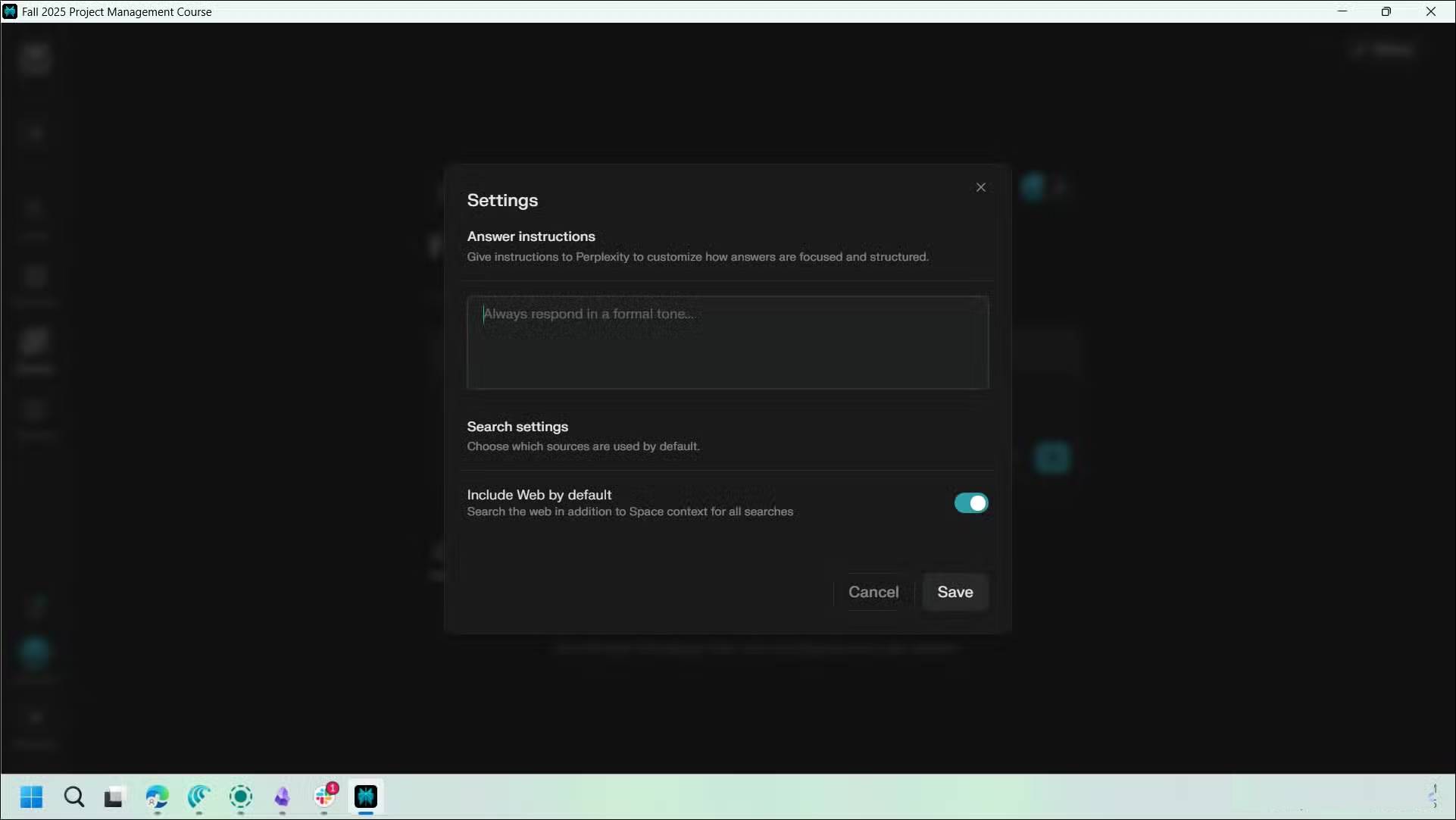
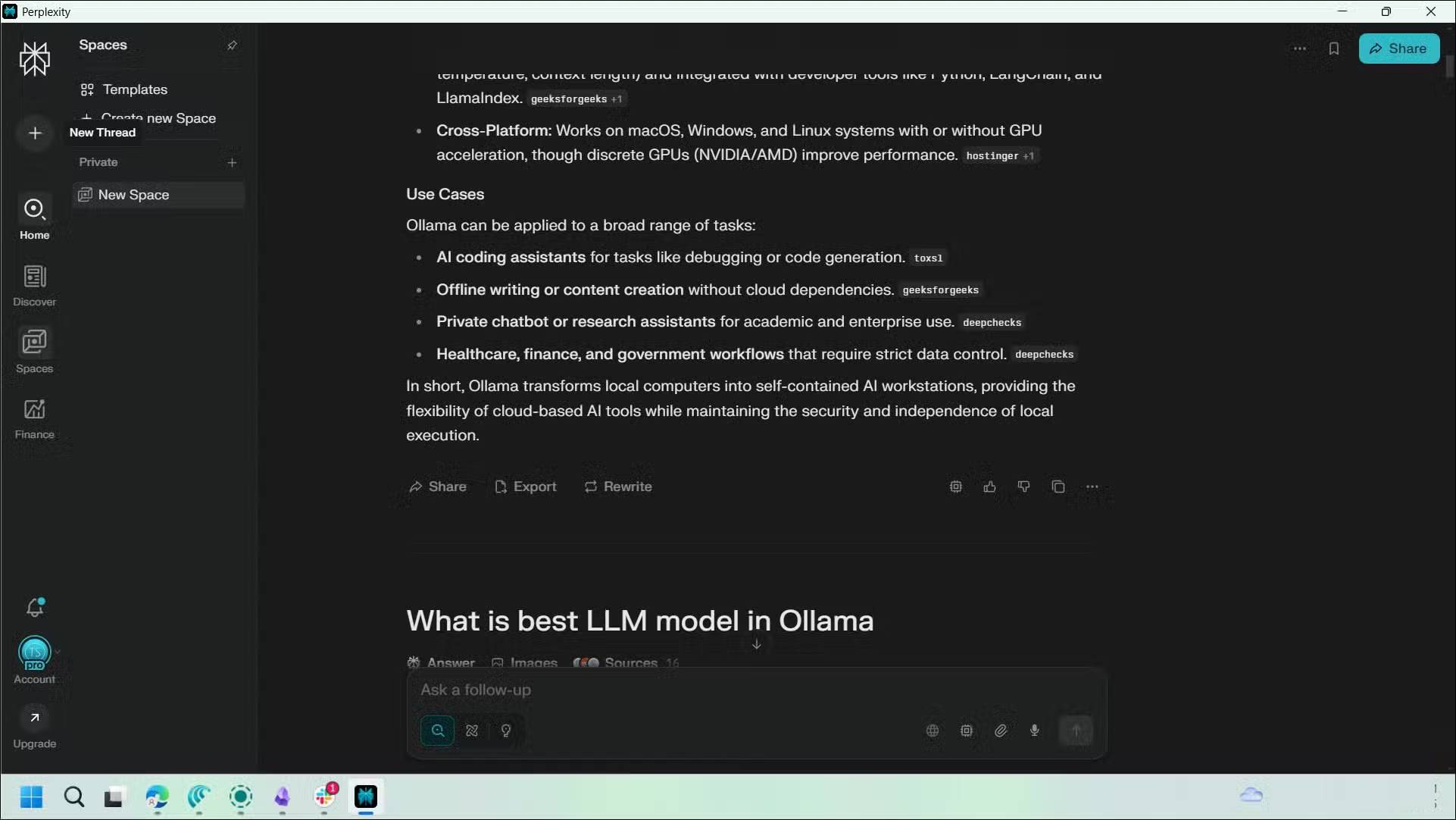
Spaces work like project folders, but they're more than just a simple organization tool. To create a new space, click the Spaces Tab in the left pane and click Create a space . Each space can have its own custom guidelines, which shape how Perplexity answers every question in that space.
You can create a space for YouTube Research , add guidelines to always provide video title ideas and competitor analysis, and each new topic will automatically follow those rules.
Tasks
Automate recurring searches
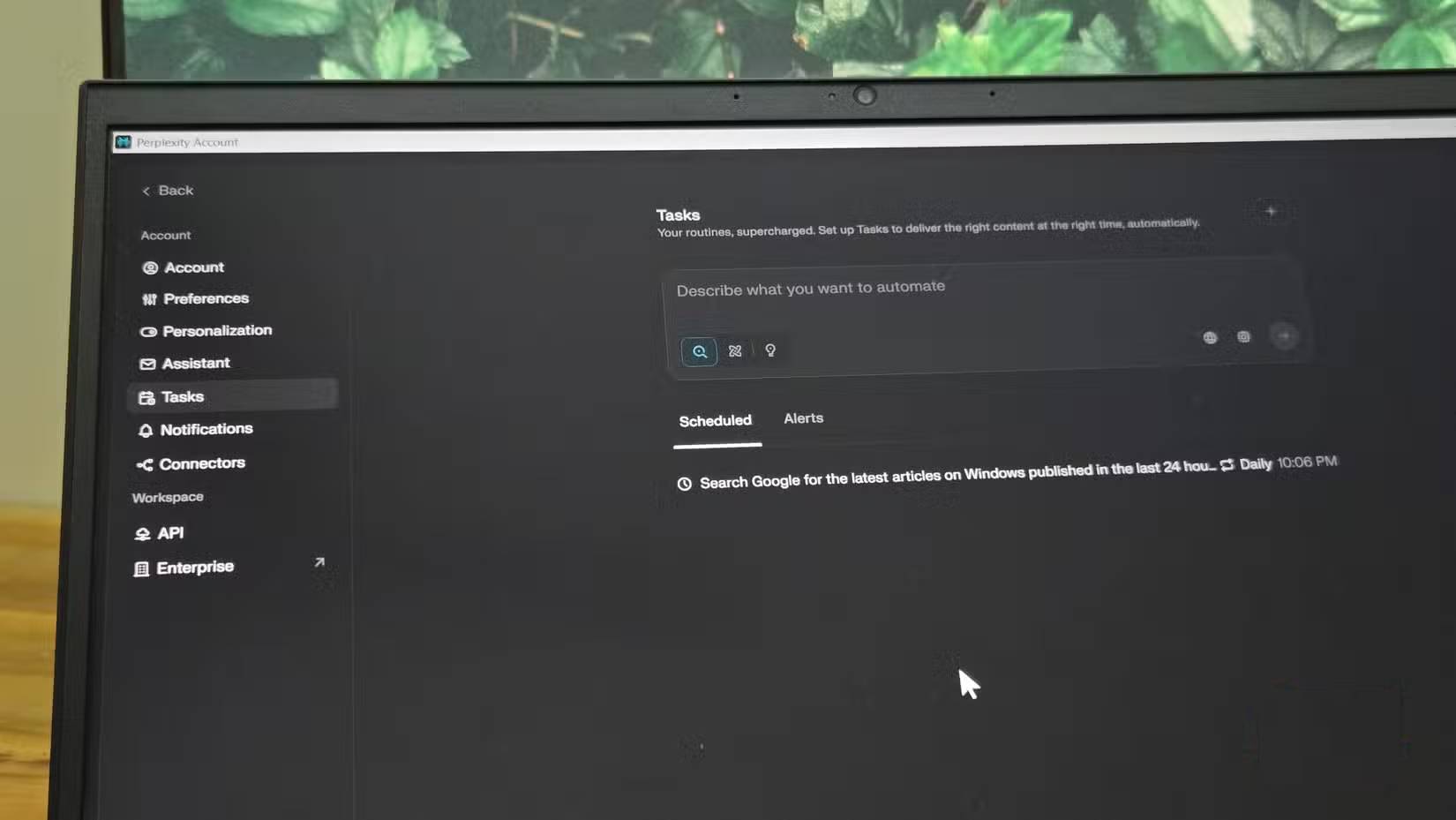
Tasks let you schedule prompts to run automatically in Perplexity. You can set searches to run daily, weekly, or at specific times, and Perplexity will email the results or display them in your dashboard.
To create a new task, click the Profile Icon in the sidebar, then select Tasks . Click the plus (+) icon in the library, create a new task, enter your query like "Find the latest tech news from the last 24 hours," and set the time you want it to run.
Task automation is useful if you perform repetitive searches.
Pages
Convert research topics into shareable pages
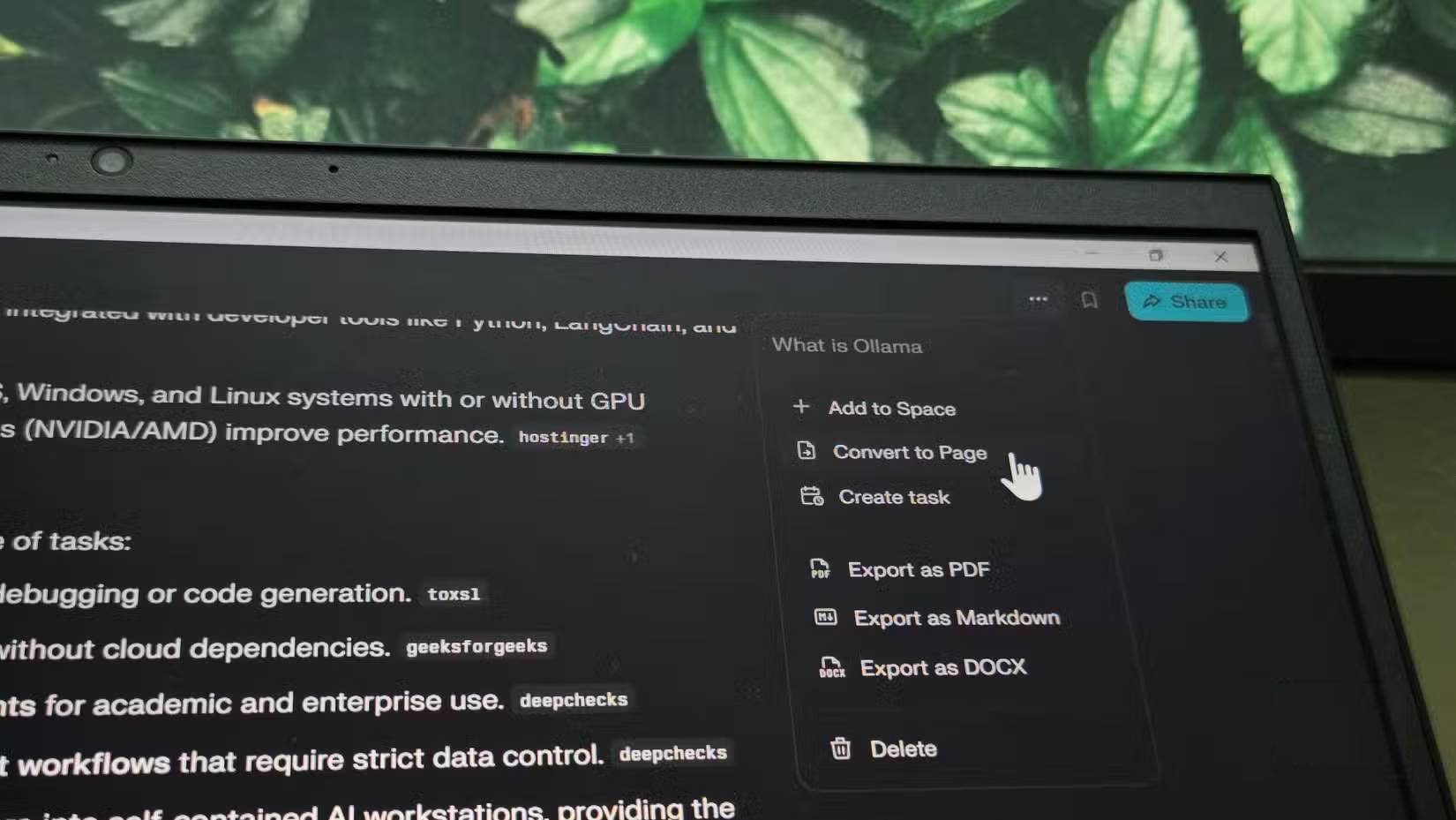
Pages is another handy Perplexity feature that many people don't even know about, even after months of using Perplexity. Within the app, you can turn your well-researched topics into polished, shareable web pages with proper formatting, sections, and headings.
To create a page, open a topic, click the three-dot menu in the upper right corner, and select Convert to page . Perplexity will create a neat document with all your research organized. You can add featured images, edit sections, and fine-tune the content. Finally, click Publish To save the page.
Attached file
Upload file for more context
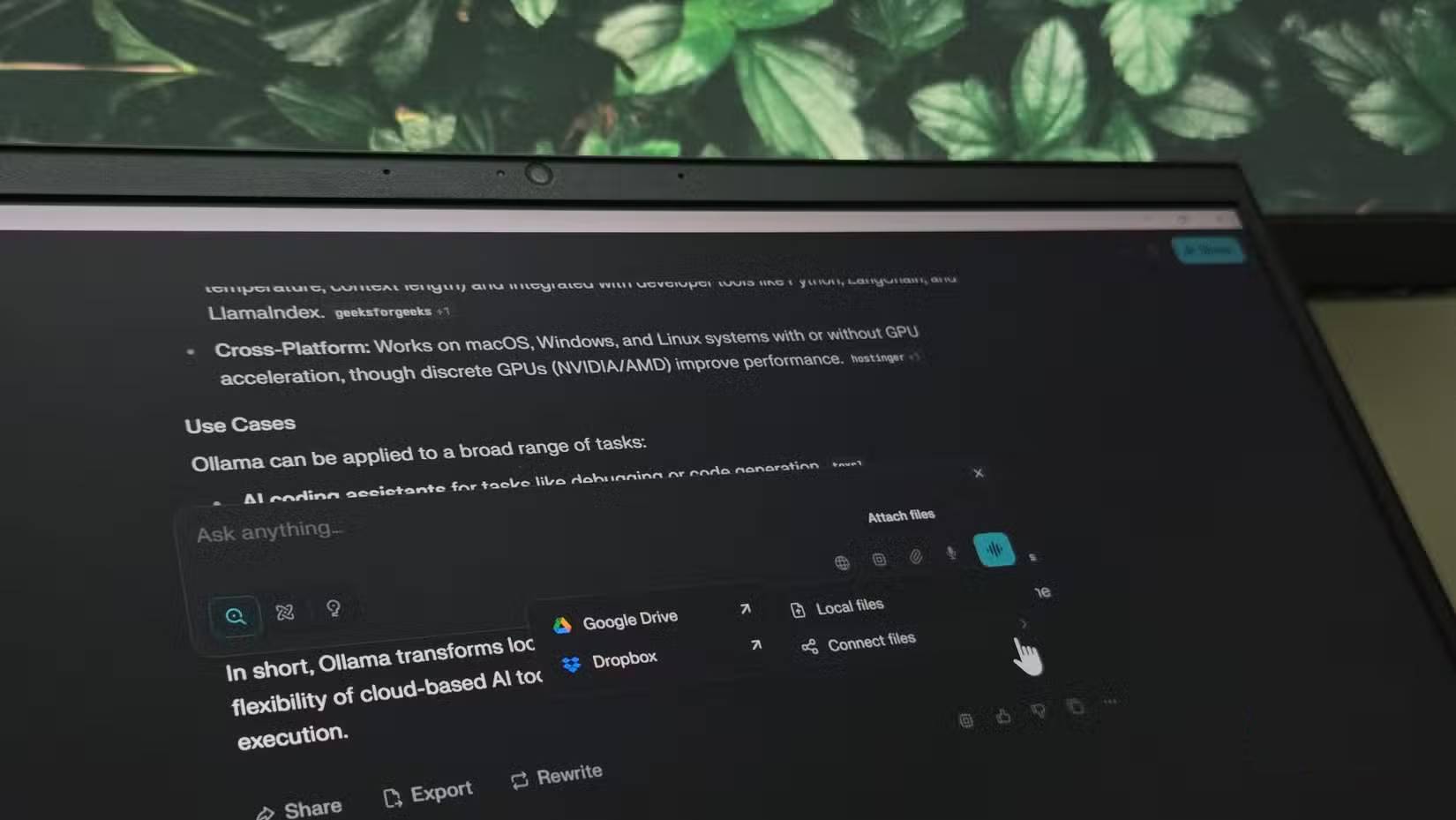
One area where LLM programs excel over humans is the speed at which they process information. Perplexity's file attachment feature can help you quickly process lengthy technical documents or research papers and find specific information.
Instead of typing information from documents, you can upload PDFs, images, and other files directly to Perplexity. Perplexity will read the content and allow you to ask questions about it. For example, if you get an error setting up your local LLM program on your computer, take a screenshot of the error message, upload it, and provide enough context about the problem. This has helped troubleshoot the problem with step-by-step instructions.
FAQ
What should you know about the options in this guide?
In practical terms, while its answer engine impresses in both research quality and speed, many of Perplexity's powerful features are often overlooked.
Which option is the best choice?
The best choice depends on your priorities, compatibility, budget, and the specific features discussed in the comparison.
What should you compare before deciding?
Compare core features, limitations, ease of use, compatibility, and long-term value before making a decision.
Related Articles
 How to Write Effective Perplexity Prompts5 minutes read
 What Is Perplexity Assistant? Complete Guide6 minutes read
 How to Create API Key Perplexity8 minutes read
 How to Use the Space Feature in Perplexity AI7 minutes read
 Why Is a Perplexity Pro Subscription Worth It: Causes and Fixes6 minutes read
 A Comprehensive Guide to Academic Knowledge on Perplexity AI3 minutes read
Reader Comments 0
Sign in with email or Google to join the discussion.