Table of Contents
The constant maintenance felt like a part-time job. This realization prompted them to explore alternatives, which led them to Joplin, and they have never regretted the switch.
The idea of building a 'second brain' has intrigued many people since discovering Obsidian a few years ago. They've spent years building their knowledge base, creating thousands of interconnected notes on technology, 3D printing, business, and side projects. The promise of turning their disparate thoughts into an intelligent system that enhances their thinking and creativity is what really drives them.
Unfortunately, people spent more time organizing, formatting, and maintaining the system than they did using it. The constant maintenance felt like a part-time job. This realization prompted them to explore alternatives, which led them to Joplin, and they have never regretted the switch.
Why Joplin?
Registration, sync and speed will help you make a clear decision
While there are a number of offline note-taking apps to choose from, many people end up choosing Joplin. Free Obsidian users face significant limitations. Notes are stuck on separate devices because syncing requires an unaffordable subscription. With many service fees already out of your budget, you need a note-taking solution that works without incurring additional costs.
Performance becomes another concern as the archive grows to thousands of notes, spanning AI, computing, 3D printing, writing projects, etc. Searching becomes slow and the chart view becomes nearly unusable on older devices.
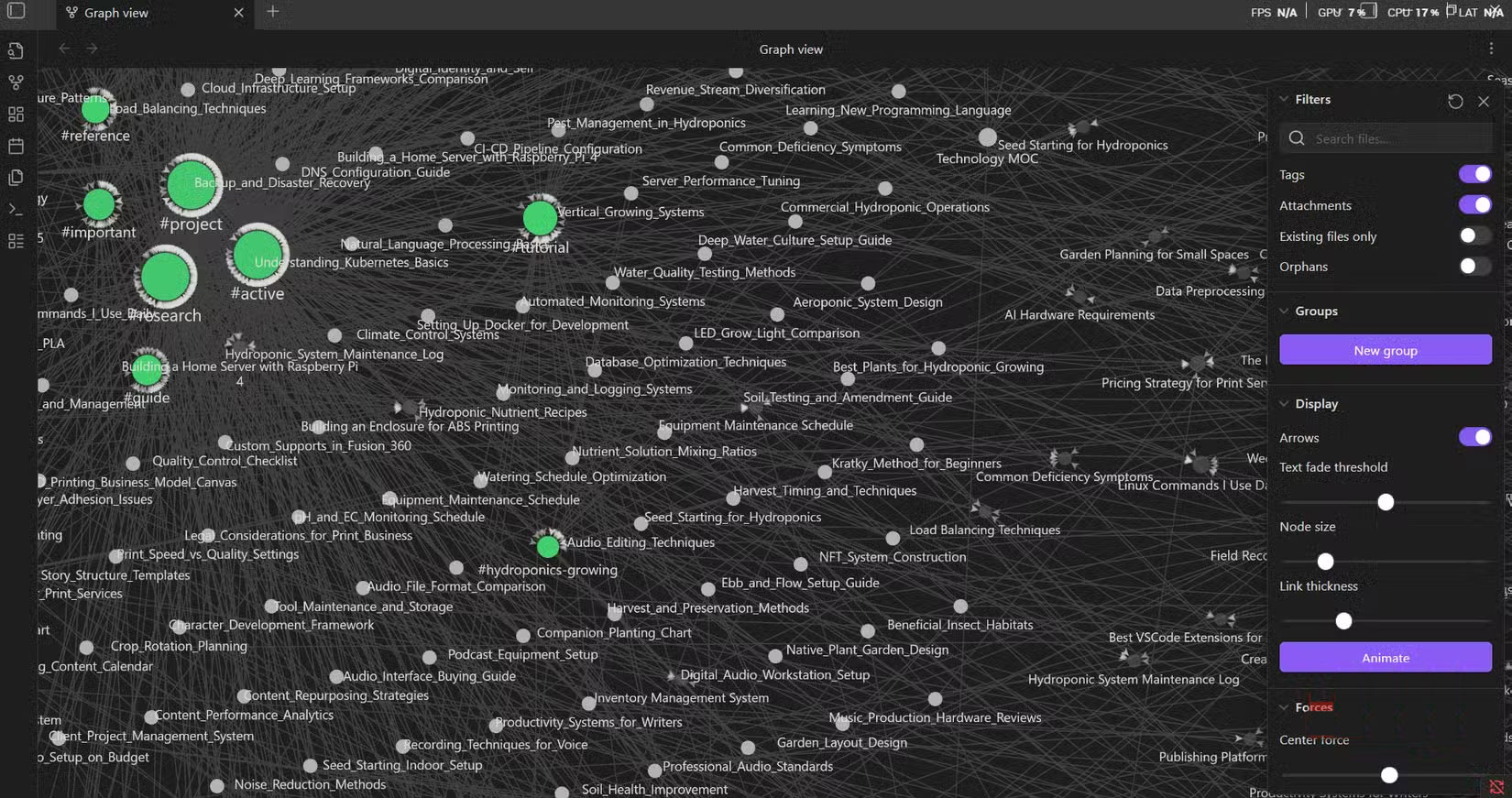
These real-world challenges point to a different approach. Joplin offers true open source freedom with no registration required, unlimited storage, and reliable syncing using existing cloud storage. The decision becomes solid when you realize you're spending more time fiddling with your tools than focusing on actual work.
How to use Joplin
From random ideas to comprehensive project workflows
This article will walk you through how to use Joplin to streamline your workflow. Start by clipping a post using the Joplin extension to get started on your project.
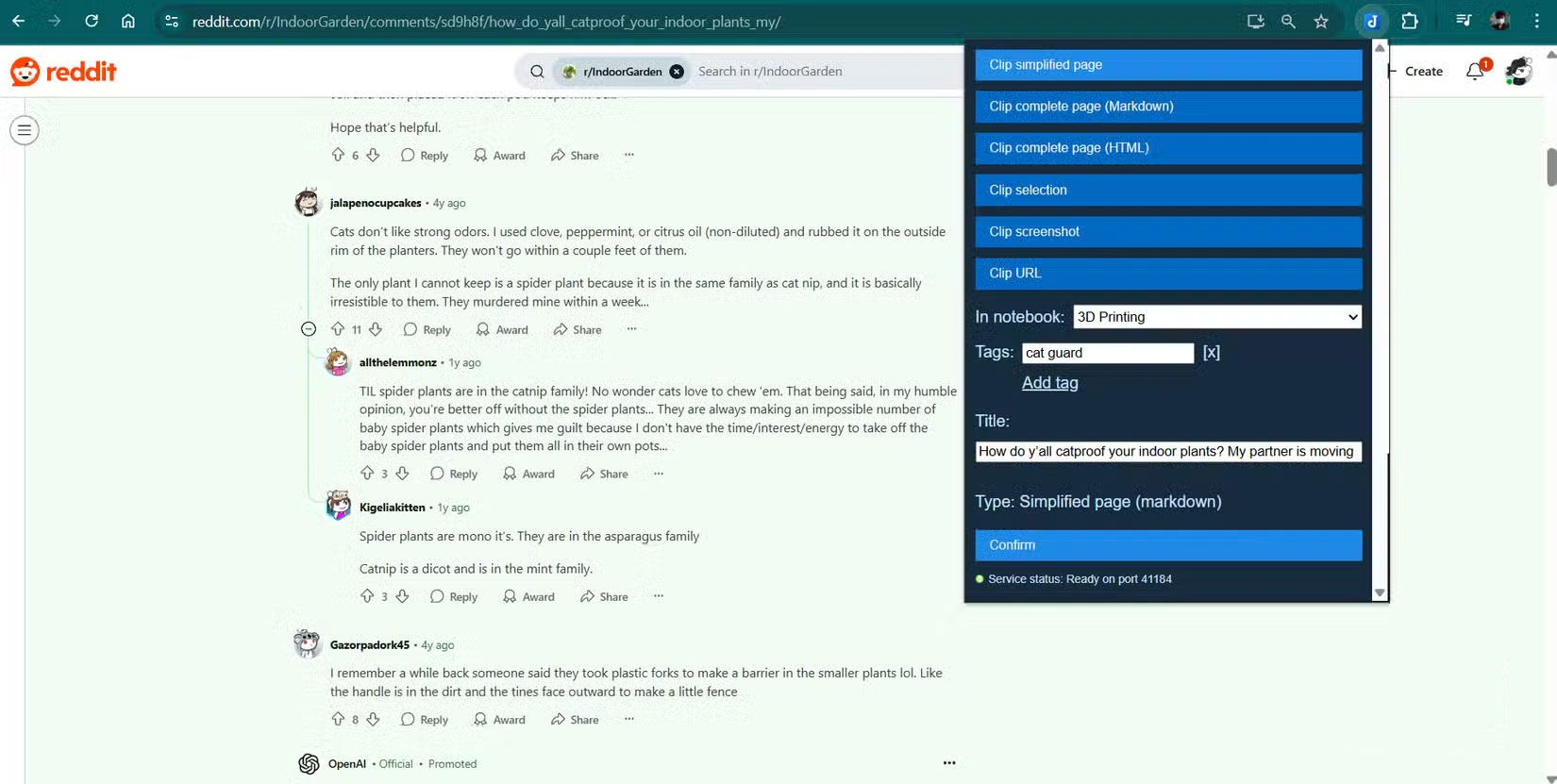
To clip ideas, simply use the Joplin Web Clipper extension. It can highlight all the useful information, including text and images, and then use the Clip selection Option. This lets you clip only the visible content, so you don't have to deal with all the messy hidden CSS and HTML code that needs to be cleaned up when using full-page clipping. Once clipped, simply click the Open newly created note Option on the extension to open Joplin.
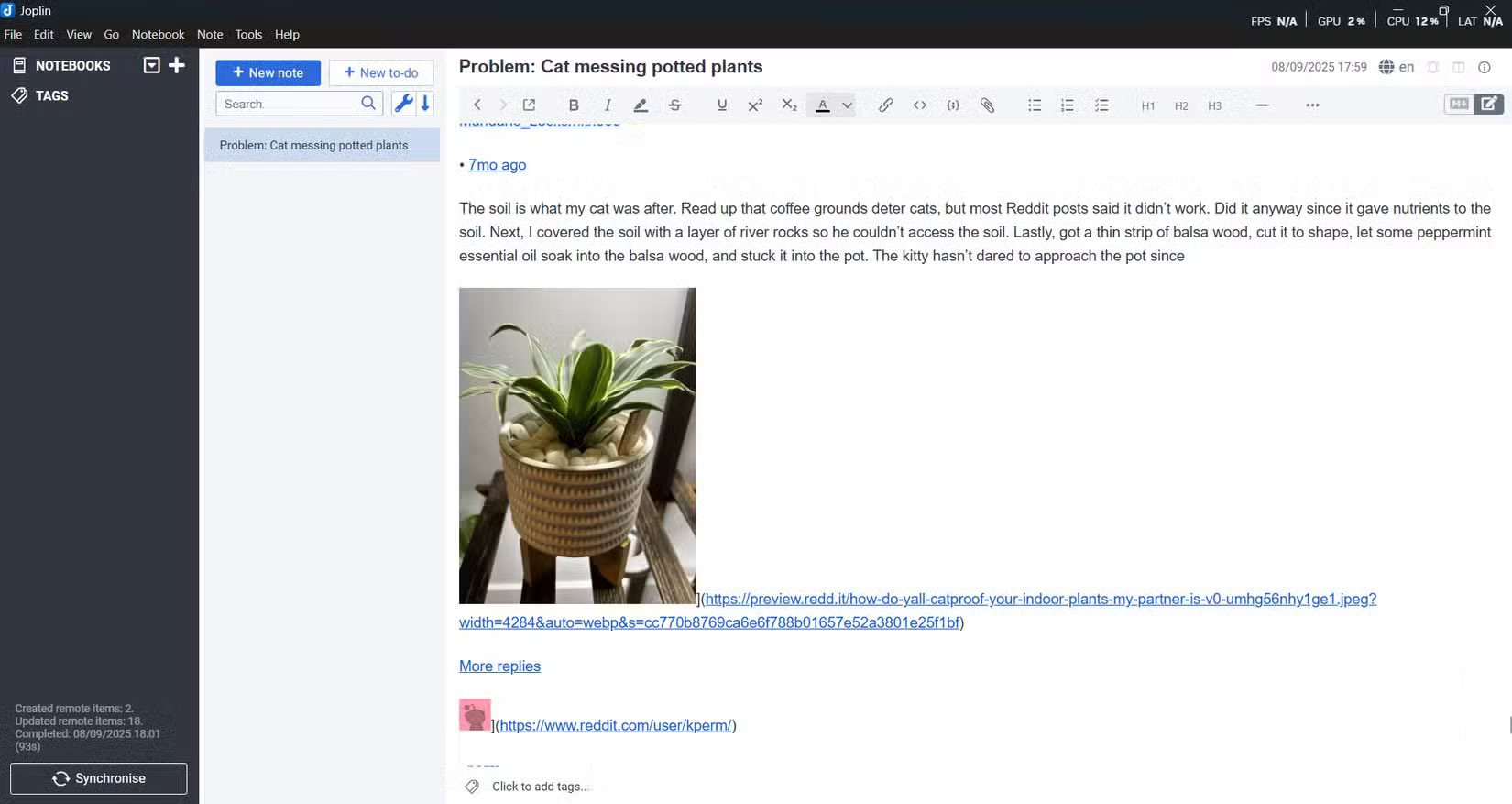
When you enter the Joplin app, your clip looks clean with photos, comments, and helpful links preserved, just as they appear on the page. No more formatting headaches or broken layouts to fix.
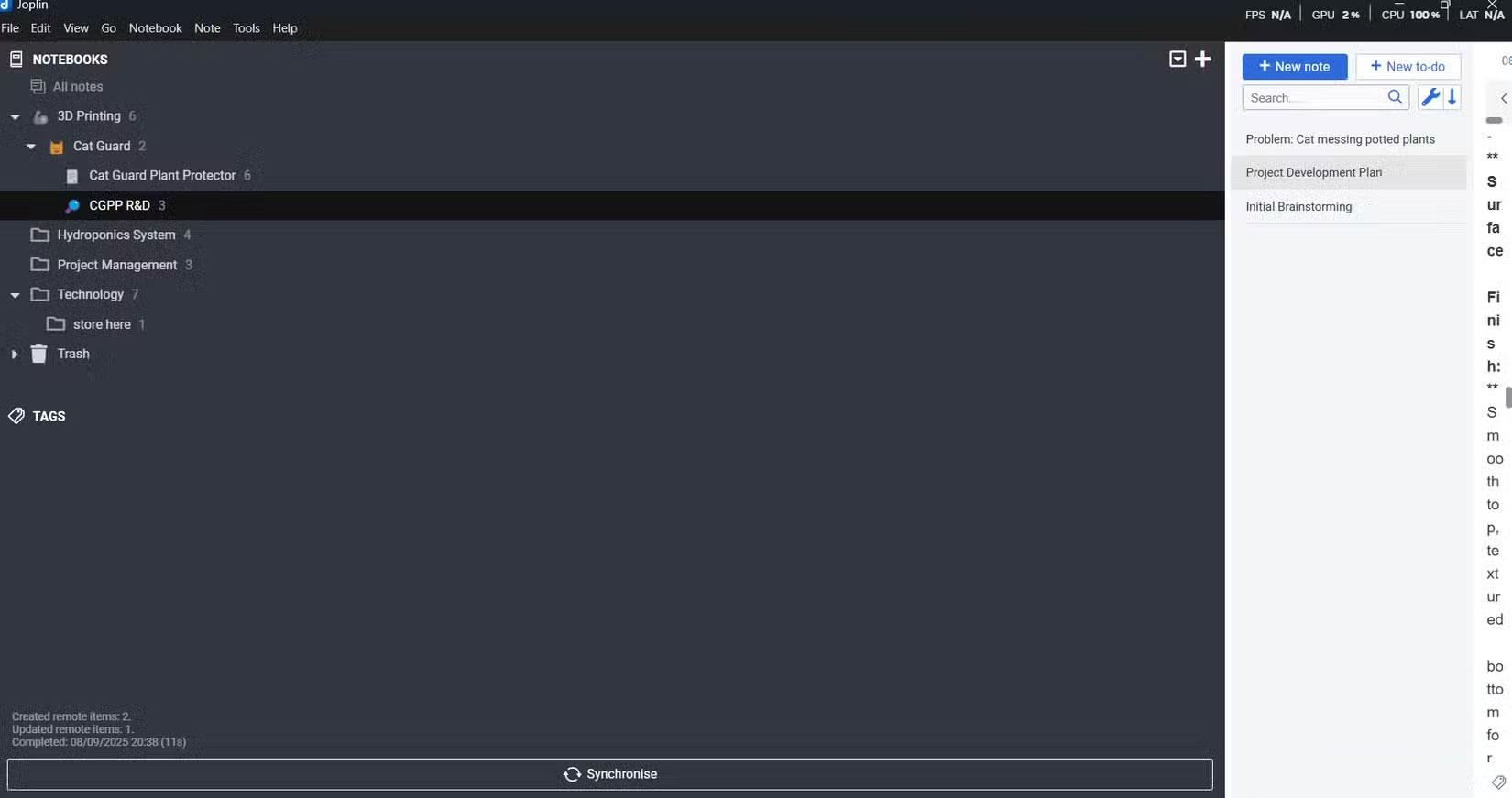
Now You should get organized. When using Joplin, many people like to create separate notebooks for each project to keep things organized and easy to find. Think of notebooks as filing cabinets, with each drawer having a specific purpose. For this project, I created a hierarchy with the main notebook 'Cat Guard' under '3D Printing,' then added sub-notebooks like 'CGPP R&D' for research and development, and another for checklists and task management.
Time to take notes! When taking notes, Joplin provides two panes. The left pane shows the markdown editor where you're typing, while the right pane shows a live preview of what it will look like when rendered. This split view makes formatting easy because you can see the results immediately without having to switch between editing and preview modes.
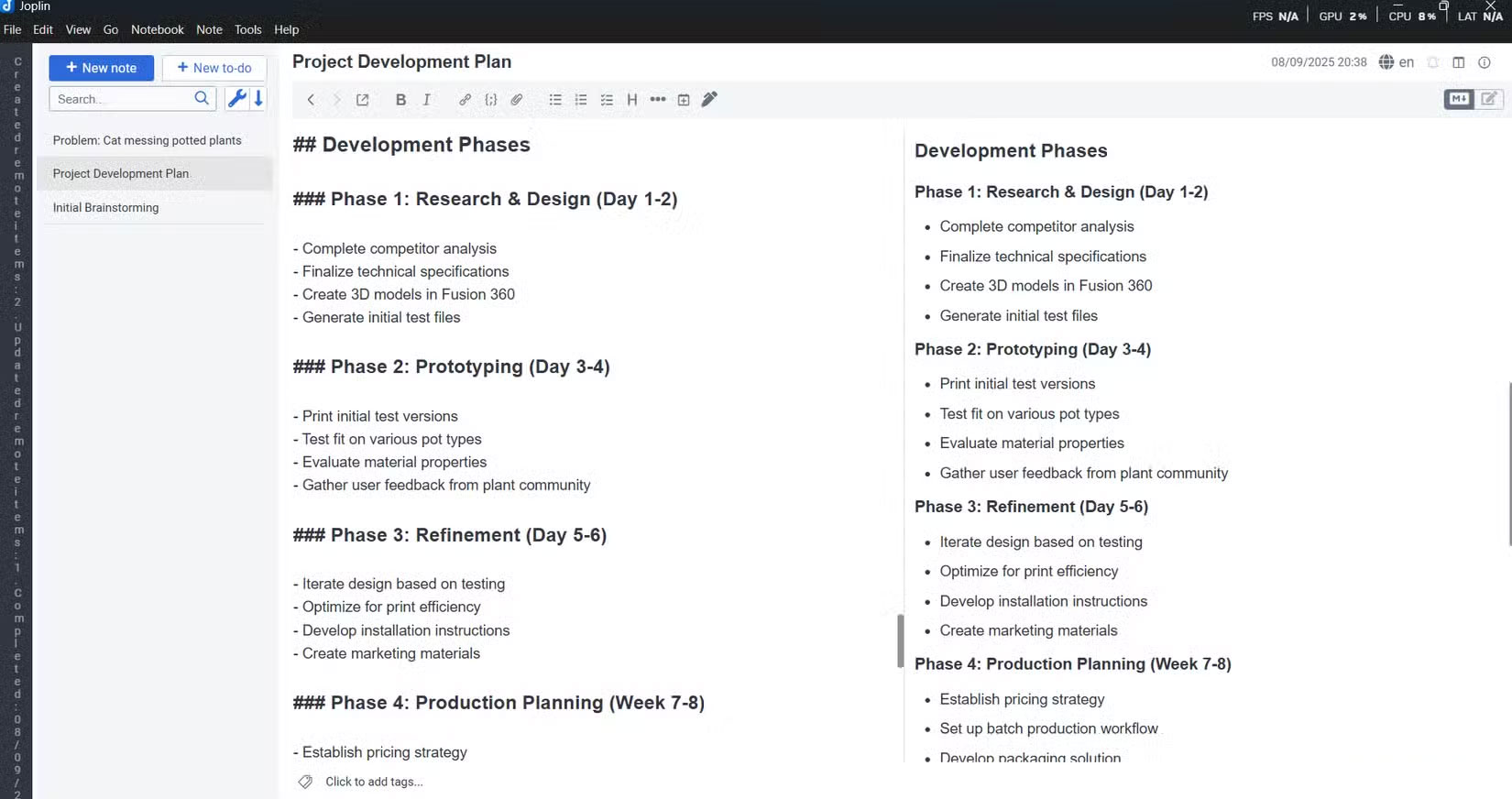
At this point, make all the necessary notes. Now, create another sub-notebook named "Cat Guard Plant Protector" inside the "Cat Guard" notebook. This sub-notebook will be used to hold all the checklists for the project.
For checklists, Joplin offers a To-Do button. People love this feature because it consolidates all the checklists across all your notebooks into one unified dashboard, making it easy to review later on your phone. To create an item in the list, just click New to do , add a title, then add a description if needed.
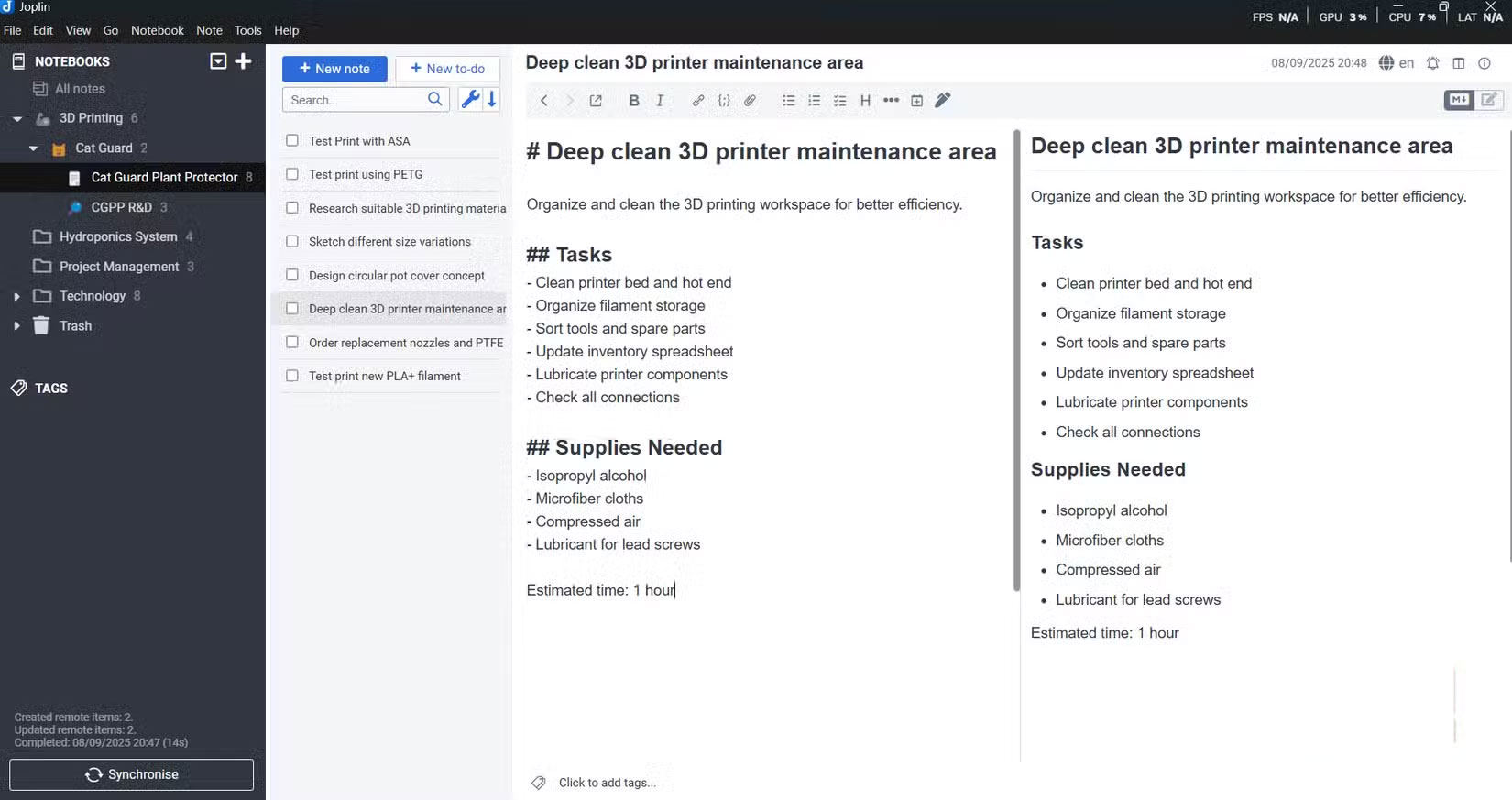
Once you have your entire project structure and task list set up, pick up your phone and tap Synchronize In the Joplin app. Everything you just created will appear on your mobile device within seconds. Your nested notebook structure, all your notes with their formatting intact, and your task list are instantly accessible.
You can continue researching, check off completed items, or add new ideas anywhere.
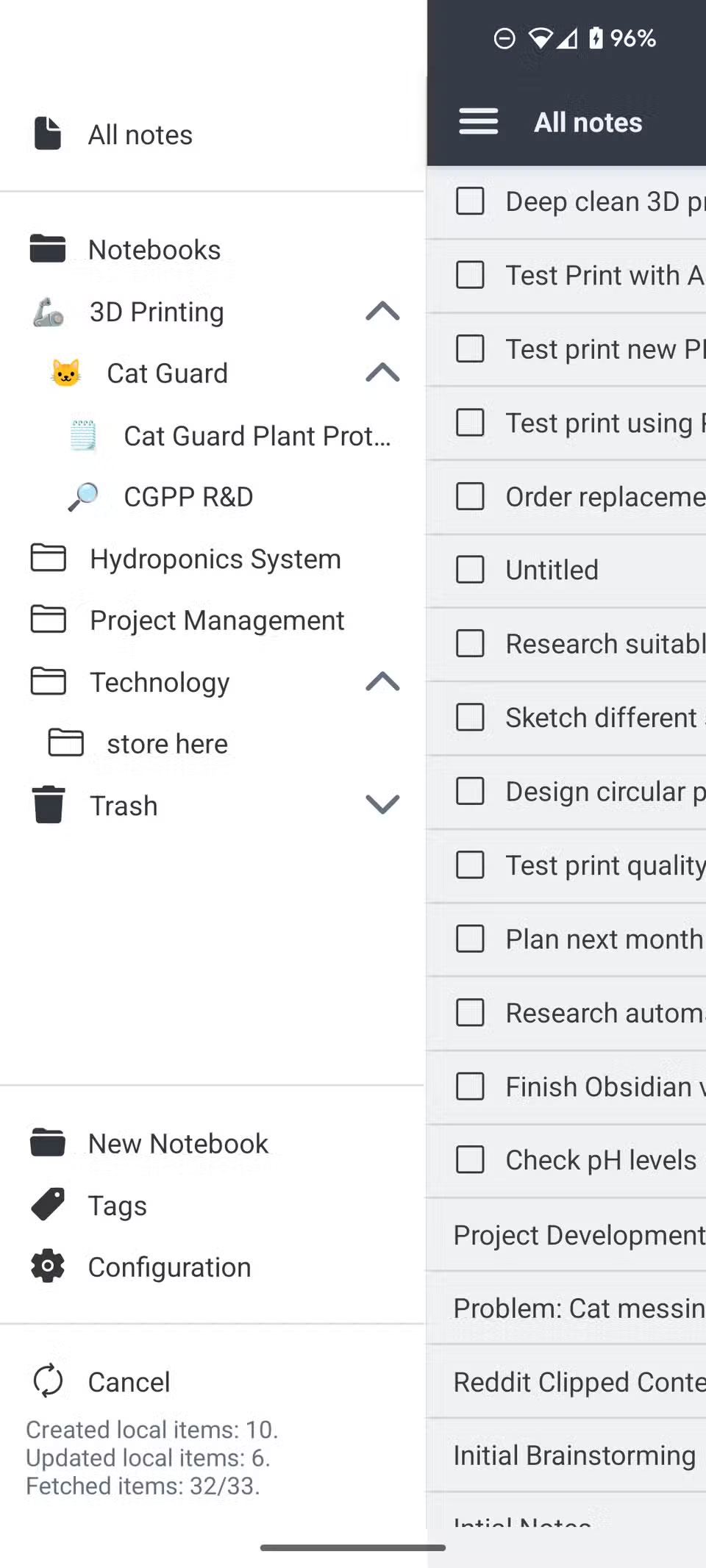
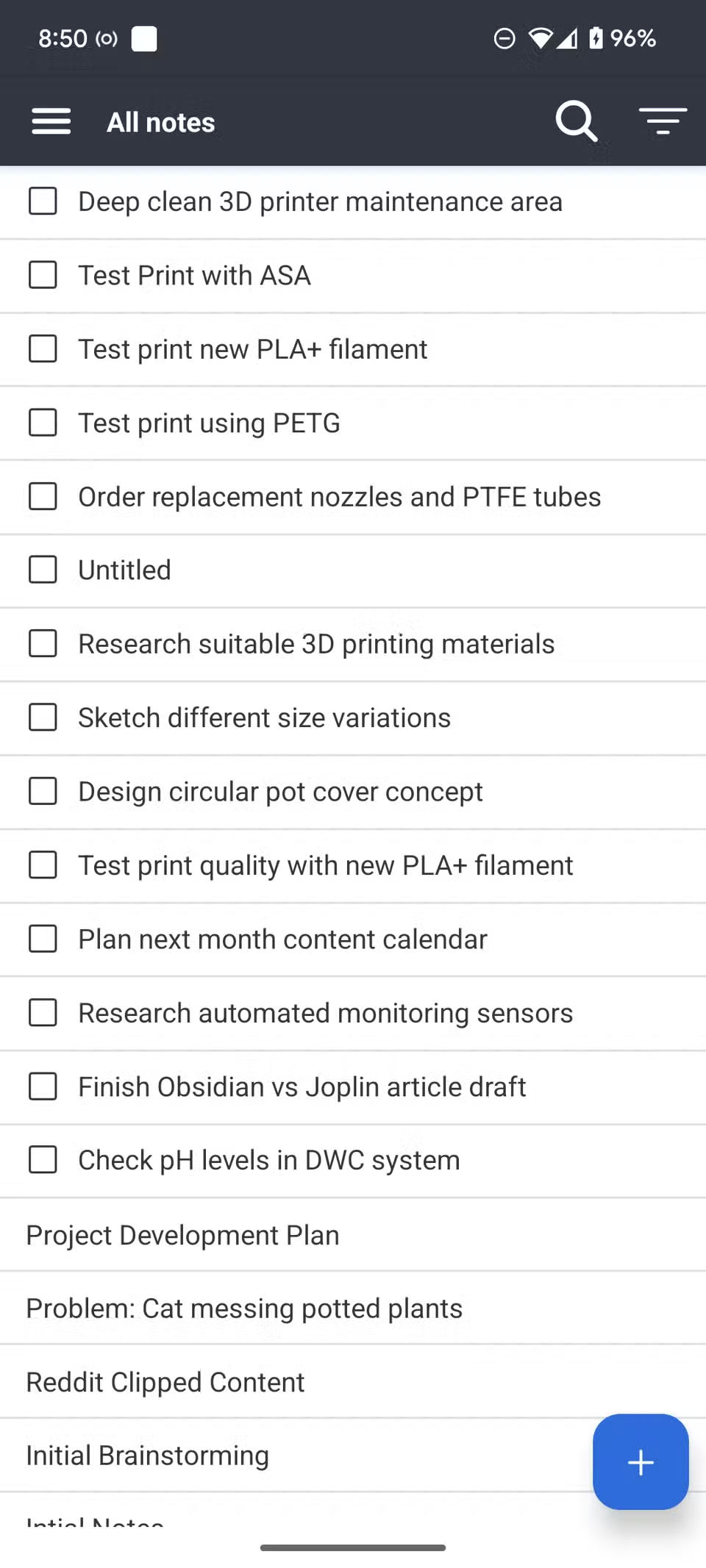
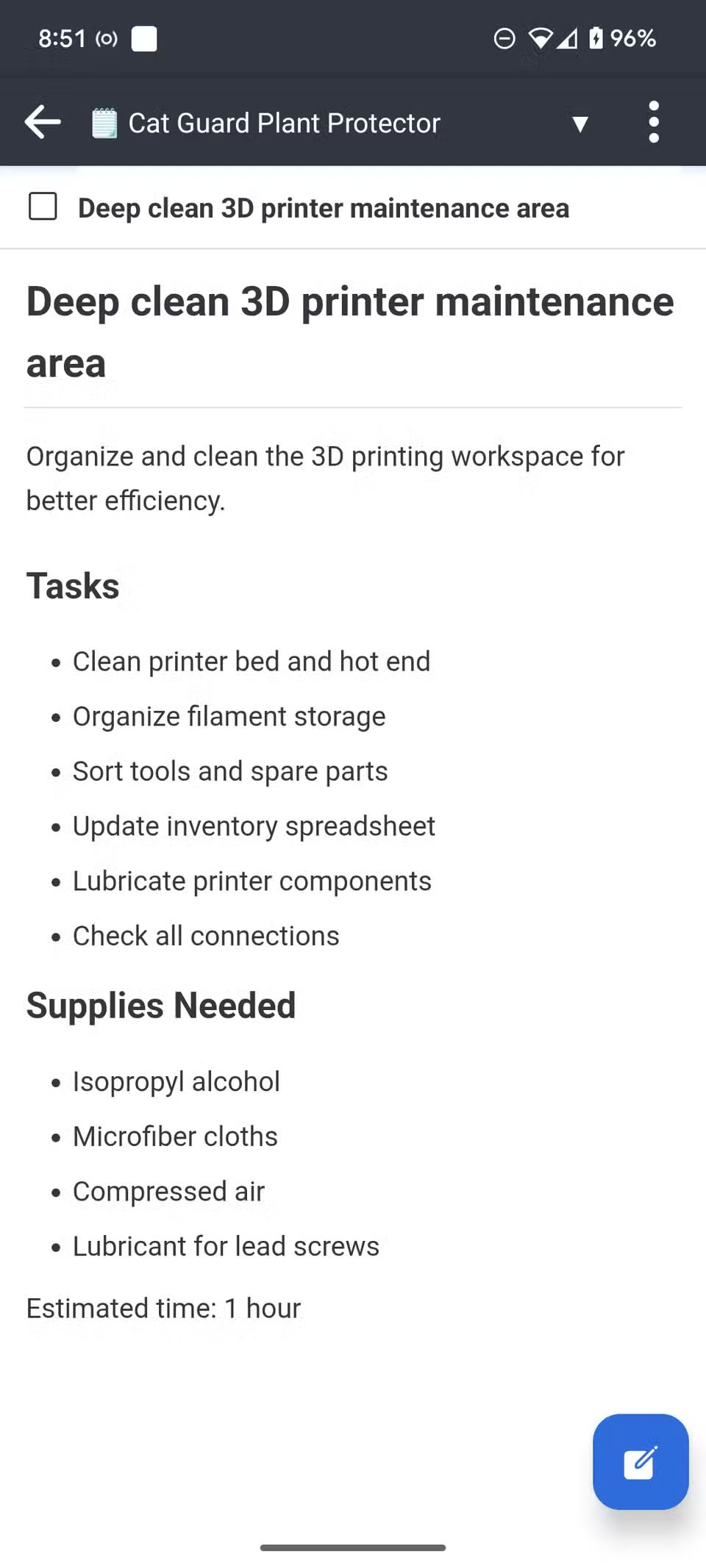
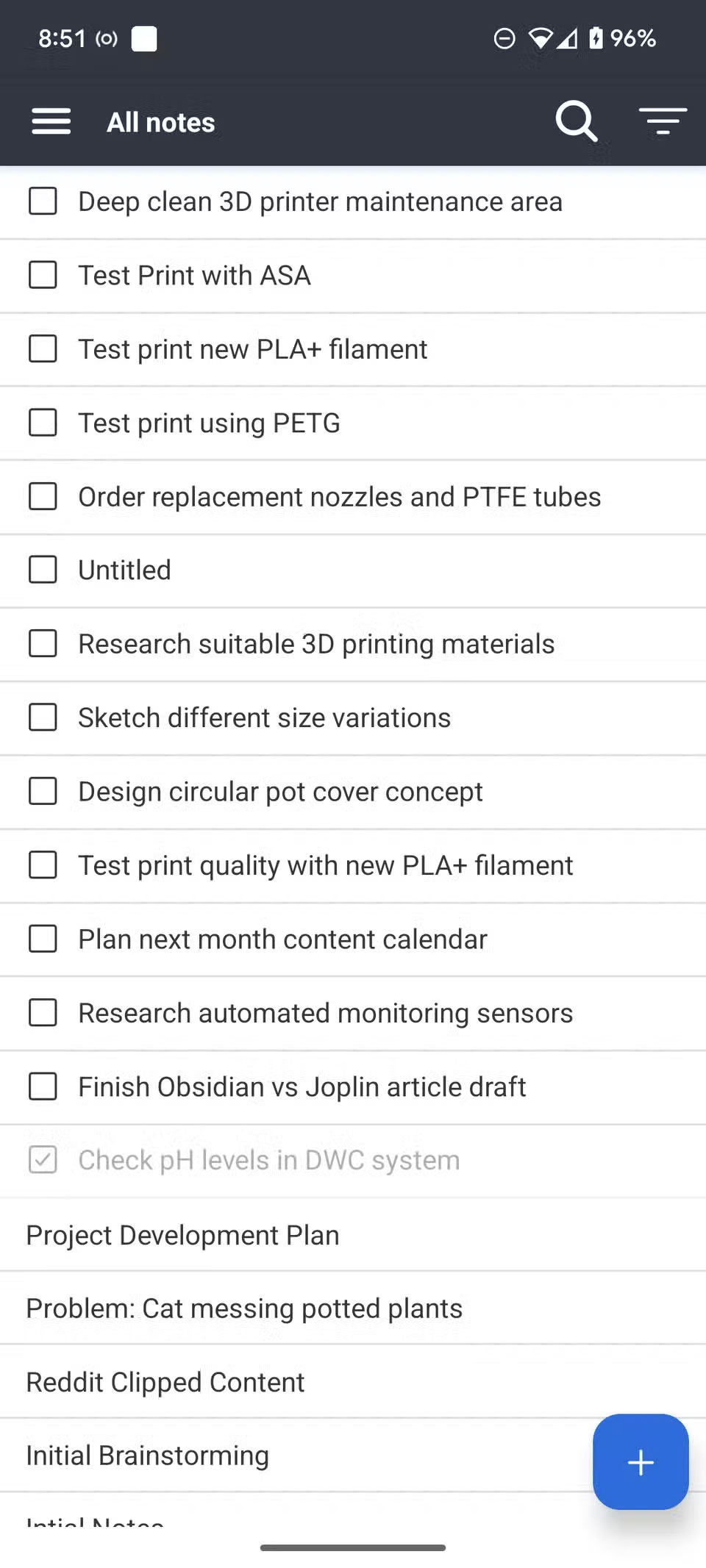
This workflow eliminates the costly maintenance that plagued previous setups. Overall, the process is fairly straightforward and is all done within Joplin without complex configuration or multiple tools.
FAQ
Why Switch from Obsidian to Joplin: Explained?
In practical terms, the constant maintenance felt like a part-time job. This realization prompted them to explore alternatives, which led them to Joplin, and they have never regretted the switch.
What factors are most important?
The article highlights that this realization prompted them to explore alternatives, which led them to Joplin , and they have never regretted the switch.
What is the main takeaway?
The main takeaway is that free Obsidian users face significant limitations.
Related Articles
 Why Should You Stop Switching Note-taking Apps to Obsidian?6 minutes read
 7 Reasons to Switch from Notion to Obsidian8 minutes read
 What Is Obsidian Note-Taking? Obsidian User Manual6 minutes read
 How to Use Obsidian with Local AI to Visualize Things9 minutes read
 7 Best Obsidian Plugins for Mobile: Complete Guide6 minutes read
 How to Combine Claude Code with Obsidian CLI8 minutes read
Reader Comments 0
Sign in with email or Google to join the discussion.