Table of Contents
Discover why is the linux-style firewall.
So when I stumbled upon TinyWall, I immediately fell in love with it. It brings that simple, no-frills feel that people love about Linux tools. The good thing is, instead of replacing Windows' built-in defenses, it tries to make them easier to use. And since the OS lacks such a tool, it's a welcome upgrade.
A simple way to use Windows Firewall
TinyWall retains the power but eliminates the distractions
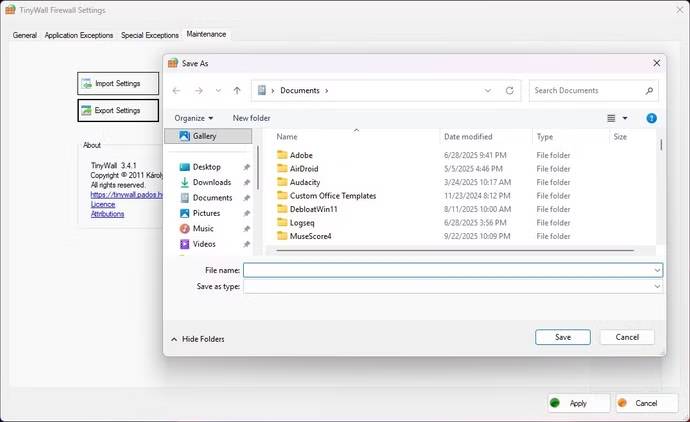
Windows Firewall is very effective; it's part of Windows Security, which is better than some other antivirus tools. That's why TinyWall is a great addition to your security toolkit. It takes advantage of your existing Windows Firewall and gives you a cleaner, more targeted way to use it.
Windows Firewall's decisions often have no rationale. In some cases, it only informs you after the fact; in other cases, it allows a connection you didn't want to approve. Conversely, you start to understand what's being blocked right after you install TinyWall.
It makes Windows Firewall more accessible. While you still get the same top-notch security that Windows offers, it's wrapped up in an interface that's more user-friendly.
Note : TinyWall (version 3.x and later) is a standalone firewall that uses WFP, not just a user interface for Windows Firewall.
A cleaner way to approve apps and block the rest
Connection only happens when you want it to
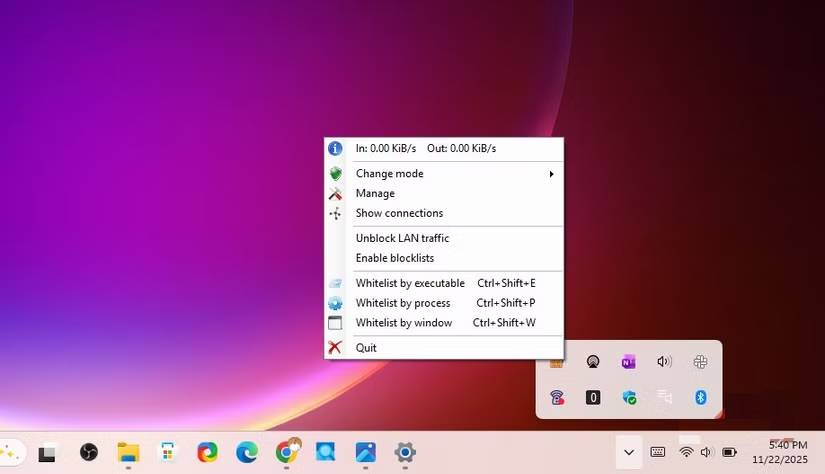
TinyWall has a default deny approach, which is the biggest improvement in security management. It blocks any application from requesting network access, ensuring connections don't happen unless you approve. It eliminates the pop-ups or flashing alerts that other security solutions often have, ensuring you're not forced to make split-second decisions.
This approach goes beyond simplicity and offers better security. With traditional firewall prompts, you often have to guess, which often results in clicking an allow button. TinyWall lets you decide for yourself whether something needs attention or not. This gives you enough time to decide whether an app deserves access.
You'll be amazed at how much this impacts your everyday computing experience. It removes the potential anxiety you experience when you get a firewall prompt. You're more proactive about whitelisting applications because you know what they are and how they work. This new approach has made the workflow a lot smoother.
Configurations that really change the way you work
Switch between trusted and untrusted networks with just one click
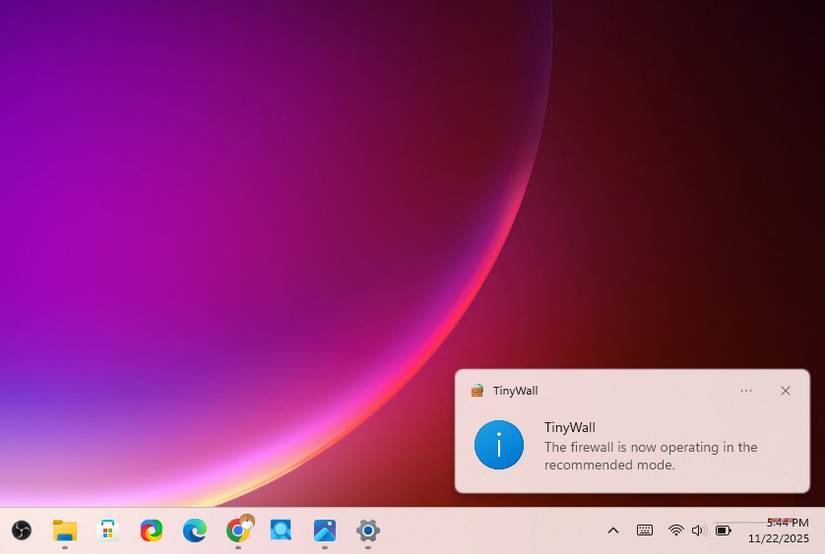
TinyWall has extremely powerful modes and profiles. Technically, Windows Firewall also supports profiles. However, switching between them is rarely useful and it is buried deep in the menus. With TinyWall, on your home Wi-Fi, you can use Normal mode with essential apps whitelisted. But for shared or public networks, switch to Block All . No need to edit any rules, it will disconnect immediately.
TinyWall's Autolearn Mode is a useful feature to have when you first start using it. Once installed, you turn it on, launch your regular applications, and TinyWall learns the necessary connections. Once you're done, switch back to Normal mode, a routine is set up, and you don't have to manage the process in detail. You get day-to-day convenience with these configurations, filling in the usability gap that Windows Firewall never addressed.
Superior visibility without the hassle
Connections, blocked attempts, and active rules that you can actually understand
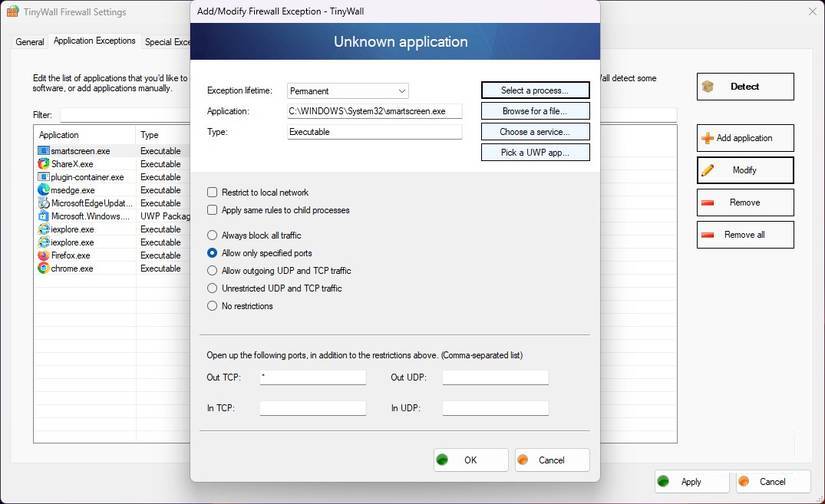
After using it for a few weeks, you'll realize that visibility is one of TinyWall's lesser-known strengths. While Windows Firewall logs everything, the information it records can seem invisible unless you're comfortable poring over log files.
TinyWall turns all that hidden data into a simple, easy-to-read toolkit. You'll see which apps are actively communicating with the network in the Connections window, and the Blocked Apps window shows disallowed connections. At a glance, you can easily understand the list of active rules.
You start to understand your system more holistically, because you don't have to enable debug logging or run PowerShell commands to see what an application is trying to do. You can confirm when applications are working properly and when they're connecting when they shouldn't be.
The difference TinyWall's visibility makes is subtle, but enough to give you confidence: your network rules are working and doing exactly what you set them to.
Note : It's important to know that TinyWall is now community-supported; the app does not receive support from its original creators.
Final Thoughts
Understanding why is the linux-style firewall, tinywall, exactly what windows needs makes it easier to evaluate the information and apply the most relevant recommendations. Focus on the key points above and verify details that may change over time.
FAQ
What is why is the linux-style firewall, tinywall, exactly what windows needs?
Discover why is the linux-style firewall.
What key points does this article cover?
The article focuses on A simple way to use Windows Firewall, TinyWall retains the power but eliminates the distractions, A cleaner way to approve apps and block the rest, with practical explanations and examples.
How can you use this information in practice?
Use the explanations to compare options, verify important details, and make a more informed decision. Apply the recommendations that best match your goals and situation.
Related Articles
 What Is a Firewall? General Knowledge About Firewall15 minutes read
 How to Set up a Firewall in Linux6 minutes read
 Turn Off the Windows Firewall 11: Complete Guide6 minutes read
 How to Turn on and Off Windows 10 Firewall, Windows 105 minutes read
 Turn Off Windows 10 Firewall: Complete Guide6 minutes read
 How to Customize Windows Firewall with Windows Firewall Control10 minutes read
Reader Comments 0
Sign in with email or Google to join the discussion.