Table of Contents
Fixing battery drain isn't as difficult as you might think, and that's largely thanks to new battery features in iOS 26, like Adaptive Power mode and smarter battery usage insights.
Software updates are always exciting — they bring new features, improvements, and bug fixes, and iOS 26 is no exception. Along with all the headline-grabbing upgrades, iOS 26 also addresses some long-standing issues that have frustrated iPhone users for years. All of that is great, but there's no denying that iOS 26 seems to drain the battery faster than iOS 18 on the iPhone 16 Pro. Even with normal use, the battery doesn't last as long between charges.
Luckily, fixing battery drain isn't as difficult as you might think, and that's largely thanks to new battery features in iOS 26, like Adaptive Power mode and smarter battery usage insights.
Adaptive Power mode is really effective
It is much better than Low Power Mode
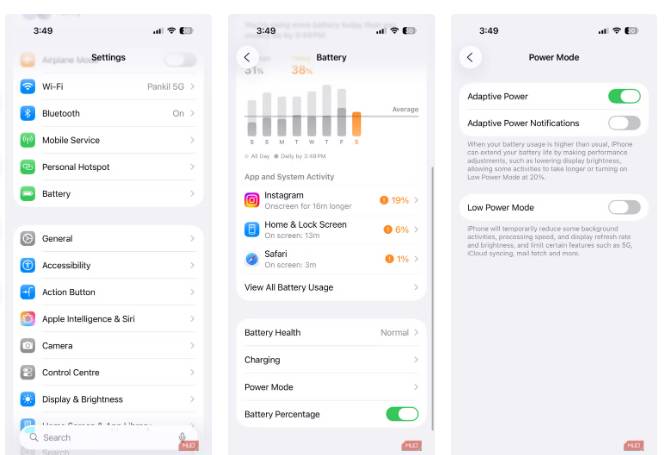
IOS 26 brings many new features to the iPhone, but if there's one that will benefit everyone, it's the new Adaptive Power. Unlike the still-existing Low Power Mode, Adaptive Power doesn't disable important features. Instead, it uses the device's built-in intelligence to learn your recent usage habits. This helps it predict when you'll need more battery for gaming, taking photos, or other demanding tasks, so you can enjoy those activities without sacrificing performance.
Turning it on is simple. Go to Settings > Battery > Power Mode And turn on Adaptive Power . You can also turn on notifications so your iPhone tells you exactly when this mode is active.
Highlighting battery-draining apps is easier than ever
Discover the sneaky apps that are killing your battery
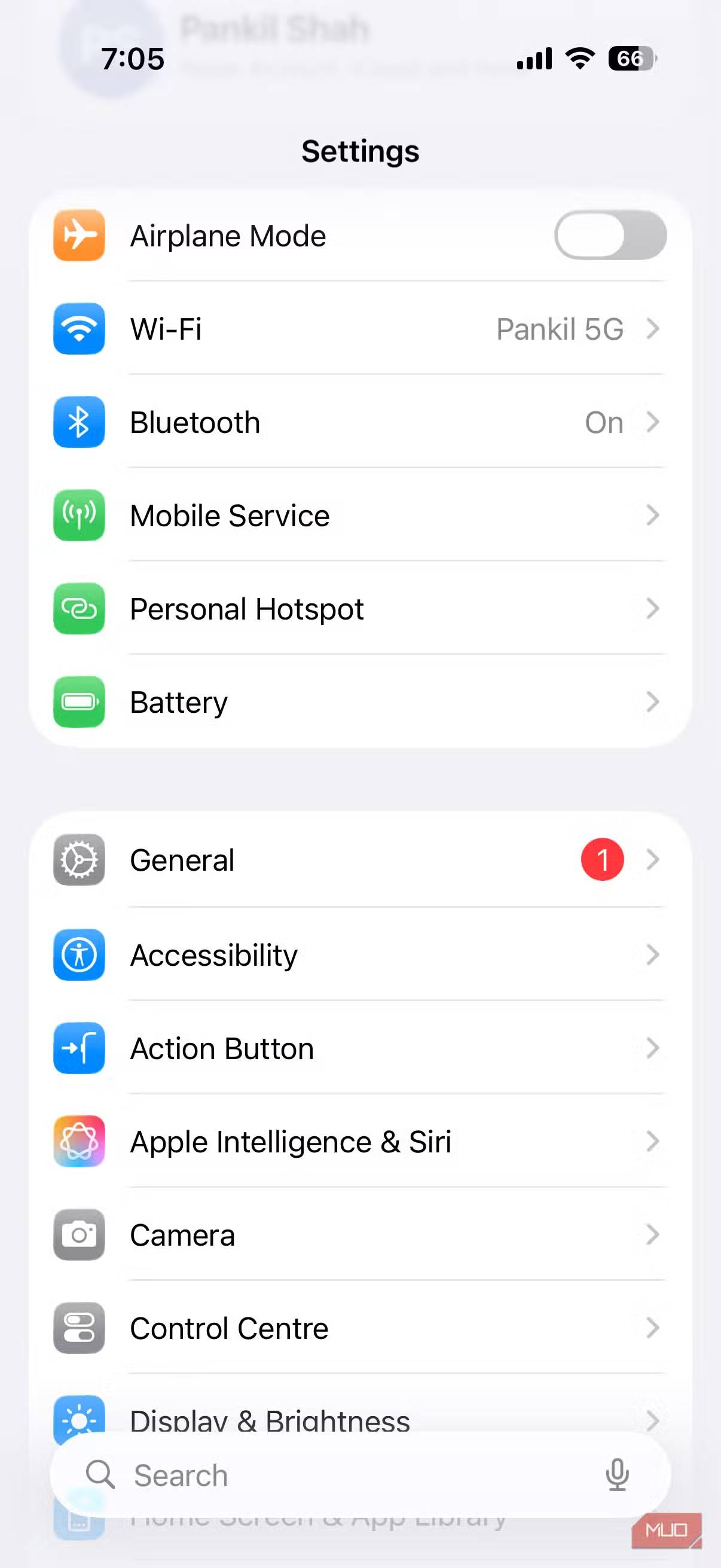
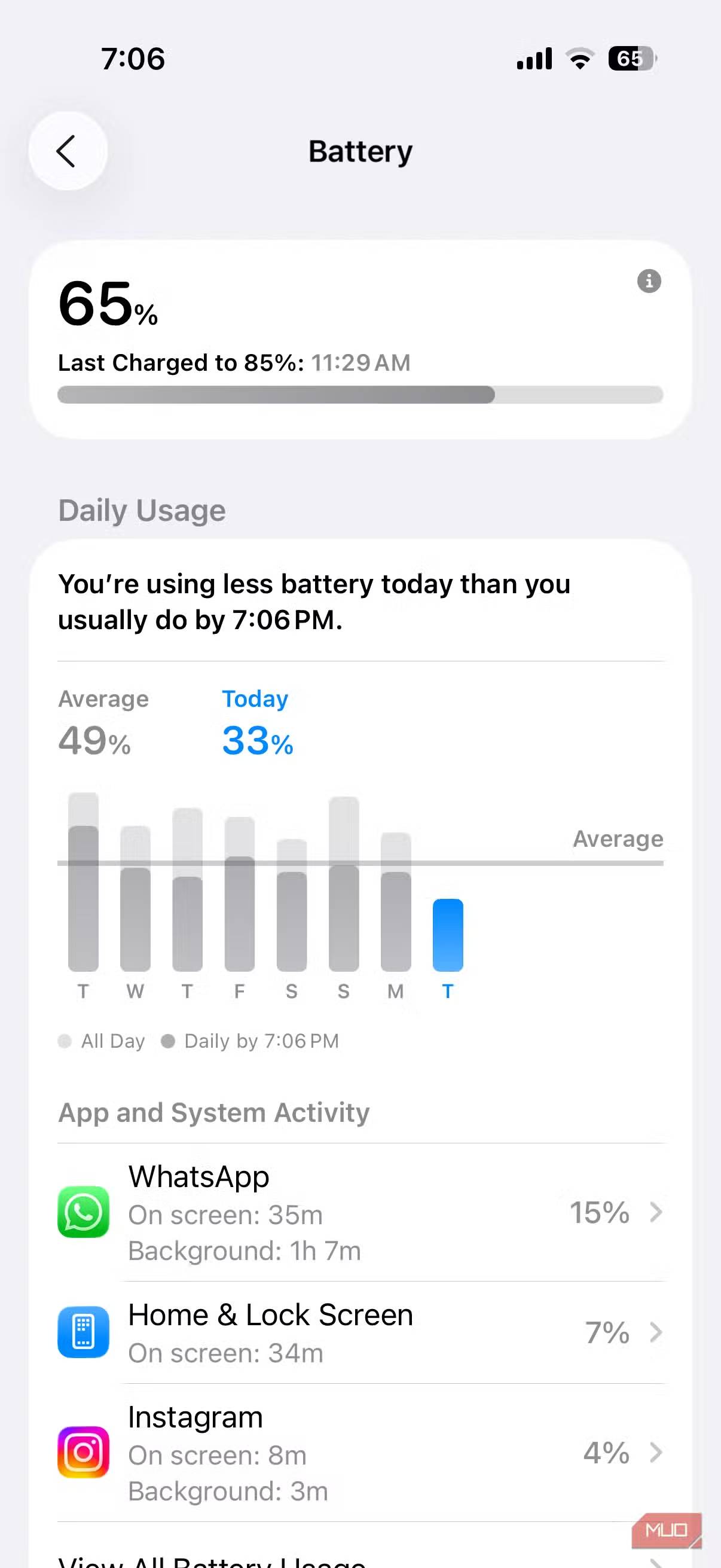
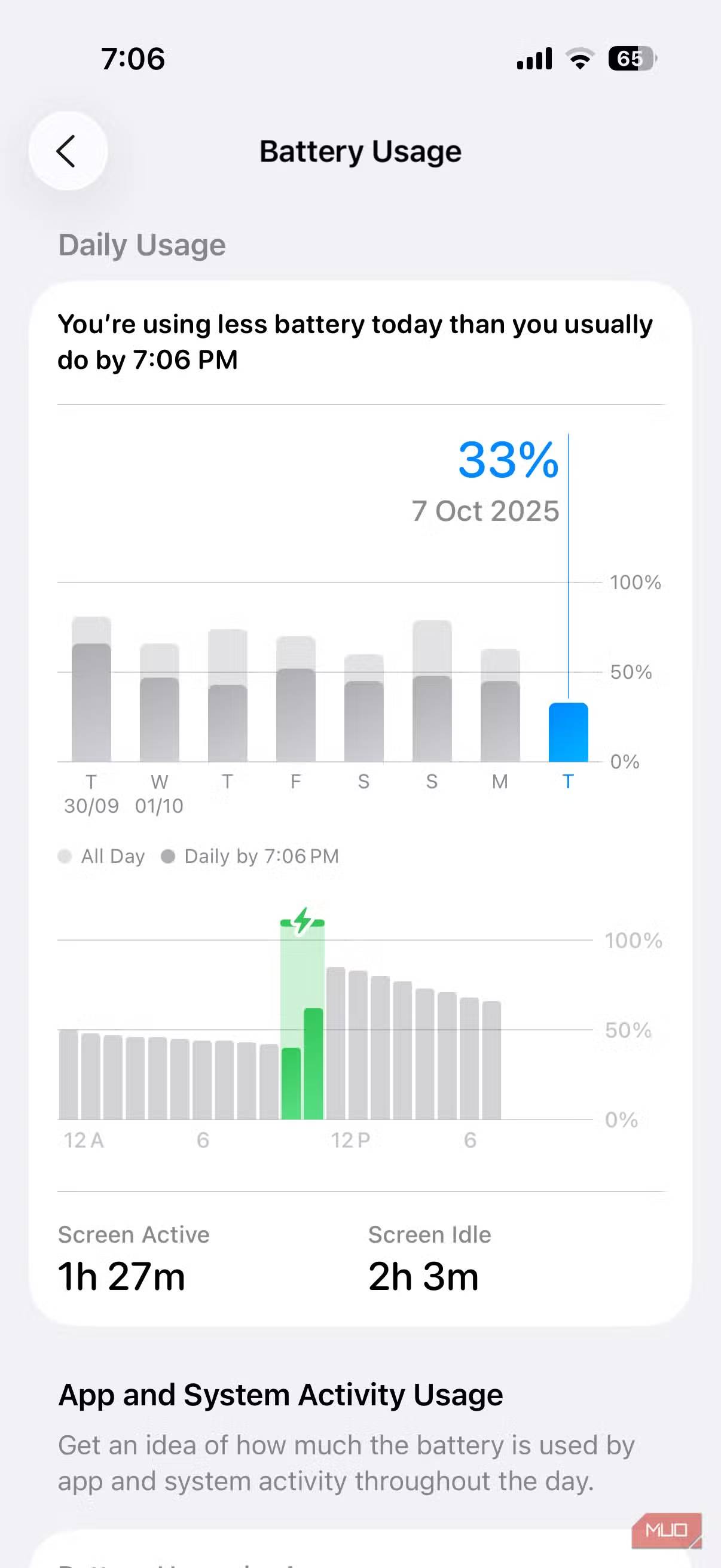
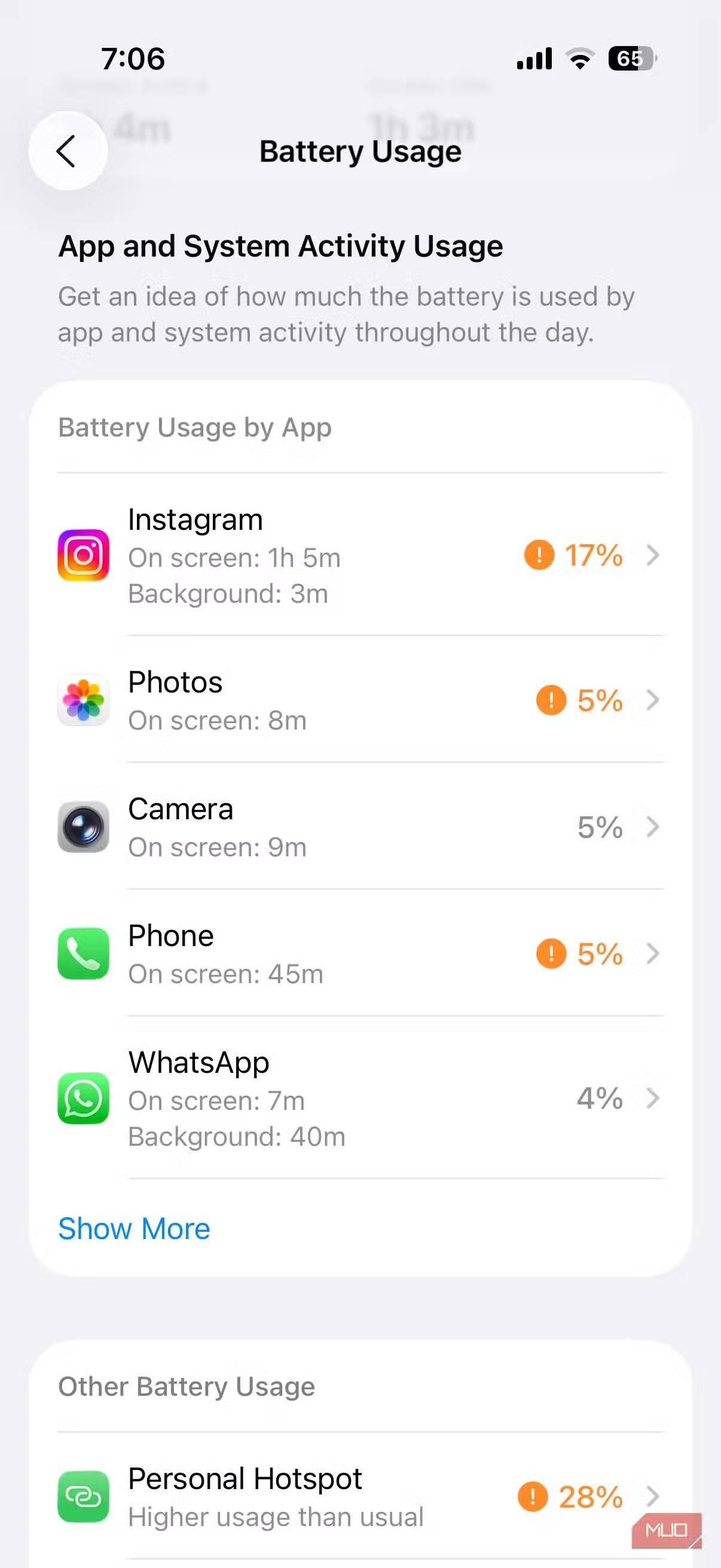
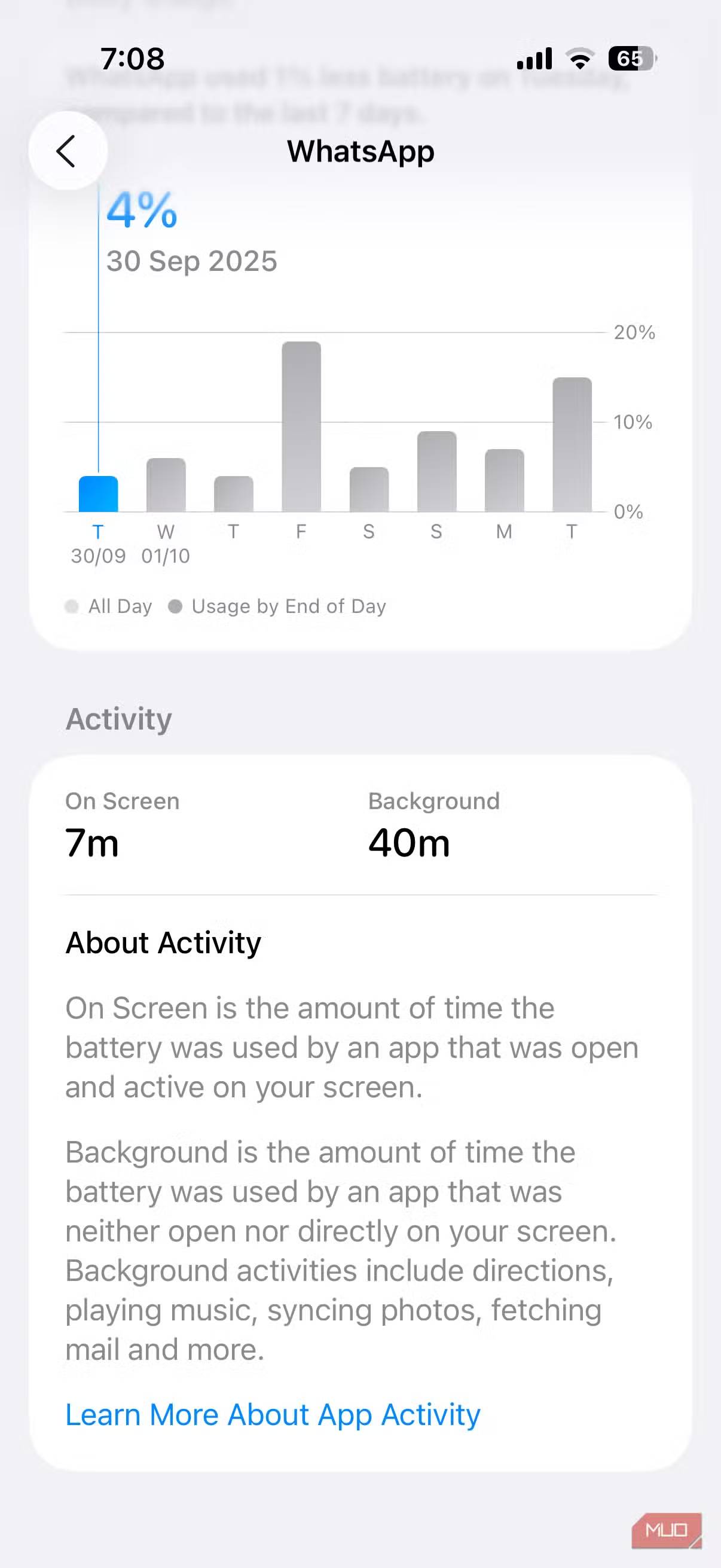
Even with Adaptive Power turned on, one of the most effective ways to reduce battery drain is to keep an eye on which apps are using more power than they should. The redesigned Battery Usage menu in iOS 26 makes this easier than ever. It highlights apps that are draining your battery too much and breaks down why—whether they're running in the background for too long, staying on screen more than usual, or constantly sending notifications.
To see which apps are using the most battery, go to Settings > Battery And scroll down to see battery usage by app. You can tap the graph at the top to see data from specific days and compare past performance. The menu shows how long each app was active on screen and in the background, with power-hungry apps highlighted in orange for easy identification.
Battery drop after update is normal and short lived
The iPhone just needs a little time to adjust.
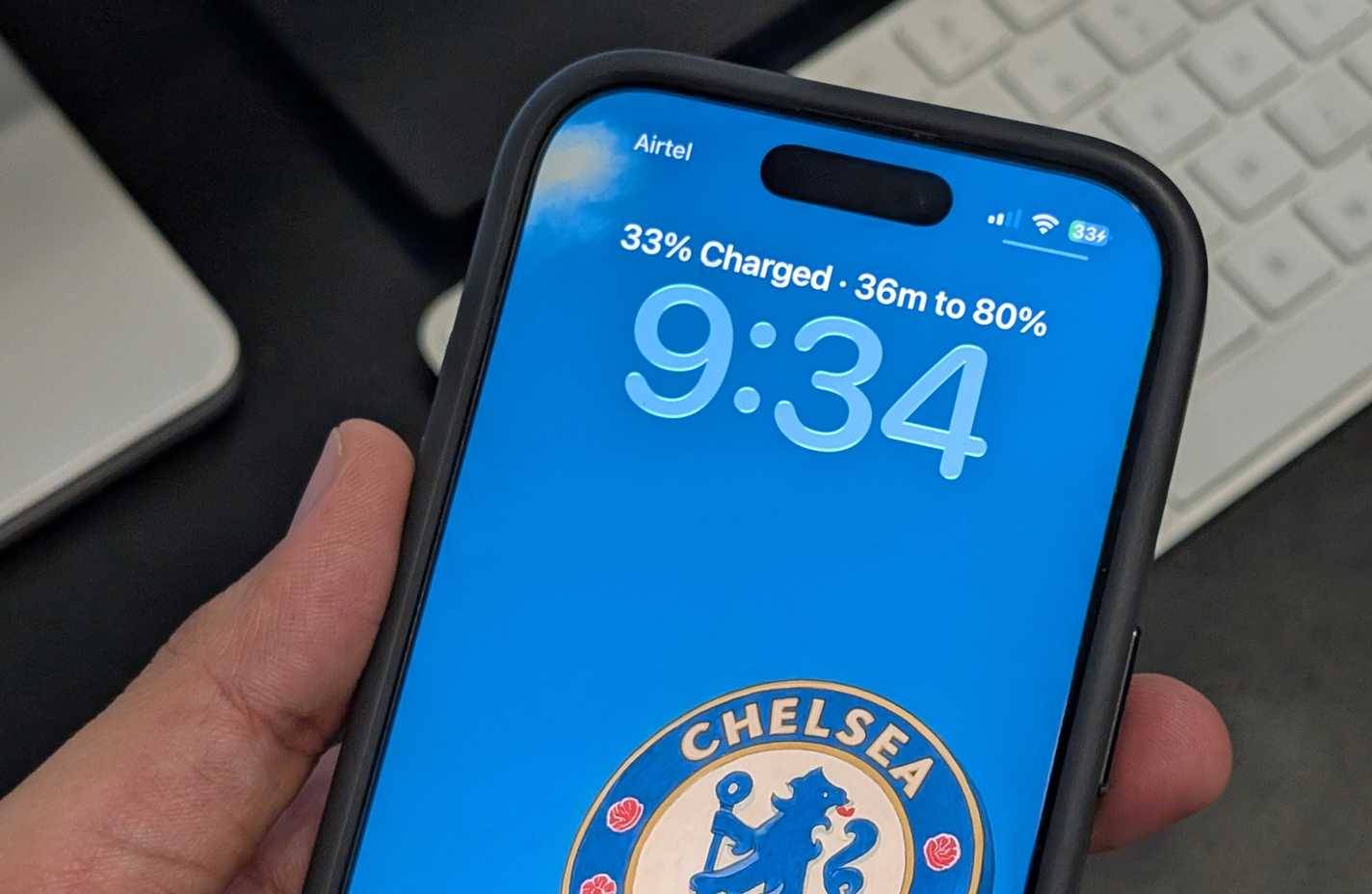
After every major update, your iPhone will perform many background tasks, such as indexing files, optimizing apps, and updating the system database. All of this extra activity can temporarily increase battery usage and make your iPhone seem like it's not holding its charge as well as before. You may even notice your iPhone heating up for the same reason, even when you're not using it.
The good news is that this is almost always temporary. Within a day or two, your iPhone will finish up its background tasks and battery performance will usually return to normal. Apple even released a support page after the iOS 26 update, confirming that battery drain after the update is normal.
All the usual battery saving tips still work
Don't miss out on traditional battery saving tips!
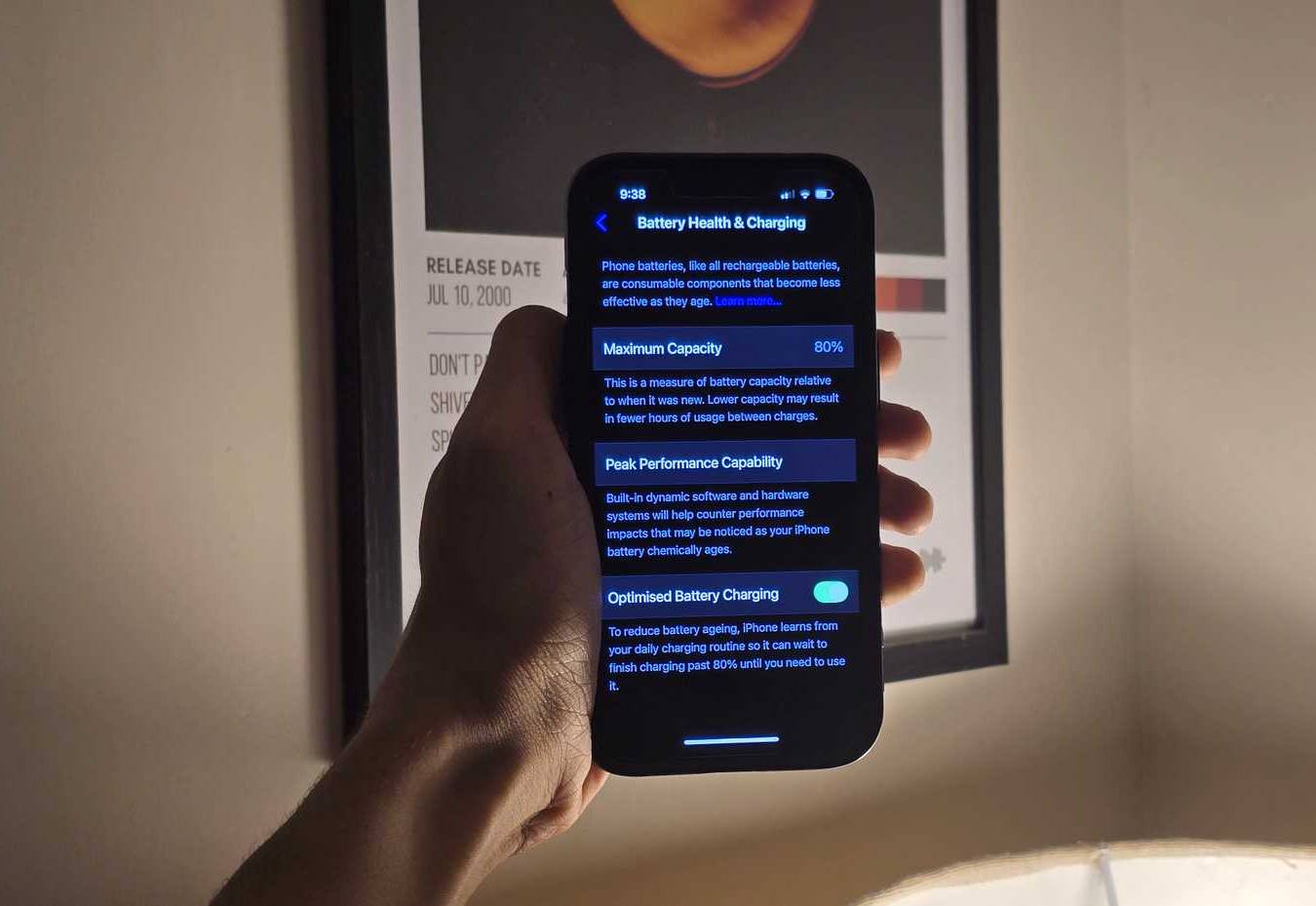
While the new features in iOS 26 should significantly improve battery life, you may need a little extra juice, especially if you're using an older iPhone with a weak battery. Of course, the ultimate solution is to replace your iPhone battery, but if you're not ready to do that, the classic iPhone battery-saving tips still work.
Lowering your screen brightness or enabling auto-brightness can help save power without sacrificing usability. Turning off Background App Refresh for apps that don't need it will keep them from draining power while they're idle. Location services are another common culprit, so set an app to only use your location when it's open instead of always running in the background. Other tweaks, like turning off motion and visual effects, can also help, especially with iOS 26 focusing more on transparency and animations.
FAQ
What should you know about the options in this guide?
In practical terms, fixing battery drain isn't as difficult as you might think, and that's largely thanks to new battery features in iOS 26, like Adaptive Power mode and smarter battery usage insights.
Which option is the best choice?
The best choice depends on your priorities, compatibility, budget, and the specific features discussed in the comparison.
What should you compare before deciding?
Compare core features, limitations, ease of use, compatibility, and long-term value before making a decision.
Related Articles
 Apps That Are Secretly Draining Your Phone Battery: Complete Guide6 minutes read
 3 Ways to Fix the Hot Error That Makes the Battery Drain Quickly on the3 minutes read
 How to Check Which Apps Use a Lot of Battery on Windows 118 minutes read
 8 Tips to Help Your iPhone Battery Last Longer When Traveling9 minutes read
 These Tips Help You Improve iPhone Battery Life15 minutes read
 iOS 14.6 Causes iPhone to Overheat, Draining Battery: Here's4 minutes read
Reader Comments 0
Sign in with email or Google to join the discussion.