Article on the subject of "hyper-v virtual machines"
-

How to install Hyper-V in Windows Server 2012
virtualization is one of the most important technological features. microsoft has invested in developing this feature and called it hyper-v.
-
Create virtual machines in Hyper-V on Windows Server 2008
after hyper-v is installed, the first thing to do here is to create a virtual machine - virtual machine. in the following article, we will introduce you to some basic steps to do this, with the general implementation process almost just clicking next> next> finish.
-
How to rename Hyper-V virtual machines using PowerShell and Hyper-V Manager
sometimes when you create a hyper-v virtual machine, you must give it a name and sometimes the naming is incorrect or simply you no longer want to use that name. this article will provide three methods to rename a hyper-v virtual machine to your liking.
-
Create virtual machines with Hyper-V on Windows 8 and Windows 10
if you're using windows 8 or windows 10, you've probably heard of hyper-v, a virtual machine software built into the windows operating system. at first hyper-v was part of windows server 2008, but microsoft later integrated on windows 8 and windows 10, and this feature is only available on pro and
-
How to import Hyper-V virtual machines in Windows 10
you can use hyper-v export and import functions to quickly copy virtual machines. virtual machines can then be used to back up data, or it could be a way to move a virtual machine between hyper-v servers.
-
How to export Hyper-V virtual machines in Windows 10
you can use hyper-v export and import functions to quickly copy virtual machines. virtual machines that are accessed can be used for backup or as a way to migrate a virtual machine between hyper-v servers.
-
How to rename Hyper-V virtual machines using PowerShell and Hyper-V Manager
sometimes when you create a hyper-v virtual machine, you must give it a name and sometimes the naming is incorrect or simply you no longer want to use that name. this article will provide three methods to rename a hyper-v virtual machine to your liking.
-
How to Export and Import Virtual Machines in Hyper-V
hyper-v is very flexible in backing up virtual machines or moving them between folders. exporting or importing virtual machines in hyper-v are essential features that users need to know. in the article below, we will guide you on how to import and export virtual machines in hyper-v.
-
Create virtual machines in Hyper-V on Windows Server 2008
after hyper-v is installed, the first thing to do here is to create a virtual machine - virtual machine. in the following article, we will introduce you to some basic steps to do this, with the general implementation process almost just clicking next> next> finish.
-
Instructions for installing Hyper-V
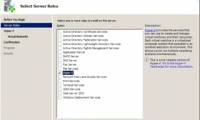
to install hyper-v, open the server manager tool and click the add roles link. next, in the select server roles dialog box, click on the hyper-v role. at this point, follow the step-by-step instructions to install hyper-v on the server.
-
How to check if your computer is running Windows 10 Hyper-V?
on windows 10, windows 8.1 and windows 8 have added client hyper-v so you can run the guest operating system on the virtual machine. hyper-v is microsoft's hypervisor on windows. it was originally developed for windows server 2008 and then supported by the windows client operating system.
-
Monitor Hyper-V with the command line (Part 2): Basic monitoring commands
in this article, we will learn how to access the virtual machine list and see general information about virtual machines with simple powershell statements. we will also look at stop commands and start virtual machines from the command window.
-
Create private cloud with Hyper-V (Part 3)
in the previous lesson, we created the hyper-v task sequence. now is the time to make this task sequence change so that we can use them to create hyper-v servers that manage virtual machines in the private cloud.
-
Monitor Hyper-V with the command line (Part 1): Install the monitoring library
one of the obvious shortcomings of hyper-v is the ability to monitor virtual machines from windows powershell. although microsoft intends to provide this capability on windows server 8, users can fully monitor virtual machines from the command line interface at this time. the article will guide
-
Monitor Hyper-V with the command line (Part 3): Check virtual machine status
the previous article showed you how to turn on and off the virtual machine with the command line. this article will introduce two methods of validating that virtual machines are running and responding.
-
How to enable and use Hyper-V on Windows 10
windows 10 is equipped with hyper-v to help users create virtual machines directly without using third-party software. let's see how to activate and use hyper-v on windows 10 through the simple steps below.
-
How to create a virtual machine repository for Hyper-V Quick Create
quick create is a feature in hyper-v that allows users to set up new virtual machines with just a few mouse clicks.
-
How to install Hyper-V in Windows Server 2012
virtualization is one of the most important technological features. microsoft has invested in developing this feature and called it hyper-v.
-
Use the Virtual Machine Manager to quickly deploy Hyper-V
the tips in this article will show you how to quickly deploy virtual machines using the system center virtual machine manager (scvmm) management program of hyper-v.
-
Monitor Hyper-V with the command line (Part 4)
among the hardware resources that are usually assigned to virtual machines, perhaps the memory is most fixed. this tutorial will show you how to manage virtual machine memory through windows powershell.
-
Instructions for using Hyper-V on Windows 8 (Part 1)
one of the new features on windows that is most noticeable is the hyper-v virtualization program to meet users' need to create windows virtual machines. the article will guide readers to activate and use the program on windows 8.
-
How to create a virtual machine in Windows Server 2012
in this article, we will look at how to create a virtual machine. first, you need to open the hyper-v manager and then follow the steps below.
-
Collect the Process ID information or GUID of Hyper-V Virtual Machine
when it comes to identifying a certain virtual machine component in the system, for some reason, such as changing hardware-related settings, fixing ntfs permissions problems ... then they we need to know the id or guid parameters of that virtual machine
 Home
Home Tech info
 Technology
 Science
 Life
Life Application
 Electric
 Program
 Mobile
 System