Table of Contents
OLED serves as the best when it comes to displays. Accurate colors, deep blacks, it looks great no matter what you throw at it.
OLED is the best when it comes to displays. Accurate colors, deep blacks, it looks great no matter what you throw at it. It's worth spending the extra money for an OLED display.
Burn-in still occurs on OLED screens
Many have learned the hard way that 'modern burn-in-free panels' are a marketing gimmick. The problem with OLED burn-in is that it seems contradictory. Modern OLED screens are supposed to be incredibly impressive—great contrast, perfect blacks, incredible picture quality. And yet they're so fragile? That's where many people get confused.
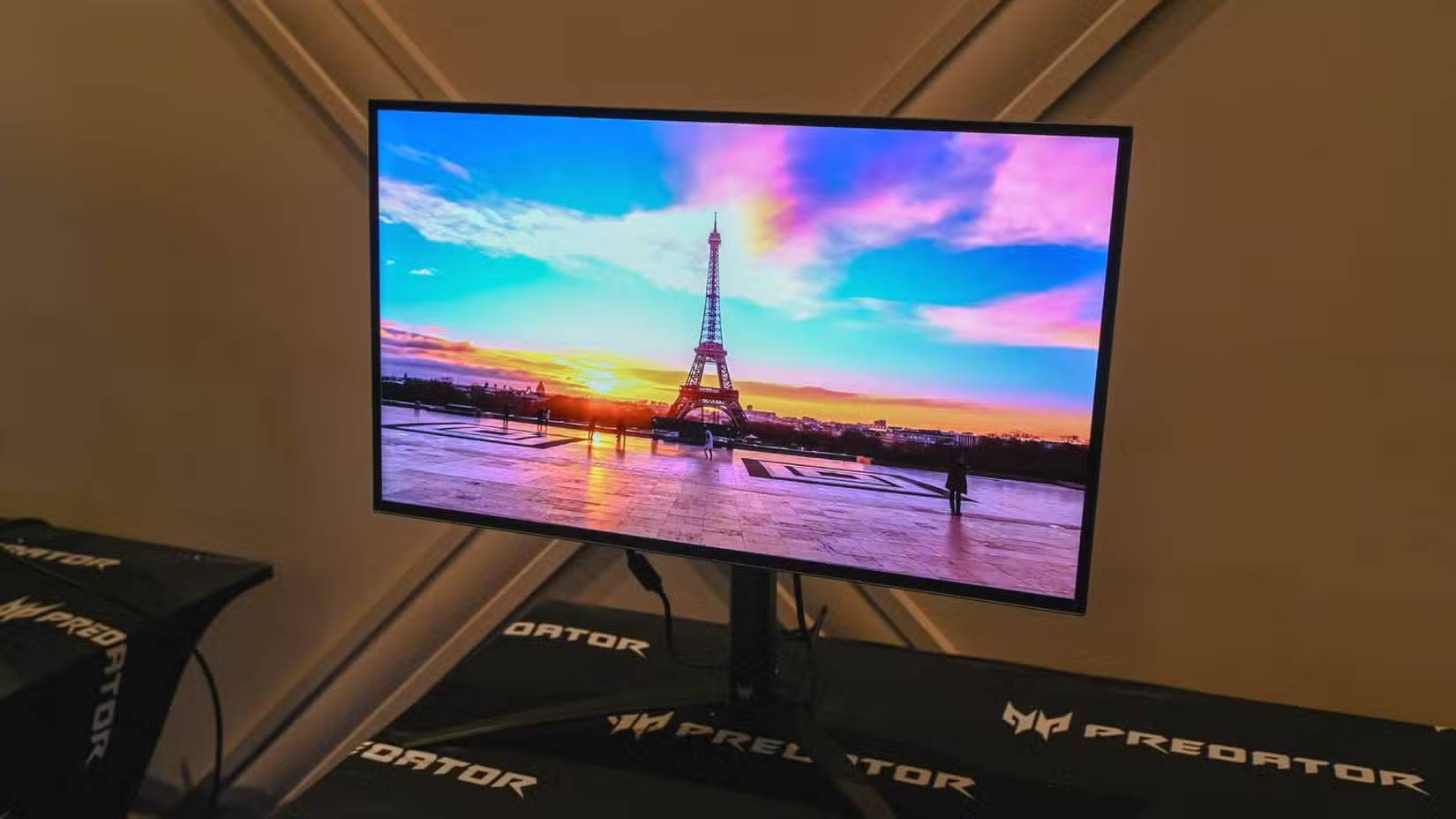
This is a permanent, serious problem, but it's also easily avoidable if you pay attention. Once you understand how OLEDs work, it makes perfect sense.
Unlike LCD displays that require a backlight, OLED or organic light-emitting diode displays light each pixel individually. This allows for near-infinite contrast and much better color reproduction, but these individual pixels will degrade over time, especially when displaying the same high-contrast color for long periods of time.
So if you use a static user interface on an OLED display all day, the pixels displaying that interface will degrade faster than the surrounding pixels. This results in a subtle but permanent color shift in the pixel, leaving behind what looks like a ghost image. This is a pretty simple explanation of OLED burn-in, but it covers everything You should know.
Manufacturers don't really talk about this because, well, it doesn't happen to people who take basic precautions. But if you get too comfortable with your setup, you're vulnerable.
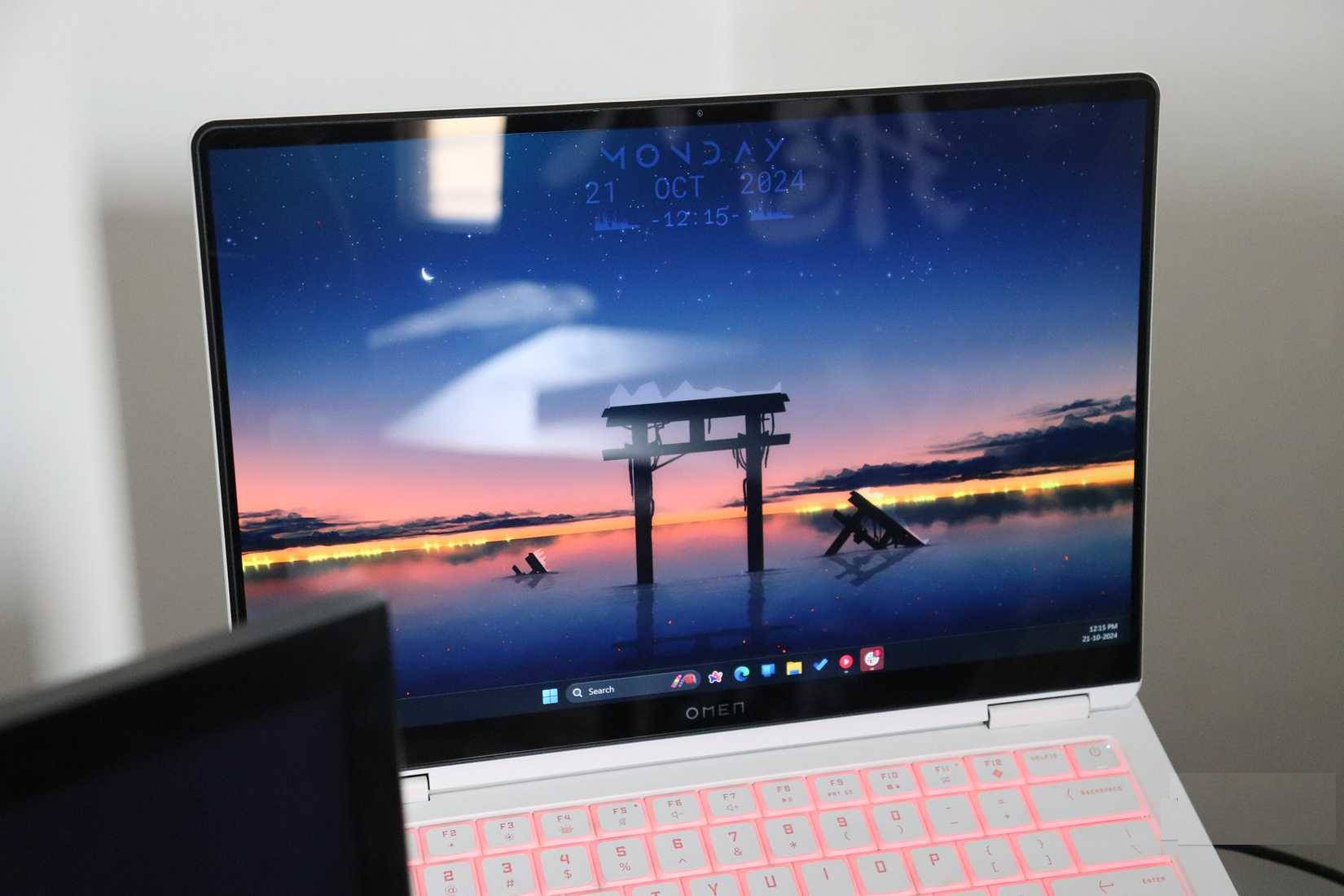
Many people think that OLED screen burn-in is a thing of the past, and use their OLED laptop screen like any other screen in their system. And before you know it, the screen has burned in.
The damage you don't notice until it's too late
Image retention will never leave your screen again
OLED screen burn-in is a big problem for laptops, so check regularly for damage. In a grayscale test, someone caught a glimpse of the YouTube Music home page and it burned itself onto the screen.
Luckily, it's not too bad, and you can't see any artifacts unless the screen is a certain shade of gray. The screen burn-in is mostly only visible when Discord is loading on a laptop screen, as the loading screen has a perfect gray background that highlights the damage. In fact, it's so faint that screen burn-in tests like FixBurnIN and Black Screen Test don't even detect it.
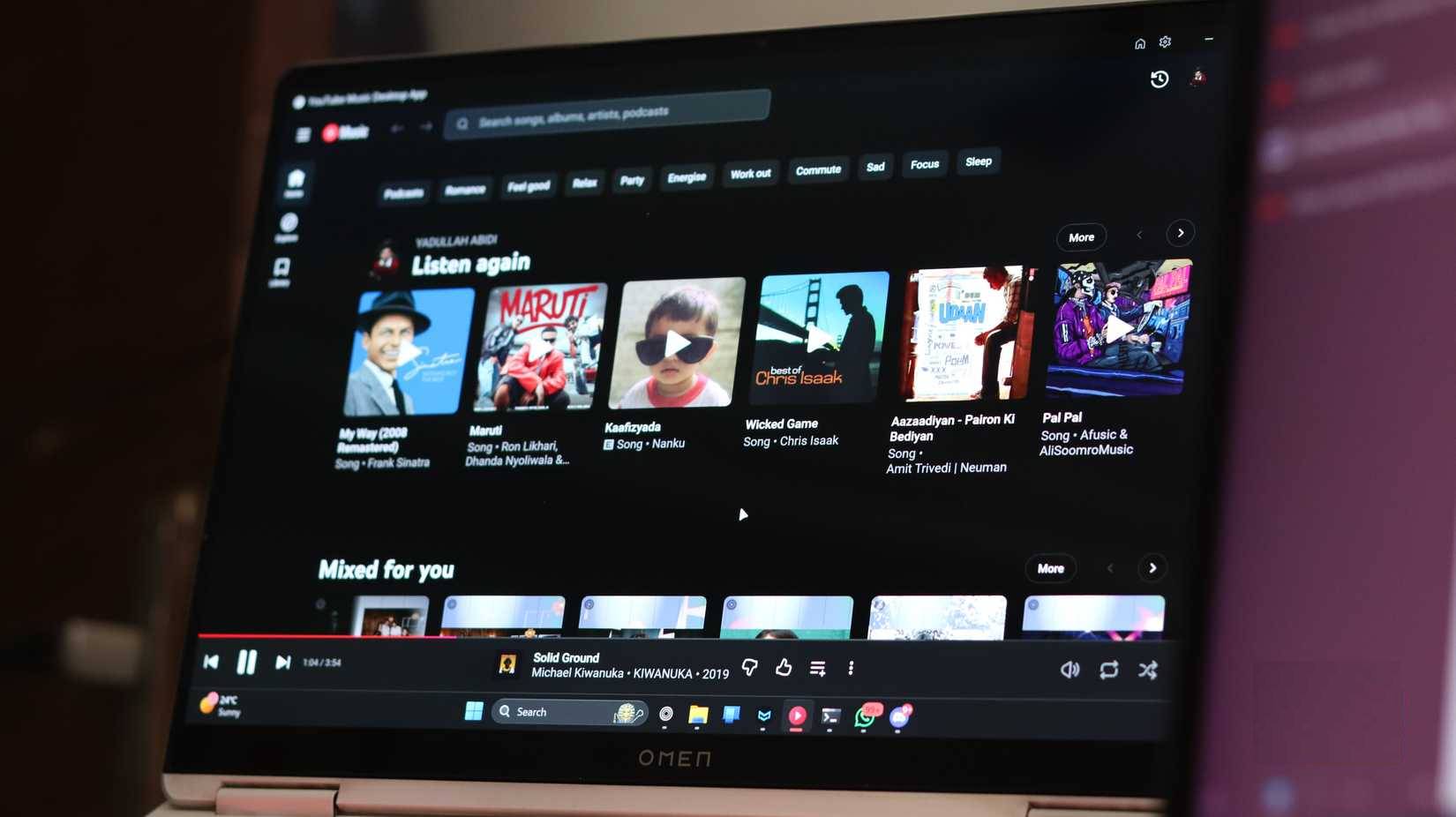
Also, you may not have noticed any problems when using the screen in your daily life, playing games, watching movies or simply working. However, now you know that the screen has image retention (burn-in), and it will feel a little uncomfortable every time you see that interface printed on the screen.
Manufacturers' stance on OLED burn-in is simple – it's rare for the average user. And they're not entirely wrong. If you're using a laptop as your only available display, rather than as a secondary display in a multi-monitor setup, it's unthinkable that you'll run into burn-in issues.
The key word here is 'normal.' Normal obviously means not leaving the same thing on your screen for weeks on end. Normal means switching between different apps, or at least rotating the screen. Normal also means using built-in protection and not ignoring over a decade of warnings.
How to protect your OLED screen (while you still can)
Simple habits can extend the life of your OLED screen by many years
People don't say that OLED burn-in doesn't exist. They say it only happens to "other people" or is a random occurrence. That's not true!
Protecting your screen is pretty easy too. Just following a checklist of basic precautions is all You should do to protect your screen.
|
Protective measures |
Act |
|---|---|
|
Keep the brightness reasonable |
Keep screen brightness between 40 and 60% and turn on auto-brightness if available. |
|
Use Dark Mode |
Use dark mode in your operating system and programs to reduce pixel power consumption. |
|
Keep the content moving |
Change windows and toolbars frequently, avoid leaving static windows or HUD on screen for long periods of time. |
|
Auto hide static user interface |
Enable auto-hide for any OS taskbar, dock, and menu bar to avoid fixed pixels from being lit. |
|
Use a dynamic screensaver |
Choose a moving screensaver and set it to start automatically after 2 to 5 minutes of screen inactivity. Or, you can use a live wallpaper. |
|
Using the OLED calibration app |
Using a third-party or vendor-provided OLED calibration application can reduce the effects of image retention and prevent it from occurring. |
|
Keep the base plate stable |
High temperatures can accelerate the burn-in process. Keep your laptop cool and work on a sturdy surface to ensure good airflow. |
Take care of your OLED display because it really matters!
FAQ
What should you know about OLED screen burn-in is not a myth?
In practical terms, oLED is the best when it comes to displays. Accurate colors, deep blacks, it looks great no matter what you throw at it.
Why does OLED screen burn-in is not a myth matter?
The article highlights that the damage you don't notice until it's too late Image retention will never leave your screen again OLED screen burn-in is a big problem for laptops, so check regularly for damage.
What is the main takeaway?
The main takeaway is that how to protect your OLED screen (while you still can) Simple habits can extend the life of your OLED screen by many years People don't say that OLED burn-in doesn't exist.
Related Articles
 What Is Evo OLED Panel? What's Different from OLED?6 minutes read
 Why Spend Extra Money on an OLED Display?7 minutes read
 Why OLED Displays Aren't as Great as You Think7 minutes read
 Samsung's New Durable OLED Screen Passes the Test of Being Hammered3 minutes read
 LG Opened the Giant TV Race at CES 2018 with an 8K 8-inch OLED Display3 minutes read
 QD-OLED Explained: How It Works and Key Features11 minutes read
Reader Comments 0
Sign in with email or Google to join the discussion.