Table of Contents
Borderlands 4 is poorly optimized on PC, here are the configuration and settings to help play smoothly, without FPS drops.
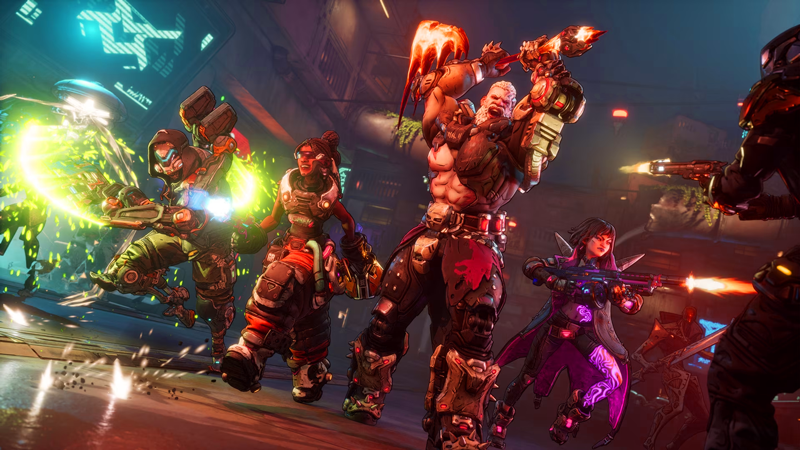
After 7 years of waiting in tension, Borderlands 4 has finally appeared, opening a new era for the legendary looter-shooter game series. Despite being praised by the community, the new 'beast' from Gearbox has one immediate scratch: poor optimization on PC. As if being haunted by the 'Unreal Engine 5 curse', most players have complained about the game's performance drops on all types of machines.
If you are also suffering from this situation, here is the best PC configuration guide for Borderlands 4, helping you hunt bosses smoothly, without worrying about FPS dropping freely.
Optimal graphics settings for Borderlands 4
Basic Settings
- Display mode: Windowed Fullscreen
- Resolution: 1920 x 1080
- Frame Limit: Off
- Custom FPS: 120
- V-Sync: On
- Field of View (FOV): 100–110 (adjustable)
- FOV while driving: 100–110 (adjustable)
Advanced Settings
- Upscaling: DLSS (Nvidia) / FSR (AMD) / TSR (other)
- Upscaling Quality: Quality
- Spatial Upscaling: Off
- Scene Capture Quality: Full Resolution
- Frame Generation: Off
- HLOD Loading Range: Far
- Geometry Quality: Medium
- Texture Quality: Medium
- Texture Streaming Speed: Very High
- Anisotropic Filtering: x4
- Grass density: Low
- Volumetric fog: Low
- Volumetric clouds: Low
- Shadow: Medium
- Shade direction: Medium
- Volumetric cloud shadow: Off
- Light: High
- Reflection: Medium
- Shading: High
- Post-processing: High
- Motion Blur: Off (0)
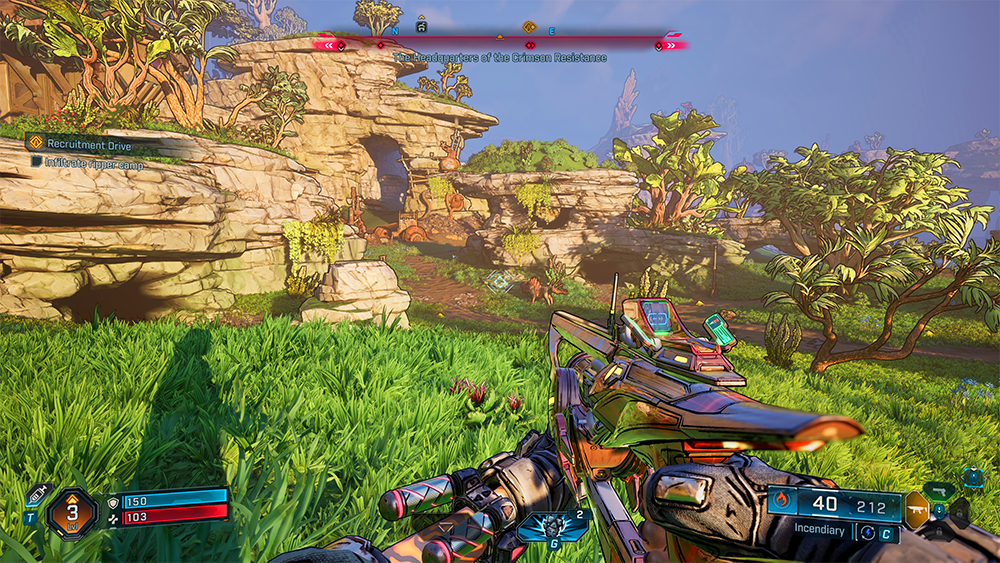
With these settings, if your PC reaches (or is close to) the recommended configuration, you will have a stable experience, no FPS drop when looting legendary guns or solo raiding bosses.
If the frame is still not stable, try the following settings:
- Reduce Texture Quality to Low (to lighten the load on the GPU).
- Reduce Anisotropic Filtering to 2x or off.
- If you prioritize FPS over graphics: lower Lighting Quality to Low.
- Borderlands 4 Setup for Low-End PC
Basic Settings
- Display mode: Full screen window
- Resolution: 2560 x 1440 or 1920 x 1080 (depending on screen)
- Frame Limit: On
- Custom FPS: 140
- V-Sync: Off
- Field of View (FOV): 100–110
- FOV while driving: 100–110
- Advanced Settings
- Upscaling: DLSS (Nvidia) / FSR (AMD) / TSR (other)
- Upscaling Quality: Balanced or Performance
- Spatial Upscaling: Off
- Scene Capture Quality: Full Resolution
- Frame Generation: Off
- HLOD Loading Range: Far
- Geometry Quality: Medium
- Texture Quality: Low
- Texture Streaming Speed: Very High
- Anisotropic Filtering: x2
- Grass Density: Very Low/Off
- Volumetric fog: Low
- Volumetric clouds: Low
- Shadow: Low
- Ball direction: Low
- Volumetric cloud shadow: Off
- Light: Low
- Reflection: Medium
- Shading: Low
- Post-processing: Medium
- Motion Blur: Off (0)
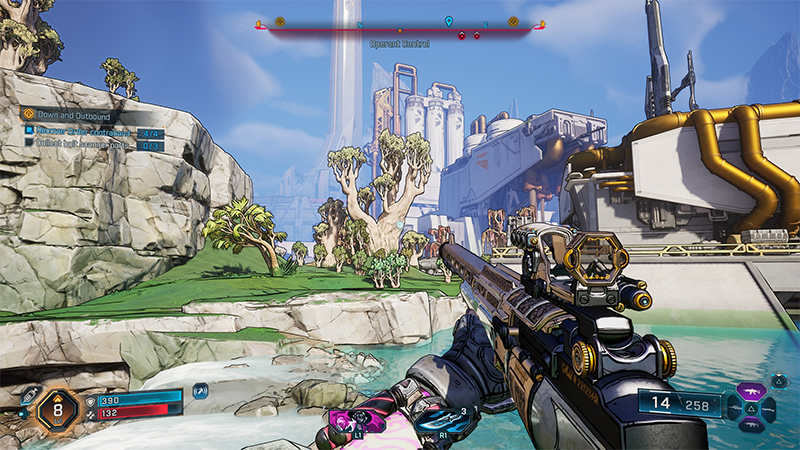
Borderlands 4 even challenges high-end GPUs like the RTX 5090. If your PC is just a 'rookie' level, the only way is to turn almost everything down to the lowest, prioritizing Balanced or Performance in Upscaling to keep the FPS rate.
We've kept Geometry Quality and Reflections at Medium, as they don't have much of an impact on performance. Otherwise, keep them to a minimum to ensure a smooth looting experience.
FAQ
What should you know about the options in this guide?
In practical terms, borderlands 4 is poorly optimized on PC, here are the configuration and settings to help play smoothly, without FPS drops.
Which option is the best choice?
The best choice depends on your priorities, compatibility, budget, and the specific features discussed in the comparison.
What should you compare before deciding?
Compare core features, limitations, ease of use, compatibility, and long-term value before making a decision.
Related Articles
 Tips to Play Borderlands 3 Gamers Need to Know4 minutes read
 Download the Borderlands Blockbuster: the Handsome Collection Worth $3 minutes read
 Borderlands 4: 11 Tips for Beginners: Practical Guide9 minutes read
 Borderlands 4: How to Get the Break Free Pack: Step-by-Step Guide3 minutes read
 Latest Shift Codes for Borderlands 4: Complete Guide4 minutes read
 MK1 Configuration: Complete Guide4 minutes read
Reader Comments 0
Sign in with email or Google to join the discussion.