Table of Contents
Learn how to create a dialogue video from just two images using Google flow with clear steps.
Instructions on creating dialogue videos from images
Step 1
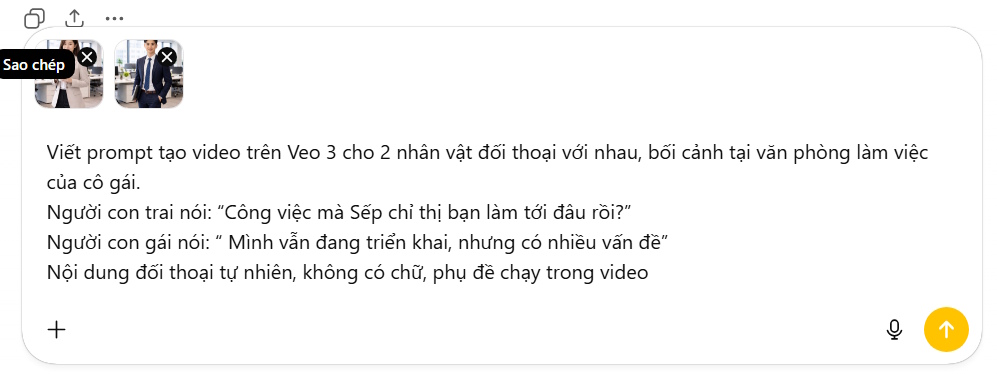
Prepare two images of any character, or you can create characters on ChatGPT. Then upload the two images to ChatGPT .
Step 2
Enter the following command into ChatGPT to create a video editing command for yourself on ChatGPT.
Write a Flow prompt to create a video with two characters having a dialogue in the girl's office. The boy says: "How far have you gotten with the work the boss assigned you?" The girl replies: "I'm still working on it, but there are many issues." The dialogue should be natural, without text, and subtitles should run throughout the video.
The general prompt would be:
Write a Flow video prompt for a dialogue between two characters, including the setting [location], dialogue content [write each sentence in detail for each character], dialogue style between the characters, emotions in the video, and no subtitles .
Step 3
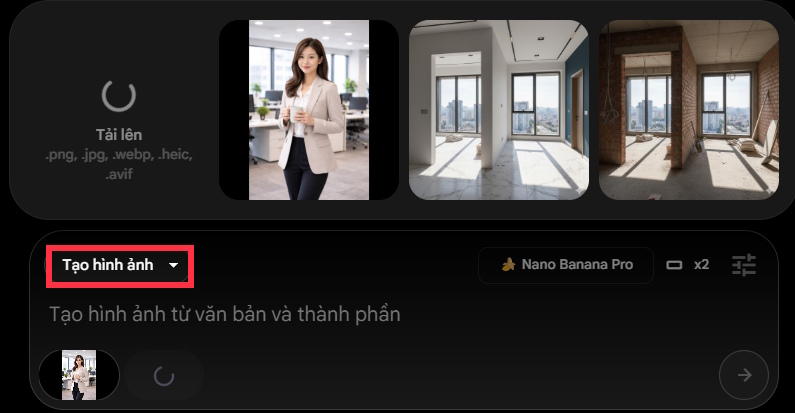
After obtaining the video creation prompt, we will copy the entire command and then access Google Flow to begin creating the video. In video creation mode, select Create Image.
Next, upload the two images to Flow. Then, paste the prompt from ChatGPT into Flow and send it to create the video dialogue.
Step 4
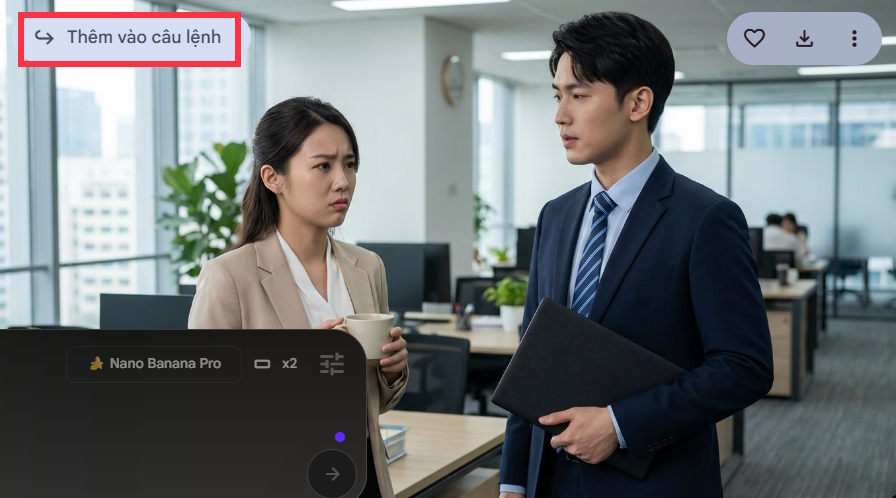
Flow will create a complete scene for you from the two uploaded characters, using the background in the prompt we're using. Select the images you want to use to convert into a video, then click Add to command .
Step 5
The image will then appear in the video creation frame, and the mode will be "Create video from frames ". Continue by pasting the prompt from ChatGPT into Flow to create the video .
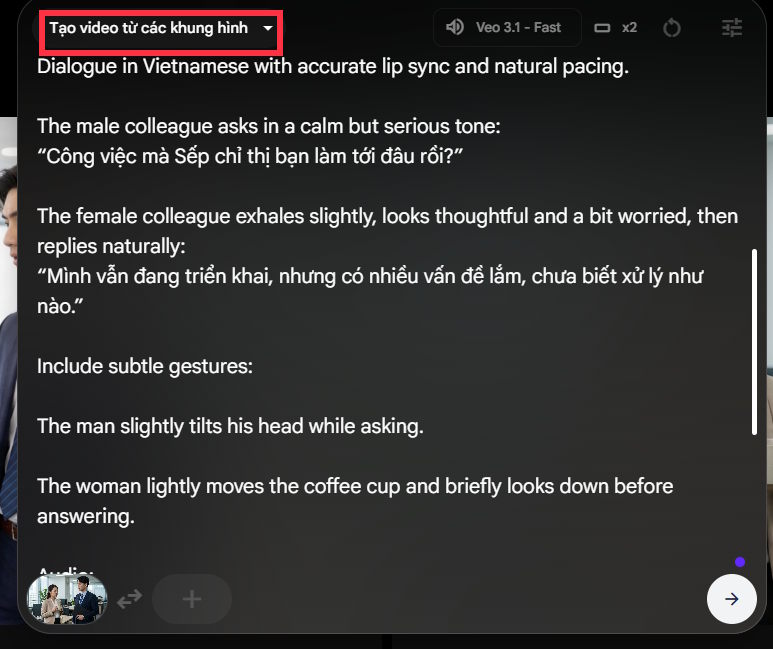
You will then receive the video from the ChatGPT command. Click the save icon and select the video quality you want to download.
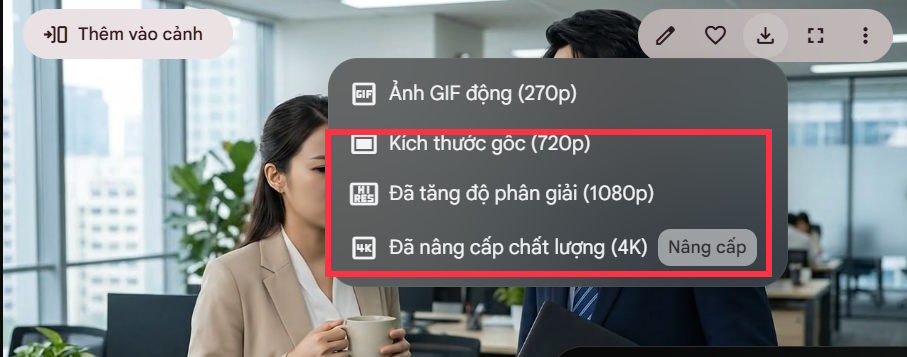
Starting with a simple scenario, ChatGPT will write commands to create a video based on the content and context you want. Flow will then create a more complete frame, and from there, generate the dialogue video of the characters.
Video creates dialogue scenes from images using Google Flow
Final Thoughts
Use this guide as a practical checklist for how to create a dialogue video from just two images using google flow. Work through the steps in order, verify each result, and adjust the options to match your needs.
FAQ
What do you need before following this How to Create a Dialogue Video from Just Two Images Using Google Flow guide?
Review the required tools, accounts, settings, or materials mentioned in the article. Learn how to create a dialogue video from just two images using Google flow with clear steps.
What are the main steps for how to create a dialogue video from just two images using google flow?
Follow the sections in order, especially Instructions on creating dialogue videos from images, Step 1, Step 2. Complete each step before continuing and verify the result as you go.
What should you do if the process does not work as expected?
Recheck the prerequisites, update the relevant app or service, review the settings, and repeat the step that caused the issue. Use any troubleshooting notes included in the guide.
Related Articles
 How to Create a Video from a Single Image Using Google Flow3 minutes read
 How to Create AI Videos Shot with Drones on Google Flow: Step-by-Step Guide5 minutes read
 How to Create a Video from Photos Using a Storyboard on Flow4 minutes read
 How to Create Your Own Video Editing Tools Directly on Flow?4 minutes read
 How to Combine Photos Using Google Flow3 minutes read
 How to Combine Videos on Flow into a Single-Page Video3 minutes read
Reader Comments 0
Sign in with email or Google to join the discussion.