Table of Contents
Opera Neon can take actions on supported websites, organize related tabs, and use AI to turn page information into useful output. It is worth evaluating for repetitive browser work, but the promise to “automate everything” goes beyond what any browser agent can reliably guarantee.
Before paying for it, choose a specific workflow you repeat and test whether Neon completes it accurately with less supervision than doing it yourself.
Neon Do performs browser actions
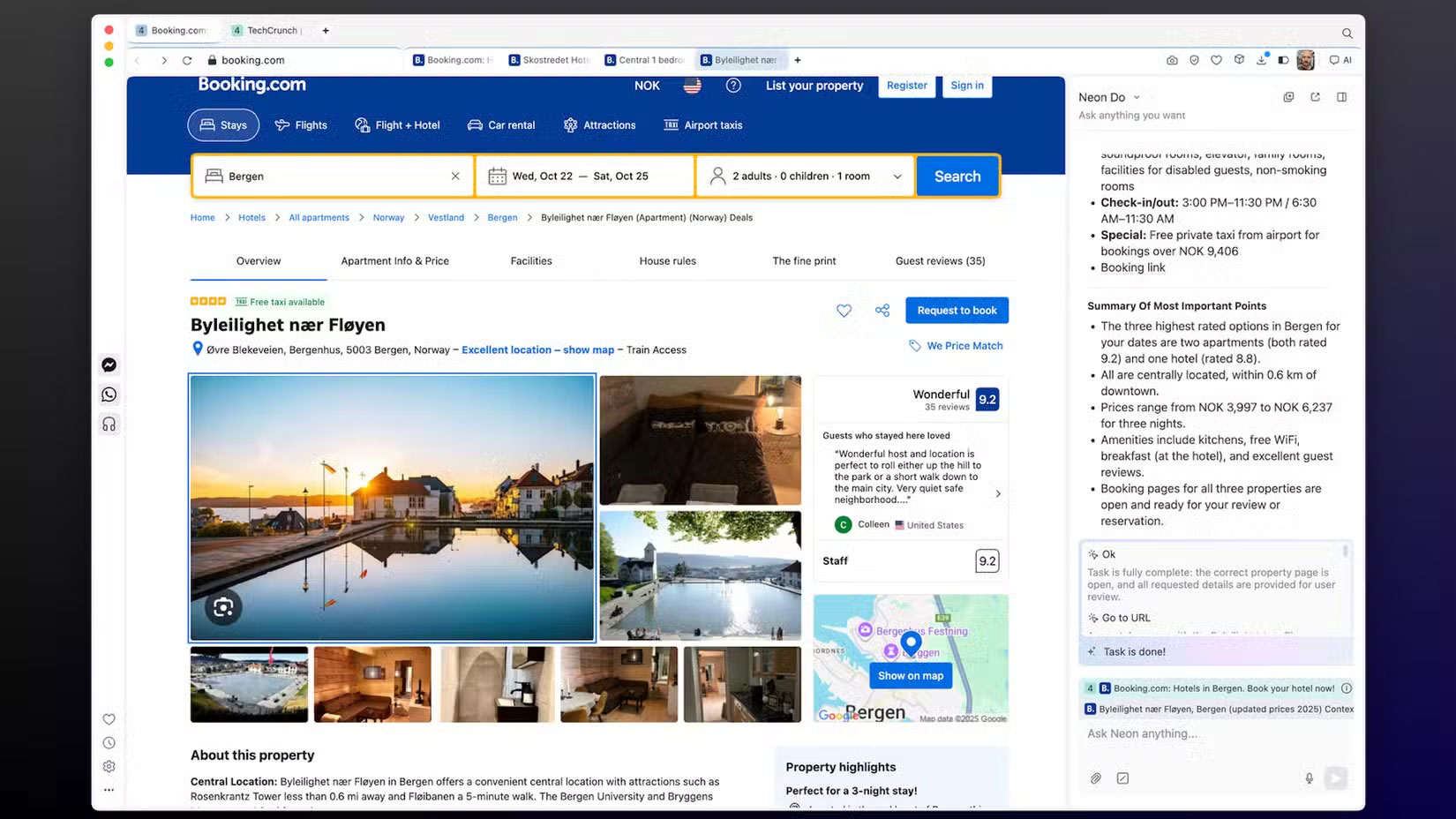
Neon Do is the action-oriented part of the browser. It can navigate pages, interact with controls, and gather information as part of an assigned task. A useful first test is a reversible research job, such as collecting product details from selected pages into a comparison.
Give it clear boundaries: which pages to use, which facts to collect, the required output, and where to stop. Check the sources for important details rather than assuming a confident answer means the task was completed correctly.
Tasks group the pages for a project
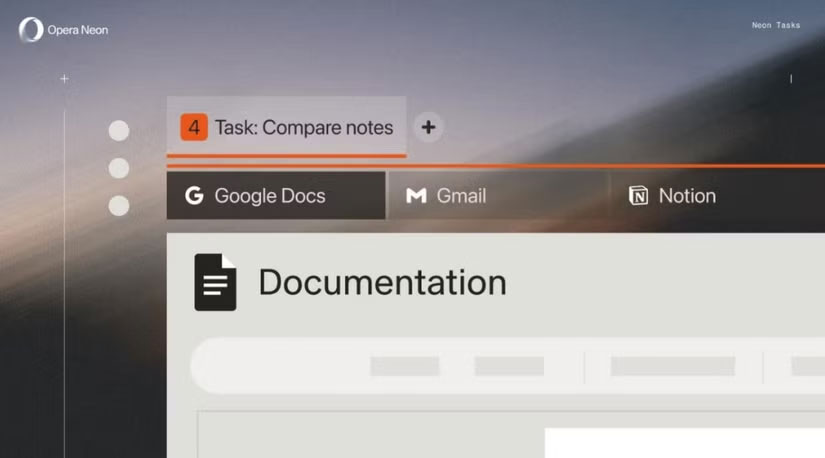
Tasks organize related tabs into a workspace. For example, keep the sources for one purchase comparison together instead of mixing them with unrelated browsing. This makes the intended context easier to manage.
A Task is an organizational feature, not a reason to grant unrestricted access to every signed-in service. Keep confidential or unrelated pages out of the workflow, and inspect the context the assistant is using.
Cards make repeated instructions easier
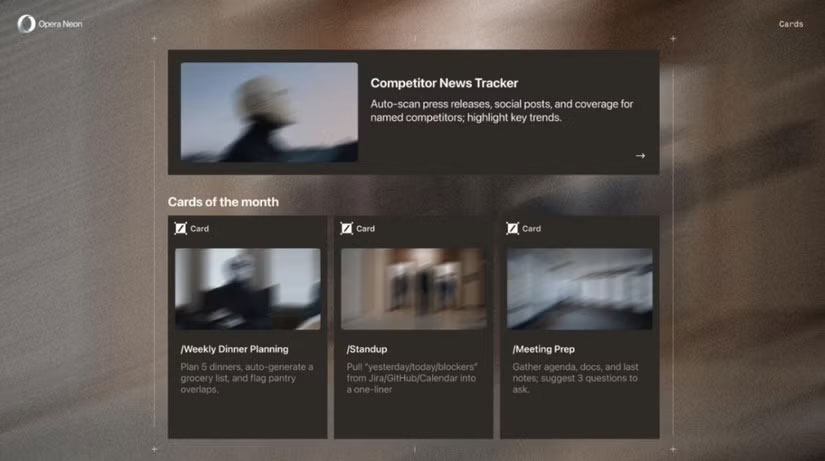
Cards are reusable instructions that can be combined. You might save a preferred comparison format or a checklist for extracting information from a page. This reduces repeated typing when the underlying task stays similar.
Review community Cards before using them. A prompt created for someone else's workflow may include actions, assumptions, or output requirements you do not want. Change it to fit your own sources and stopping point.
Build review points into the workflow
- Research: verify that each important result is supported by the page cited.
- Forms: review field values, dates, quantities, and recipients before submission.
- Purchases: check the total, subscription terms, and merchant before committing.
- Shared systems: inspect the final change before sending, publishing, or deleting anything.
Opera says Neon Do can be paused, stopped, or taken over while it works. Its actions happen in the browser, but cloud models help plan them and relevant page content may be processed remotely. Review the current privacy and control documentation before using sensitive information.
Understand the subscription
Opera opened public early access in December 2025, so the initial invitation-only launch is historical. Its subscription page lists a $19.90 monthly Standard plan for built-in agentic features, alongside a free browser download and connection options. Check the current plan details before subscribing.
The relevant question is whether the specific tasks you perform justify the fee and review time. Occasional summaries may be adequately served by Opera AI in the regular browser; more involved workflows may benefit from an agentic browser. See the Neon features and privacy overview for the product basics.





Reader Comments 0
Sign in with email or Google to join the discussion.