Table of Contents
Switching from Windows to ChromeOS can be a little daunting at first, but it's not that complicated. ChromeOS is much simpler and easier to use. As long as you understand the basic differences and take a few steps before making the switch, the process should go smoothly.
Understand the differences between Windows and ChromeOS
The first thing to understand is that these two operating systems are built with different philosophies:
- Windows is primarily intended for traditional desktop software.
- ChromeOS focuses on web apps and Android apps from the Google Play Store.
When it comes to storage, Windows typically relies on local hard drives, while ChromeOS encourages you to save data directly to Google Drive for easy access anytime, anywhere.
ChromeOS also has security advantages: built-in antivirus, sandboxing, and Verified Boot. Thanks to that, this operating system is less vulnerable to malware attacks than Windows. However, the disadvantages are less customization, less offline performance, and fewer supported applications. However, in return, ChromeOS is light, smooth, and does not require too powerful hardware.
Get familiar with the basic features of ChromeOS
ChromeOS is friendly and has many familiar features to Windows.
- Launcher is similar to Start Menu, where you find and open apps.
- Shelf is like a taskbar, helping you pin applications, quickly switch windows, or open settings.
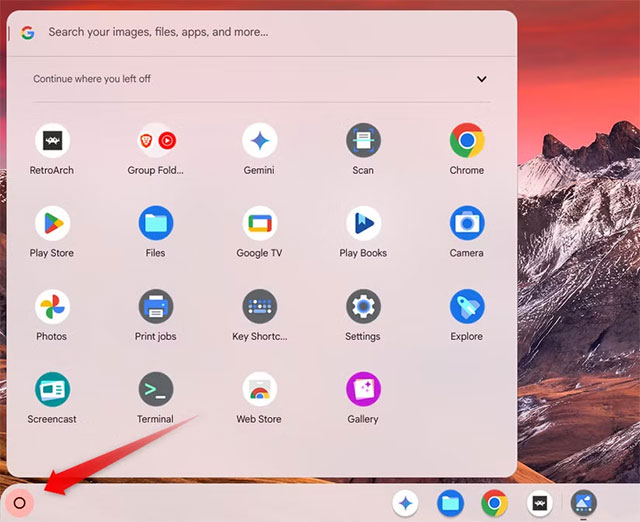
Tapping the clock in the bottom right corner opens the Quick Settings panel, where you manage Wi-Fi, Bluetooth, volume, brightness, and more.
Another convenience is that ChromeOS updates silently in the background, without interrupting your work like Windows often does. Once you get used to this interface, you will find the transition extremely natural.
Back up important data
Before switching to a Chromebook, make sure your important data is backed up. You can choose to:
- Cloud storage (Google Drive): fastest and most convenient, because ChromeOS supports it already.
- External hard drive or USB: make a physical copy, then just plug it into your Chromebook to transfer data.
Set up and sync your Google account
ChromeOS revolves around your Google account. You'll use it to sign in, download apps from the Play Store, browse the web with Chrome, and save data to Drive.
- If you already have a Google account, just sign in.
- If you don't have one, create one before you start using it.
When you first turn on your Chromebook, you'll need to connect to Wi-Fi and sign in. If you're using your old Google account, your settings and data will be restored automatically. If you create a new account, you'll start a whole new journey in the ChromeOS ecosystem.
Note: If you previously saved passwords, bookmarks, or browsing data in another browser, import them to Chrome and enable sync. That way, when you sign in to ChromeOS, the data will automatically appear.
Set up your Chromebook
Once logged in, there are a few things you should do:
- System updates: Tap the clock → gear icon (Settings) → 'About ChromeOS' → Check for updates.
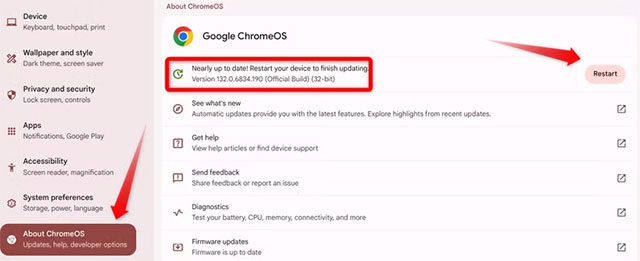
- Tweak settings: change display, touchpad gestures, shortcuts, notifications…
- Install essential apps: download more from Play Store or pin your favorite apps to Shelf.
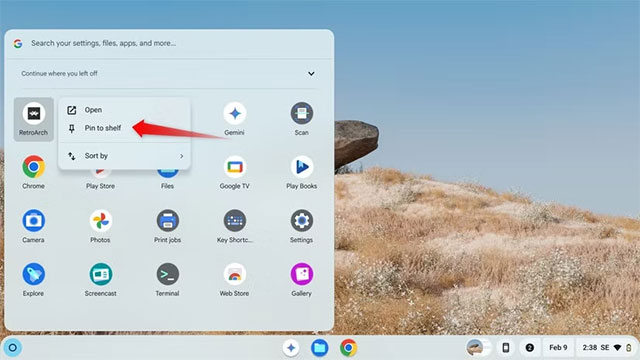
- Account management: if sharing the machine, can add another account.
- Personalize the interface: change wallpaper, customize theme to make your device 'your own'.
In just a few minutes, your Chromebook is ready to go.
Conclude
ChromeOS is a lightweight, fast, and less cumbersome operating system than Windows. However, it has its limitations. Before you decide to buy a Chromebook, you should carefully consider the potential drawbacks and costs. If simplicity, security, and speed are your priorities, switching to ChromeOS is definitely a smart choice.
Final Thoughts
Following the steps in order and checking version-specific settings should make it easier to Switch from Windows to ChromeOS. If an option looks different, verify the device, app, or operating-system version before changing additional settings.
FAQ
What is the best way to Switch from Windows to ChromeOS?
Start with the requirements described in the article and follow the steps in order. Switching from Windows to ChromeOS can be a little daunting at first, but it's not that complicated. ChromeOS is much simpler and easier to use.
What should you know about Understand the differences between Windows and ChromeOS?
The first thing to understand is that these two operating systems are built with different philosophies:
What should you do if the instructions do not match your screen?
Check the device, software version, account permissions, and regional settings. Interfaces can change after updates, so use the closest matching option and consult the official support documentation when necessary.
Related Articles
 Google Pauses to Deploy Chrome Os V754 minutes read
 5 Ways to Make Your Switch from Windows to Linux Easier: Practical Guide7 minutes read
 Browser Uses Least RAM: Complete Guide6 minutes read
 Lightroom Post-Processing Guide for Beginners7 minutes read
 ChromeOS Just 'Copied' One of Windows 11's Best Features: What You Need to Know4 minutes read
 What Is a Red Switch?10 minutes read
Reader Comments 0
Sign in with email or Google to join the discussion.