Improve the battery status in Windows 7 with Power Troubleshooter
How do you use and manage laptop batteries in Windows 7? Which sign helps the user to determine the instability in the system due to the battery? ...
TipsMake.com - How do you do to use and manage laptop batteries in Windows 7? What is the signal that helps the user determine the instability in the system due to the battery? Here, we will guide you how to use and optimize laptop battery life in Windows 7 using the operating system's built-in features.
Use the Troubleshooter
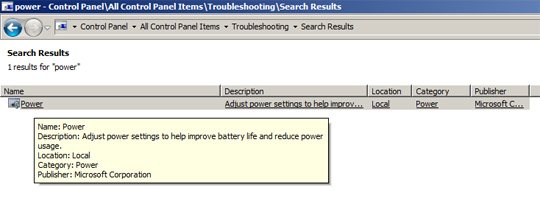
Open Control Panel > Troubleshooting , type the keyword power into the search box, the system will display the appropriate results. Here you choose Power :
Next, click on the Advanced link :

Note in the next window, you can check Apply repairs automatically if you want. After clicking Next , the program will review:
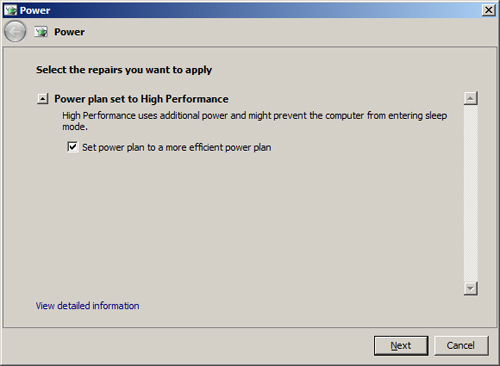
As here, the problem is that the battery performance level is set too high compared to current operations on the computer. Click Next to fix this phenomenon:
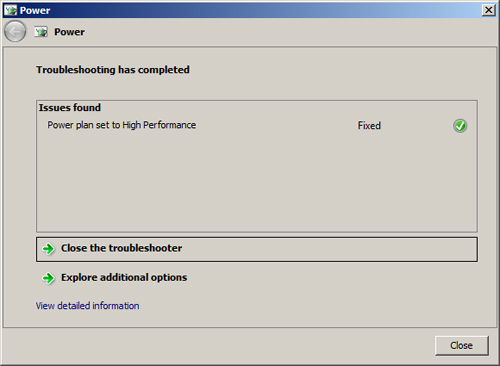
If users pay a little attention to the relevant components within the system and exploit the available features of Windows, it will definitely save time and effort when troubleshooting later. How to use and manage laptop batteries is a good choice without having to apply software, support programs or users must bring computers to shops and technical centers to overcome. Good luck!
Discover more
instructions techniques basic advanced battery laptop Windows 7
Share by
Marvin FryYou should read it
- How to customize Power Plan to increase laptop battery life
- Instructions for using Windows Update Troubleshooter
- Optimize laptop battery life
- Wi-Fi security with advanced techniques
- Windows 10 Troubleshooter has the ability to scan and detect errors automatically
- The Quiet Details That Make a Sports Betting Platform Feel Reliable
- Instructions on creating toy set images with ChatGPT AI
- How are AI agents changing the journalism industry?
- The story of the world's most popular computer game
- Things you need to know about Google Chrome 6
- 'Half facts' in technology (Part 1)