Table of Contents
You can combine Obsidian with a local image generator without giving the generator direct access to your vault. Write a structured prompt in a note, paste it into the image app, save the result inside the vault’s attachment folder, and embed it with Obsidian’s normal image syntax.
This manual handoff is simple, private, and easy to audit. It also avoids installing a plugin that can read the entire vault merely to automate copying a few lines.
What you need
- An Obsidian vault with enough storage for generated images.
- A local image-generation application compatible with your computer.
- A downloaded model whose licence permits your intended use.
- Enough RAM or GPU memory for that model.
“Local” means the inference runs on your machine. The initial app and model download still require internet access, and a plugin or connected sync service may transmit data separately. Check each component rather than assuming the whole workflow is offline.
Choose a local image generator
On Apple Silicon, one option is Hugging Face’s open-source Swift Core ML Diffusers demo app. It runs Core ML versions of compatible diffusion models on macOS. Do not confuse this graphical demo with the separate Python Diffusers library, which requires a development environment.
On Windows, ComfyUI Desktop offers a node-based workflow, while other local Stable Diffusion interfaces provide a more conventional prompt form. The best option depends on GPU support, available memory, and the model you want to run.
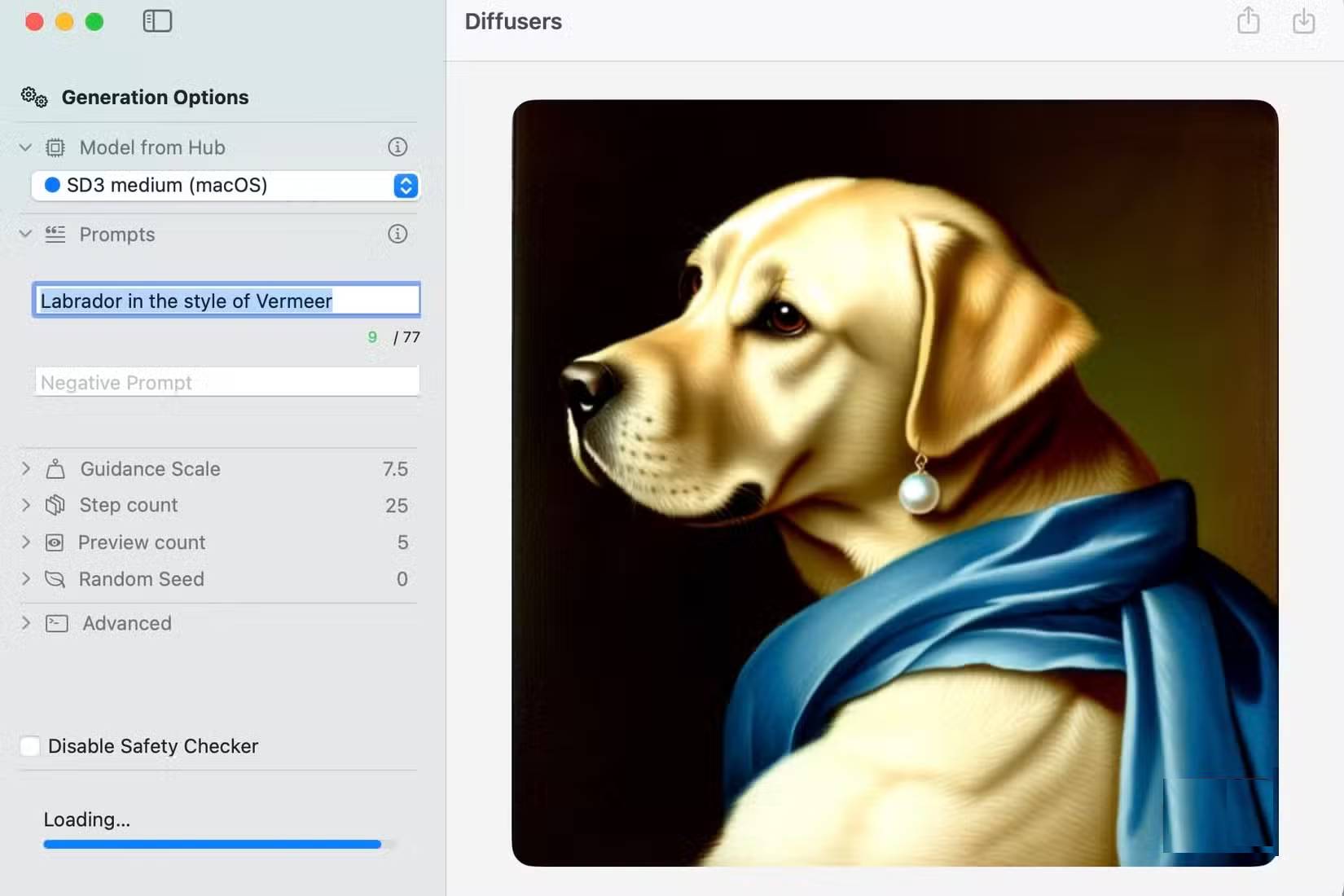
Do not choose a model by Mac name alone
A newer M-series processor does not guarantee that a large model will run comfortably. Check the app’s current compatibility list and the model’s memory requirements. Start with a smaller supported model, generate a modest-size image, and monitor memory pressure before trying higher resolutions.
Model availability changes, so instructions that name a single “best” model can age quickly. A smaller model that produces a usable image reliably is more practical than a larger one that repeatedly exhausts memory.
Prepare the Obsidian vault
- Create an attachment folder such as
assets/imagesinside the vault. - Open Obsidian’s Files and Links settings.
- Set the default location for new attachments to the folder you created, if you want all note images stored there.
- Create a separate folder named
Templates. - Enable Obsidian’s core Templates feature and point it to that folder.
You can also use the community Templater plugin for scripts and dynamic fields, but a static prompt template does not require it. Community plugins execute code with access to the vault, so install only plugins you have evaluated and keep them updated.
Create an image-prompt template
Create a note in the Templates folder named Local Image Prompt and add:
## Image brief
Purpose:
Subject:
Setting:
Composition:
Mood:
Color palette:
Lighting:
Visual style:
Important details:
Avoid:
Aspect ratio:

## Generation record
App:
Model:
Model source:
Model license:
Seed:
Steps/settings:
Output file:
The first section improves the prompt. The second preserves enough information to understand where the image came from and reproduce it later. Not every app exposes a seed or step count; leave unavailable fields blank rather than inventing values.
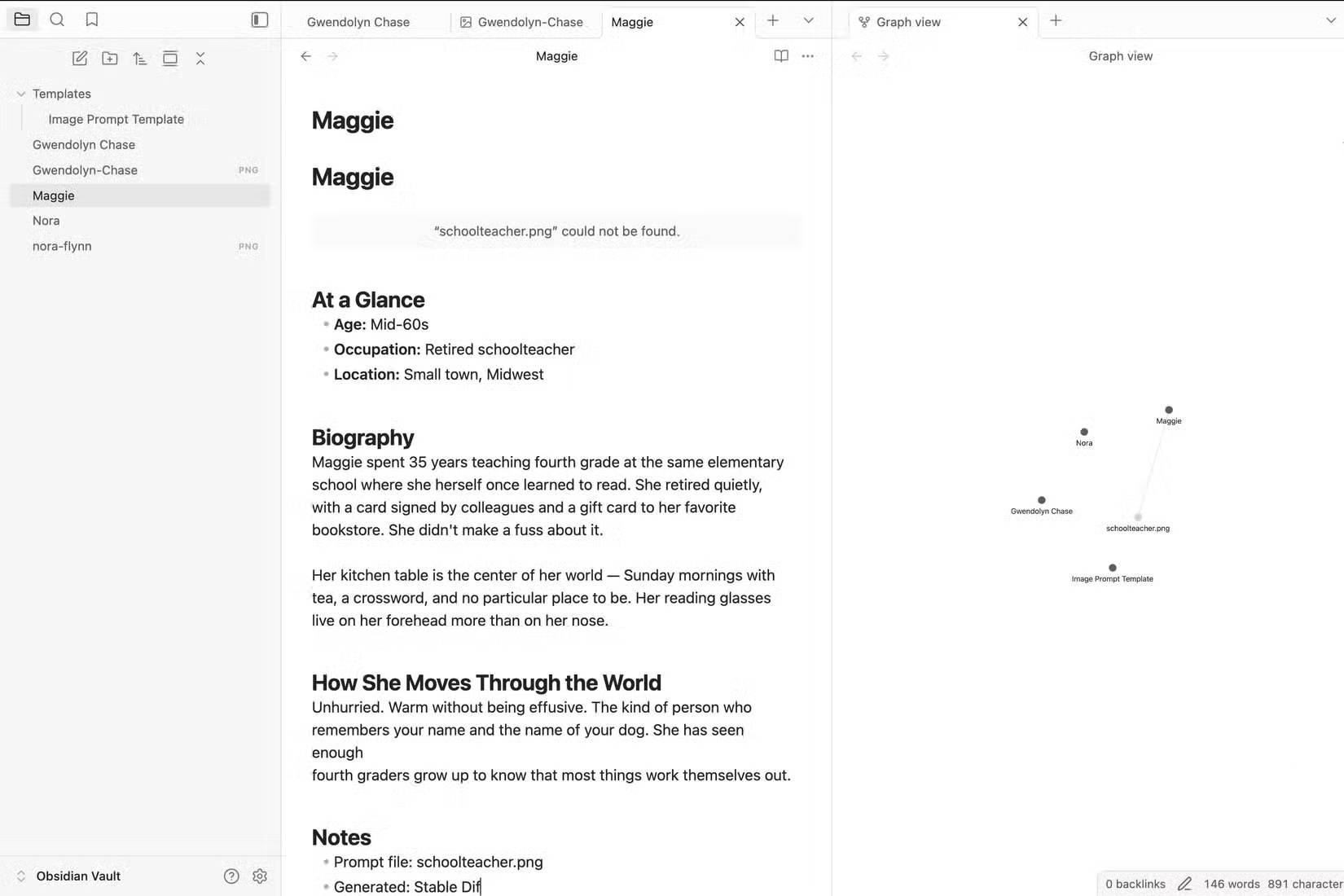
Write a prompt from the note
Insert the template into the note you want to illustrate. Describe what the image must communicate before choosing decorative details. For a story character, specify the character’s age range, clothing, action, setting, and emotional tone. For a concept note, describe the relationship or process the image should make easier to understand.
Example:
Purpose: Character reference for a quiet mystery story
Subject: A retired schoolteacher in her mid-sixties, silver hair loosely tied back, reading glasses resting on her forehead
Setting: Sitting at a modest kitchen table with a cup of tea on a Sunday morning
Composition: Medium shot, eye-level camera, subject slightly left of center
Mood: Content, unhurried, observant
Color palette: Warm cream and muted sage green
Lighting: Soft natural window light
Visual style: Detailed cinematic realism with natural skin texture
Important details: Well-used notebook on the table, ordinary clothing, lived-in room
Avoid: Glamour styling, dramatic spotlight, visible text, watermark, extra fingers
Aspect ratio: 3:2 landscape
Turn those fields into one natural prompt when the app expects a single text box. If it supports a separate negative prompt, move the Avoid list there. Negative prompts are model-dependent; some applications ignore them or use different controls.
Generate and review the image
- Paste the completed prompt into the local generator.
- Choose a modest resolution for the first tests.
- Generate several variations while keeping the same prompt and settings.
- Check the composition, important objects, anatomy, unwanted text, and visual consistency.
- Change one category at a time—such as camera angle or lighting—so you can tell what improved the result.
- Record the chosen model, seed, and settings in the note when available.
Do not treat a photorealistic image as a factual photograph. Label synthetic images when readers could reasonably misunderstand their origin, and avoid misleading depictions of real people or events.
Save the image inside the vault
Use a descriptive filename such as retired-teacher-kitchen-reference.png rather than image1.png. Save or move it into assets/images within the vault, then embed it in the note:
![[assets/images/retired-teacher-kitchen-reference.png]]If Obsidian is configured to use the attachment folder, dragging the file into the note can create the link automatically. Confirm that the image appears after moving or renaming it; a broken link usually means the file path and embed text no longer match.
Keep the workflow reproducible
Store the prompt and generation record below the image, optionally inside a collapsed callout if you do not want the metadata to dominate the note. A compact record might look like this:
> [!info]- Generation details
> App: Swift Core ML Diffusers
> Model: [exact model identifier]
> Model source: [official repository URL]
> Model license: [licence shown by the model publisher]
> Seed: [value, if available]
> Output: assets/images/retired-teacher-kitchen-reference.png
The exact model identifier matters because similarly named checkpoints can behave differently. Save the licence or a source link as well; the software may be open source while a downloaded model has separate restrictions.
Privacy and security limitations
- Model downloads: use official repositories or publishers you trust. Model files and custom extensions can create supply-chain risk.
- Community plugins: an Obsidian plugin may read notes or make network requests even when image generation is local.
- Sync: images saved in the vault may be uploaded by Obsidian Sync, iCloud, Dropbox, Git, or another backup service.
- Reference photos: do not use confidential or unlicensed photographs merely because they remain on the device.
- Output rights: check the model licence and any rights in the prompt inputs before publishing or selling an image.
Optional automation
Once the manual process works, automation can reduce repetitive steps. A script or trusted plugin could collect selected note fields, call a local generation API, save the image, and insert the embed. Keep the API bound to the local machine, validate filenames, restrict the output directory, and require confirmation before overwriting a file.
Start manually because it exposes every handoff. When you later automate, you will know which steps need validation and which metadata must be retained. The result is a visual-note system that remains understandable even if the image application, model, or plugin changes.
Related Articles
 How to Connect a Local AI Model to Obsidian Using MCP: Step-by-Step Guide9 minutes read
 How to Use Local LLM to Sort Chaotic Obsidian Inventory: Step-by-Step Guide7 minutes read
 What Is Obsidian Note-Taking? Obsidian User Manual6 minutes read
 4 Essential Obsidian Settings for Every New Vault8 minutes read
 7 Best Obsidian Plugins for Mobile: Complete Guide6 minutes read
 How to Combine Claude Code with Obsidian CLI8 minutes read
Reader Comments 0
Sign in with email or Google to join the discussion.