Table of Contents
To use Siri in Vietnamese, update the iPhone, open Siri settings, choose Vietnamese as the language, and enable the voice or button activation method you prefer. Menu names vary between iOS releases: recent versions use Apple Intelligence & Siri, while older versions may show Siri or Siri & Search.
Vietnamese recognition can vary with names, regional pronunciation, noise, and the app involved. Start with short commands and check the screen before sending a message, creating an event, or acting on a result.
Before you begin
- Install the latest iOS update available for the iPhone.
- Connect to Wi-Fi while Siri downloads a language or voice.
- Confirm that Siri is available in your country or region.
- For Apple Intelligence features in Vietnamese, check device compatibility separately; basic Siri and Apple Intelligence do not have identical requirements.
Apple’s current Apple Intelligence requirements say the device language and Siri language must match a supported language. Apple Intelligence also requires compatible hardware and enough device storage.
How to change Siri to Vietnamese
- Open Settings.
- Tap Apple Intelligence & Siri, Siri, or Siri & Search, depending on the iOS version.
- Tap Language.
- Select Vietnamese (Tiếng Việt).
- Wait for the language and chosen voice to download if prompted.
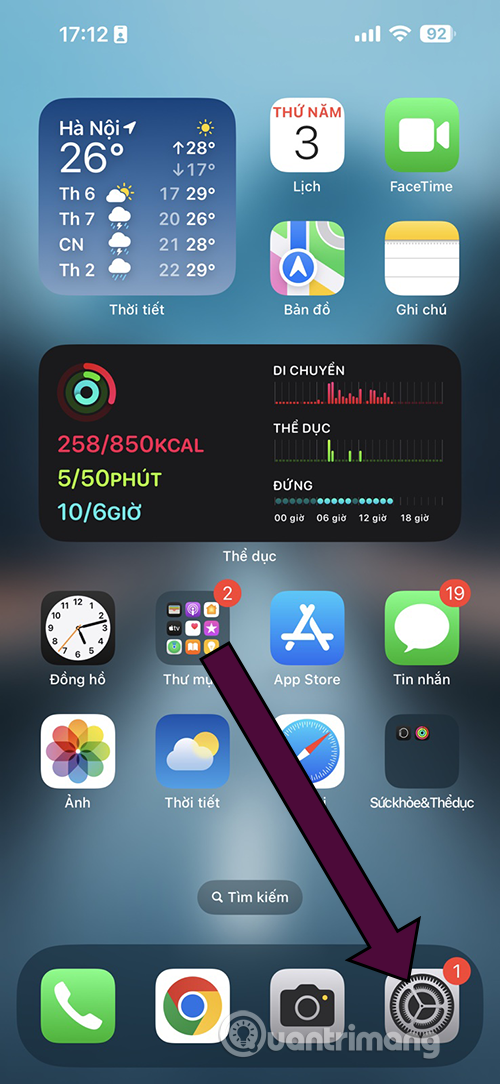
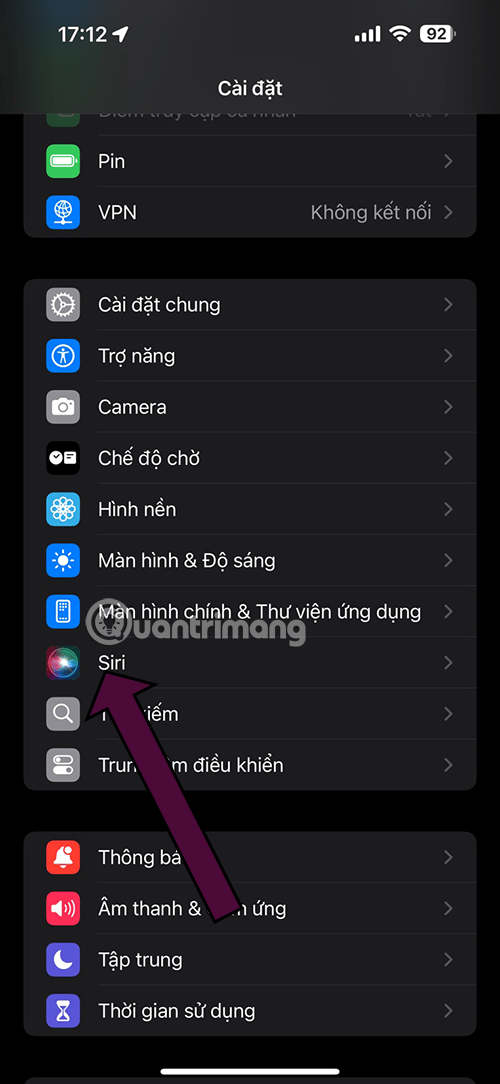
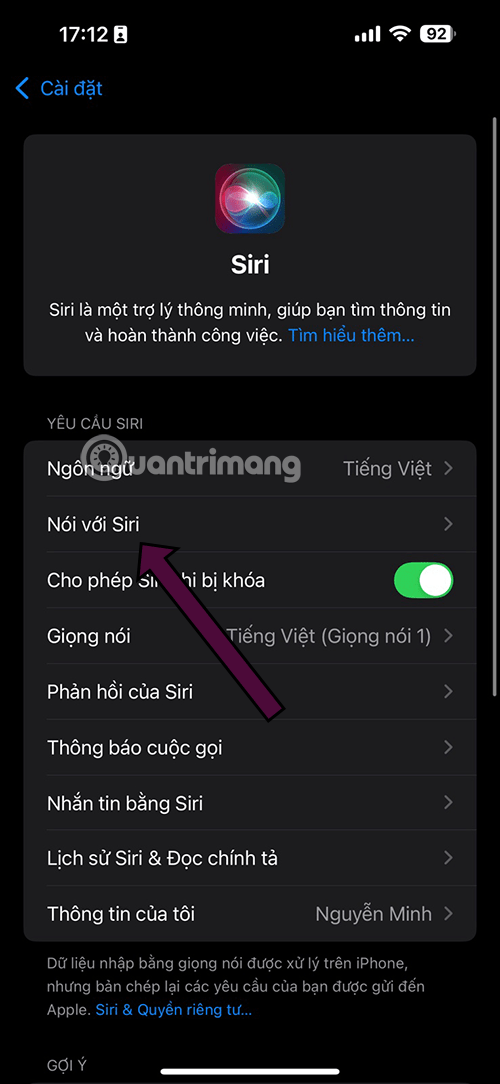
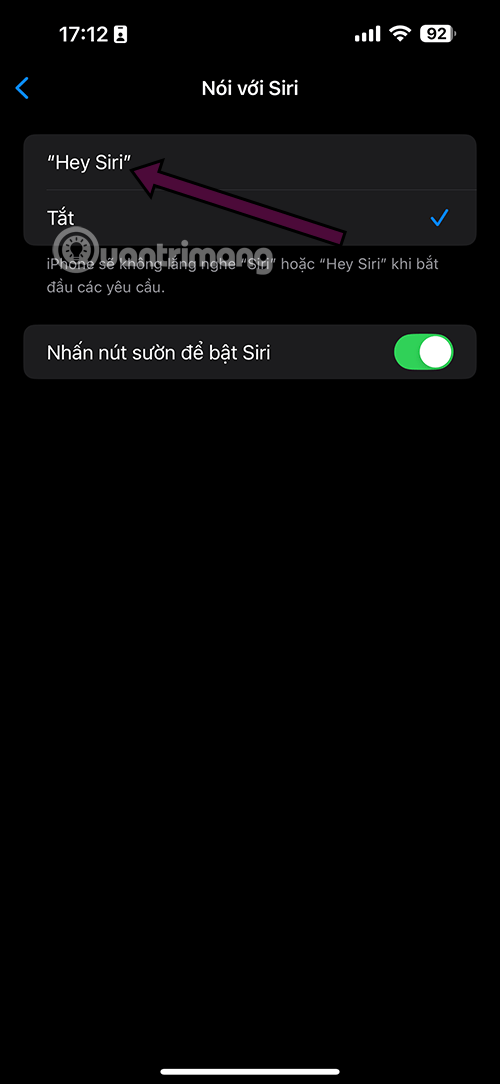
Turn on Siri activation
In the Siri settings, configure the methods you want:
- Talk to Siri: choose the available “Siri” or “Hey Siri” option for hands-free activation.
- Press Side Button for Siri: hold the side button on an iPhone with Face ID.
- Press Home for Siri: hold the Home button on an older iPhone that has one.
- Type to Siri: where supported, type a request instead of speaking.
To start Siri, say the enabled phrase or hold the relevant button until the Siri interface appears. Then speak naturally without pausing after every word.
Decide whether Siri works while locked
Allow Siri When Locked is convenient for timers, calls, and directions, but it can expose information or actions from the lock screen. Consider disabling it on a device that contains sensitive work or personal data.
Even with lock-screen access enabled, iOS may require authentication for protected content or consequential actions. Do not assume that every command is available while the phone is locked.
Useful Vietnamese Siri commands
Replace the bracketed text with a contact, app, time, or place. Exact wording is flexible, and Siri may ask a follow-up question.
Calls and messages
| Vietnamese command | Purpose |
|---|---|
| “Gọi cho [tên liên hệ].” | Call a saved contact. |
| “Gọi FaceTime cho [tên liên hệ].” | Start a FaceTime call if available. |
| “Nhắn tin cho [tên] rằng tôi sẽ đến muộn 10 phút.” | Draft a message to the contact. |
| “Đọc tin nhắn mới của tôi.” | Read messages when permissions and lock state allow. |
Check the named recipient and message text before confirming. Vietnamese contact names may work better when the Contacts entry contains the correct pronunciation or phonetic information.
Alarms, timers, and reminders
- “Đặt báo thức lúc 6 giờ 30 sáng.”
- “Đặt hẹn giờ 15 phút.”
- “Nhắc tôi gọi cho mẹ lúc 8 giờ tối.”
- “Nhắc tôi mua sữa khi tôi rời công ty.”
- “Cho tôi xem lời nhắc hôm nay.”
Location-based reminders require Location Services and an address that iOS can recognize.
Calendar and appointments
- “Tạo sự kiện Họp nhóm lúc 10 giờ sáng mai.”
- “Lịch của tôi hôm nay có gì?”
- “Dời cuộc họp lúc 3 giờ sang 4 giờ.”
- “Cuộc hẹn tiếp theo của tôi là khi nào?”
When a command contains both a date and time, inspect the event preview for the correct day, time zone, and calendar before saving.
Weather, calculations, and conversions
- “Thời tiết hôm nay thế nào?”
- “Ngày mai ở Đà Nẵng có mưa không?”
- “40 nhân 12 bằng bao nhiêu?”
- “Đổi 5 kilômét sang dặm.”
- “Bây giờ ở Tokyo là mấy giờ?”
Currency conversions and live information require internet access and may be delayed. Confirm a financial rate with the relevant provider before a transaction.
Apps, music, and device controls
- “Mở ứng dụng Ghi chú.”
- “Phát bài [tên bài hát].”
- “Tạm dừng nhạc.”
- “Tăng âm lượng.”
- “Giảm độ sáng màn hình.”
- “Bật chế độ Không làm phiền.”
Some settings cannot be changed by voice or require the phone to be unlocked. Siri may open the appropriate Settings page instead.
Directions and nearby places
- “Chỉ đường đến [địa điểm].”
- “Trạm xăng gần nhất ở đâu?”
- “Mất bao lâu để đến sân bay?”
- “Đưa tôi về nhà.”
“Home” must be configured in your contact card or Maps. Confirm the route and transport mode before starting.
Notes and lists
- “Tạo ghi chú mới: ý tưởng cho bài thuyết trình.”
- “Thêm cà phê vào danh sách mua sắm.”
- “Đọc danh sách mua sắm của tôi.”
Home accessories
- “Bật đèn phòng khách.”
- “Tắt điều hòa phòng ngủ.”
- “Đặt nhiệt độ phòng khách là 24 độ.”
These commands require compatible accessories configured in the Home app, with rooms and device names that Siri can distinguish.
Change Siri voice and response behavior
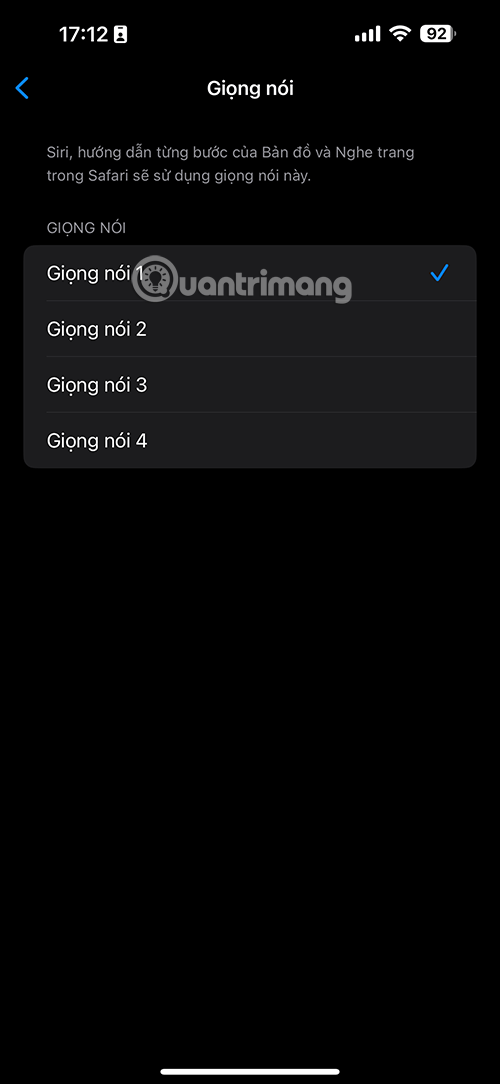
Open the Siri settings and use Siri Voice to choose an available voice. A download may continue in the background. Use Siri Responses or a similarly named setting to control when Siri speaks aloud and when it shows a transcription.
Headphones, CarPlay, Silent mode, and accessibility settings can affect spoken responses. If Siri appears to work but remains quiet, review both Siri Responses and the current audio output.
Why older screenshots look different
Older iOS releases grouped these controls under Siri & Search and used labels such as Listen for “Hey Siri”. The functions are similar, but the location and wording have changed.
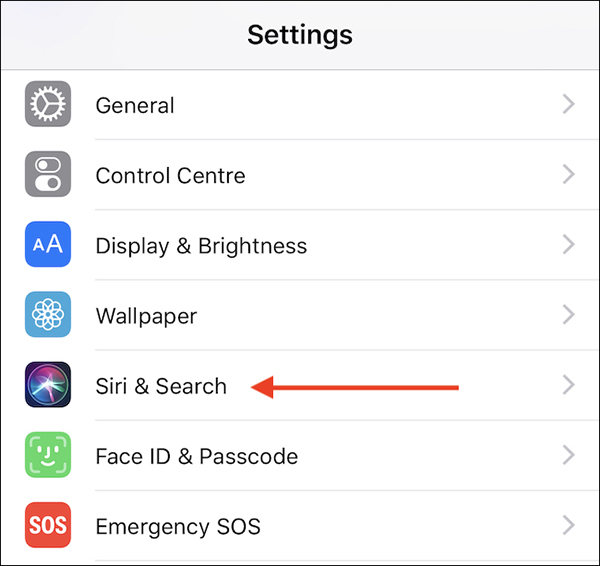
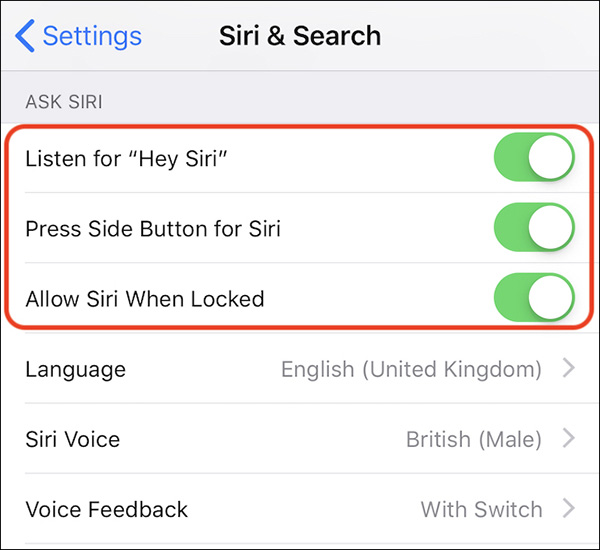
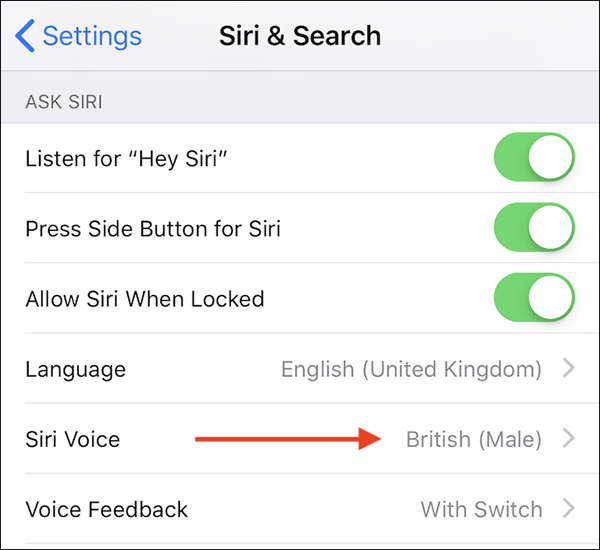
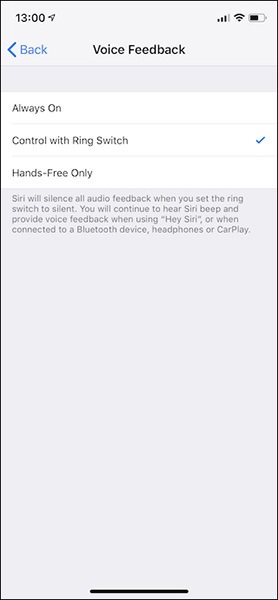
If your screen matches these images, use the older labels. Do not downgrade or search for a separate “Siri installer”; Siri is built into iOS.
Troubleshooting Vietnamese Siri
- Vietnamese does not appear: install the latest compatible iOS update, restart Settings, and check language availability for the region.
- Voice activation fails: turn Talk to Siri off and on, repeat the voice setup, and test in a quiet room.
- Names are misheard: confirm the contact spelling and add pronunciation information where available.
- Siri stops after changing language: reconnect to Wi-Fi and allow the language or voice download to finish.
- Apple Intelligence disappears: make the device language and Siri language match a supported Apple Intelligence language and confirm hardware eligibility.
- No sound: check volume, Silent mode behavior, Bluetooth output, and Siri Responses.
- A command works inconsistently: shorten it, use the exact room or contact name, and split a multi-step request into separate commands.
Privacy tips
- Disable lock-screen Siri if private messages or actions should require authentication.
- Review which apps can use Siri and Search suggestions.
- Do not speak payment, account, or health information where others can hear it.
- Inspect a generated message, reminder, or event before confirming.
- Use Apple’s current privacy and Siri settings to manage history and data sharing.
Siri can also be used on a computer; see the TipsMake guide to using “Hey Siri” on a Mac. Availability and command behavior vary by device, language, and region, so use the on-screen result as the final check.
Related Articles
 How to Enable Siri: Complete Guide6 minutes read
 The 'Critical' Answers of Siri, the Funny Assistant on iOS9 minutes read
 10 Changes the Best Settings That Siri Can Make on iPhone5 minutes read
 How to Use Siri Offline on iPhone: Step-by-Step Guide4 minutes read
 How to Turn on Vulgar Language Limits with Siri on iPhone and iPad5 minutes read
 How to Have Siri Call Your Name: Complete Guide4 minutes read
Reader Comments 0
Sign in with email or Google to join the discussion.