Table of Contents
Once you see how LAMBDA works and what it can do for your everyday spreadsheets, you'll wonder why you didn't try it sooner.
The truth is, LAMBDA isn't as scary as it seems. You don't need to learn a new programming language or understand complex logic. You probably already know everything You should know to get started. The barrier isn't skill. It's just that you're unfamiliar with the simplicity of LAMBDA. Once you see how LAMBDA works and what it can do for your everyday spreadsheets, you'll wonder why you didn't try it sooner.
Let's start with what makes LAMBDA work!
Let's learn the syntax together!

Think of LAMBDA as a way to create your own custom functions right in Microsoft Excel. You don't need to learn a programming language or install anything new. Just take formulas you already know how to write and turn them into reusable functions that work just like the built-in functions. Once you understand how it works, it will become one of those Excel functions you can't live without.
The basic structure is straightforward. You define what information goes into your function, then write a formula that uses that information. Here's a simple example of multiplying any number by 3.
Enter this formula into any cell to test.
=LAMBDA(number, number * 3)(5)The first part defines what gets inserted. The word "number" is just a temporary name you chose. The second part is your actual formula. The part in parentheses at the end lets you test it right away. When you press Enter , you'll see 15.
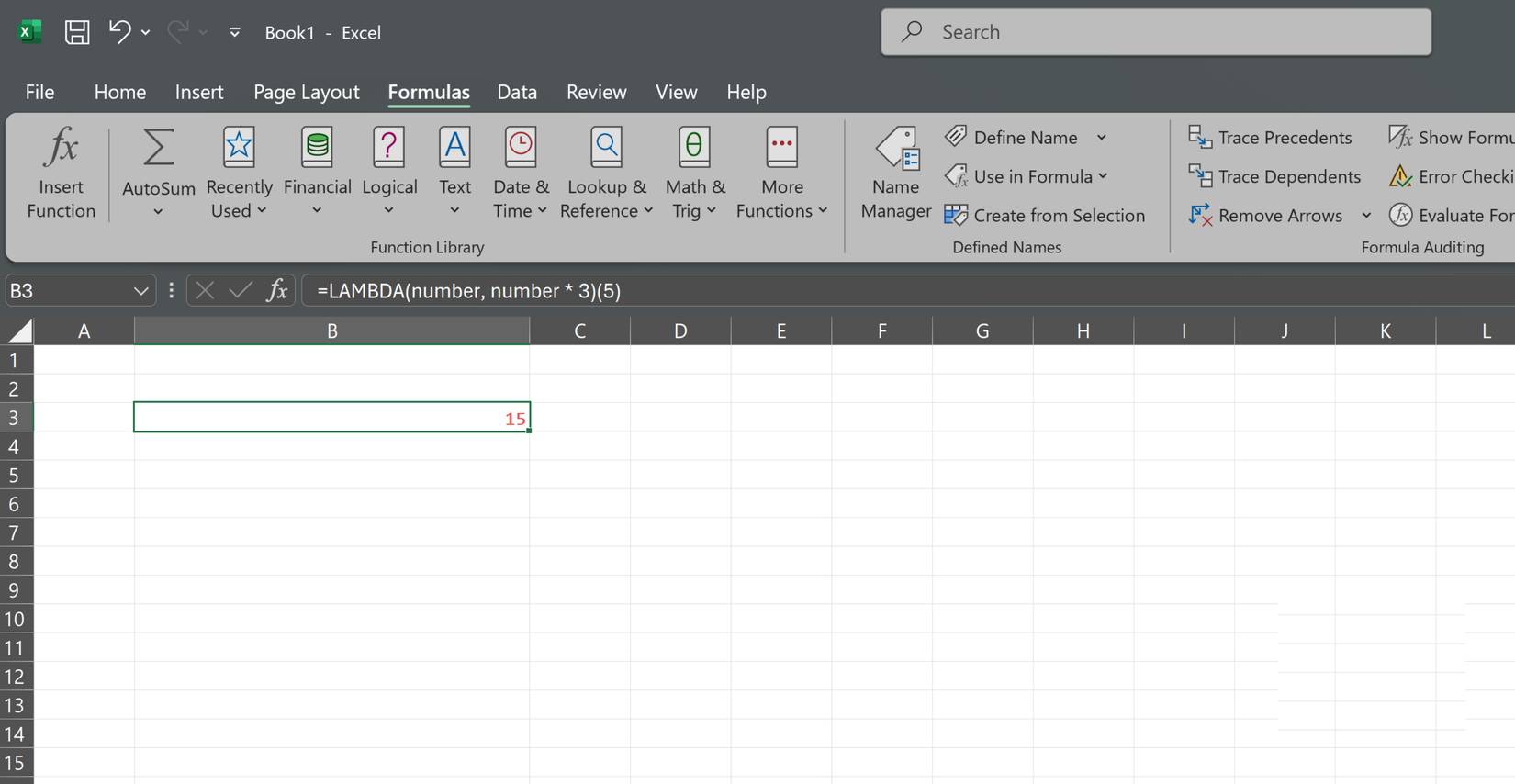
Once you know how the function works, you can save it as a named function using the Name Manager. Go to the Formulas Tab, click Name Manager , and then select New . Give the function a name, such as TRIPLE. In the Refers to box, paste your LAMBDA formula without the check at the end. This will save you many time every time You should use the formula.
=LAMBDA(number, number * 3)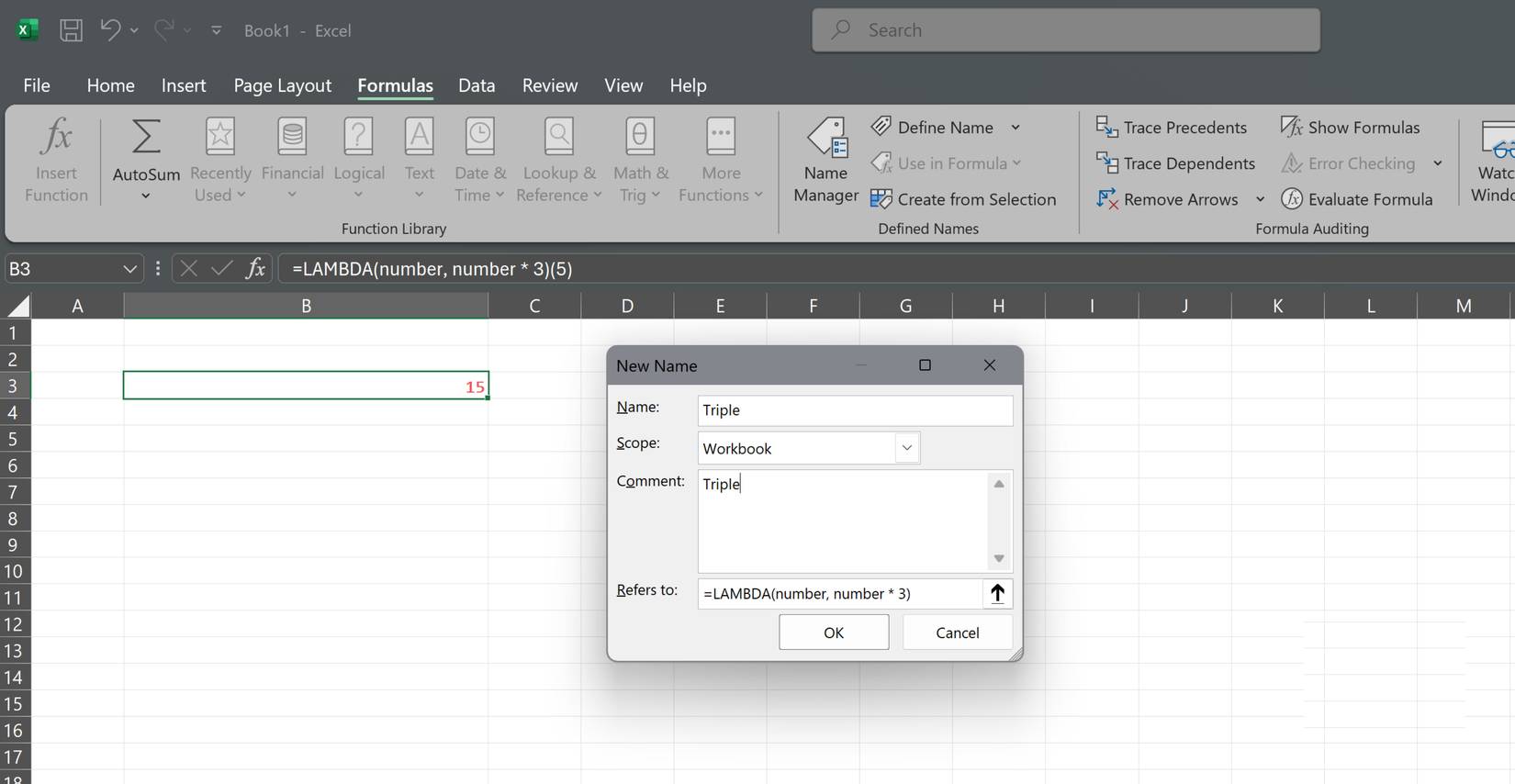
Now you can use TRIPLE anywhere in your workbook just like any built-in Excel function. Type =TRIPLE(10) And get 30. That's it. You just created your first custom function.
Why should you try LAMBDA today?
Small changes save you many work later.
Turn complex ideas into simple functions
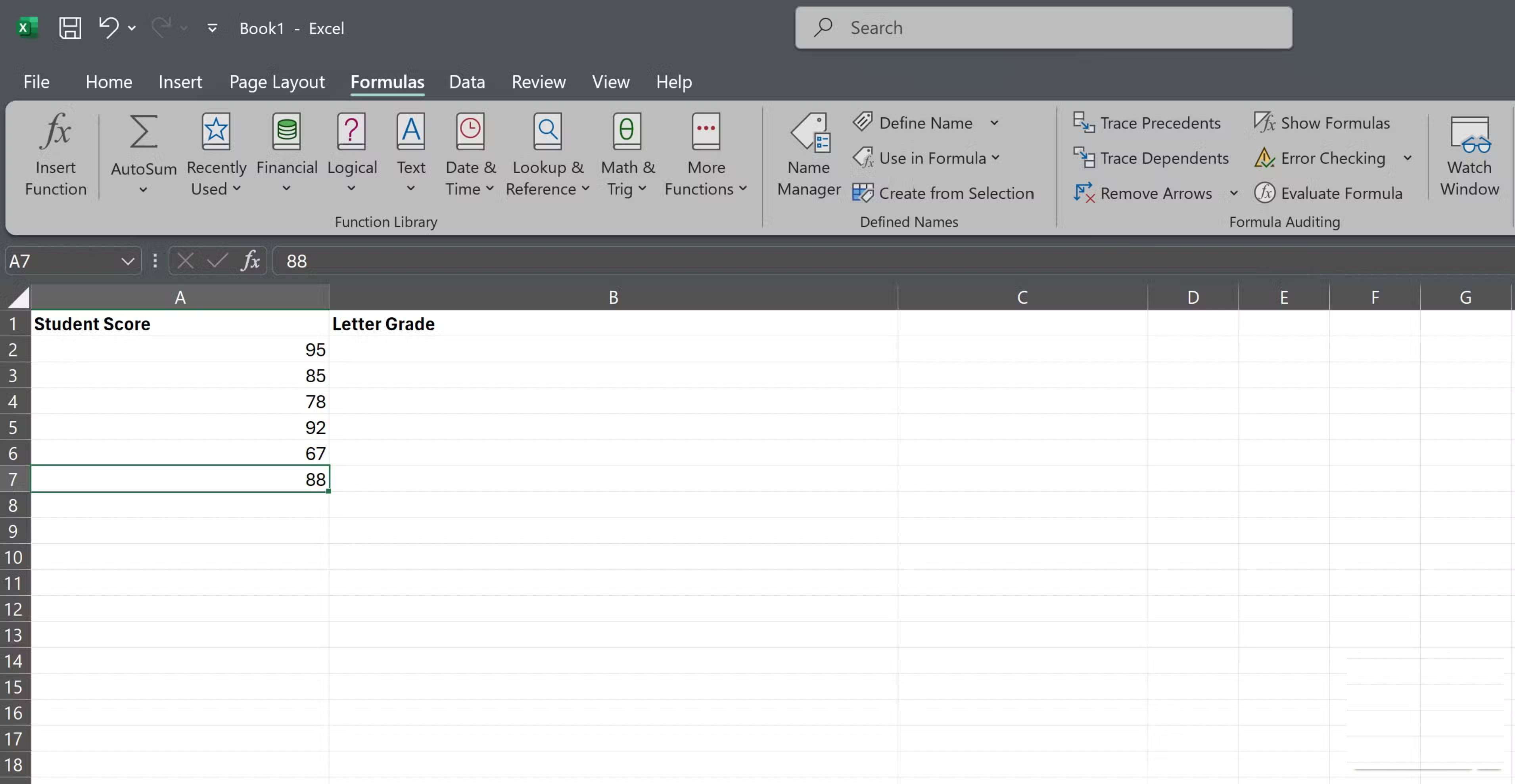
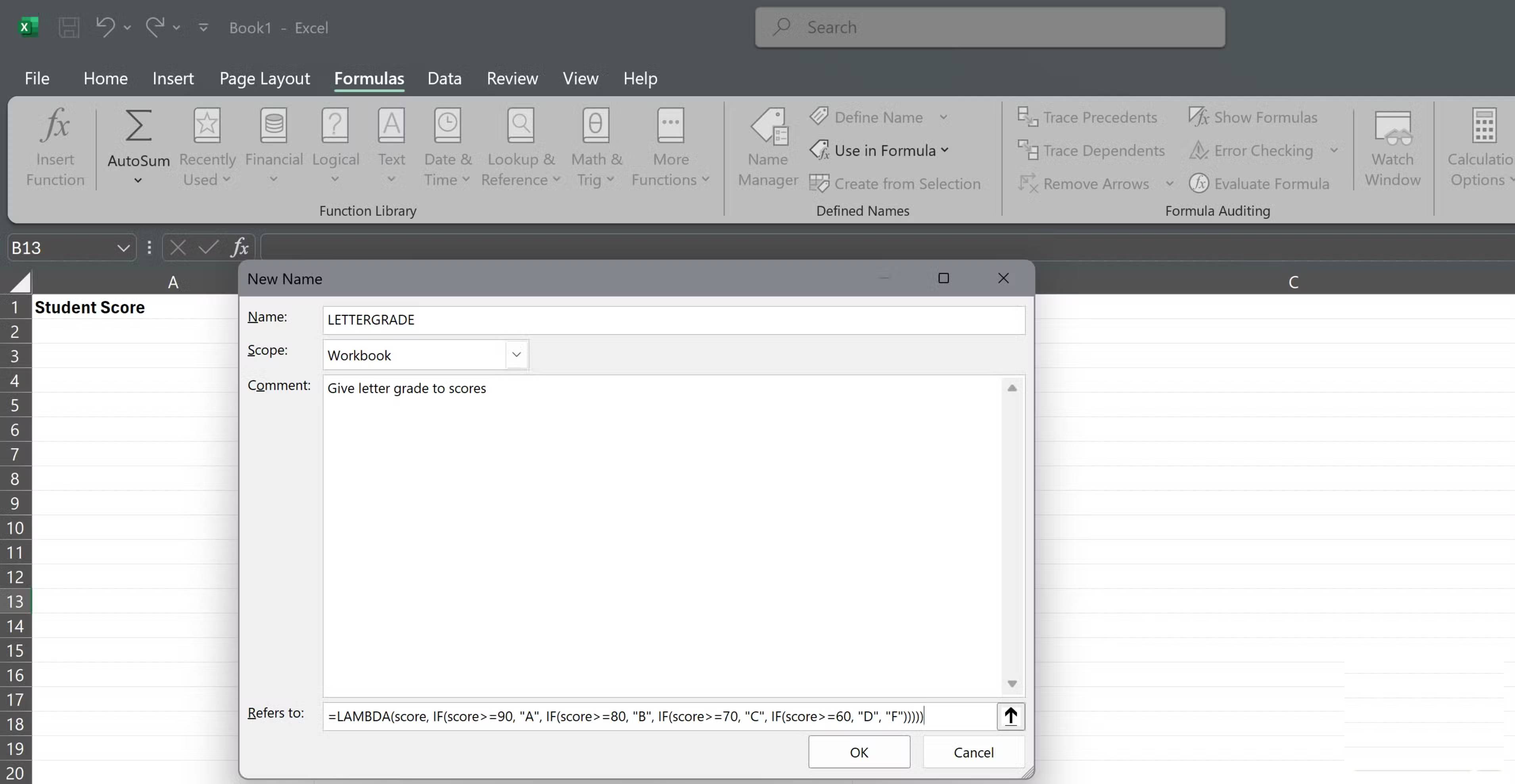
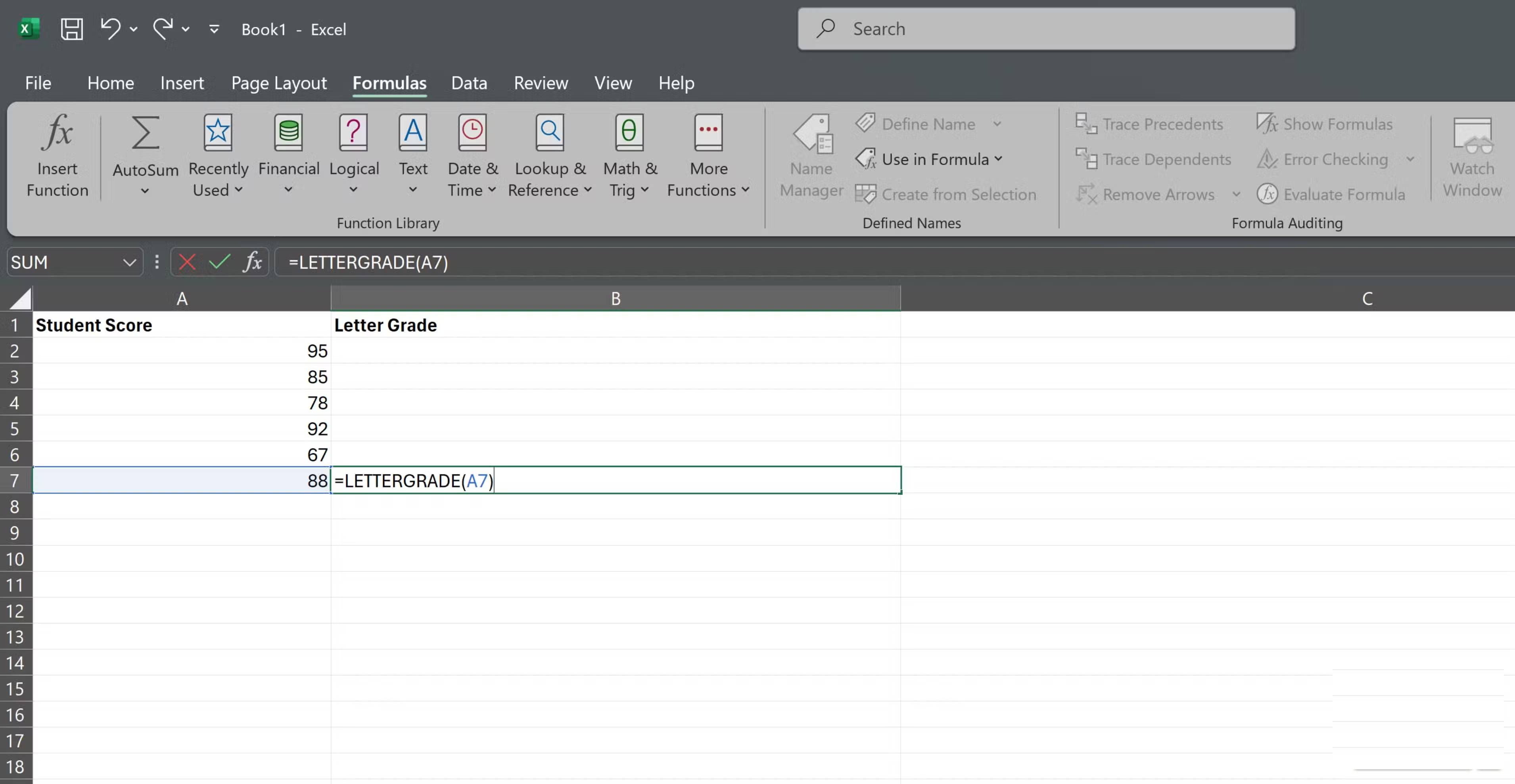
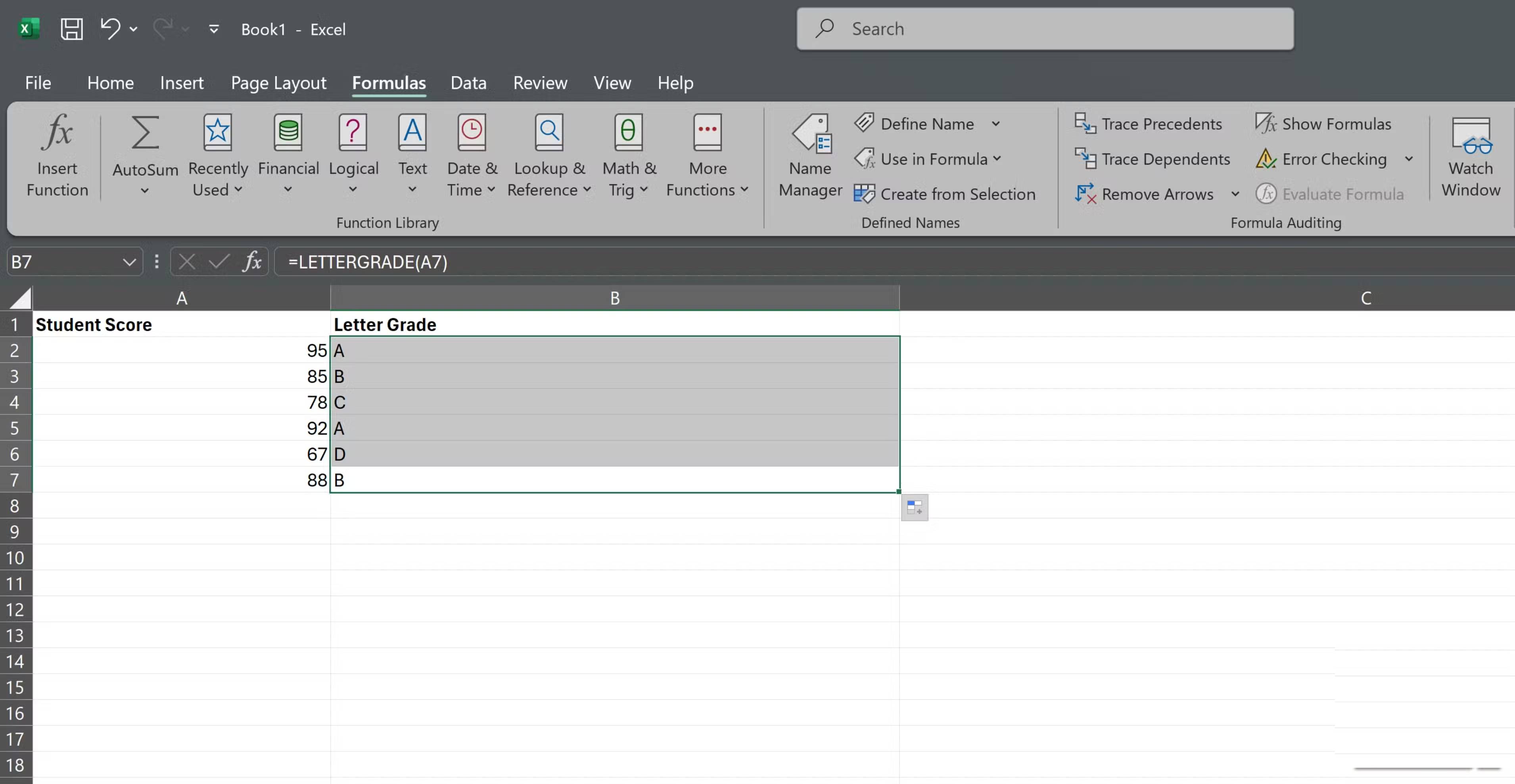
Some calculations in Excel require formulas that make sense when you write them down, but don't make sense a week later. Nested IF statements are a common example. You write them, they work, but explaining them to your colleagues takes longer than necessary.
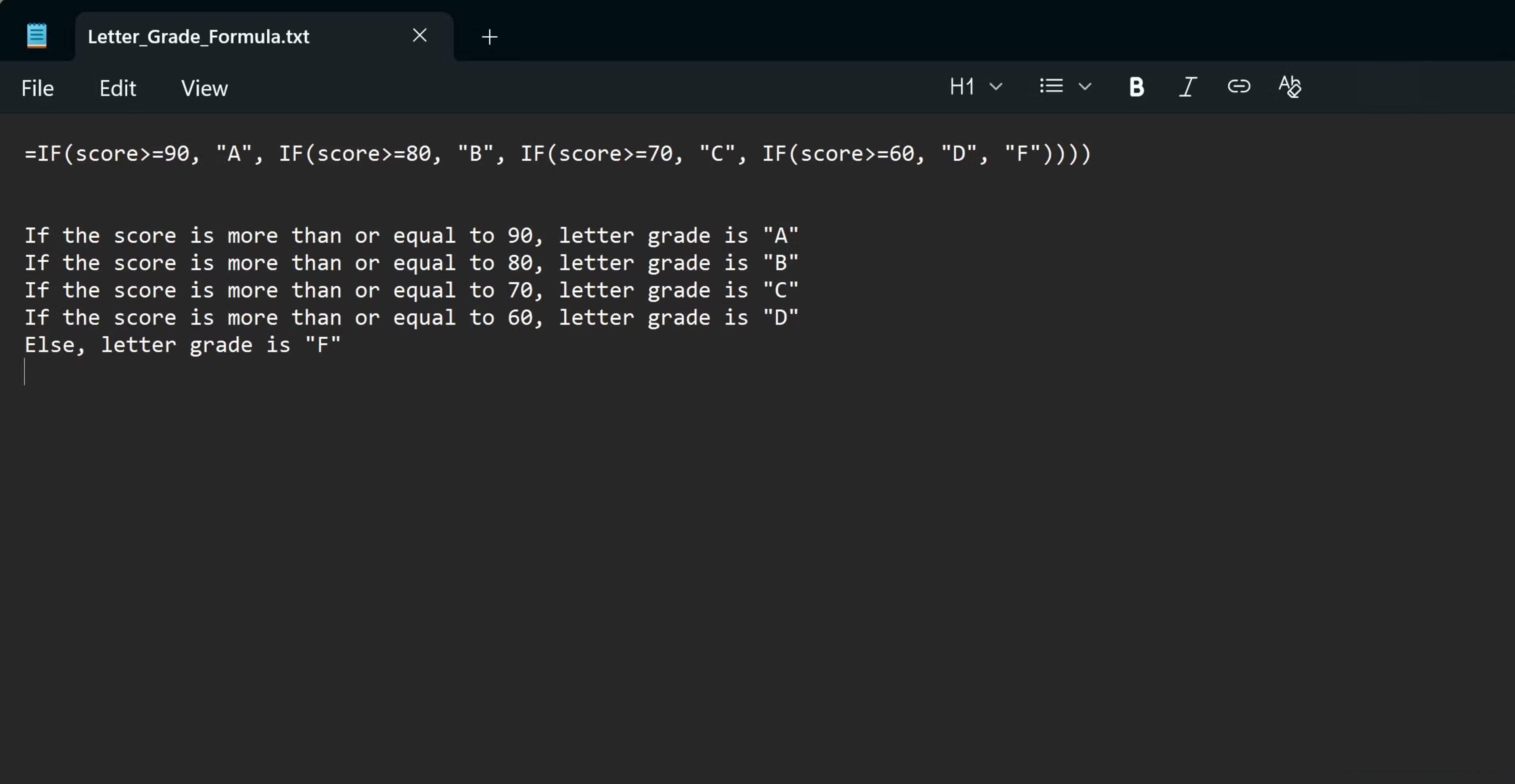
Consider grading calculations. You might have a formula that checks if the score is 90 or higher for an A, between 80 and 89 for a B, etc. This can quickly become verbose, especially if you stack multiple conditions. If someone else opens your workbook, they'll have to decipher what all those IF statements are doing.
Let's convert it to a LAMBDA function called LETTERGRADE. Now your spreadsheet just displays =LETTERGRADE(85) And returns B. Anyone looking at your work will immediately understand what's going on without having to parse through the nested logic. The messy part is in the Name Manager, where it only needs to exist once.
This is even more important when you are working with others. A spreadsheet filled with easy-to-read function names will be easier to troubleshoot and modify quickly than one filled with long formulas that require careful reading to understand. Your colleagues will spend less time learning your formulas and more time actually using them.
This function is not as complicated as people think.
LAMBDA is just a new version of Excel, not a new language
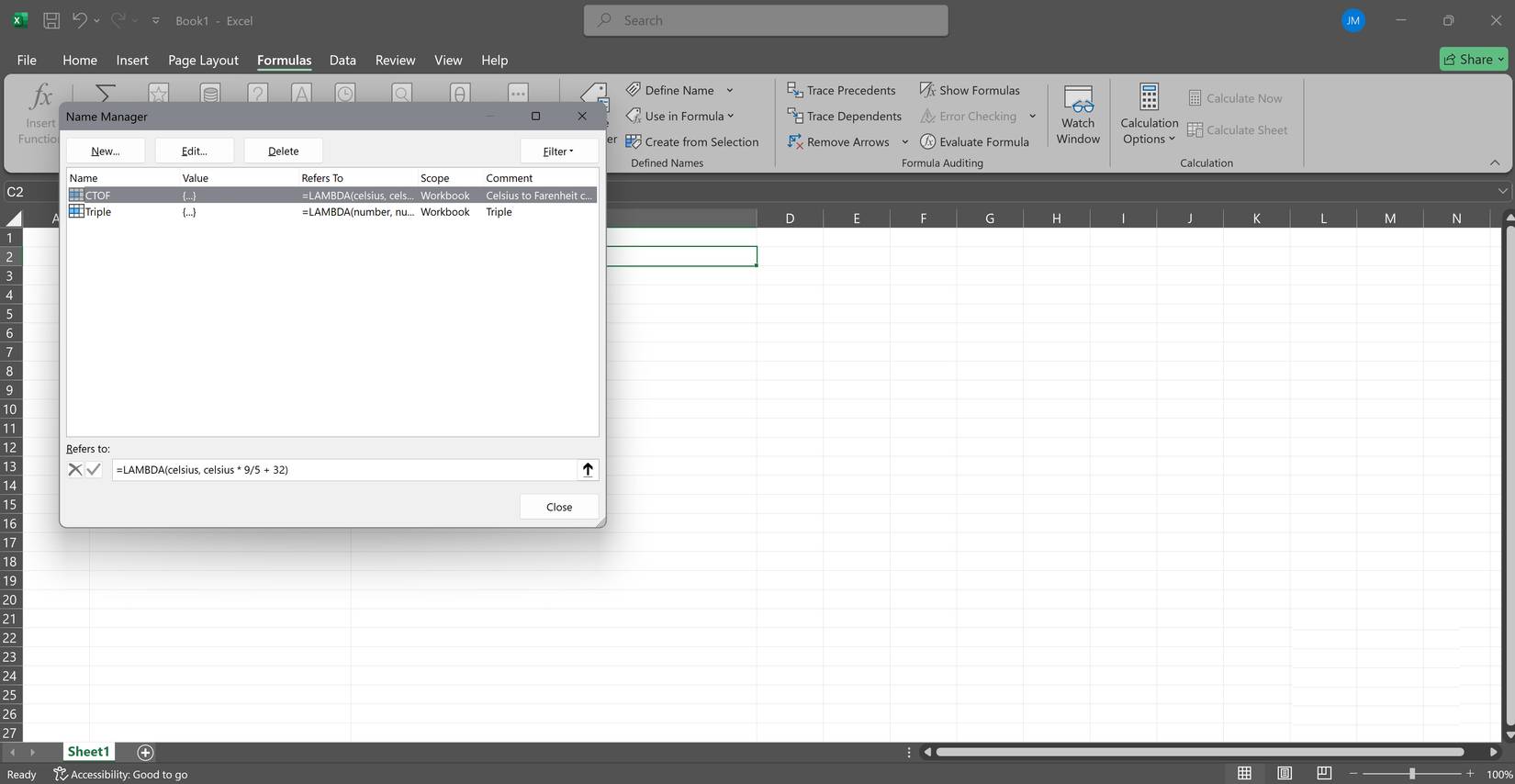
One reason people hesitate to use LAMBDA is because they think it requires learning something completely new. But that's not the case. Every part of a LAMBDA function is built from regular Excel formulas. If you can write =SUM(A1:A10) Or =IF(B2>100, "High", "Low") , you already have the skills to build LAMBDA functions.
There's no setup code required, and no security warnings about enabling macros. LAMBDA functions calculate instantly like any other formula. They're not functions that slow down your workbook or cause compatibility issues like VBA sometimes does. You're working entirely within Excel's formula system, just organizing them differently.
This shift focuses on thinking in terms of reusable elements rather than one-off calculations. Once you get used to it, LAMBDA becomes another tool in your normal Excel workflow, not an advanced feature you avoid. You're not stepping away from what you already know. You're just making what you already know more efficient.
FAQ
How do you use the LAMBDA function in Excel: step-by-step guide?
In practical terms, once you see how LAMBDA works and what it can do for your everyday spreadsheets, you'll wonder why you didn't try it sooner.
What should you check before getting started?
Review the requirements, compatible device or software version, and any warnings described in the guide before making changes.
What should you do if the steps do not work?
Repeat the steps in order, confirm that your app or system is up to date, and review the troubleshooting details provided above.
Related Articles
 3 Excel Functions That Will Make You a Spreadsheet Expert: Practical Guide8 minutes read
 Excel Tricks That Let You Write Formulas More Easily8 minutes read
 Anonymous Function, Lambda in Python5 minutes read
 5 Real-world Examples Demonstrating the Effectiveness of the MAP Function in Excel9 minutes read
 The Index Function in Excel: Formulas and Usage9 minutes read
 How to use the VALUE function in Excel - A function to4 minutes read
Reader Comments 0
Sign in with email or Google to join the discussion.