Table of Contents
This practical guide explains how to take beautiful flower photos with your phone. Follow the steps in order, review the requirements first, and use the troubleshooting notes when a setting or option does not work as expected.
- 7 Essential Techniques for Taking Landscape Photos on Your Phone
6. Use a shallow depth of field
You've probably heard the benefits of this many times before. Depth of field is the technical term for how sharp a scene is. Shallow depth of field is when the background is blurred, leaving only the subject in focus. This is an effective way to draw attention to your subject.
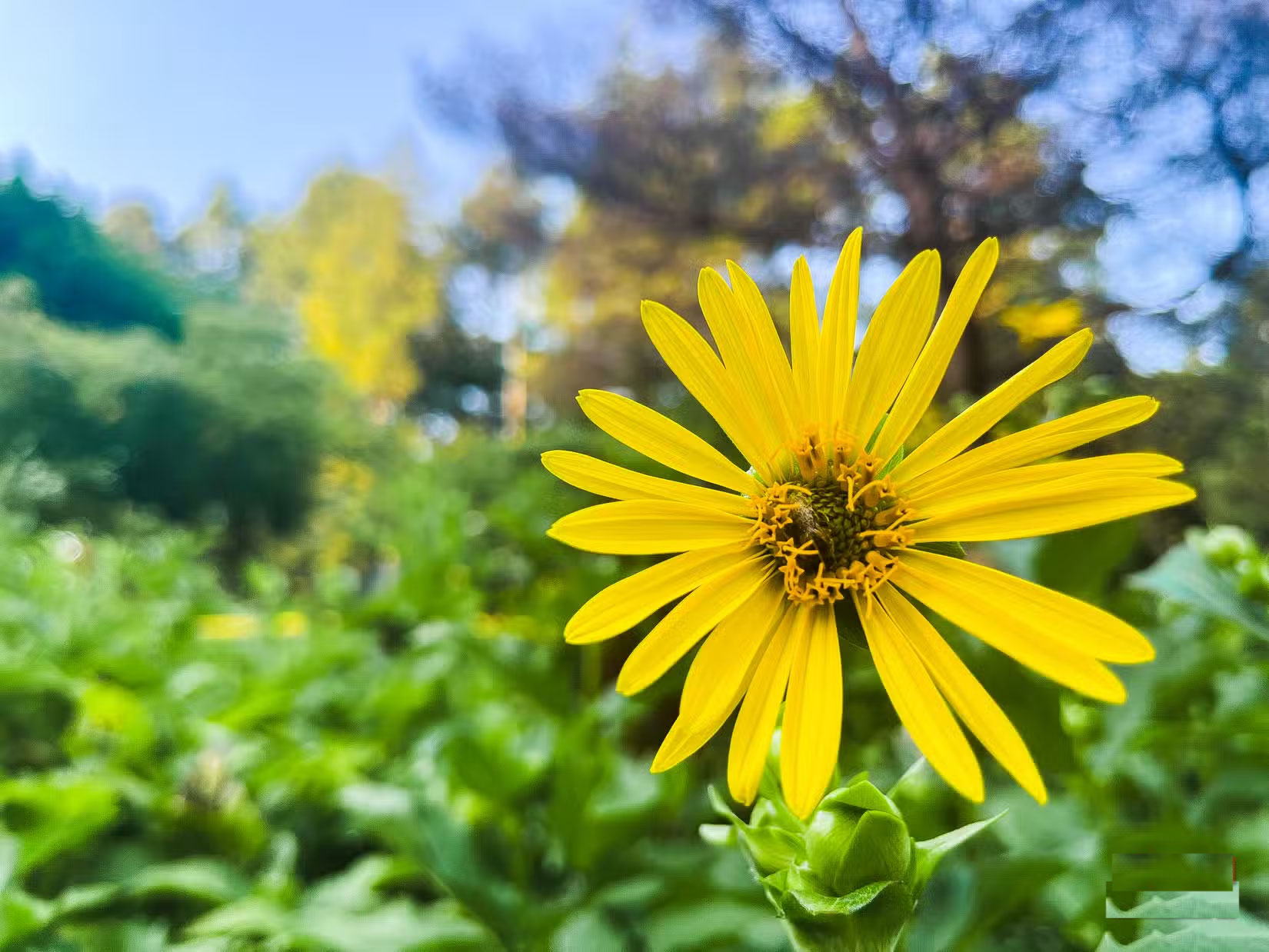
Almost all modern smartphones have the ability to adjust the aperture, allowing users to control the depth of field. If your phone doesn't have this option, you can use apps that allow you to shoot in manual mode.
5. Explore new perspectives
A vertical flower photo, while beautiful, lacks interest. So look up, look down, or try any angle other than the boring one you've always used. Remember, taking risks and trying new things is what makes fine art photography stand out.
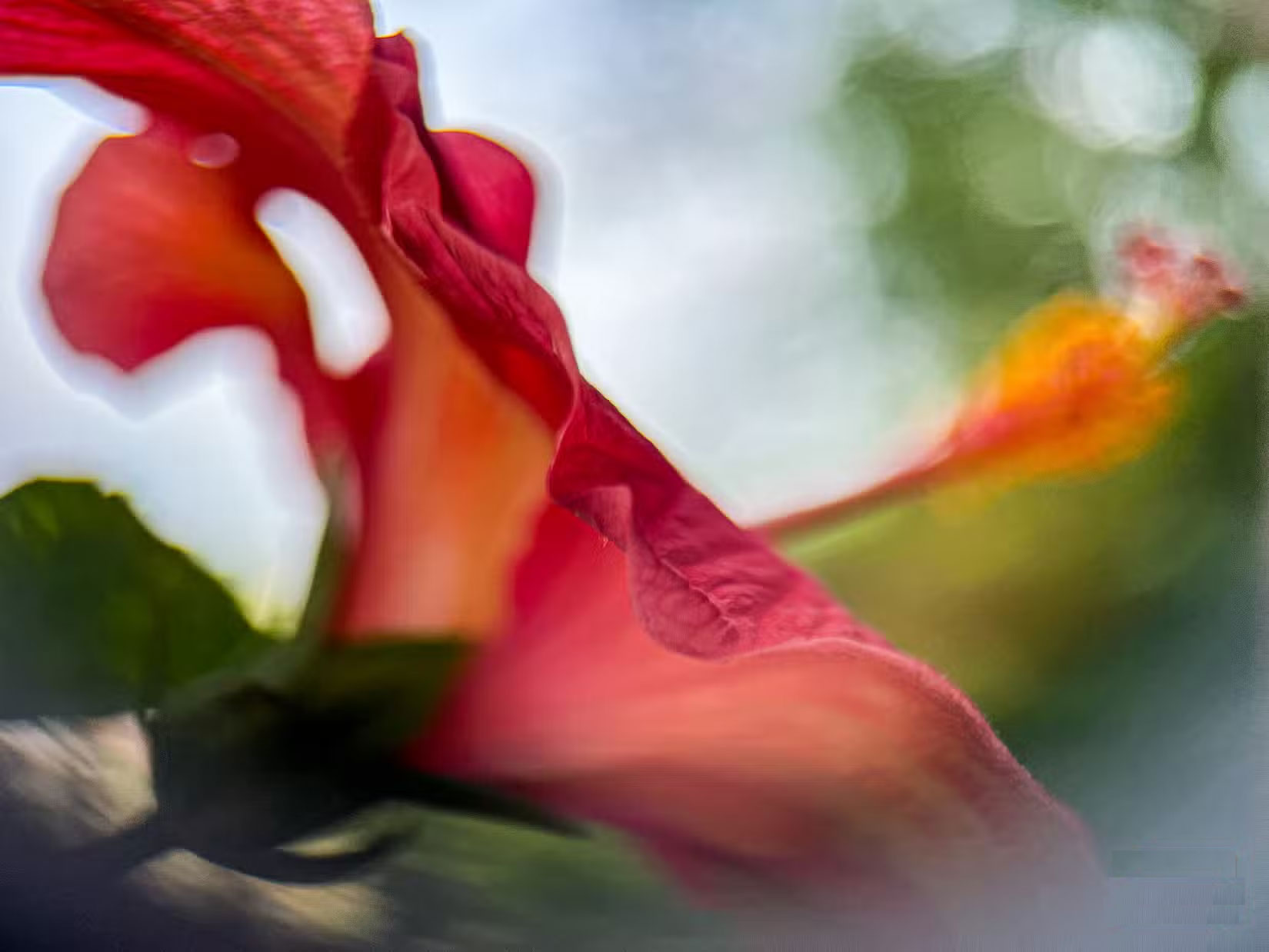
As you try different angles, you'll also notice subtle changes in light and beautiful bokeh effects in the background.
4. Experiment with layout
We've discussed the importance of using composition rules many times before, and for good reason. Even if you have the latest, most feature-packed phone, your photos can still look amateurish if you don't use the right composition rules. Let's start with symmetry, which is easy to achieve in flower photography. Follow the rule of thirds to make your photos more dynamic.
Also, look for ways to incorporate design elements, such as lines, colors, shapes, and textures. These elements will quickly elevate your photos to works of art. Pay attention to the natural curves of petals and stems to highlight lines or shapes. There is always texture in flowers - zoom in to highlight it.
3. Experiment with slow shutter speeds
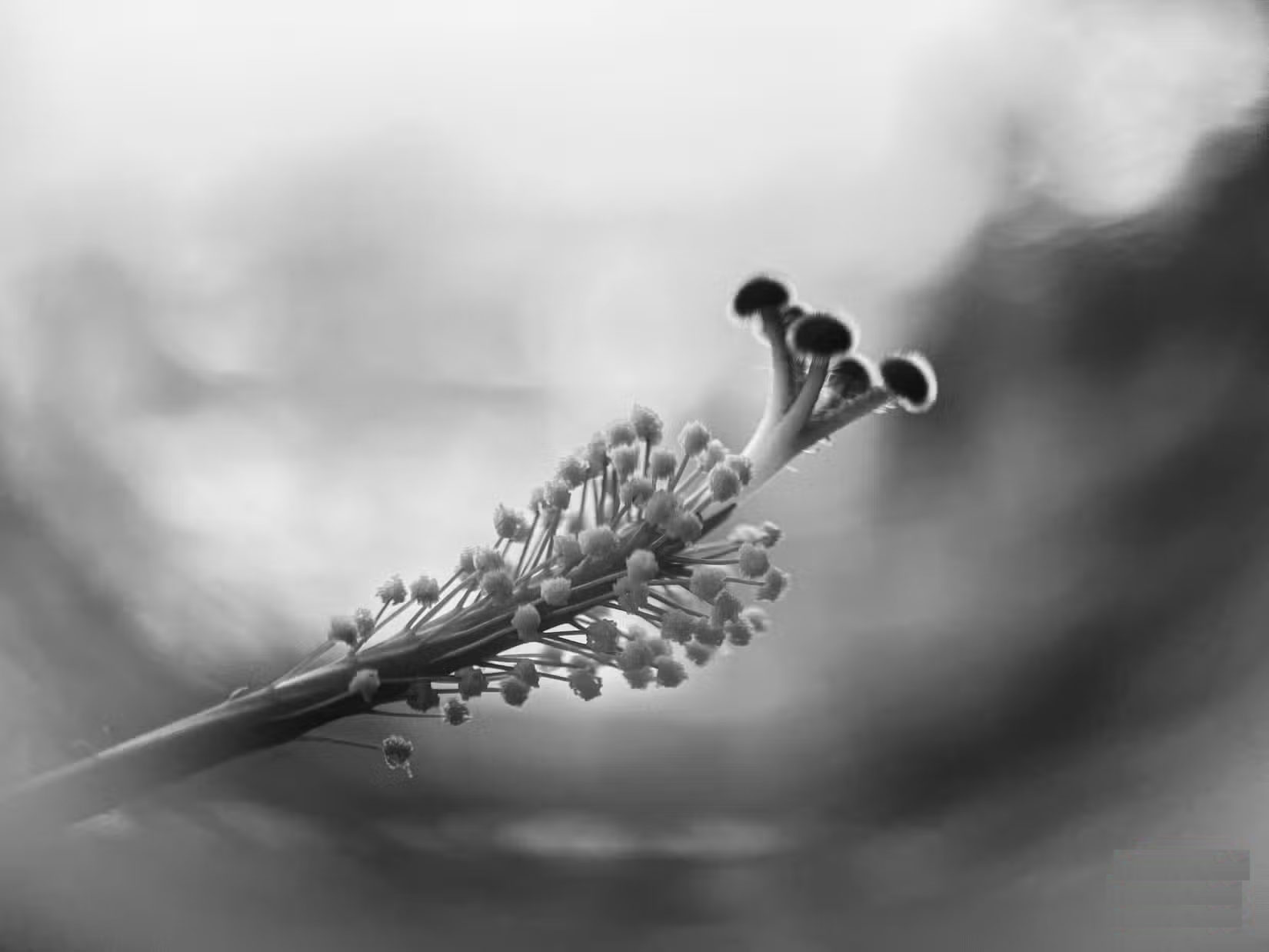
Slow shutter speeds or long exposures can be artistic and interesting in landscape photography. Likewise, you can use slow shutter speeds to take surreal flower photos. I recommend using third-party apps, but you can also use your phone's camera for this purpose.
The easiest and quickest way to achieve that dreamy look in your photos is to take a live photo and convert it into a long exposure using your iPhone's built-in editing features. This process will give you a great photo, but can be a bit limiting since live photos are only 3 seconds long.
2. Try taking double exposure photos
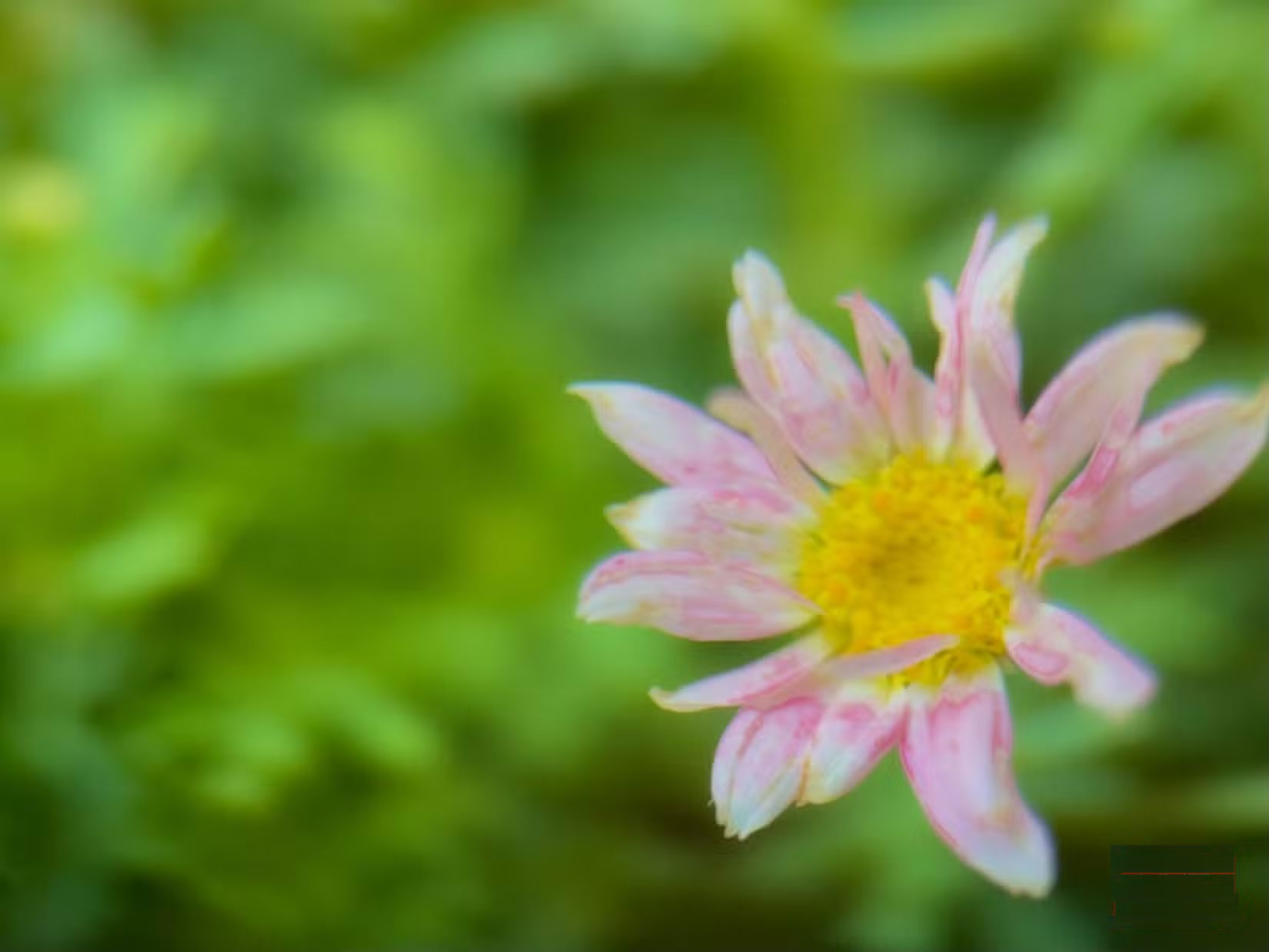
Double exposure is another technique that can add depth and drama to your photos. You can create this effect by superimposing one photo on top of another. You can do this on your phone or in post-production.
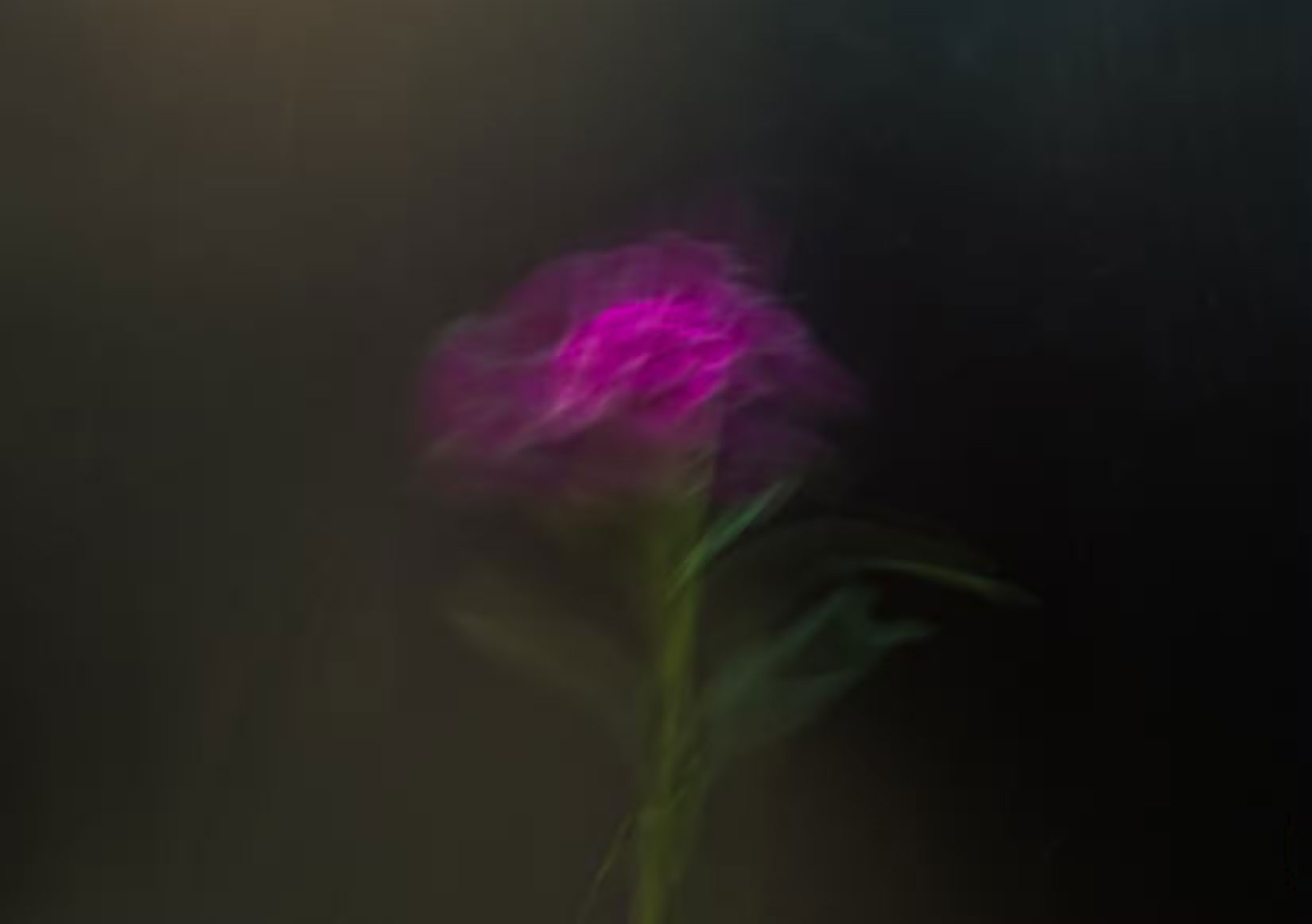
You can do this very easily on your iPhone. First, make sure Live Photos is turned on on your phone's camera, then select the 0.5x lens. Then quickly switch to 1x while taking the shot. The resulting photo will be a beautiful combination of wide-angle and zoomed-in photos, creating a graceful and artistic look.
1. Photo editing
Whether you're doing complex editing, like shooting a double exposure, or not, editing your flower photos is always a good idea. Editing can bring out the details in your photos, making them look neat and professional. For example, if you forget to use a low aperture or shallow depth of field when shooting flowers, you can still make your subject stand out by blurring the background in your editing apps.
We recommend Lightroom, as it provides almost all the controls you need to edit your photos. Start with brightness, highlights, and shadows. Then adjust the vibrance and saturation. Adjust the temperature and hue to make the photo cooler or warmer. The texture and clarity sliders can add detail or blur the photo. Selective adjustments, which can be made using the overlay option, are great for adjusting just specific areas of your flower photos.
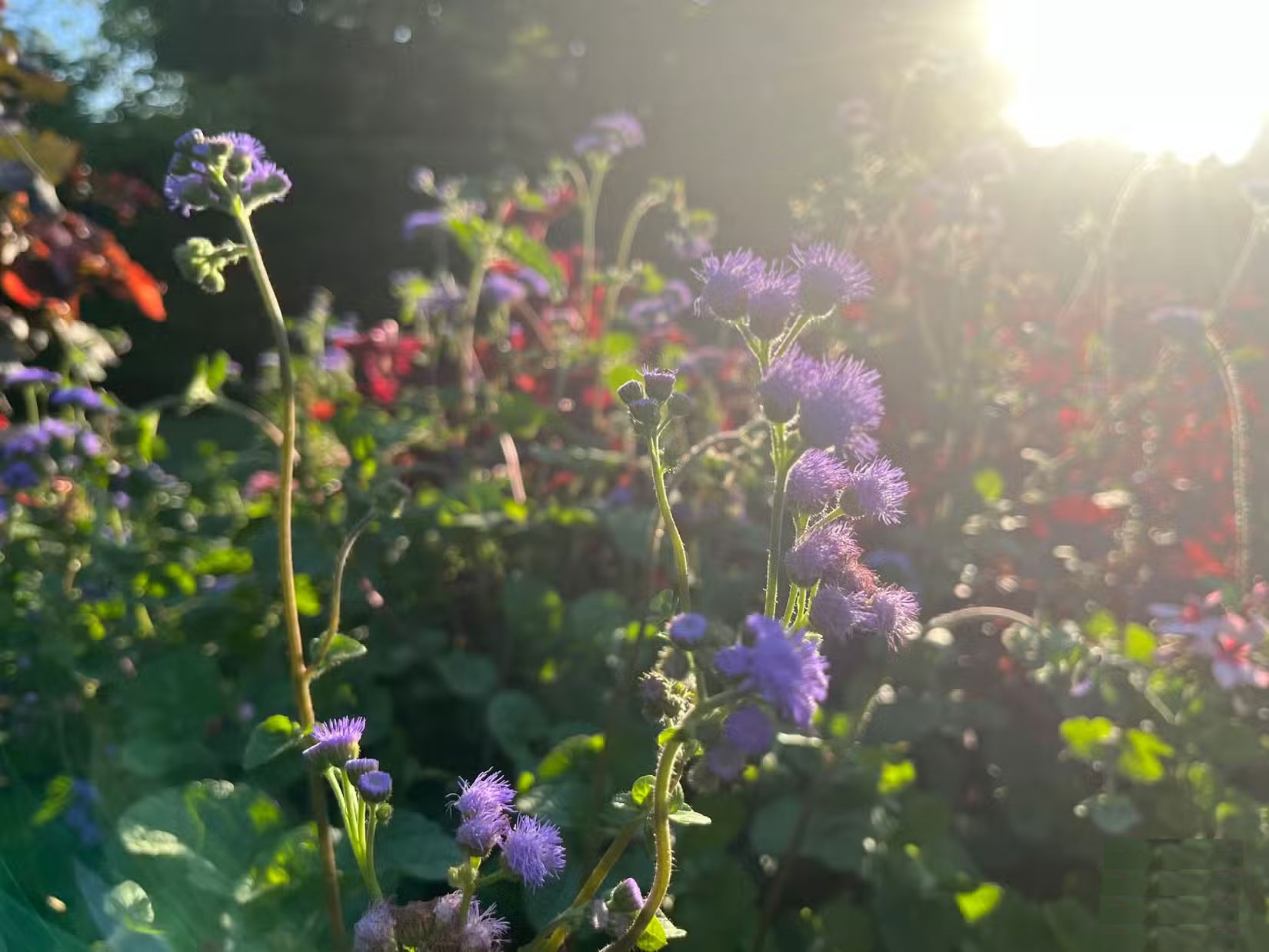
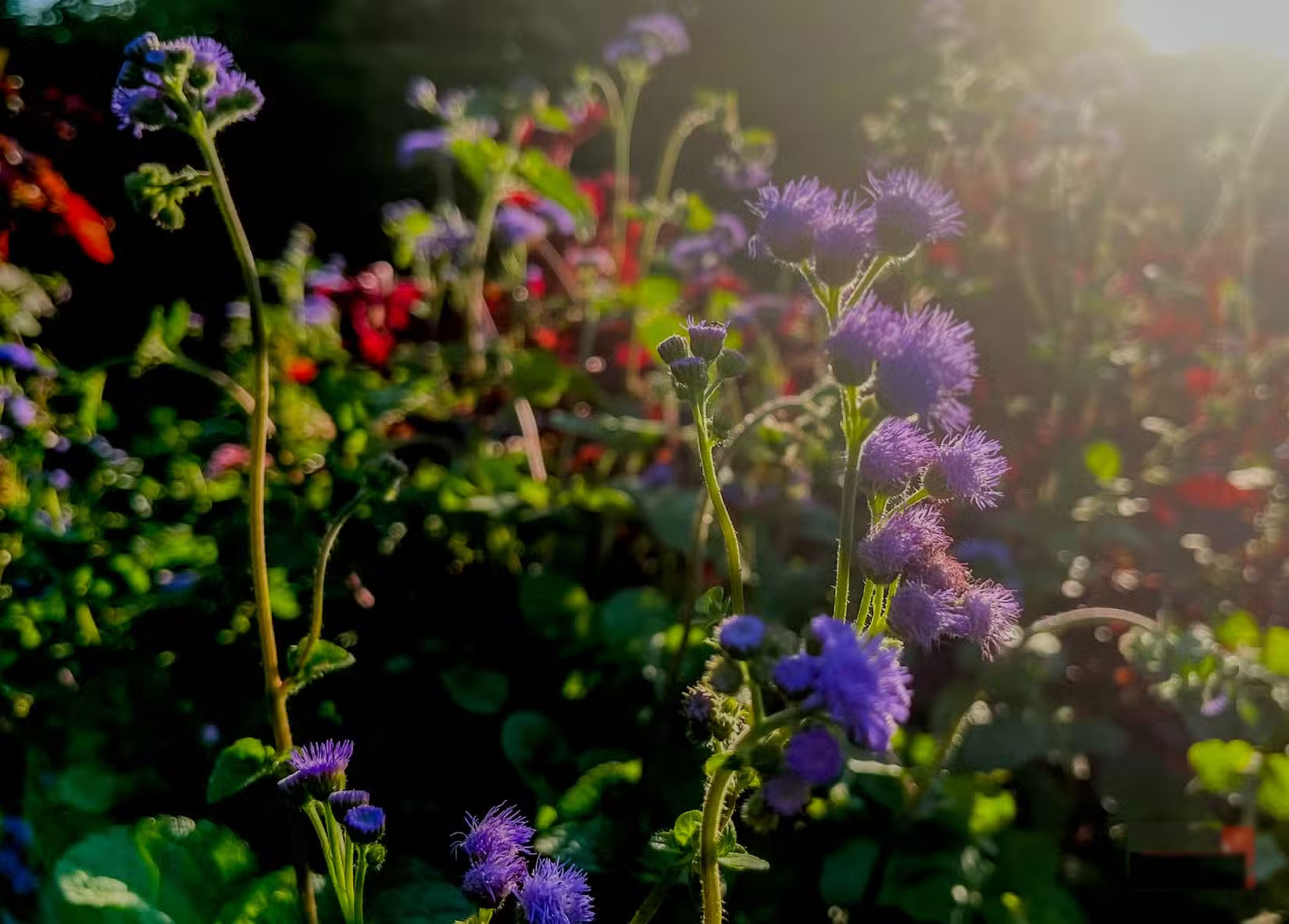
For example, the photo above looked too busy right out of the gate. The sun was strong in the upper right corner. I adjusted the blacks and shadows, and played with texture and clarity to get the final image looking dramatic.
FAQ
What should you know about 6. Use a shallow depth of field?
You've probably heard the benefits of this many times before. Depth of field is the technical term for how sharp a scene is. Shallow depth of field is when the background is blurred, leaving only the subject in focus. This is an effective way to draw attention to your subject.
What should you know about 5. Explore new perspectives?
A vertical flower photo, while beautiful, lacks interest. So look up, look down, or try any angle other than the boring one you've always used. Remember, taking risks and trying new things is what makes fine art photography stand out.
What should you know about 4. Experiment with layout?
We've discussed the importance of using composition rules many times before, and for good reason. Even if you have the latest, most feature-packed phone, your photos can still look amateurish if you don't use the right composition rules. Let's start with symmetry, which is easy to achieve in flower photography. Follow the rule.
What should you know about 3. Experiment with slow shutter speeds?
Slow shutter speeds or long exposures can be artistic and interesting in landscape photography. Likewise, you can use slow shutter speeds to take surreal flower photos. I recommend using third-party apps, but you can also use your phone's camera for this purpose.
Related Articles
 Synthesis of the Most Beautiful Flower Images2 minutes read
 Beautiful Dandelion Flower Wallpaper for Phones3 minutes read
 The Unique Flower Arrangement Patterns to Discuss the Tet4 minutes read
 Image of the Blossoming Flower -- Love Is Incomplete3 minutes read
 3 Super Beautiful Flower Arrangements for Clumsy People on March 85 minutes read
 Marvel at the Bizarre Images of Flowers When Observing Under a Microscope3 minutes read
Reader Comments 0
Sign in with email or Google to join the discussion.