Table of Contents
This updated guide explains how to setup GUFW (graphical uncomplicated firewall) on ubuntu with clear steps, practical tips, and useful context. Firewalls play an important role in improving the security of computer networks and preventing unauthorized access. In Linux, a tool called Uncomplicated Firewall (UFW) is used to manage these rules effectively.
Note : Although the instructions below are shown for Ubuntu, it will also work with most Linux distributions.
Install GUFW on Ubuntu via Terminal
GUFW can be easily installed on Ubuntu using the apt package manager. Before proceeding with the GUFW installation, ensure the Universe Repository is enabled on your system as GUFW is available in this repository:
sudo add-apt-repository universe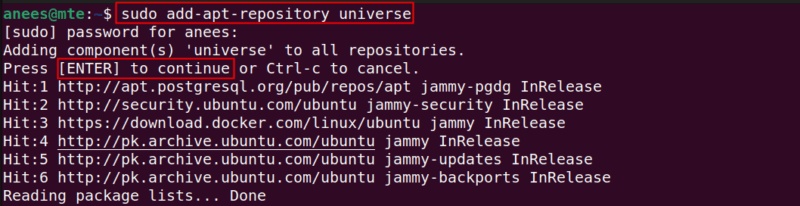
Now that the Universe Repository has been added, update the package repository:
sudo apt updateOnce your system is updated, run the command below to install GUFW on your Ubuntu machine:
sudo apt install gufw -y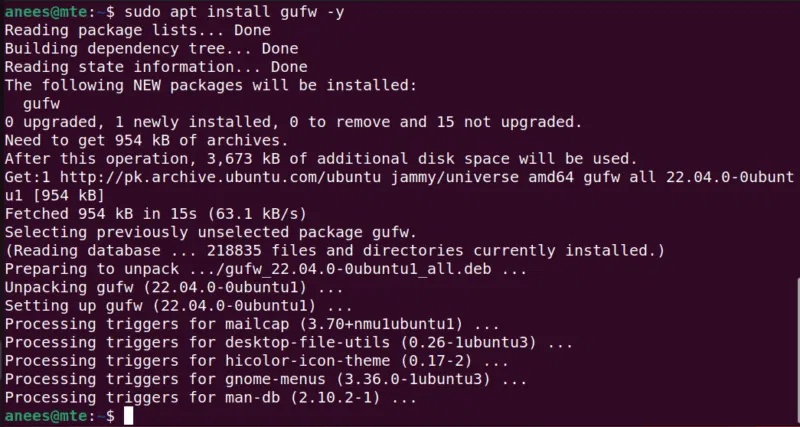
Install GUFW on Ubuntu via Software Center
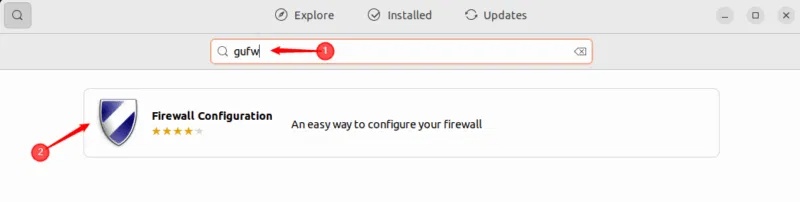
GUFW can be installed from the Ubuntu Software Center. First, open the Ubuntu Software Center, type GUFW in the search bar, and select the application to install:
choose the Install button to start the GUFW installation process:
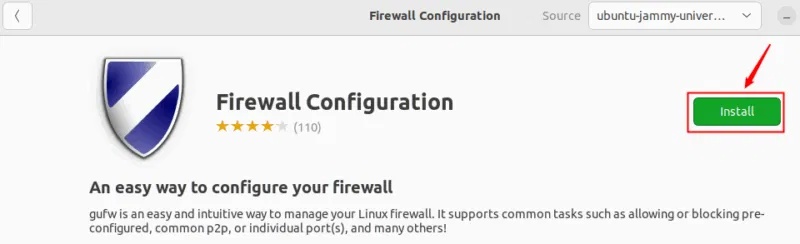
It will be installed on the system in just a few minutes.
Note : If you are not using Ubuntu, It is best to be able to find GUFW in your distribution's package manager.
Enable or Disable GUFW on Ubuntu
After successfully installing GUFW, you can access GUFW on your system by executing these command:
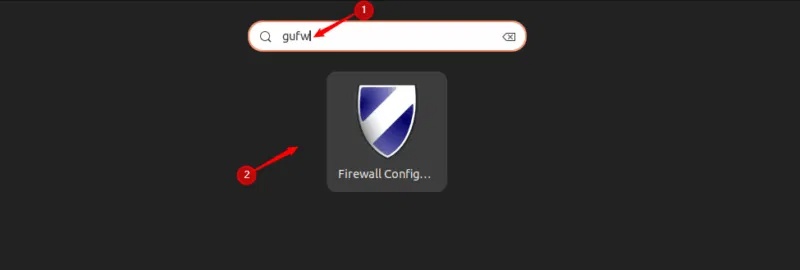
sudo gufwAlternatively, you can access it via your menu. Navigate to the system menu, search for GUFW and select the Firewall Configuration application to open it:
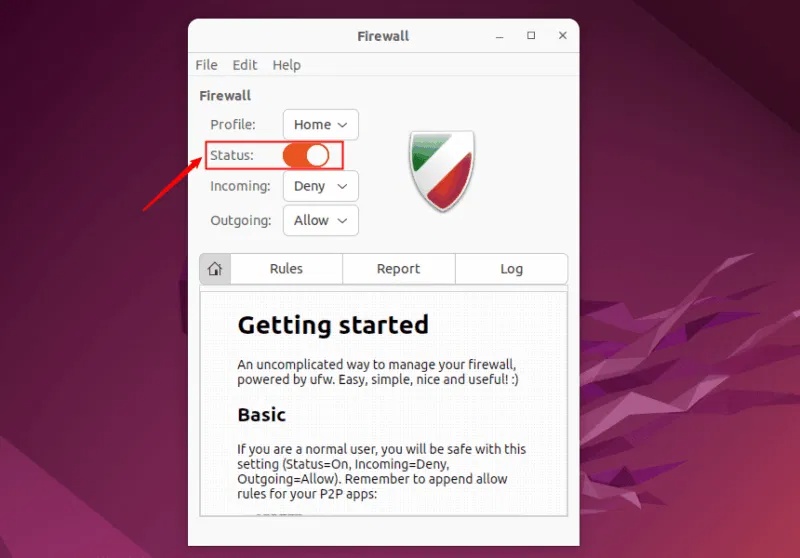
The GUFW main screen displays various details, such as profile, status, and information about incoming and outgoing traffic rules. The status switch shows whether the firewall is running or not.
To enable or disable GUFW, you can toggle the status switch on or off:
Edit GUFW Profile
GUFW comes with different pre-configured firewall settings. You can select the drop-down menu next to the profile to view the pre-configured profiles. These profiles represent different security levels and based on the selected profile, the firewall will apply corresponding rules to manage network traffic:
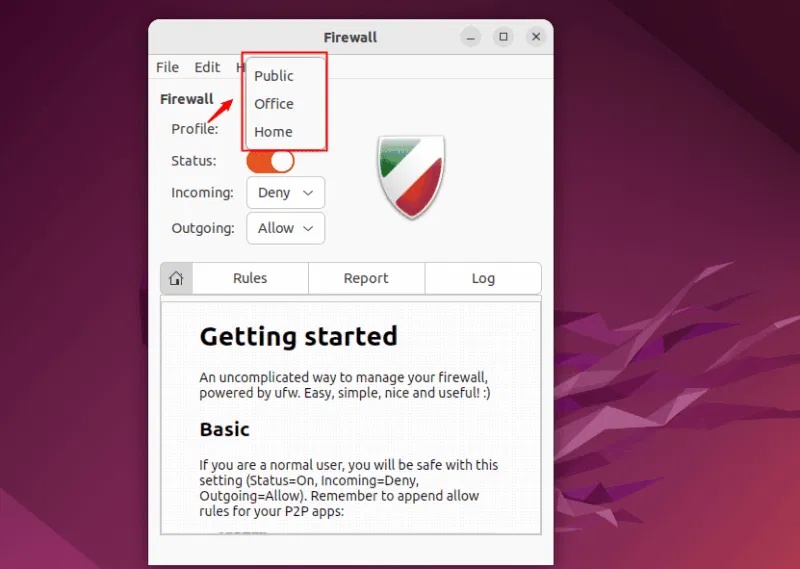
There are 3 pre-configured profiles, their details are listed below:
1. Public Profile
Public Profile in GUFW is designed for untrusted networks like public Wi-Fi. It blocks all incoming connections to reduce the attack surface and allows outgoing connections, so you can still browse the Internet and access external services. Using Public Profile on public networks helps protect your system from threats or unauthorized access.
2. Office Profile
It allows outgoing connections and can be configured to restrict incoming connections based on your organization's needs. It is suitable for use in corporate or office environments.
3. Home Profile
Home Profile allows all outgoing connections and allows certain incoming connections for trusted services like SSH or web access. Suitable for use on home networks where devices are generally trusted.
Along with the pre-configured profiles, we can create custom profiles and delete any unnecessary profiles.
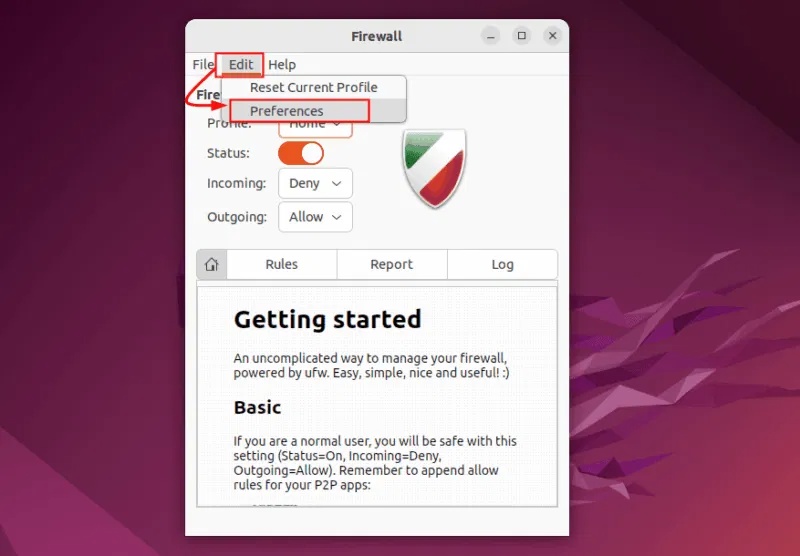
To edit the configuration, open the Edit tab and select Preferences :
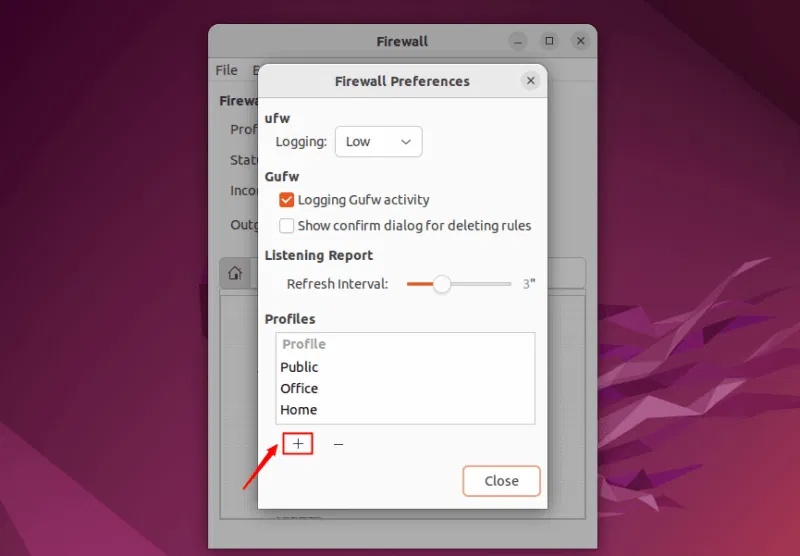
To add a new profile, choose the + icon at the bottom of the Firewall Preferences window:
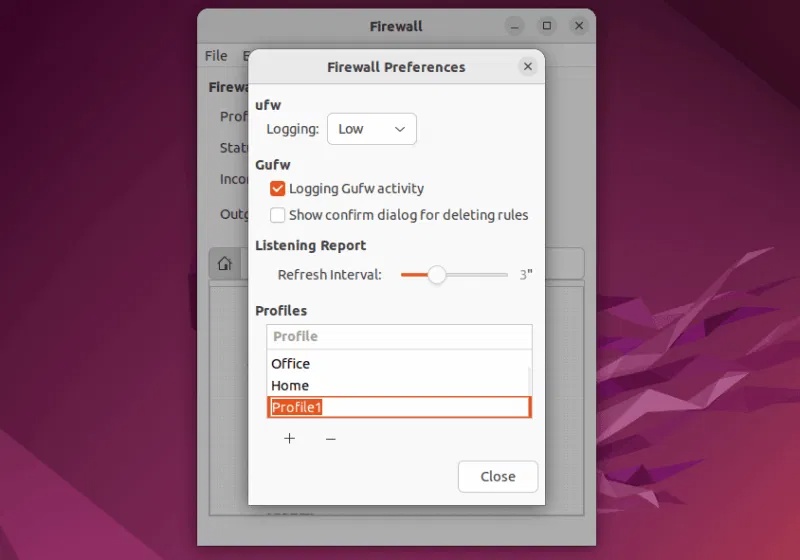
By default, the new profile will be named Profile1, Profile2, etc. Double-select the profile to rename it:
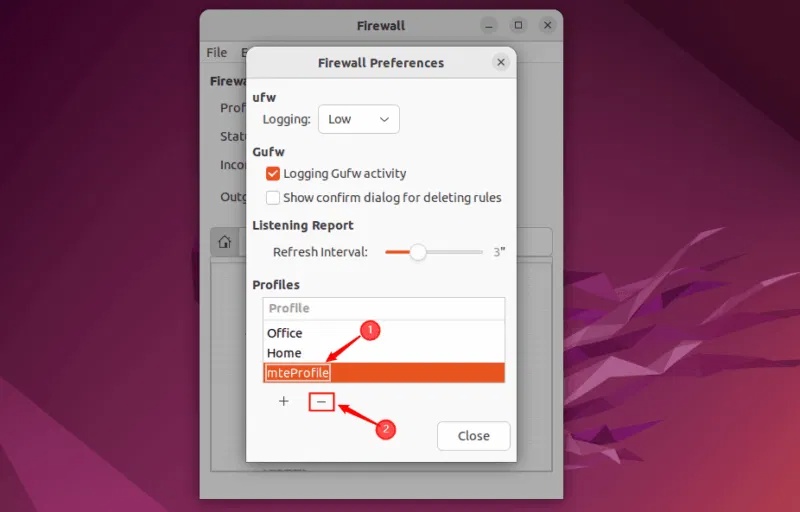
To delete a profile, select the profile you want to delete and choose the – button:
Now select the close button to exit Firewall preferences and continue with other rules.
Understanding the GUFW Rules
GUFW lets you create custom rules for each of your profiles. These rules help manage how data enters and leaves your computer network. To set up the right rules, It is essential to understand your network setup and the level of security you need. Furthermore, updating your firewall rules, reviewing them regularly, and adjusting them will help you better control network traffic and block any unwanted access.
GUFW provides several types of rules you can apply to manage network connections:
- Allow: Allows all data to pass through a specific port without any restrictions.
- Deny: Block all incoming data through the selected port.
- Reject: Similar to Deny, but it also sends a message back to the sender to let them know the connection was rejected.
- Limit: Block access if someone tries to connect too many times in a short period of time (e.g. more than 6 attempts within 30 seconds). It reduces the possibility of potential attacks like Brute Force.
Add GUFW Rules
To add a GUFW rule, you first need to select the profile you want to add the rule to, then choose the plus + button:
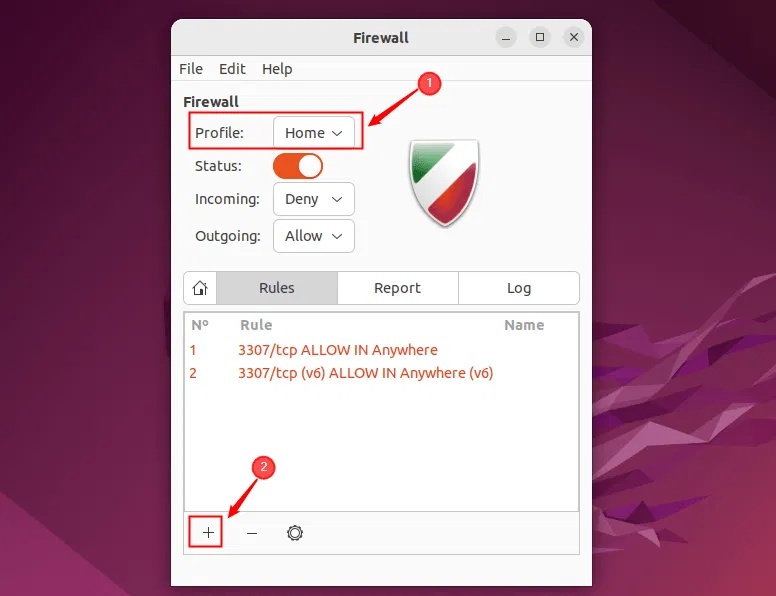
A new window opens where you can add firewall rules. This window is divided into 3 tabs: Preconfigured, Simple and Advanced.
- Preconfigured is the easiest option. This option lets you quickly allow or block common services like HTTP or SSH with just a few clicks.
- Simple is beginner-friendly but gives you more control, such as selecting specific ports and setting rule directions.
- Advanced is for users who need granular control. This option lets you create rules based on IP address, subnet, protocol, and network interface:
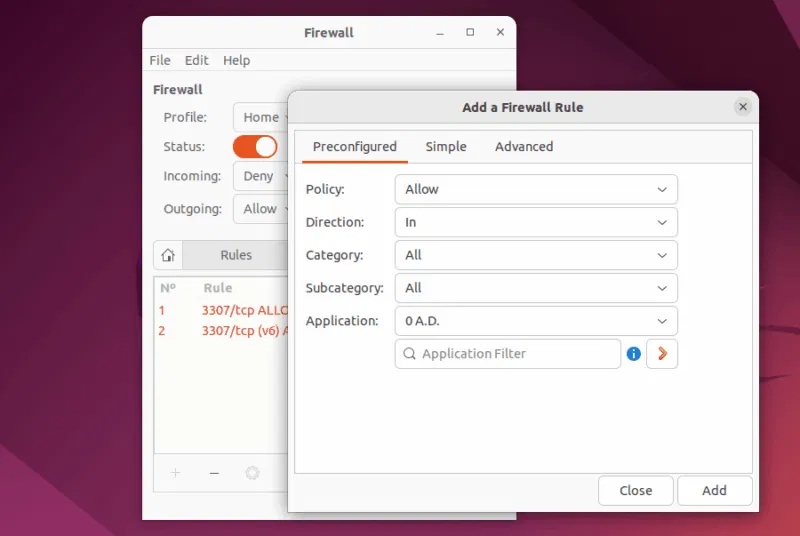
Select the policy, direction, category, subcategory, and application as needed, then choose the Add button to apply the rule.
Edit GUFW Rules
GUFW lets you edit an existing rule. To do so, select the rule you want to edit and select the gear icon:
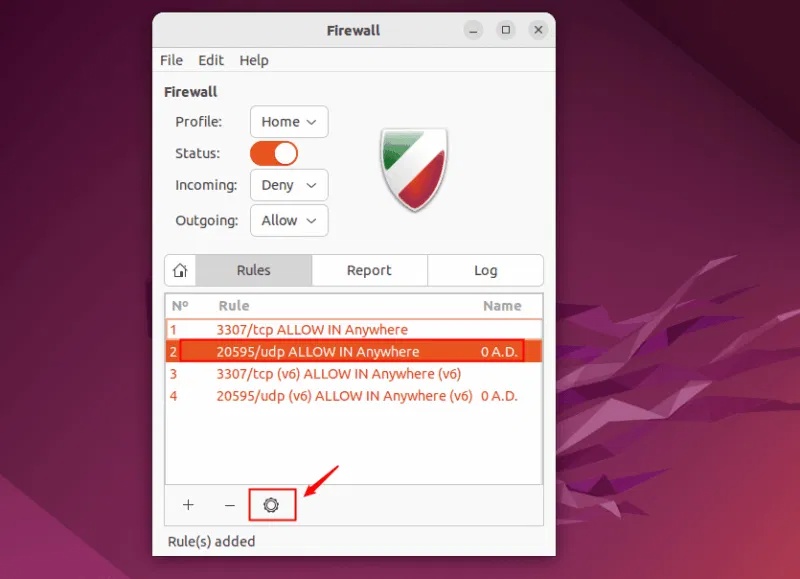
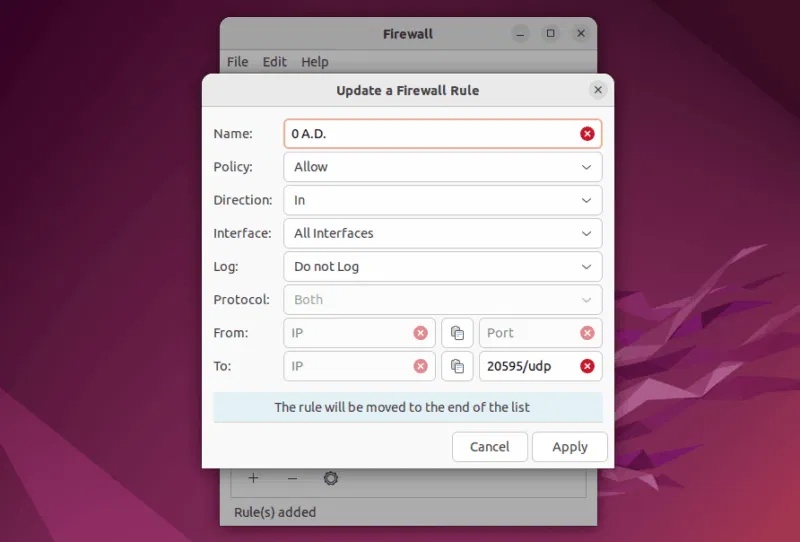
Now, on the pop-up window, you can update the firewall rules and choose Apply to save the changes:
Here is how you can set up and use Graphical Uncomplicated Firewall on Ubuntu. Keeping the firewall enabled and configuring the appropriate rules using GUFW is a good practice. It helps you protect your system from unauthorized access while still allowing secure connections. For added security, you can install an antivirus to protect your system from potential threats and malware.
FAQ
What should I prepare before I setup gufw (graphical uncomplicated firewall) on ubuntu?
Review the requirements and options in the guide first. Having the correct device, app version, account access, or materials ready helps prevent avoidable errors.
How long does it take to setup gufw (graphical uncomplicated firewall) on ubuntu?
The time depends on the task and your setup. Most basic steps can be completed quickly, while downloads, updates, scans, or troubleshooting may take longer.
What should I do if the steps do not work?
Repeat the instructions in order, confirm that your software or device is supported, and check permissions, connectivity, and available updates before trying again.
Related Articles
 How to Secure Ubuntu Using Uncomplicated Firewall4 minutes read
 What Is a Firewall? General Knowledge About Firewall15 minutes read
 How to Disable IPv6 Rules in UFW to Increase Firewall Security on Linux5 minutes read
 How to Set up Media Server at Home with Jellyfin on Ubuntu6 minutes read
 5 Reasons Why You Should Use a Firewall6 minutes read
 What's New in Ubuntu 21.10?7 minutes read
Reader Comments 0
Sign in with email or Google to join the discussion.