Table of Contents
This updated guide explains how to install Android apps via ADB with clear steps, practical tips, and useful context. Sideloading apps from your computer to your Android device can often be a time-consuming process, but not always. If you're willing to put in a little extra effort and use ADB, you can quickly install apps on any Android device.
ADB is a remarkable tool that can help you achieve many feats, including remotely sideloading apps. In this guide, TipsMake will show you how to install ADB and use it to install apps on your Android device, making the process as efficient as possible.
1. Install ADB on Your Computer
First, you need to install ADB on your computer. ADB is available for Windows, Mac, and Linux. We will be using a Windows device for this article.
There are two ways you can install ADB. The first method is to download ADB and unzip it to your computer. The second and preferred method is to install it using a command line installer, such as Scoop for Windows or Homebrew for Mac.
Installing ADB via the command line installer lets you use it in any folder on your computer. Once you have installed Scoop, you can install ADB on Windows by running these command:
scoop install adbThis command will automatically download and install ADB. Scoop will tell you if you are missing any dependencies. If prompted to install, type Y and press Enter on your keyboard to allow it.
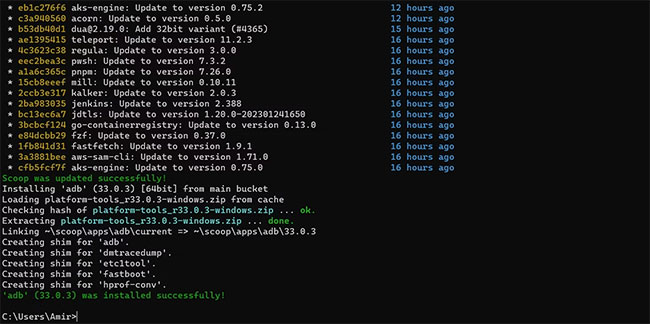
ADB is now ready to deploy. You need to enter different commands if you are using other platforms. The command for Linux would be:
sudo apt-get install android-tools-adbFor Homebrew on Mac:
brew install android-platform-tools2. Locate the APK File
Now it is time to locate the files you want to install on your Android device. Whether you've already downloaded them or you're a developer and want to test your app, It is best to place all of your APK files in a dedicated folder.

Store APK files in a folder of your choice. Keep file names short and concise to reduce inaccuracies when entering file names in ADB.
3. Launch Terminal
You can use a terminal like Command Prompt to run ADB. To make things as efficient as possible, it is best to launch Command Prompt in the same folder as your APK files. Here's how you can do that on Windows:
1. Open the folder in File Explorer.
2. On your keyboard, press Alt + D . This will highlight the address bar.
3. In the address bar, type cmd and press Enter.

4. This will open a version of Command Prompt in that folder so you do not have to reference each file's location.
4. Connect to Android Device Using ADB
You need to enable USB debugging to connect to your Android device. When USB debugging is enabled, connecting your device to your computer with a USB cable will automatically connect your device to ADB. If a prompt appears on your Android device, accept it to grant your computer the necessary permissions.
To ensure you are connected, run the command below in Command Prompt:
adb devicesThis command will list the connected devices. Your Android device serial number will be displayed in the list.

Wireless Connection
to connect wirelessly, open your Android device's Developer options, then enable Wireless debugging and Wireless ADB debugging.
Then go back to Settings , open About phone and tap Status. Scroll down and note down the local IP of the device.
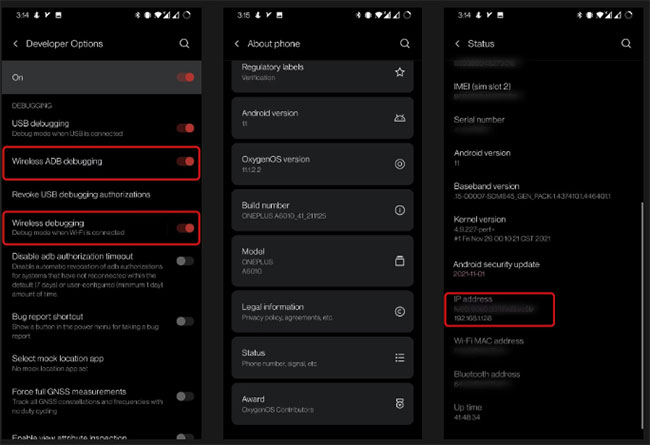
Once everything is ready, it is time to connect your Android device wirelessly. ensure both devices are on the same connection (for instance, your home WiFi). Open Command Prompt, replace the IP in the command below with your device's IP, and run it.
adb connect 192.168.1.128When you run this command, a prompt will appear on your Android device. Allow it to grant debugging permission to your computer. Now, run the command below to see a list of connected devices. The IP address of the device will be listed.
adb devices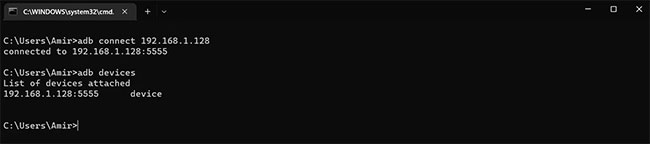
4. Install APK Using ADB
Finally, it is time to install the APK file on your Android device. This last step is a piece of cake — assuming you've opened Command Prompt in the same folder as the APK files and are connected to your Android device.
Just one simple command to install APK files with ADB:
adb install file.apkReplace file.apk with your file name in the command above and run it in Command Prompt. The.apk extension is required, so do not omit it!
ADB will respond with Performing Streamed Install . This will take a while, depending on the application and your device. Once the installation is complete, ADB will return a Success message.

Your APK file is now successfully sideloaded on your Android device and you do not even have to move the files. You will have to accept some prompts on your Android device to grant the necessary permissions since this is the first time, after that all you need to do is connect and install. it is that simple!
FAQ
What should I prepare before I install android apps via adb?
Review the requirements and options in the guide first. Having the correct device, app version, account access, or materials ready helps prevent avoidable errors.
How long does it take to install android apps via adb?
The time depends on the task and your setup. Most basic steps can be completed quickly, while downloads, updates, scans, or troubleshooting may take longer.
What should I do if the steps do not work?
Repeat the instructions in order, confirm that your software or device is supported, and check permissions, connectivity, and available updates before trying again.
Related Articles
 Steps to Run Android Apps on Windows 115 minutes read
 The 11 Best Android Apps to Install on Chromebooks8 minutes read
 Instructions for Installing Android Apps on Chromebook6 minutes read
 10 Best Android Apps You Shouldn't Install5 minutes read
 The Best Android Apps9 minutes read
 How to Install APK Files on Android: Clear Instructions3 minutes read
Reader Comments 0
Sign in with email or Google to join the discussion.