Table of Contents
Cryptomator serves as a free, open source tool that creates encrypted vaults on your PC before any data is synced.
If you sync files on your PC to cloud storage, you're probably aware of the privacy risks. Services like Google Drive and OneDrive have access to everything you upload unless you encrypt it first. That's where an encryption tool like Cryptomator comes in. It's a free, open-source tool that creates encrypted vaults on your PC before any data is synced.
Why trust Cryptomator over other tools?
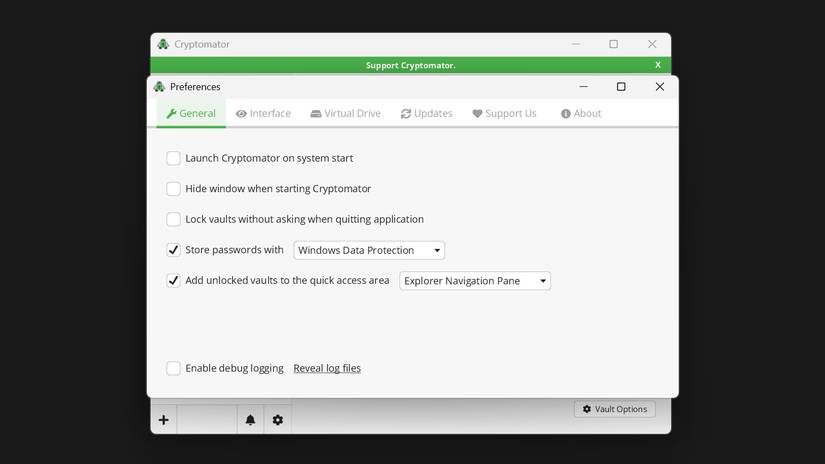
Cryptomator creates encrypted archives on your PC that work just like regular folders. When you drop a file into the archive, it's instantly encrypted using AES-256 encryption. The encrypted version then syncs to your cloud storage service, whether it's Google Drive, OneDrive, Dropbox, or whatever else you use.
The key difference here is zero-knowledge encryption. Cryptomator doesn't store your password anywhere and never touches the server. Everything happens locally on the device.
Open source adds another layer of security. The source code is publicly available on GitHub, which means security researchers and developers around the world can test for vulnerabilities. There are no hidden backdoors or remote data dumps sending your data elsewhere.
Procedure to setup Cryptomator on Windows 11
Use the archive as a regular hard drive
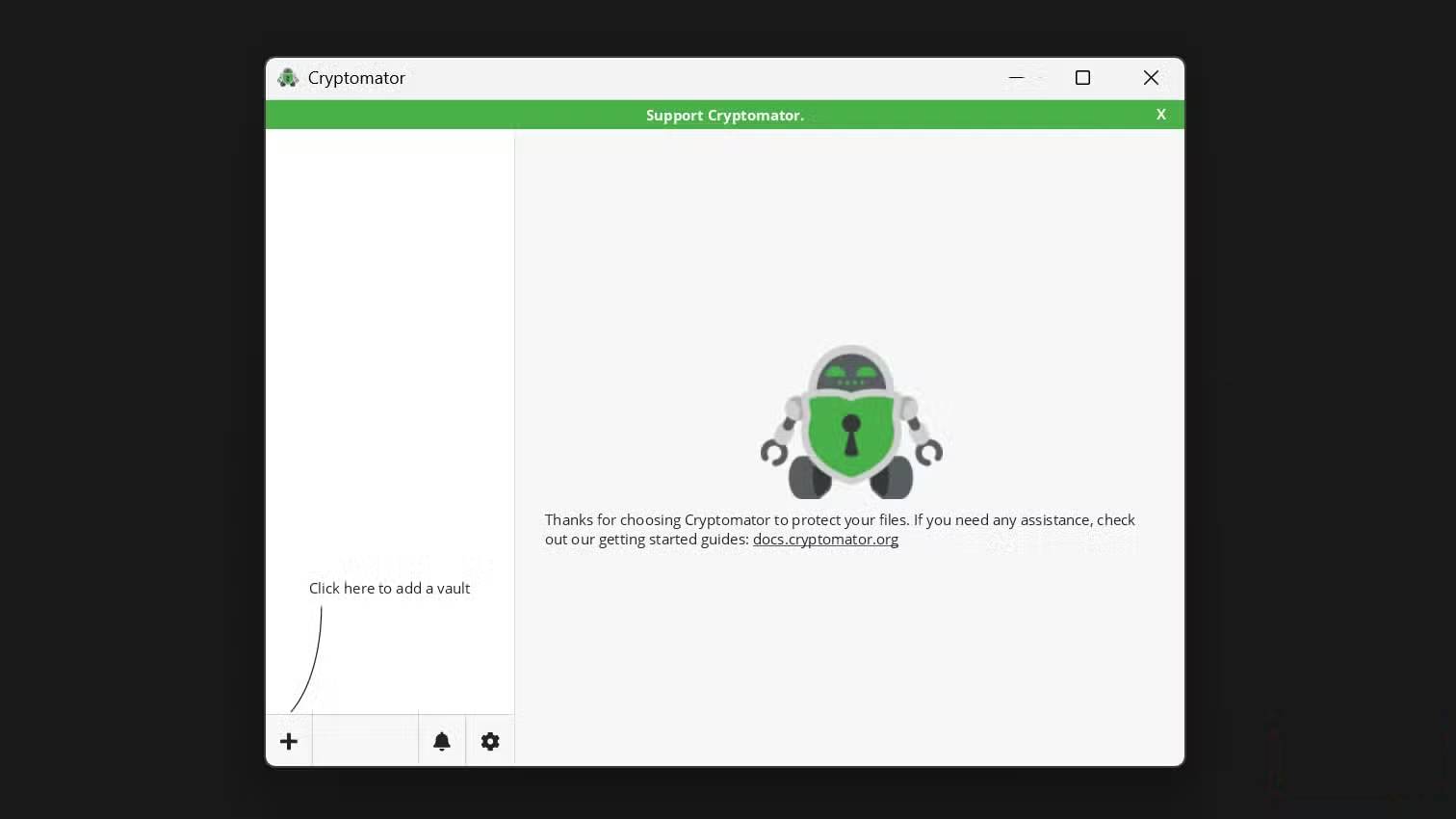
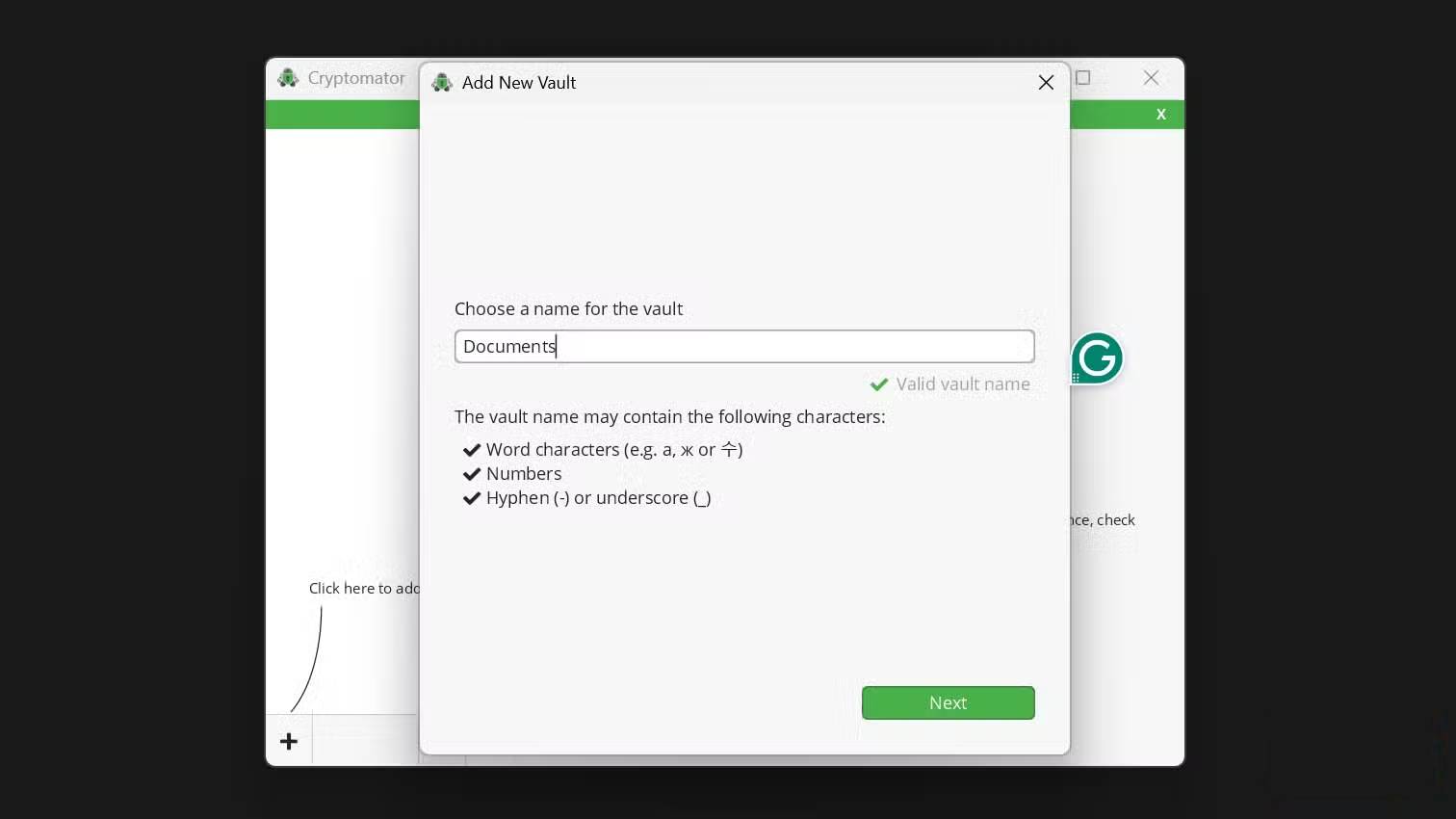
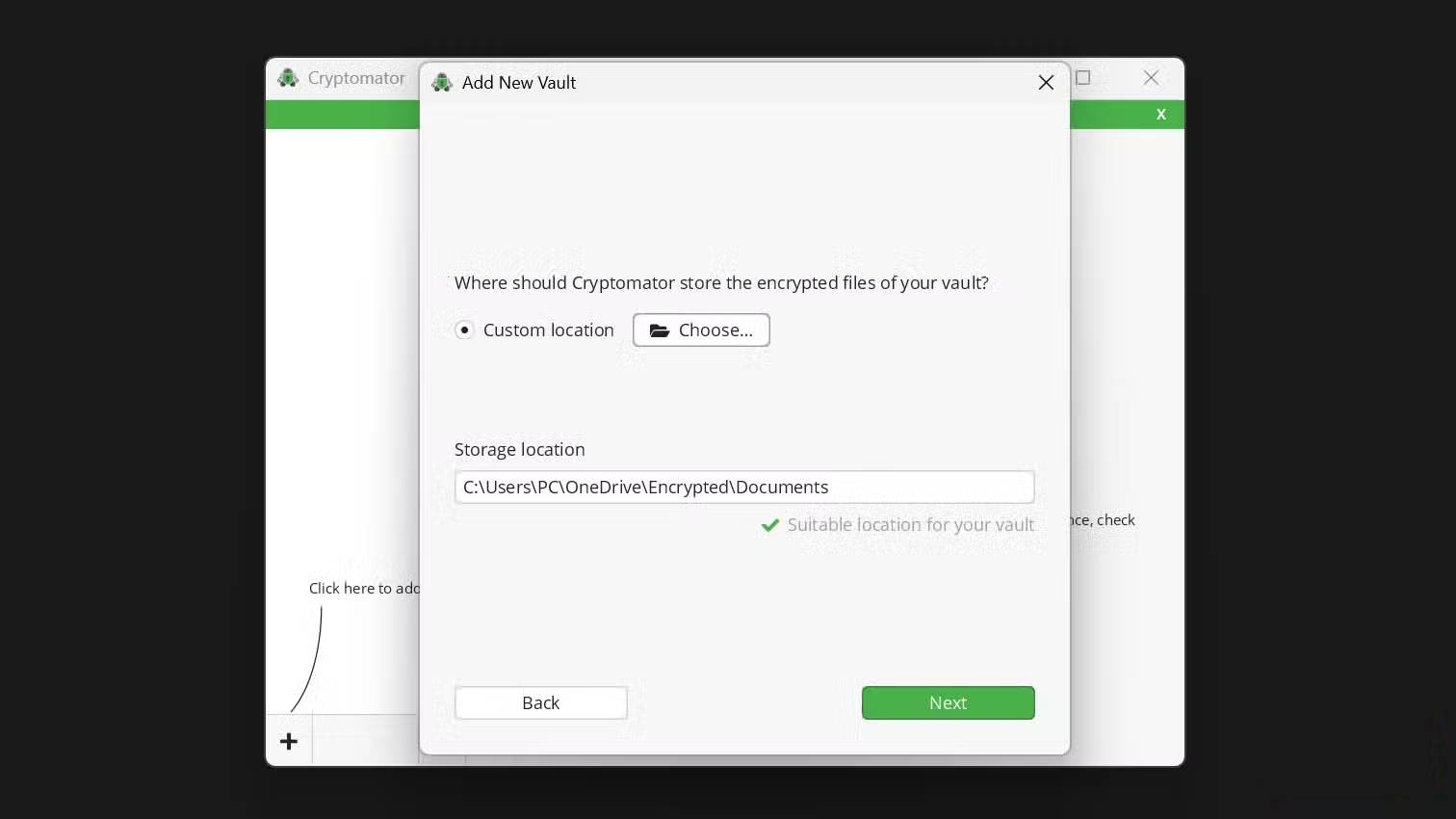
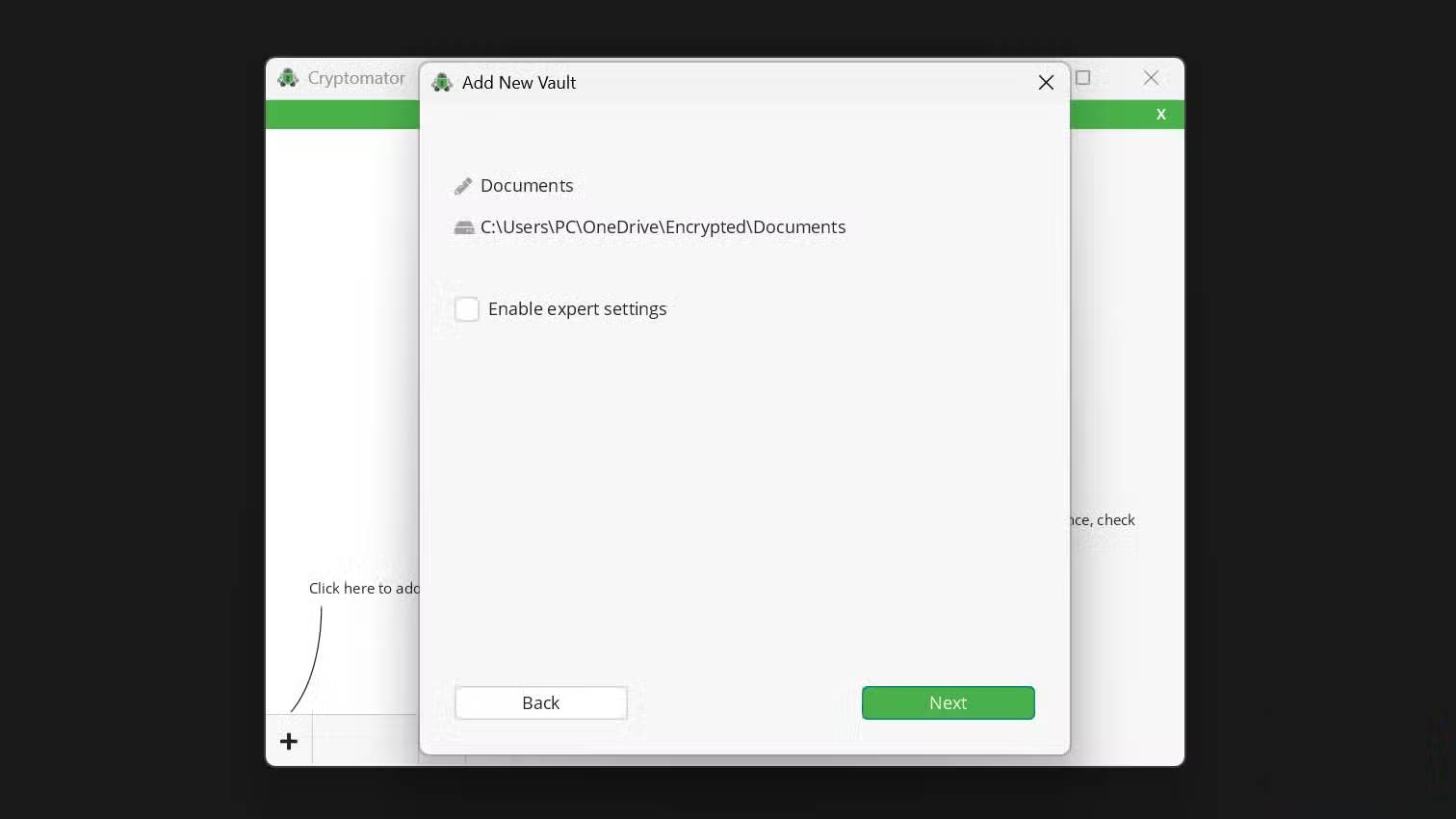
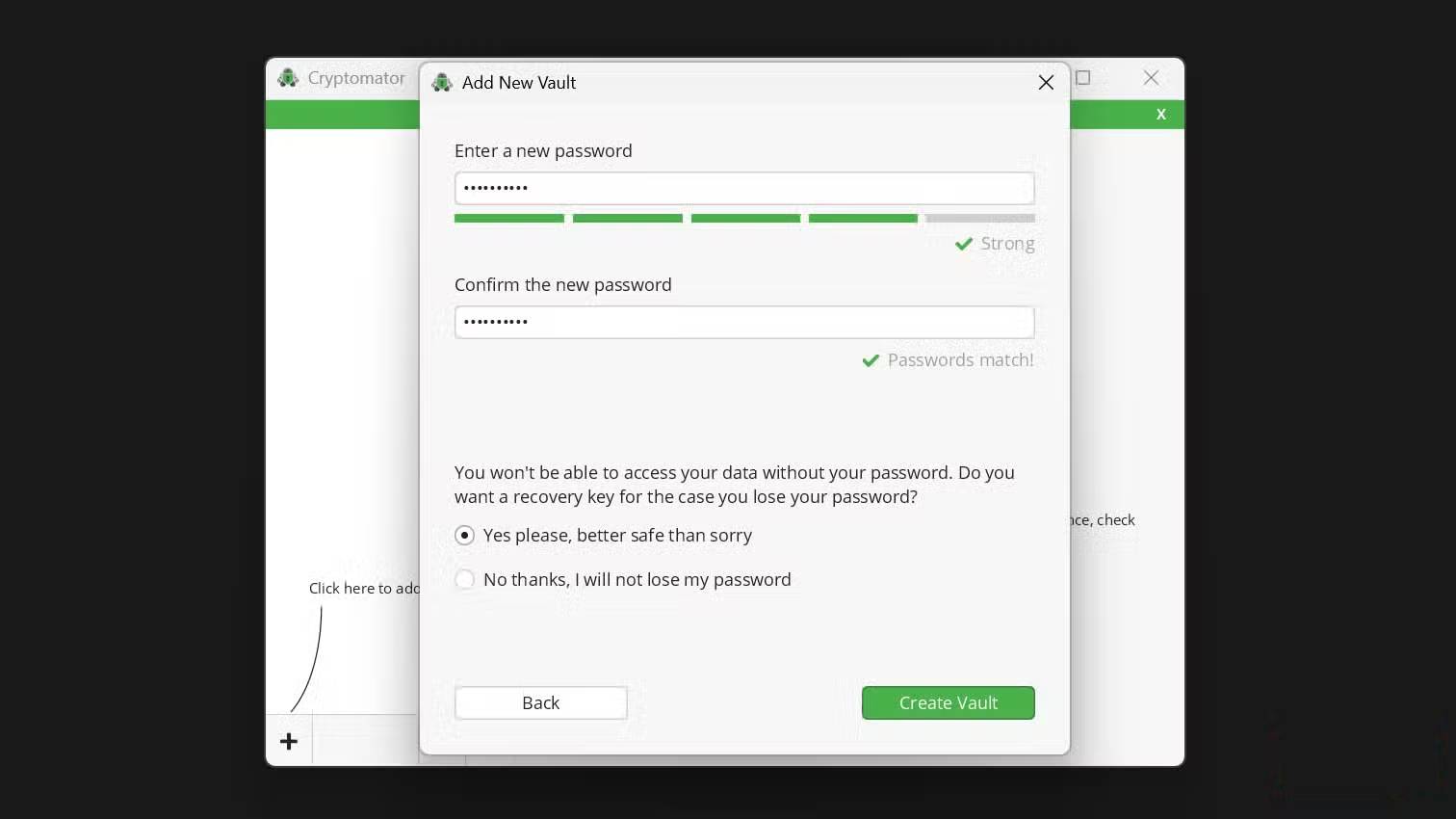
The setup process takes about 5 minutes from start to finish. Download Cryptomator from the official website and run the installer. This is a standard Windows installation. Once installed, launch Cryptomator and you will see a blank list of repositories. Click the plus icon to create your first repository. You will need to choose two items: a name for the repository and a location to store it.
This is the important part. Place your archive in a cloud sync folder. If you use OneDrive, create the archive somewhere like C:UsersYourNameOneDriveEncrypted . For Google Drive, place the archive in your Google Drive folder. This ensures that your encrypted files sync automatically without any additional configuration.
After selecting a location, Cryptomator will prompt you to create a password. This is the only key to access your encrypted data, so make sure it's strong and store it in your favorite password manager. If you lose your password, the recovery key file can help you regain access, but if you lose both, your files are gone forever.
Tip : Save the recovery key file somewhere separate from your storage, such as a USB drive or another cloud account. This is a backup if you forget your password!
Once the archive is created, you'll see it listed in the main Cryptomator window. Click Unlock And enter your password. Cryptomator will mount the archive as a virtual drive—it appears in File Explorer just like a USB drive, usually with the drive letter Z:. You can now use this mounted drive like any regular folder. Drag files into it, create subfolders, save documents directly to it from any application. Anything you put in it will be encrypted immediately. When you're done, click Lock In the Cryptomator window to unmount the drive.
Encrypted files live in your cloud-synced folder, but they can't be read without first unlocking the vault. When you modify a file in the unlocked vault, Cryptomator encrypts the changes and the cloud service automatically syncs the updated encrypted file.
Start with your most sensitive files!
You don't need to encrypt everything at once.
If the idea of encrypting all of your cloud storage feels overwhelming, start small. Create a separate vault for your tax documents, medical records, or financial statements—files you'd worry about getting leaked. Once you get comfortable with your workflow, you can add more vaults for different purposes.
Using multiple repositories makes sense if you share cloud folders with others. You can lock down your personal repositories while keeping your shared project folders unencrypted.
FAQ
How do you encrypt local files using cryptomator: step-by-step guide?
In practical terms, cryptomator is a free, open source tool that creates encrypted vaults on your PC before any data is synced.
What should you check before getting started?
Review the requirements, compatible device or software version, and any warnings described in the guide before making changes.
What should you do if the steps do not work?
Repeat the steps in order, confirm that your app or system is up to date, and review the troubleshooting details provided above.
Related Articles
 How to Easily Encrypt a File Without a Password Using Cloak5 minutes read
 How to Encrypt Files Using Gocryptfs: Gocryptfs. Encrypt Files12 minutes read
 How to Encrypt Files10 minutes read
 How to Encrypt Files on Google Drive with Syncrypto: Data Encryption4 minutes read
 Microsoft Wants Users to Stop Caring About Local Files: Complete Guide6 minutes read
 How to Encrypt Files Before Uploading to the Cloud11 minutes read
Reader Comments 0
Sign in with email or Google to join the discussion.