Table of Contents
USB-C ports, often equipped with Thunderbolt support on laptops, have become one of the most important advancements in mobile PCs in the past decade. These small, unassuming ports have opened up a world of possibilities for connecting to a wide variety of devices.
Whether you want to expand your laptop with limited I/O, connect multiple displays, boost graphics performance, or experiment with something else entirely, here are some ways to get the most out of your USB-C port, beyond just charging.
8. Connect an external monitor for more screen space

Many thin-and-light laptops no longer include full-size HDMI or DisplayPort I/O ports. These bulky connectors add complexity to the design and can limit the thinness of the laptop — a significant trade-off, especially since most people rarely use them. Instead, there's a better solution: DP Alt Mode (and the less common HDMI Alt Mode).
Laptops with USB-C ports that support the DP Alt Mode protocol can connect to a monitor or TV with a compatible adapter to add a secondary display. This adapter can display up to 4K resolution at 60Hz, which is more than enough for tasks like watching movies on a large screen and even playing light games.
If your laptop only supports DP Alt Mode, but you need HDMI, you can still use a USB-C adapter that actively uses DP Alt Mode to convert the signal to HDMI. It's basically like combining a USB-C to DP cable with another DP to HDMI adapter into a single device.
7. Lightning fast file transfer
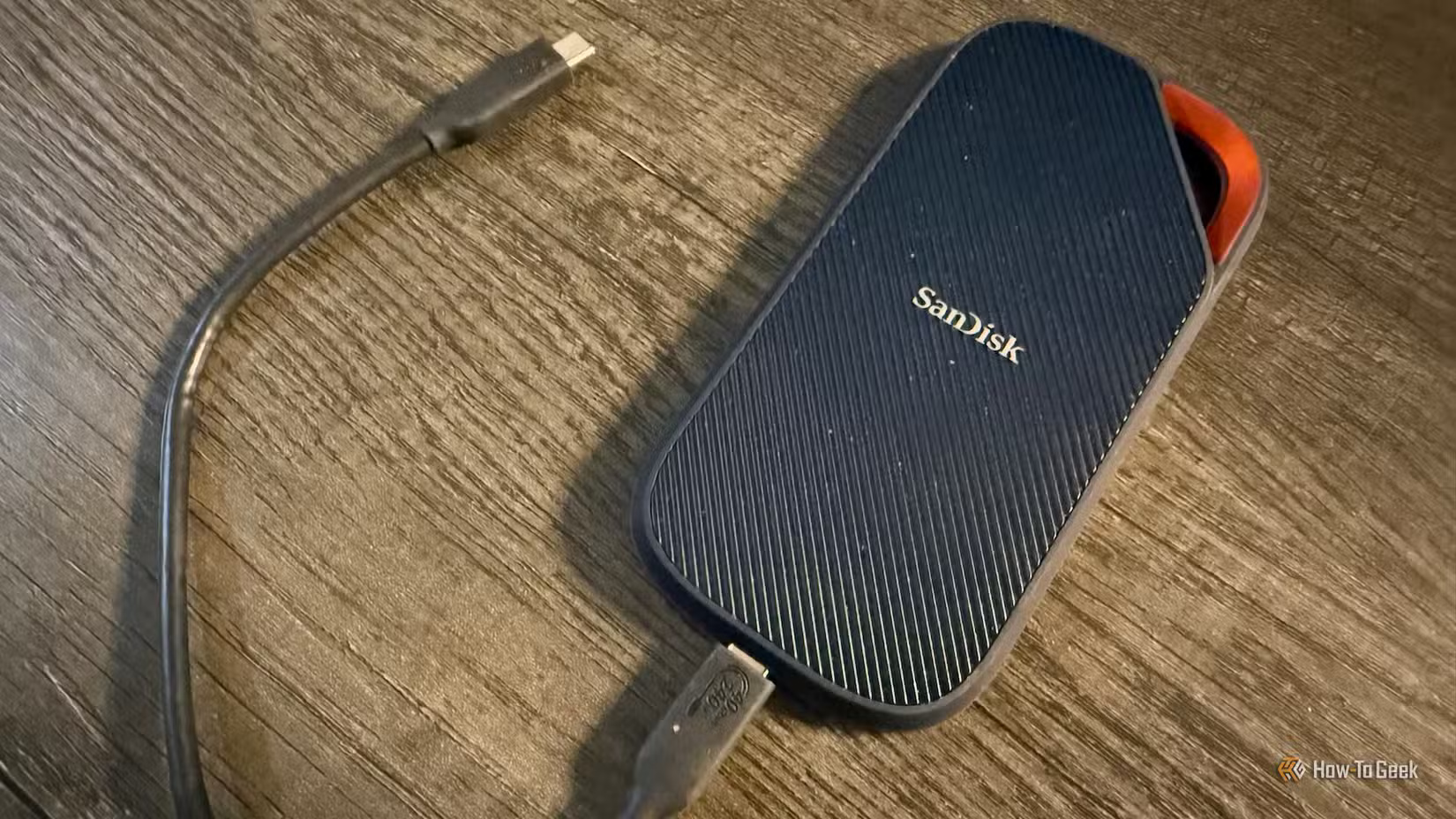
If you have a good laptop made in the last 5 years, it probably supports USB4 or Thunderbolt 3 or later, which can deliver bandwidth speeds of up to 40Gbit/s or more, depending on the specific specs. Thunderbolt 5 can reach speeds of up to 120Gbit/s with Bandwidth Boost enabled, while the standard 80Gbit/s is still fine.
For instance, you can use an external SSD like the SanDisk Extreme PRO with USB4, or transfer files directly from one laptop to another or PC using Thunderbolt Share.
6. Stream high quality audio to speakers or headphones
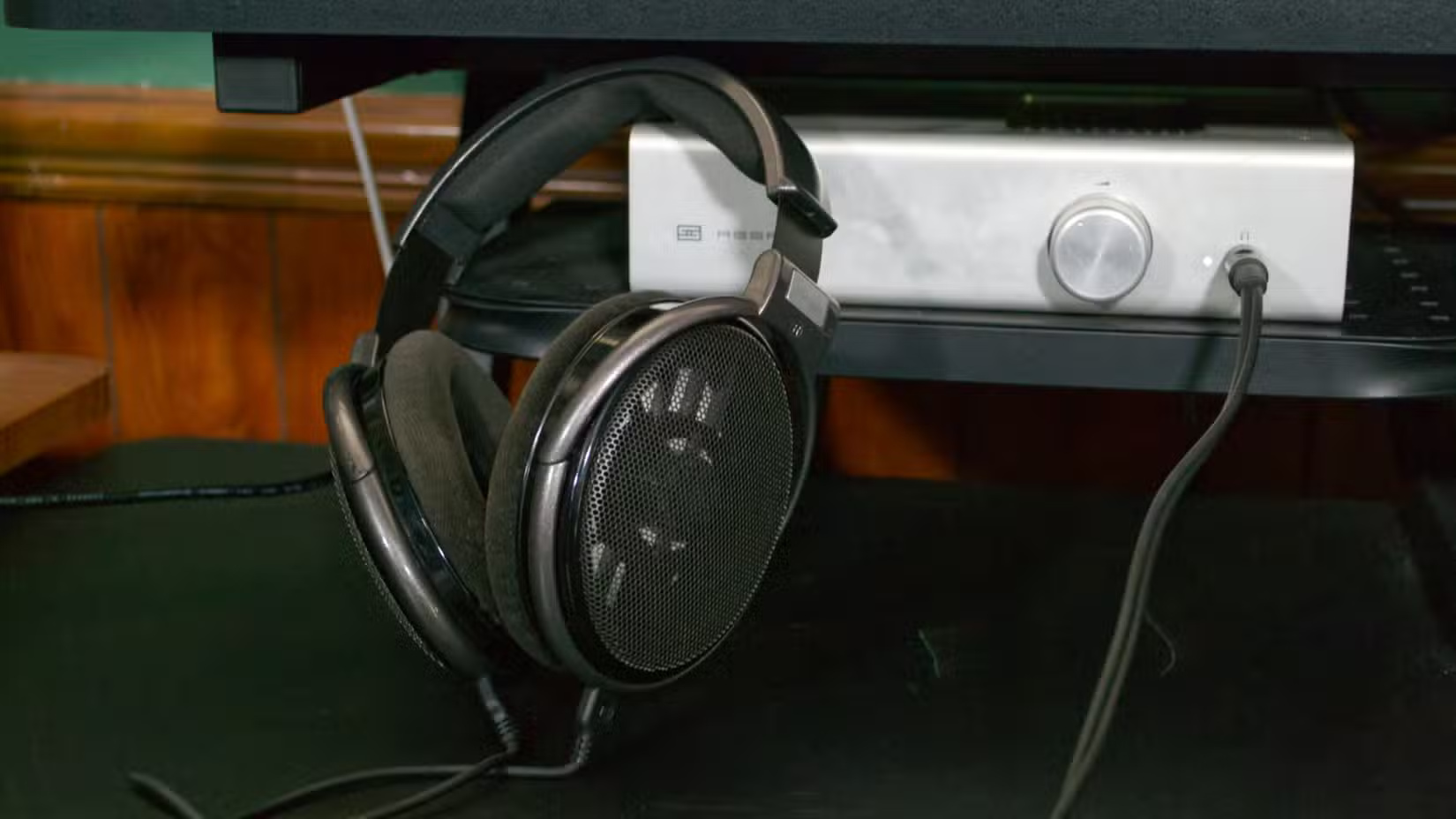
While the built-in sound cards in most modern laptops are fine with most headphones, if you're a serious audiophile, you might want to consider investing in a decent portable headphone amp/DAC like the FiiO NEWK3. Whether you're editing audio, video, gaming, or just listening to music, this one-time investment can dramatically improve your audio experience.
The USB-C port isn't just for high-end headphone amps. You can also use it to connect a simple USB-C to 3.5mm adapter if your laptop doesn't have a headphone jack, or the 2.4GHz wireless connection that some headphones and earbuds come with.
5. Add a wired Internet connection with an Ethernet adapter
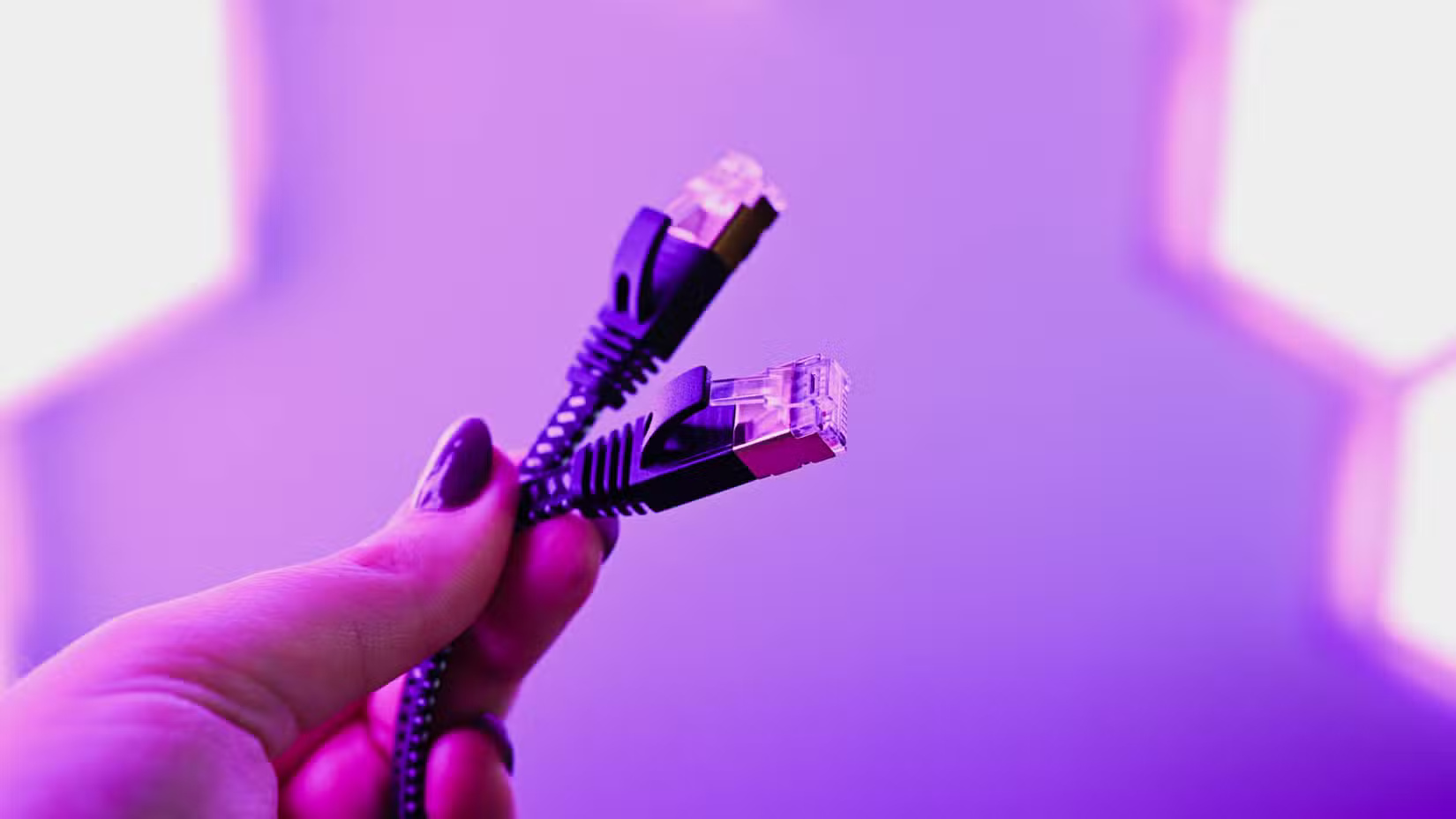
While the gap has narrowed thanks to Wi-Fi 7, a wired Ethernet connection will always outperform Wi-Fi in both speed and stability.
Unfortunately, most consumer laptops no longer come with Ethernet ports, but thanks to USB-C, that's no longer the case. A simple USB-C to Ethernet adapter lets you enjoy all the benefits of a wired connection at a fraction of the price.
4. Boost graphics performance with an external GPU
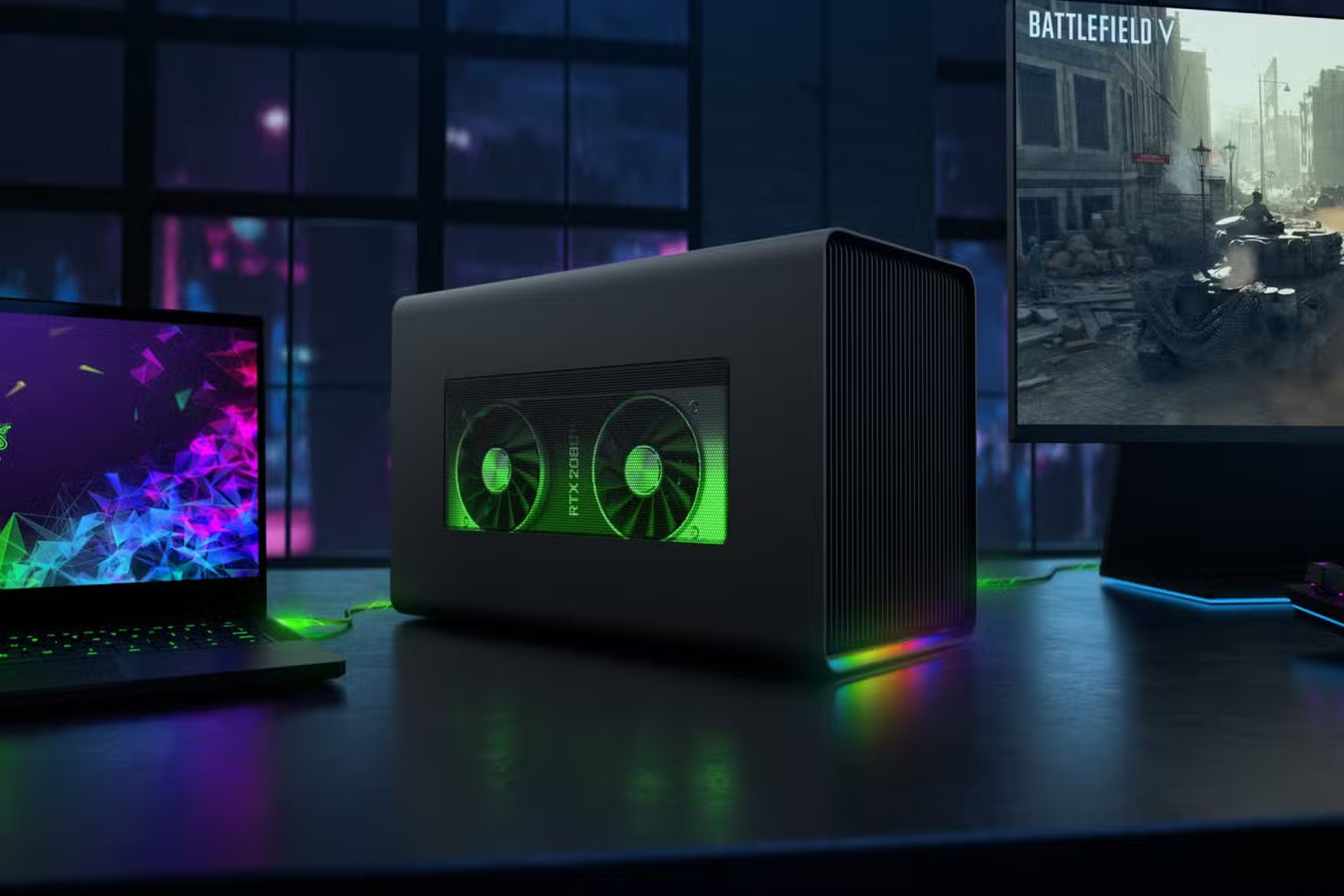
If your laptop has Thunderbolt 3 or later, did you know you can use it to connect an external GPU? Both eGPUs and eGPU enclosures need a lot of bandwidth to work properly with laptops, which is a perfect use case for Thunderbolt.
If your laptop already has a powerful CPU and enough RAM but lacks a dedicated graphics card, an external GPU can turn it into a powerful gaming or 3D rendering machine. It can also be a more cost-effective alternative to buying both a high-end workstation or gaming PC and a separate laptop.
3. Charge your phone or other devices when needed
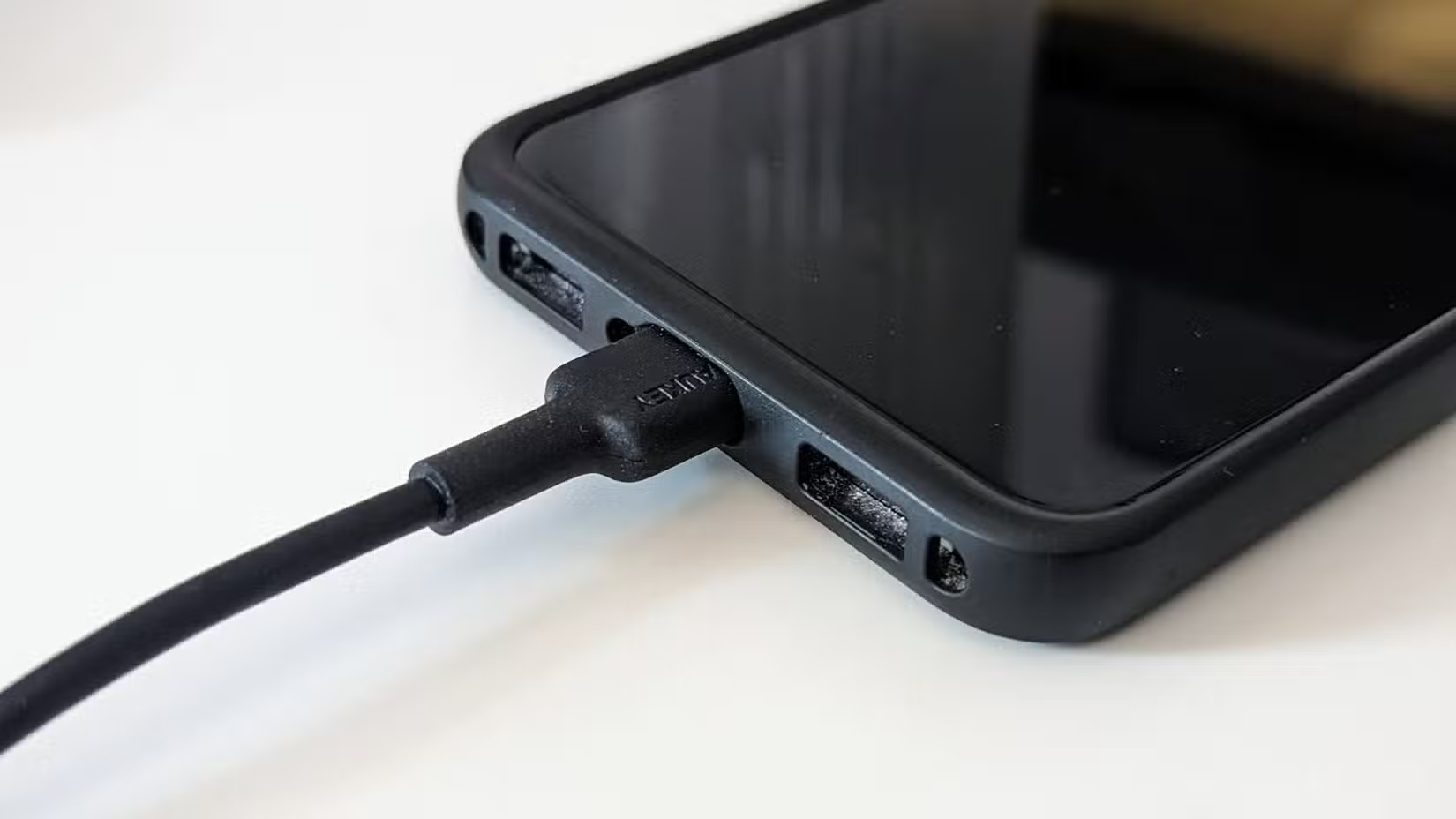
The laptop's USB-C port is not only for connecting devices or charging the laptop, but can also be used to charge other devices, such as phones, tablets, earbuds, or smartwatches.
While the laptop's charging speed and power output are pretty limited, if you're on the go and only have a USB-C to USB-C cable, it's better than nothing. You can squeeze a few extra hours of standby time out of your phone in case someone calls, or an extra hour of music playback out of your earbuds.
2. Cool with USB powered fan
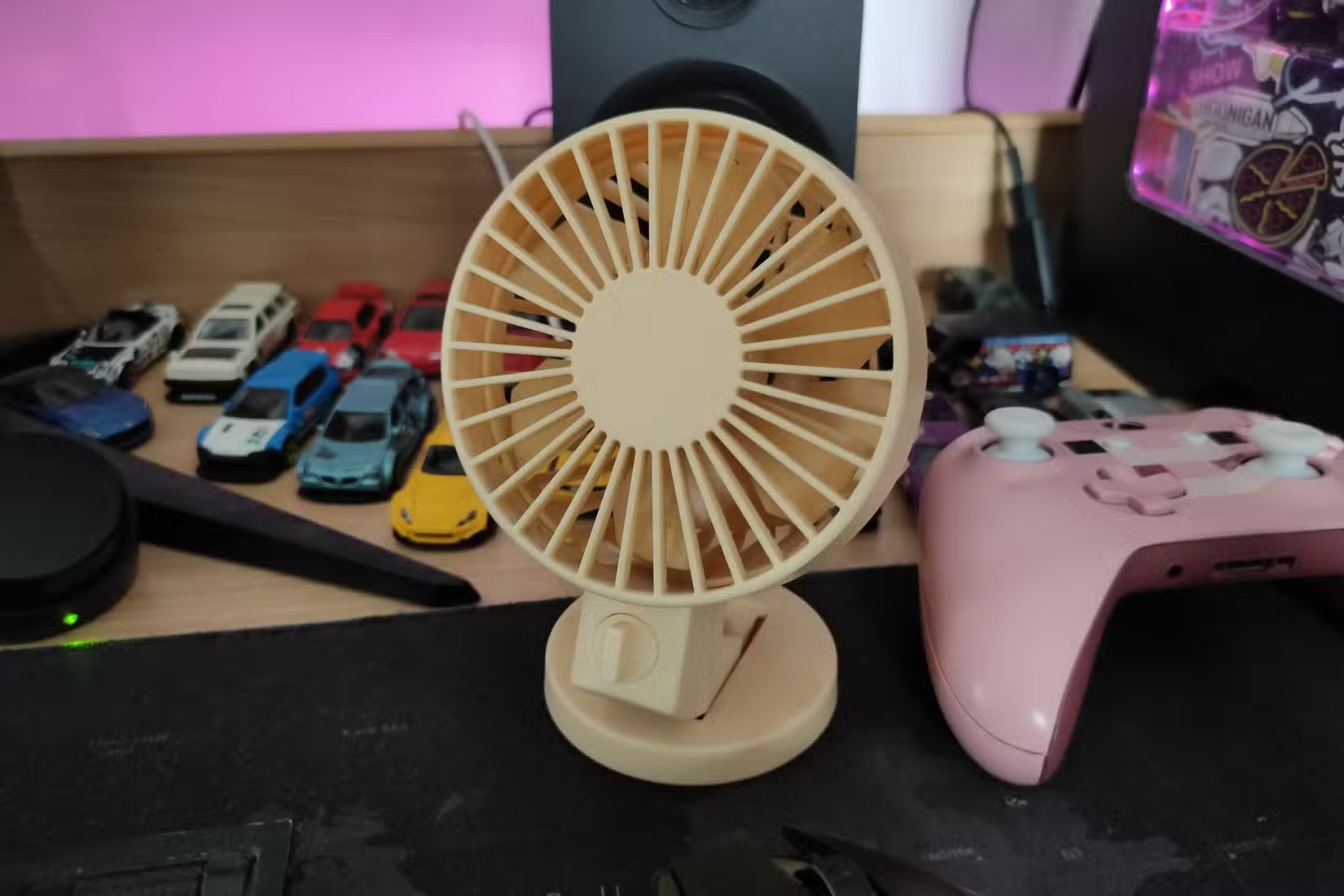
If summers are hot where you live, you know how much comfort even a simple fan can bring. That's why a portable USB-C fan that can easily power your laptop is quickly becoming your favorite accessory during the hot months.
1. Connect a hub or docking station to expand ports
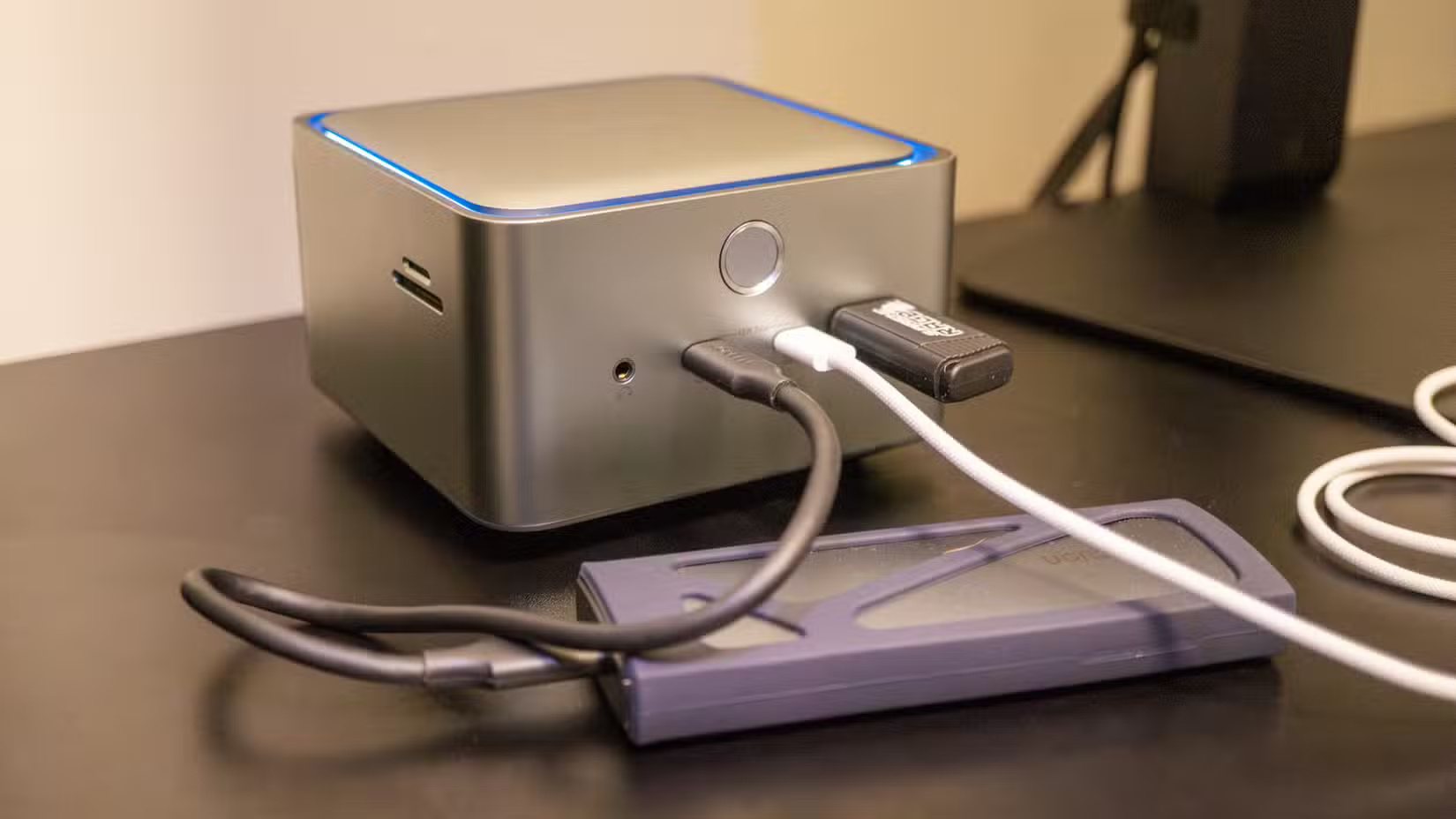
You've probably seen this before, but most of the various uses for the USB-C port discussed above can be replaced with a good USB-C hub or docking station.
Whether you need extra USB ports, HDMI ports for your monitor, or even an SD card reader, and still be able to charge your laptop through the same port, you should invest in a USB-C hub. Even a budget option like the Anker 4-Port USB 3.0 Hub lets you connect multiple USB devices to your laptop.
If you're using Thunderbolt instead of standard USB-C, you can get the most out of your setup thanks to the increased bandwidth. Thunderbolt hubs are a bit more expensive, but they're worth it if you need to expand your laptop's limited port count.
Final Thoughts
Overall, 8 Things You Can Do with Your Laptop's USB-C Port, Besides Charging is best understood by considering the main facts, practical context, and limitations together. Use the details above as a clear starting point and confirm time-sensitive information when necessary.
FAQ
What does this article explain about 8 Things You Can Do with Your Laptop's USB-C Port, Besides Charging?
USB-C ports, often equipped with Thunderbolt support on laptops, have become one of the most important advancements in mobile PCs in the past decade.
What should you know about 8. Connect an external monitor for more screen space?
Many thin-and-light laptops no longer include full-size HDMI or DisplayPort I/O ports. These bulky connectors add complexity to the design and can limit the thinness of the laptop — a significant trade-off, especially since most people rarely use them.
Should time-sensitive details be verified?
Yes. Software features, game codes, product specifications, prices, and research findings can change. Confirm important details with an official or primary source when accuracy affects your decision.
Related Articles
 What Is Type C Charging Port? Should I Use It or Not?8 minutes read
 How to Clean the Charging Port: Practical Guide8 minutes read
 How to Use the Public USB Charging Port Safely?10 minutes read
 How to Clean the iPhone Charging Port3 minutes read
 Do These 5 Things to Get the Most Out of Your Phone's USB-C Port8 minutes read
 10 Devices That Can Be Plugged into the Smartphone Charging Port8 minutes read
Reader Comments 0
Sign in with email or Google to join the discussion.