Table of Contents
Explore 5 router settings that are silently slowing down your internet speed.
The frustrating thing is that your network might show good speeds on speed tests but perform very poorly in real-world conditions. This is often a setup issue, not a bandwidth problem. The good news is you don't need a new router to see a significant improvement in daily speeds. You just need to reduce unnecessary settings in your configuration.
Your Wi-Fi channel is congested
Let's stop competing for the same frequency band
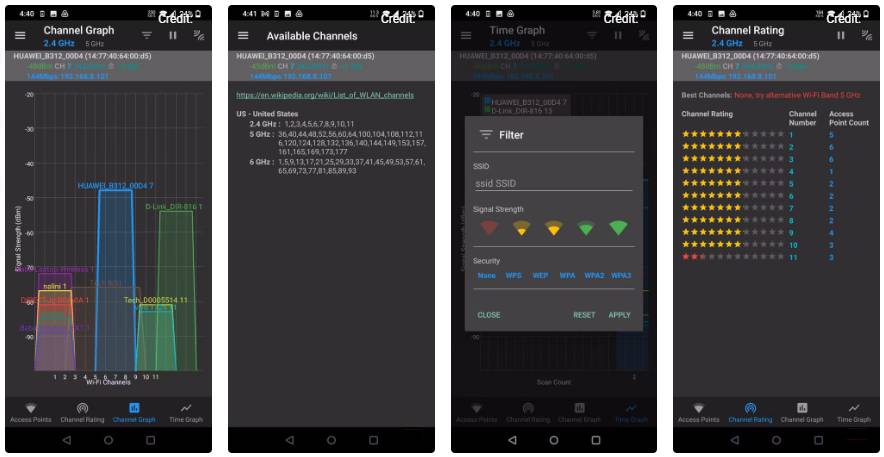
Imagine Wi-Fi channels as lanes on a highway—a comparison that helps explain the function of the channels on a Wi-Fi router. When everyone in your apartment building uses the same lane, traffic slows down significantly. Most routers automatically select a channel during initial setup and never change it, even though interference can come from many different sources besides neighboring networks.
To resolve this, access your router's admin control panel (usually at 192.168.1.1 or 192.168.0.1 ) and navigate to the wireless settings. Use any of the best Wi-Fi analysis apps on your smartphone to identify which channel has the lowest traffic in your area, then manually select a less congested option.
You are connected to an incompatible frequency band
2.4GHz is for marathon runners; 5GHz is for sprinters
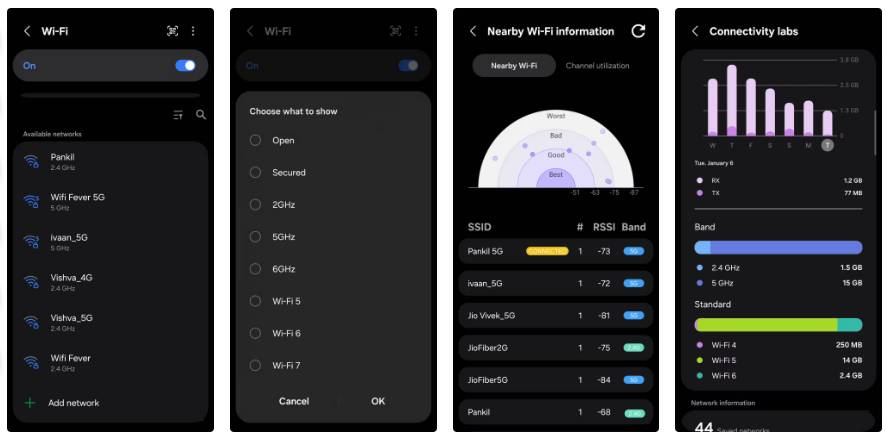
Following up on the point above, each Wi-Fi band has its own strengths. The 2.4GHz band has a wider coverage range and penetrates walls more easily, but it's slower and more susceptible to interference from other electronic devices. The 5GHz band is the opposite. It's faster and cleaner, but its coverage range isn't as far.
The problem is that most of us just connect our devices to whichever network comes up first without considering which band is more suitable. That's why bandwidth-intensive devices like streaming boxes and game consoles get stuck on the crowded 2.4GHz band, while the faster 5GHz network has plenty of unused space.
The real solution lies in being a little more purposeful. Place high-speed devices close to the router—laptops, game consoles, streaming sticks—on the 5GHz network. Let the 2.4GHz band handle devices further away, such as smart home devices, printers, and scattered IoT devices that care more about range than raw speed.
Outdated firmware is creating performance bottlenecks
Using 2019 software in the 2026 world is a bad idea
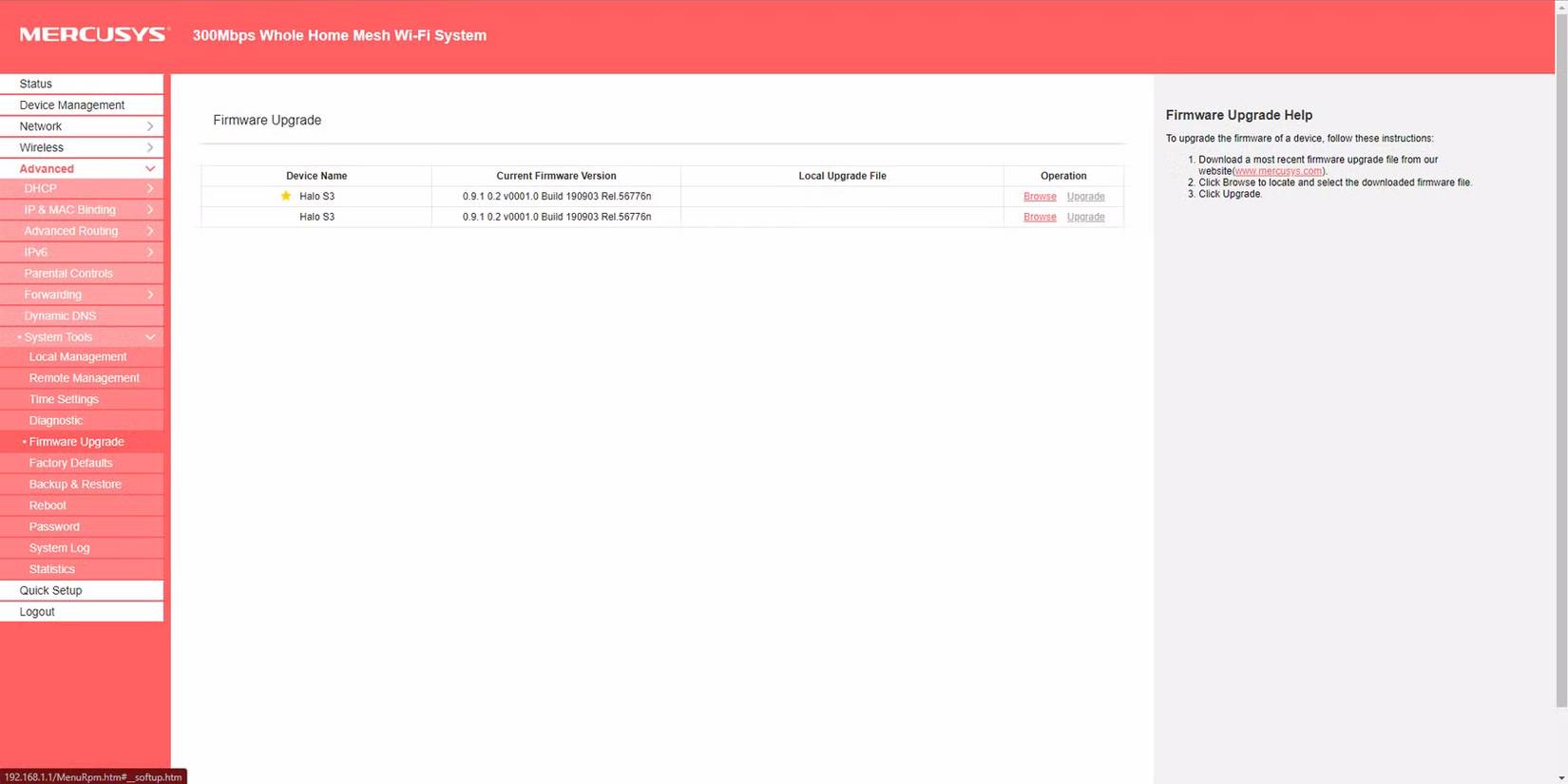
Router firmware is the invisible software that orchestrates every aspect of network operation. When manufacturers release updates, they not only patch security vulnerabilities but also optimize how the router handles data traffic, improve compatibility with newer devices, and sometimes unlock performance capabilities that weren't available when you purchased the device.
Checking for updates depends on your router, but you can refer to TipsMake.com's router firmware update guide for further instructions. Log into your router's web interface and look for an item like Administration or System . If your router offers automatic updates, turn them on and you don't need to do anything else. When you run the update, wait a few minutes and don't unplug any devices immediately. Let the router restart on its own.
Incorrectly configured Quality of Service (QoS) settings are having the opposite effect
The settings are supposed to help, but they might not
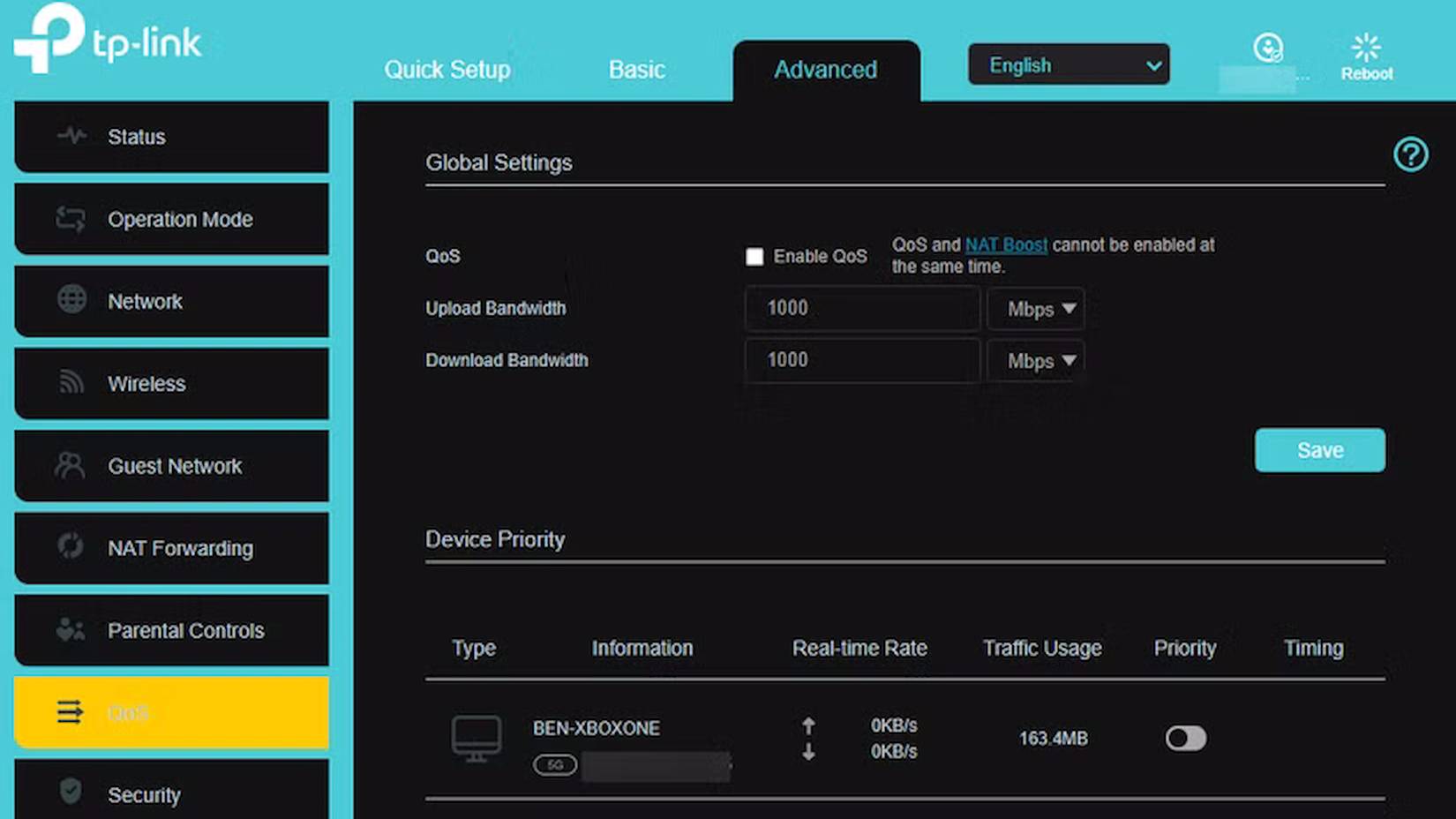
Quality of Service (QoS) sounds like a feature that always improves your internet experience, and when configured correctly, it does just that. When not configured correctly, it often has the opposite effect, creating uneven performance where some devices or applications run slowly while others hog bandwidth.
A common mistake is setting QoS limits much lower than your actual bandwidth speed. In that case, the router will treat those numbers as the maximum limit for your entire network. If you enabled QoS years ago on a 100Mbps plan and then upgraded to 500Mbps, your connection may still be limited to the old speed. On some routers, enabling QoS can also disable hardware acceleration, reducing maximum throughput, especially on high-speed connections.
Neglecting basic maintenance and security settings

It's easy to overlook routine router maintenance, but these can significantly impact performance. A router that's been running continuously for months or years can develop software errors and memory leaks that gradually degrade performance. Simply restarting the router every few weeks can fix these problems and restore optimal functionality.
Security settings also play a crucial but often underestimated role in speed. If your Wi-Fi isn't secured with a strong password and secure encryption like WPA2 or WPA3, you're essentially inviting more guests onto your network. Each unauthorized device is another bandwidth hog, and that means less bandwidth for the things you really care about.
Final Thoughts
Understanding 5 router settings that are silently slowing down your internet speed makes it easier to evaluate the information and apply the most relevant recommendations. Focus on the key points above and verify details that may change over time.
FAQ
What is 5 router settings that are silently slowing down your internet speed?
Explore 5 router settings that are silently slowing down your internet speed.
What key points does this article cover?
The article focuses on Your Wi-Fi channel is congested, Let's stop competing for the same frequency band, You are connected to an incompatible frequency band, with practical explanations and examples.
How can you use this information in practice?
Use the explanations to compare options, verify important details, and make a more informed decision. Apply the recommendations that best match your goals and situation.
Related Articles
 How Does a Tri-band Router Improve Wi-Fi Speed?7 minutes read
 Does Setting DNS on Router or Computer Give Faster Internet Speed?14 minutes read
 5 Settings Need to Change Right on Your New Router6 minutes read
 How to Double Your Internet Speed10 minutes read
 9 Default Windows Settings to Change Now10 minutes read
 How to Increase Internet Speed: Step-by-Step Guide16 minutes read
Reader Comments 0
Sign in with email or Google to join the discussion.