Table of Contents
This updated guide answers the question 'Can Google Public DNS Improve Internet Speed' with clear explanations and practical context. Changing DNS settings is often advertised as a way to speed up Internet browsing. But many people are still skeptical about the impact of simply changing DNS servers on web browsing speed. Let's find the answer through these article!
What Makes People Consider Changing DNS
Even though your Internet connection is usually fast and stable, you still experience slow Internet every now and then, right? for instance, you might be streaming a video or browsing your favorite websites, and then suddenly the loading time slows down. Even after running a speed test and confirming that your bandwidth is fine, this can be even more frustrating.
After some digging, many people find that their ISP's DNS server may be the problem. DNS (Domain Name System) is like a phone book service that translates domain names into IP addresses that direct you to a service. for instance, when you type TipsMake.com into your browser, the DNS server looks up the corresponding IP address and redirects your request to one of TipsMake.com's closest servers.
The problem is that many ISPs run overloaded and sometimes poorly maintained DNS servers, which creates congestion. Even with fast Internet speeds, slow DNS lookups can make browsing feel sluggish because your browser has to wait longer to determine where to send the request.
Once you realize this, check your ISP's DNS performance against the alternatives. Try downloading GRC's DNS Benchmark tool, which lets you compare your current DNS performance against over 200 Public DNS providers at once. The results are clear. Google's DNS server (8.8.4.4) consistently provides the fastest response times at the location, followed closely by Cloudflare's 1.1.1.1.
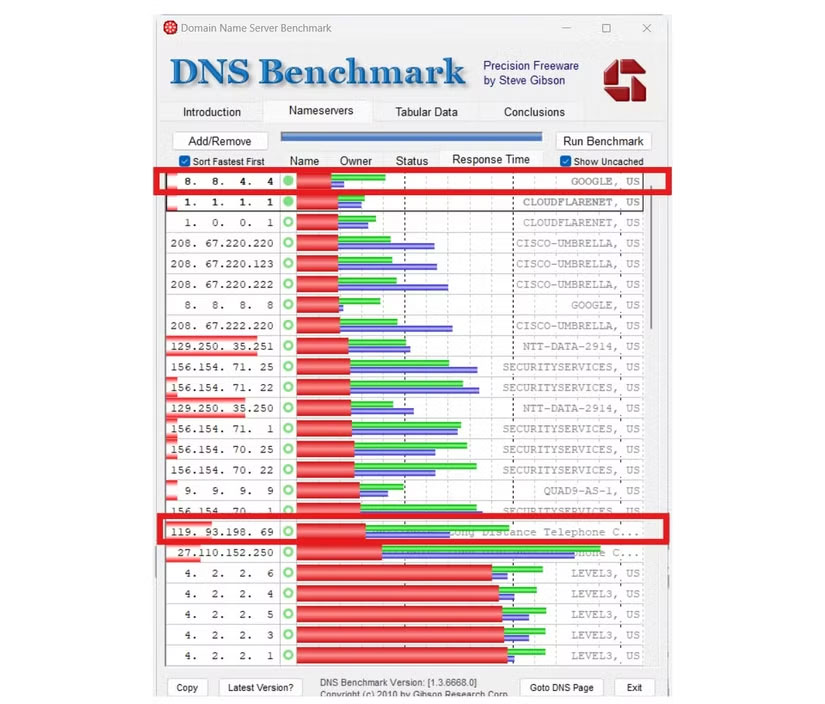
If your ISP's DNS server is ranked low on the chart, this confirms the suspicion that the DNS server is occasionally slowing down your browsing speed. DNS Benchmark shows response times in milliseconds, and while the differences may seem small, these delays add up, especially on services that require multiple DNS lookups.
So, changing your DNS seems like a logical idea. The concept makes sense technically: Using a faster, more reliable DNS server can eliminate unnecessary delays you experience when browsing the web.
How to Set Up Custom DNS on Both Router and PC
To see if switching DNS really makes a difference, try setting up custom DNS on both your router and your PC. Set up both your router and PC to see which approach works better and ensure your laptop uses fast DNS even on public networks.
Set Up DNS on Router
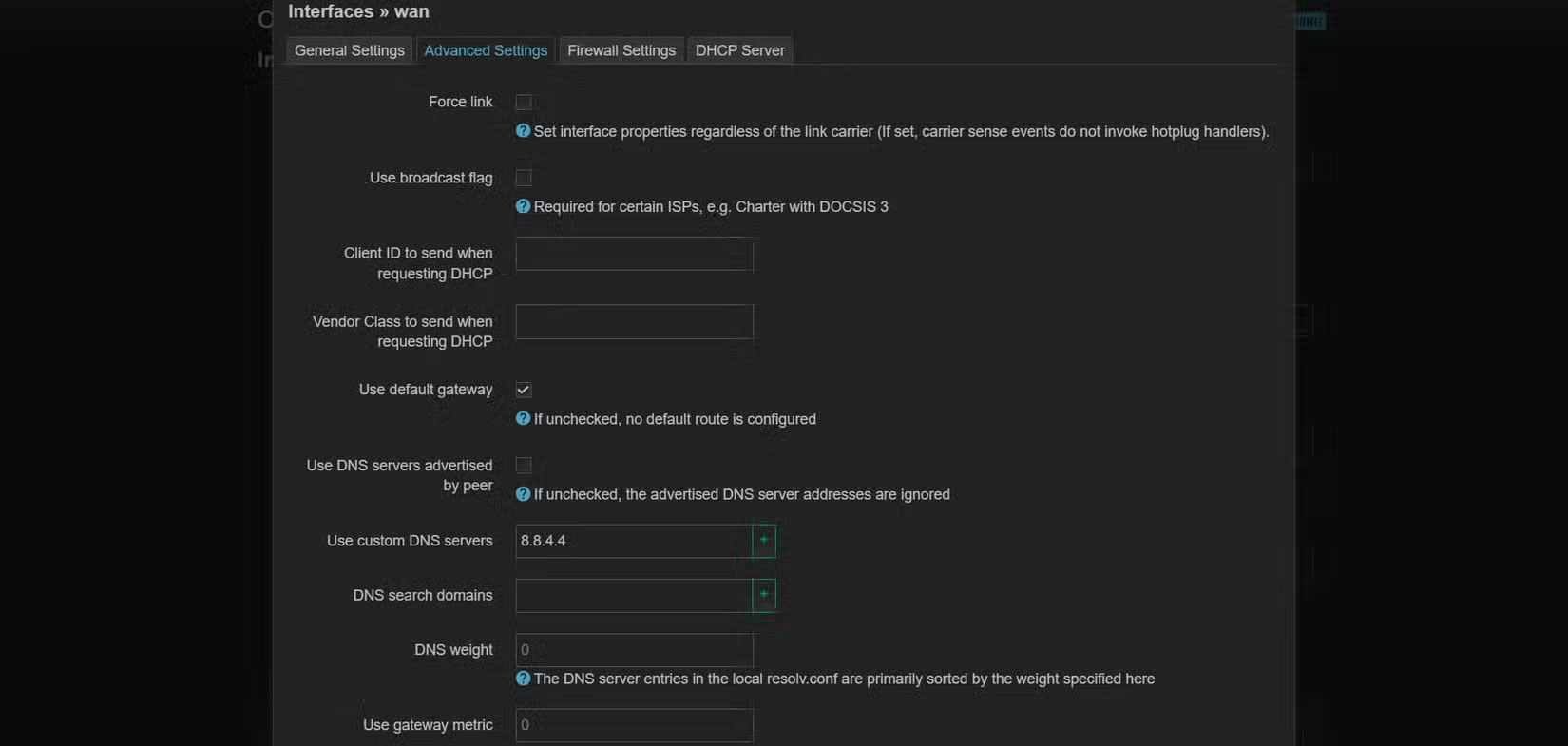
First: Your Router. You can change the DNS for every device on your network using your router's web interface.
- Open your browser and enter your router's IP address (in our example, it is 192.168.1.1).
- Once logged in, navigate to Network > Interfaces > WAN > Advanced Settings .
- Uncheck the box labeled "Use DNS servers advertised by peer". Depending on your router brand and firmware, you may not see this option (or something similar)
- In the Use custom DNS servers field, enter two addresses:
- Primary DNS : 8.8.4.4 (Google)
- Secondary DNS : 1.1.1.1 (Cloudflare)
- After saving and rebooting the router, every device on the network, such as smartphones, laptops, and Smart TVs, automatically starts using these faster DNS servers.
Setting up DNS on your router is great because you only have to do it once and every device connected to the router benefits - no need to repeat the process on each gadget.
Set Up DNS on PC

You will find also some cases where setting up DNS directly on your PC can be useful, such as when using public Wi-Fi or when using a special DNS service like Smart DNS that lets you unlock geo-restricted content.
- open Settings > Network & Internet > Hardware Properties .
- Now, next to your Wi-Fi or Ethernet connection, find DNS Server Assignment and select Edit .
- Select the Manual option, enable the IPv4 toggle and enter:
- Preferred DNS : 8.8.4.4
- Alternate DNS : 1.1.1.1
- Click Save .
You can do this via the classic Control Panel if you prefer the old way:
- Open Control Panel and open Network and Sharing Center > Change adapter settings .
- Right select your network, select Properties , select Internet Protocol Version 4 (TCP/IPv4) and enter the DNS addresses above.
The whole process takes less than 10 minutes and just like that, the PC starts using the new DNS server.
Compare Internet Speed Before and After Switching
To accurately measure the impact, test different online activities before and after switching DNS. The results are very positive.
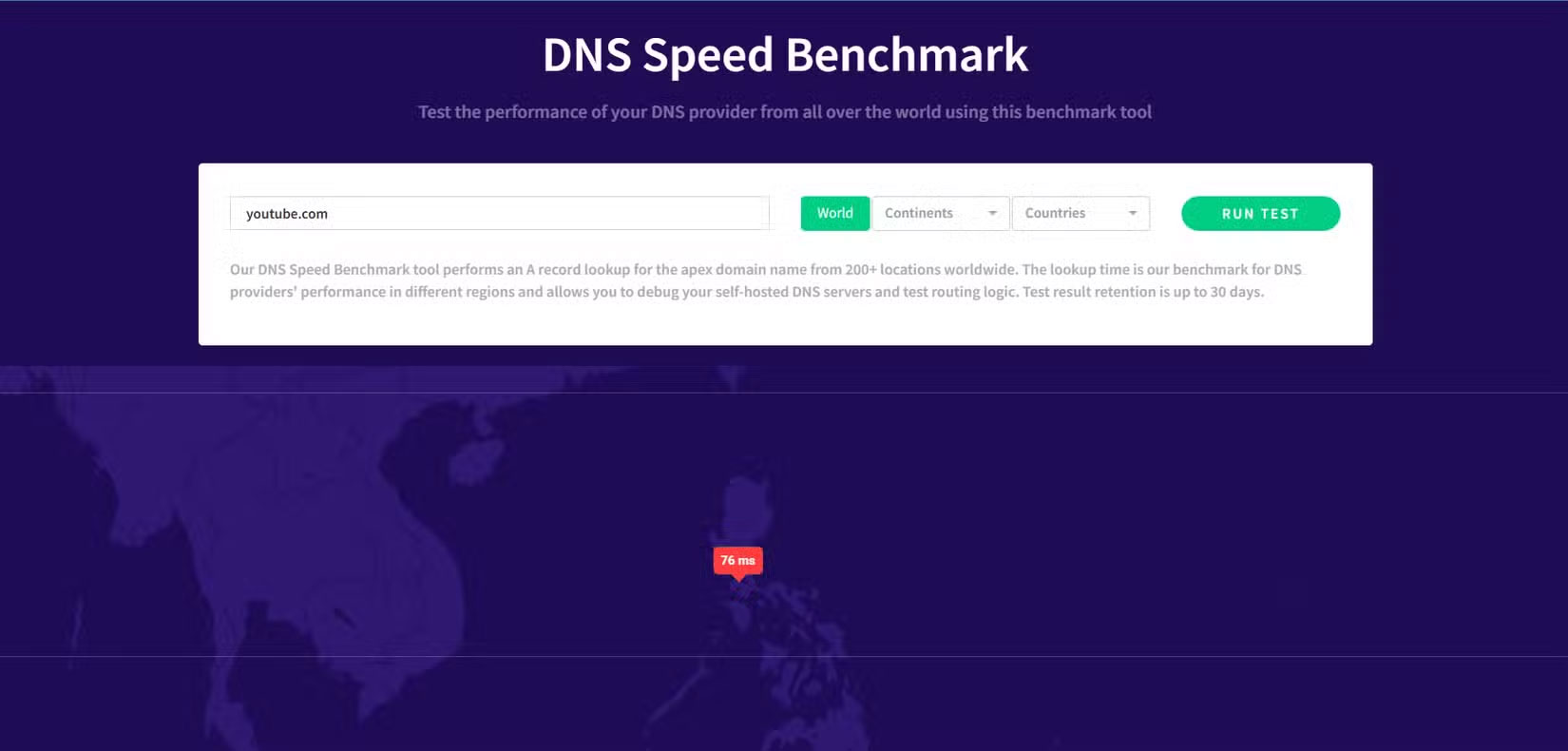
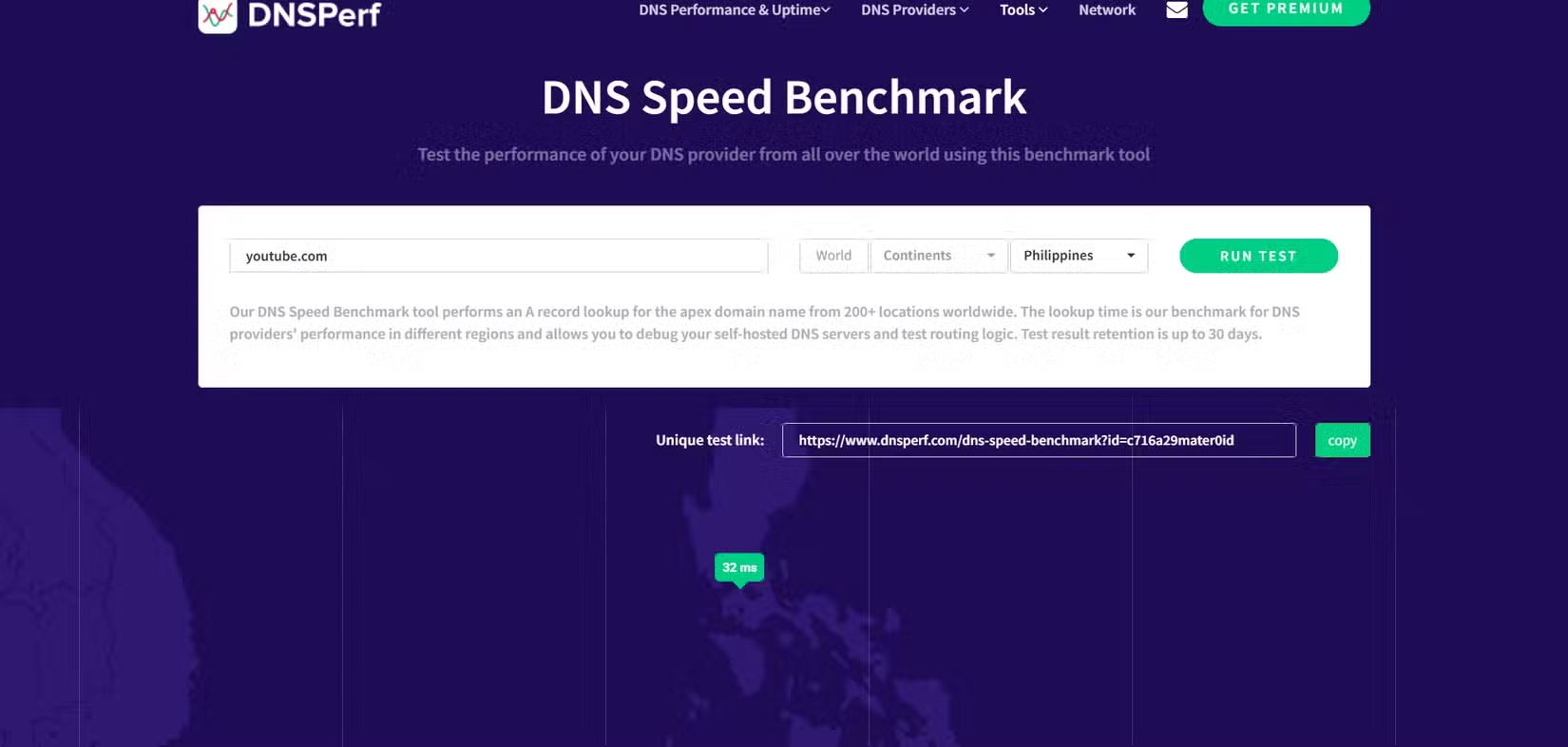
Before switching to Google DNS, DNSPerf found that the ISP's DNS server responded in about 76ms when resolving standard domain lookups. After implementing Google DNS (8.8.8.8 and 8.8.4.4), the same test showed that response time dropped to just 32ms. Further tests on different websites showed similar results.
The most noticeable improvement is when browsing image-heavy sites that load content from multiple domains. A shopping site that used to take 5-6 seconds to fully load now seems to take about half that time (after clearing the DNS cache). Images, buttons, and product descriptions now appear almost instantly, making the browsing experience much faster.
Video streaming showed mixed results. Netflix and YouTube didn't buffer any less than before (likely because they use large content delivery networks [CDNs] that mitigate the impact of DNS), but browsing the library and switching between videos seemed a bit more responsive.
Interestingly, the improvement is most noticeable on older devices. The old Amazon Fire HD 10 tablet in the example suddenly becomes much more responsive when browsing the web, showing that efficient DNS is especially beneficial for devices with limited processing power.
FAQ
What is the main takeaway about Can Google Public DNS Improve Internet Speed?
The key is to understand the core idea, compare the available options, and apply the practical guidance that matches your situation.
What should beginners know about Can Google Public DNS Improve Internet Speed?
Start with the essential steps and terminology. Avoid changing advanced settings until you understand how they affect performance, privacy, cost, or compatibility.
How can I use this information in practice?
Follow the relevant section in order, test one change at a time, and confirm the result before moving to the next step or recommendation.
Related Articles
 Use Google Public DNS to Speed up Internet Connection3 minutes read
 Learn About Public IP Address13 minutes read
 7 Ways to Take Advantage of Old Wireless Routers9 minutes read
 Hardly Switch to Ipv6 Internet4 minutes read
 The Best Travel Router You Need to Bring in Your Trip13 minutes read
 Learn 193.168.0.1: IP Address of Broadband Router6 minutes read
Reader Comments 0
Sign in with email or Google to join the discussion.