Table of Contents
Explore 4 useful gboard tips to make typing on Android more enjoyable.
However, it turned out that the hardware wasn't the main issue causing users frustration. After numerous annoyances, many began to wonder if the problem lay with the touchscreen itself.
The real problem is how people set up and use Gboard. They struggle because they think of Gboard as just a simple keyboard, without realizing it can be a powerful tool to get things done. Like many others, you may not be using all of Gboard's best features.
Text shortcut
A string of characters is attached, but for your convenience
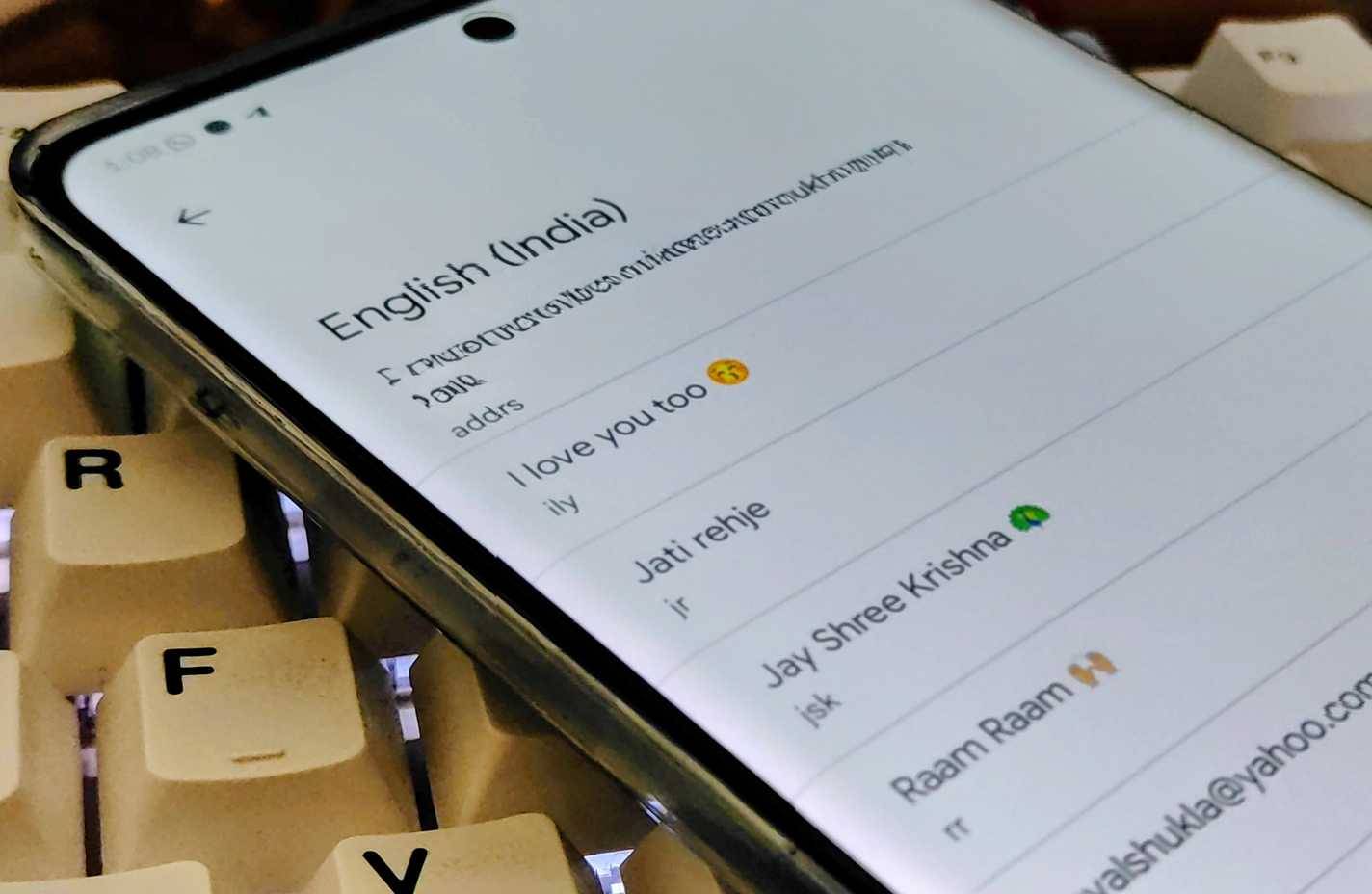
This is a beloved feature, as text shortcuts have made it easier to insert long, repetitive, and often misspelled strings. Many people often have to insert complex and repetitive text like addresses, emails, or even a standard message like 'I'm in a group call,' leaving no room for spelling errors. A single misspelled character could send an important email or package intended for you to someone else.
Gboard's personal directory allows you to map short, unique abbreviations to complex strings. For example, typing 'email' will automatically expand to your email address, and typing 'address' will expand to your home address. This not only eliminates spelling errors in important character strings, but also transforms a 15-second typing process into a reflex in just one second.
And because Gboard is integrated into the Android ecosystem, if you add the shortcut to your Pixel device, you can use it on your Galaxy Tab without needing to set it up again (after logging into your Google account).
Clipboard Manager
You can forget; Gboard won't
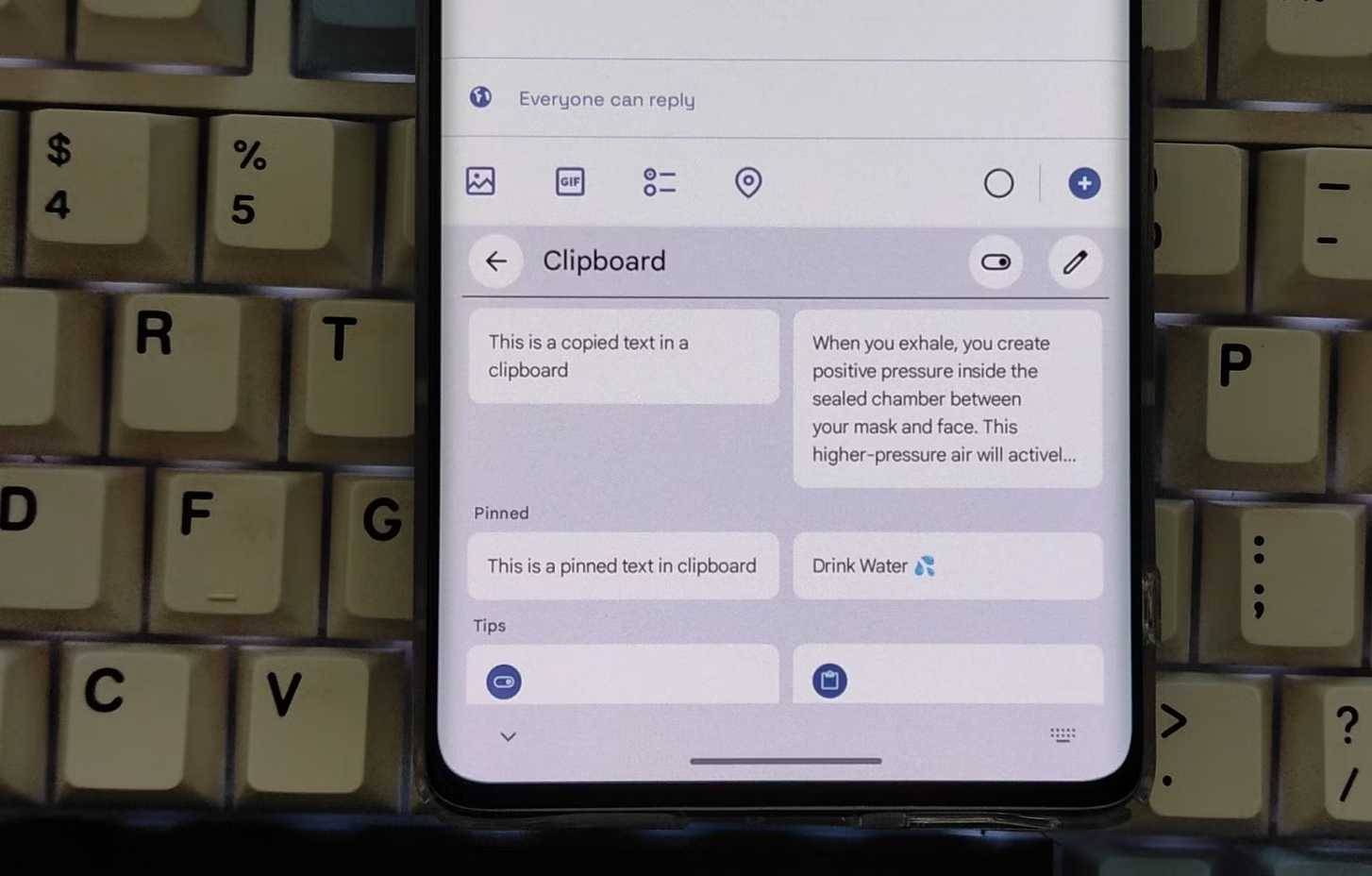
For many people, Android's default copy/paste function has always been quite cumbersome. They frequently encounter awkward situations when copying an important shipping code, getting distracted, accidentally copying a meme link, and realizing they've permanently overwritten the shipping code. Since enabling Gboard's built-in clipboard feature, this problem is no longer an issue.
Unlike the system clipboard (which usually only keeps the most recently copied item), Gboard's clipboard manager keeps a full copy history of text and images for the past hour. But the feature many people like most about Gboard's clipboard is the ability to pin items.
This is incredibly useful for documents you need frequently but don't want to assign shortcuts to, such as bank account numbers, multiple hashtags for managing social media, or sample replies for work emails.
Text editor and spacebar cursor
If you need to edit a long document, do so in a convenient way
Editing long content on a phone—such as a Google Doc or a lengthy email—is a nightmare. Trying to tap between two specific characters to correct a spelling error often results in the cursor moving three characters away. This is because your fingers obscure the item you're trying to tap.
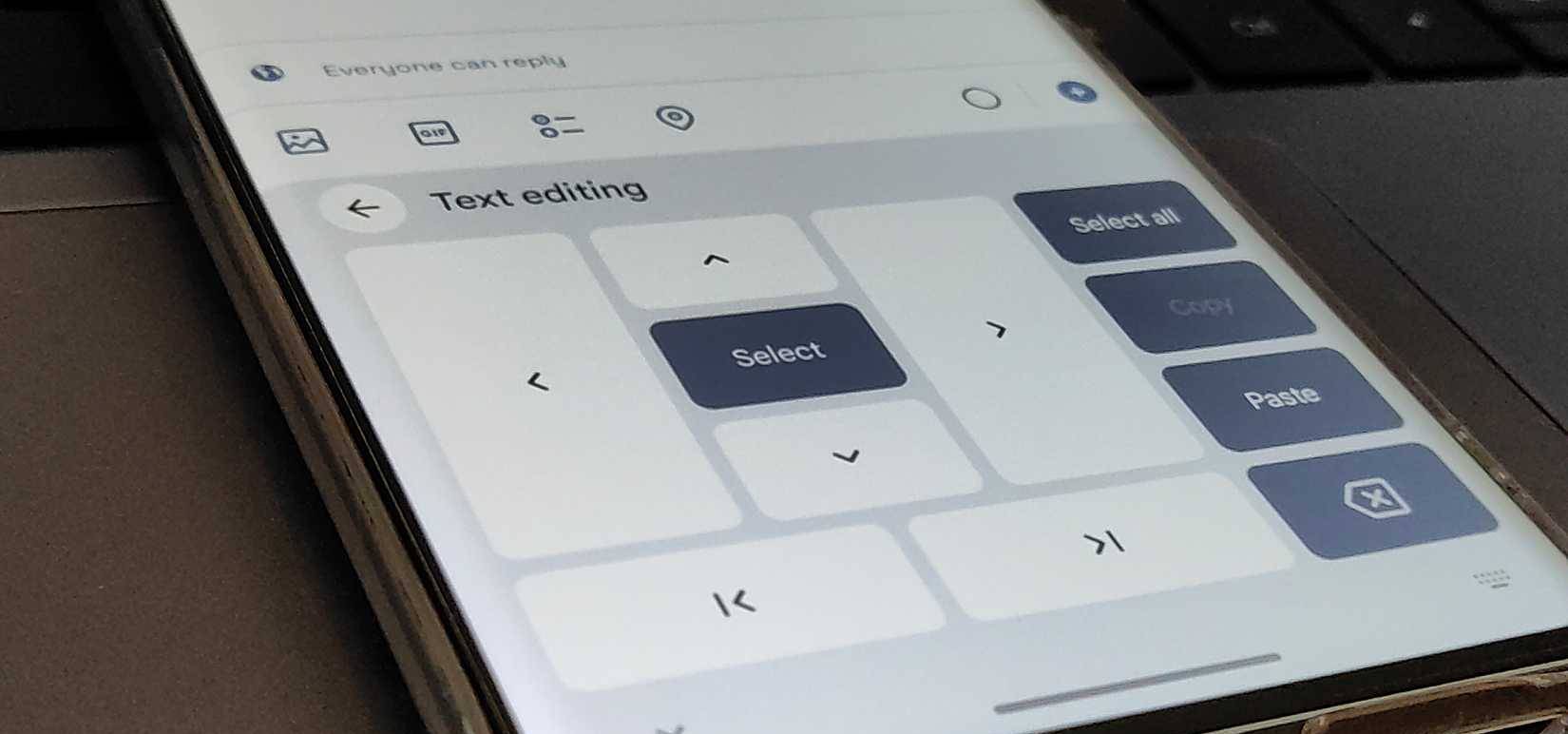
Gboard has a dedicated text editor mode that replaces the keyboard with a navigation keyboard (D-pad). This layout provides you with arrow keys to move each character (up, down, left, right), along with dedicated Select , Copy , and Paste buttons.
This mode transforms the lower half of the phone screen into a precise input device, rather than a guessing game. It allows for more detailed control than touch gestures can achieve, effectively mimicking the arrow keys on a desktop keyboard.
Swipe to delete
Swipe to clear your error
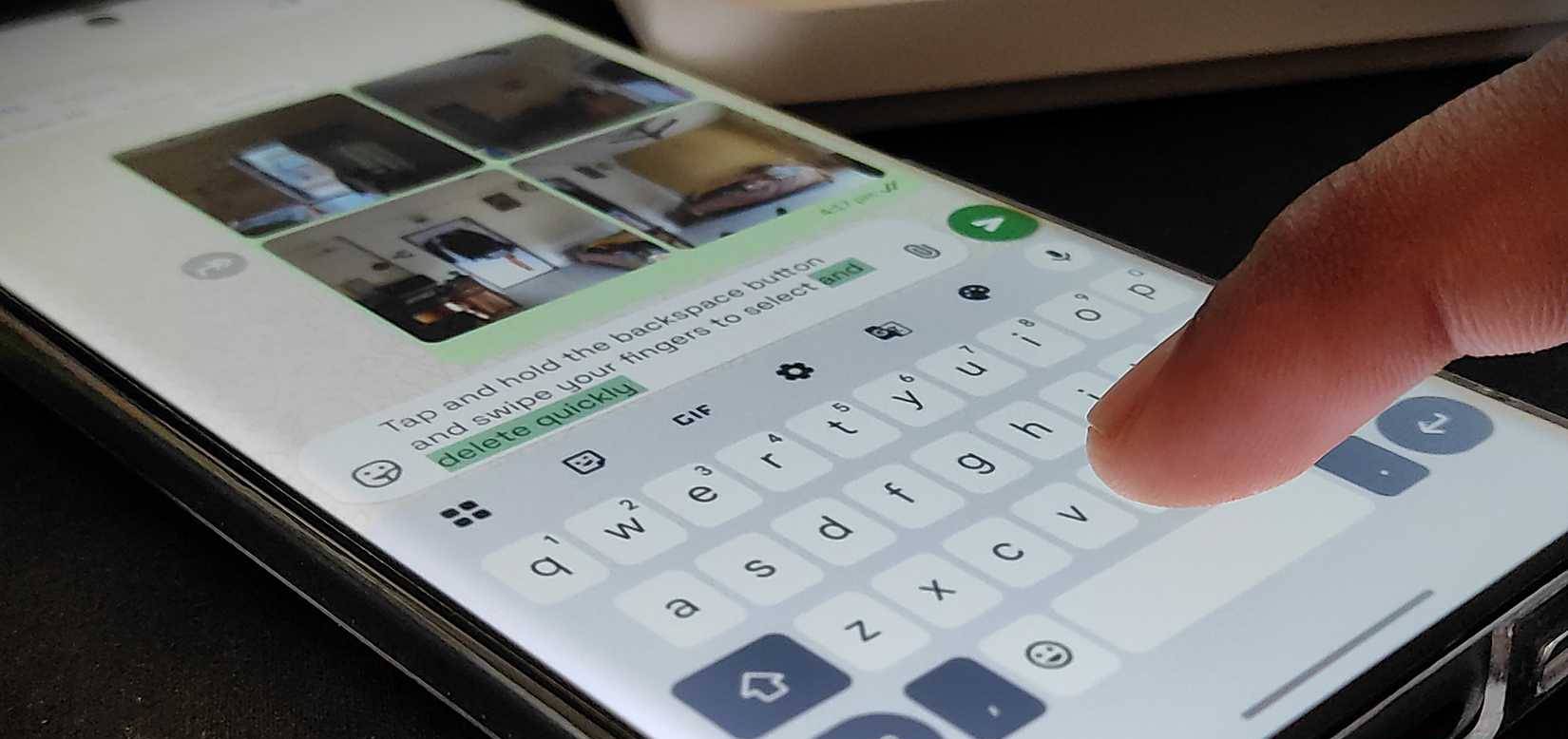
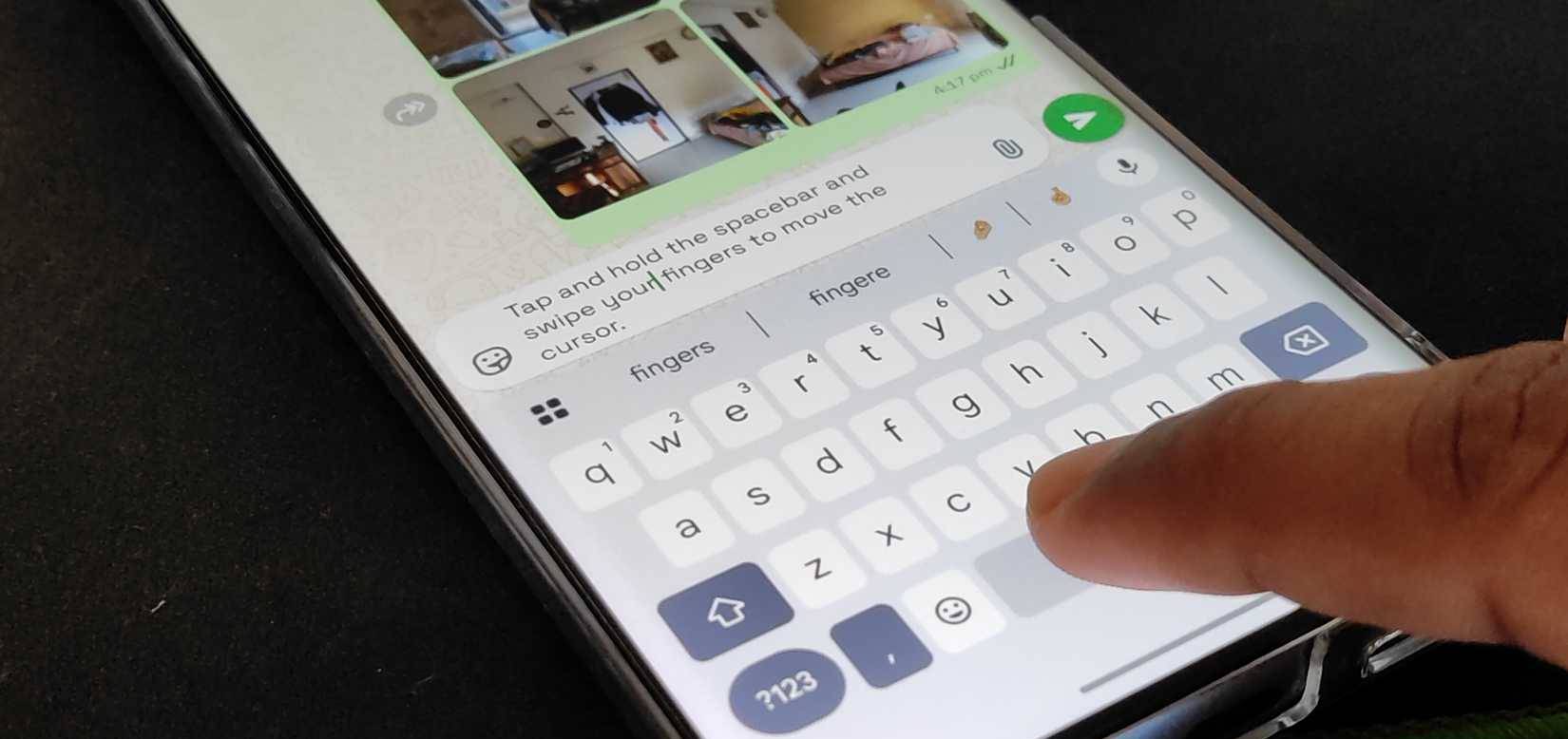
The backspace key on any virtual keyboard is always a problem. Pressing it 50 times to delete a misspelled sentence is very slow; holding it down is risky, as it speeds up too quickly and often deletes more than you intended. In Gboard, this problem is solved with a simple, quick, and convenient gesture.
Swipe to delete is a gesture where you place your finger on the Backspace key and slowly slide it to the left. This moves the cursor within the sentence while selecting a word or the entire sentence, depending on how far you slide to the left and the range you want to select. As soon as you lift your finger, the highlighted section is deleted.
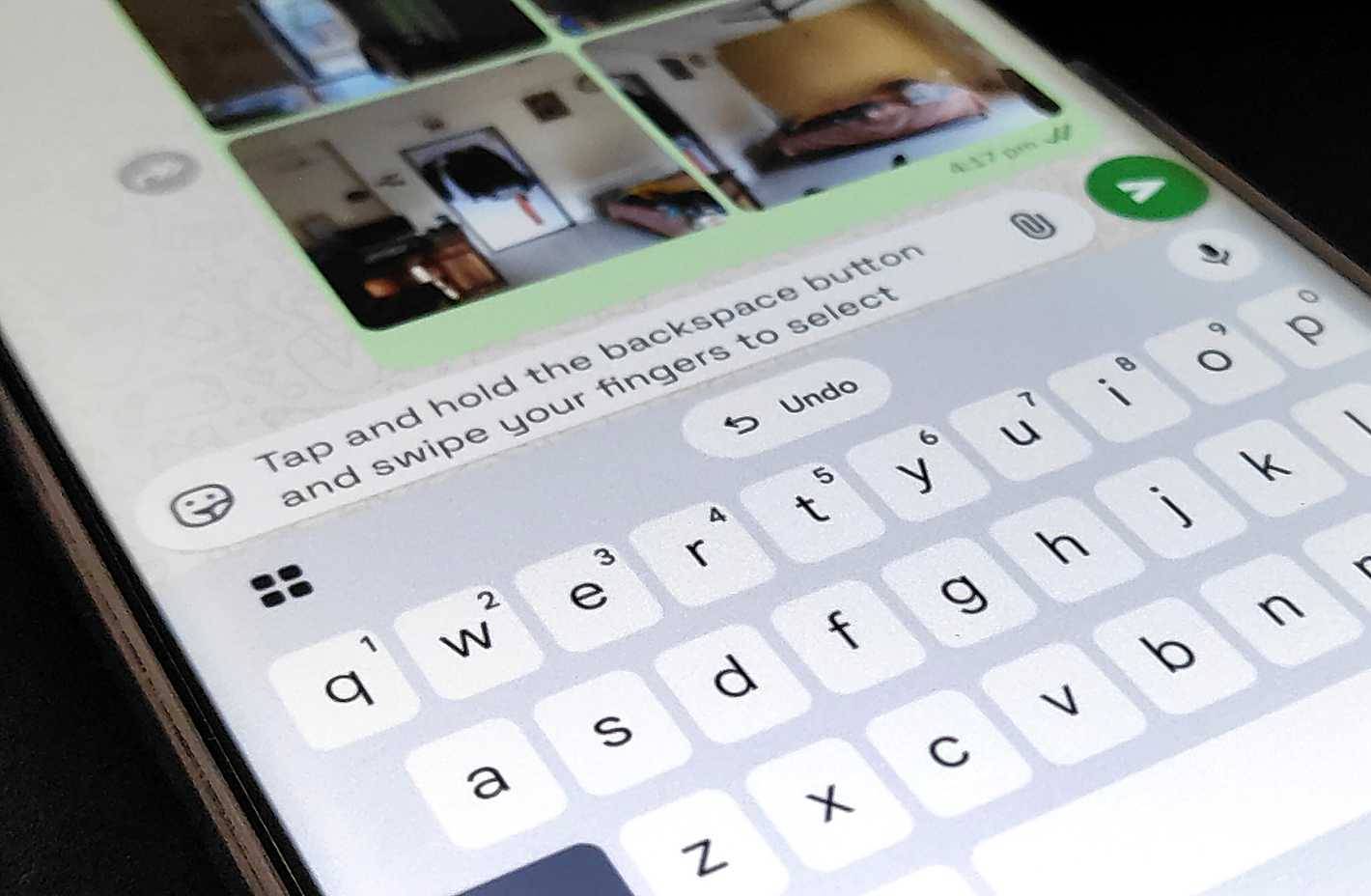
The faster you swipe left, the more parts of the sentence will be selected with a shorter finger movement. This is very useful when you have long paragraphs or nonsensical sentences due to typing errors when your phone is in your pocket. And best of all, if you delete more than intended, the suggestion bar will immediately display a prominent Undo button, helping to avoid disaster.
Final Thoughts
Understanding 4 useful gboard tips to make typing on android more enjoyable makes it easier to evaluate the information and apply the most relevant recommendations. Focus on the key points above and verify details that may change over time.
FAQ
What is 4 useful gboard tips to make typing on android more enjoyable?
Explore 4 useful gboard tips to make typing on Android more enjoyable.
What key points does this article cover?
The article focuses on Text shortcut, A string of characters is attached, but for your convenience, Clipboard Manager, with practical explanations and examples.
How can you use this information in practice?
Use the explanations to compare options, verify important details, and make a more informed decision. Apply the recommendations that best match your goals and situation.
Related Articles
 How to Type in Multiple Languages with Gboard on Android4 minutes read
 How to Enter Voice Input with the Gboard Keyboard App on4 minutes read
 Translate Text Directly on iPhone Keyboard with Gboard's3 minutes read
 10 Things Gboard Can Do on Android8 minutes read
 The Best 4 Free and Open Source Android Keyboard Apps7 minutes read
 You Can Draw Your Own Emoji on Gboard Right Now5 minutes read
Reader Comments 0
Sign in with email or Google to join the discussion.