Article on the subject of "word format 2007"
-

MS Word - Lesson 10: Read and check proofs for documents
word 2007 has many features to help you read and test printouts for documents. they include tools: spelling and grammar (spell and grammar checker), thesaurus (synonyms), autocorrect (auto-correction), default dictionary (default dictionary) and word count (public word counting tool).
-
MS Word - Lesson 5: Format the text
in this article, we will learn how to style text in word 2007 through the built-in styles feature.
-
MS Word - Lesson 5: Format the text
in this article, we will learn how to style text in word 2007 through the built-in styles feature.
-
MS Word - Lesson 10: Read and check proofs for documents
word 2007 has many features to help you read and test printouts for documents. they include tools: spelling and grammar (spell and grammar checker), thesaurus (synonyms), autocorrect (auto-correction), default dictionary (default dictionary) and word count (public word counting tool).
-
MS Word - Lesson 8: Creating a table
table is used to display data in a tabular format. how to create a table in word, how to format word 2007 tables? please follow the instructions below.
-
MS Word - Lesson 1: Start with Microsoft Word 2007
what is microsoft word 2007? microsoft word 2007 is one of microsoft office 2007 programs. you can use this program to edit documents, including content, charts, drawings, as well as editing letters, memos, flyers,…
-
How to keep Word format when sharing documents
when sharing a microsoft word document, if the recipient device does not have the font installed in the document, the text may be changed in a format such as layout, font, ...
-
MS Word - Lesson 3: Customize the Word environment
word 2007 provides a customizable area that allows you to create better word documents. to see the basic options you do the following:
-
How to insert pictures, format pictures in Word 2007
to make the article content more vivid, we can add images to the article. show you how to insert and format images into word 2007
-
MS Word - Lesson 16: References and Citations
word 2007 provides some great tools for citing sources, creating folders and managing resources. the first step to creating a reference list and citation in a document is to choose the appropriate type that you will use to format citations and references.
-
Conquer Word 2007 (V period)
formatting becomes simpler in word 2007 with new features but it is really complicated if you do not know where to format.
-
How to create Macros in Word 2007
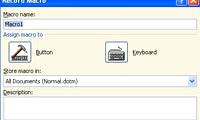
macros are advanced features, which can speed up editing or formatting that you can execute regularly in a word document. they record the sequence of choices you choose so that a series of actions can be completed in one step.
-
MS Word - Lesson 15: Create an automatic number
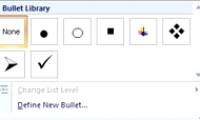
automatic sequence numbers allow you to format and organize text with numbers, bullets (round dots), or a border.
-
Quick formatting of words appears many times on Word
to copy the format of the paragraph, we can use the format painter tool. however, if you quickly format a phrase that appears multiple times in word, you can do it faster.
-
MS Word - Lesson 6: Format the text
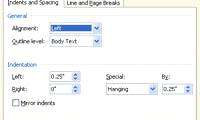
the formatting of paragraphs allows you to change the way you look at the entire document. you can access the paragraph formatting tool by clicking the page layout tab on the ribbon or clicking the paragraph group on the home tab.
-
Lesson 18: Save the document
it is important to know how to save the documents you are working on. there are many ways for you to share and receive documents, this will affect how you save files.
-
Fix word sticking errors in Word 2007
word errors in word will affect the content and layout of the entire document. the reason is because it is not compatible with the office suite you are using. so how to handle this situation?
-
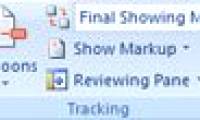
MS Word - Lesson 17: Track Changes tool
track changes is a special feature of word, allowing you to see changes made to a document. track changes tools are available in the reviewing tab on the ribbon.
-
Convert documents from Word 2007, 2010 to 2003
so i introduce to you how to switch from word 2007, 2010 to word 2003 in the fastest and most convenient way. there are 3 ways that you can choose: - method 1: transfer word 2007 files to computers with word 2007 and save as again into word 2003.
-
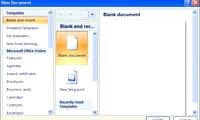
MS Word - Lesson 2: Working with Documents
there are several ways to create new documents, open existing documents, or save documents in word 2007. here are detailed instructions for you.
-
Consistent with the format bar in Word 2003-2013
the formatting bar in word 2003-2013 is no different. the following article, tips make will help you clarify this issue
-
How to insert images into Word 2007
inserting images into word 2007 content is extremely simple. you just need to do a few basic operations that will have images in the text content.
 Home
Home Tech info
 Technology
 Science
 Life
Life Application
 Electric
 Program
 Mobile
 System