How to Schedule a Windows Shutdown with CMD
Use the Windows shutdown command to turn off or restart a PC after a chosen delay, cancel the timer, and avoid losing unsaved work.
Fix Windows problems, troubleshoot devices, understand AI, secure your accounts and get more from your technology with tested step-by-step guides.

Use the Windows shutdown command to turn off or restart a PC after a chosen delay, cancel the timer, and avoid losing unsaved work.
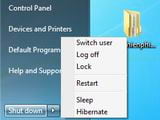
Resolve a Windows laptop that hangs during shutdown by checking blocked apps, updates, drivers, Fast Startup, system files, and hardware safely.

Set a supported PC's RTC alarm in UEFI, wake Windows from sleep with Task Scheduler, or schedule a Mac with pmset, with key power and login limitations.
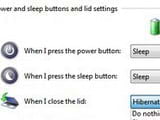
Change the Windows lid-close action to Shut down for battery or AC power, compare Sleep and Hibernate, and avoid lost work or heat in a laptop bag.
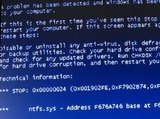
Troubleshoot a Windows PC by symptom, from no power and blank screens to boot-device errors, repair loops, blue screens, and safe recovery options.

Create a daily Windows shutdown task, add idle and power conditions, avoid forced app closure, and prevent missed tasks from shutting down at the wrong time.
Use msconfig to stop nonessential programs from launching with Windows 7, identify entries safely, reverse changes, and troubleshoot apps that still start.
Shut down Windows 10 from Start, keyboard menus, commands, desktop shortcuts, SlideToShutDown, or the power button without forcing apps closed.

Set Windows to sleep after inactivity through Settings, Control Panel, or powercfg, and understand the extra steps and risks of a fixed-time schedule.

Use shutdown commands to turn off, restart, delay, or cancel a Windows power action, with correct syntax and clear warnings about forced app closure.

Abort an active Windows shutdown countdown with shutdown /a, understand why it may fail, and disable future shutdowns created by Task Scheduler or other apps.

Use Windows commands, a reusable shortcut, or Task Scheduler for one-time and recurring shutdowns, with cancellation steps and safeguards for unsaved work.

Install matching VirtualBox Guest Additions, create a secure shared folder, access it from Windows or Linux guests, and fix common mount or permission problems.
Use Windows Disk Management to shrink an existing NTFS volume, create a new partition, assign a drive letter, and format it without third-party tools.

What is the best way to increase/decrease the C drive capacity in Windows 7, 8, and 8.1 without losing data? EaseUS Partition Master is the answer.

Create an Android-x86 virtual machine in VirtualBox, attach the ISO, partition the virtual disk, and complete installation without changing your physical drive.

Mount an ISO image as a virtual CD or DVD drive with UltraISO, open its files in Windows, and safely eject the image when finished.
Install PowerISO on Windows, choose file associations carefully, and mount ISO images through a virtual optical drive.

Install UltraISO safely on Windows, choose the destination and file associations, and learn what to check before opening disc images.

Export a Hyper-V VM to a portable folder, choose the correct import mode, and verify storage, networking, and identity settings after migration.