Table of Contents
To make a Windows laptop shut down when you close its lid, open Control Panel > Hardware and Sound > Power Options > Choose what closing the lid does. Set When I close the lid to Shut down for battery power, plugged-in power, or both, then save the changes. Save your work before closing the lid because shutdown closes your apps.
Set the lid-close action to Shut down
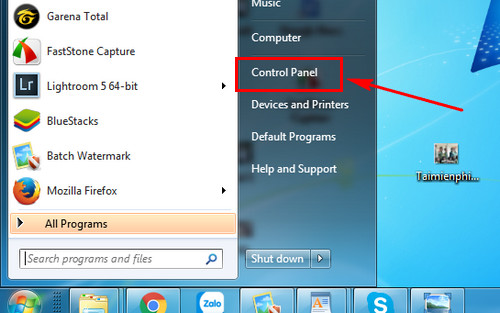
- Open Start, search for Control Panel, and open it.
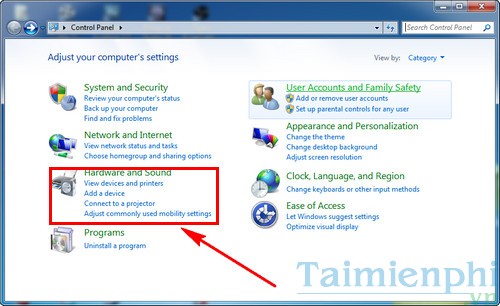
- Select Hardware and Sound.
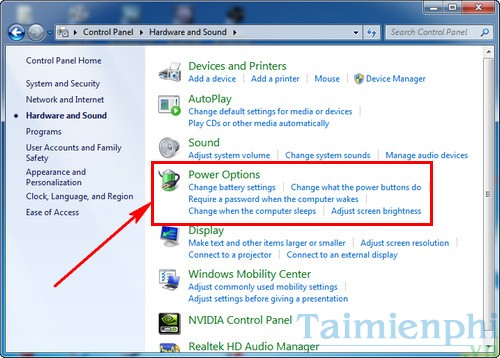
- Select Power Options.
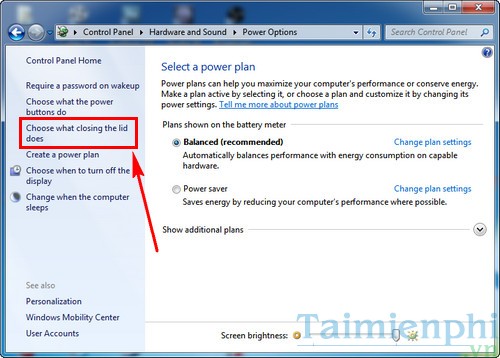
- In the left pane, select Choose what closing the lid does.
- Find When I close the lid. The default on many laptops is Sleep.
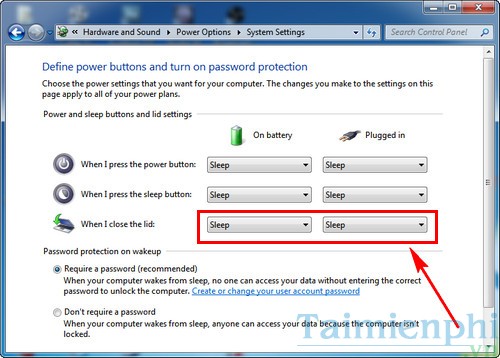
- Open the list under On battery or Plugged in and select Shut down.
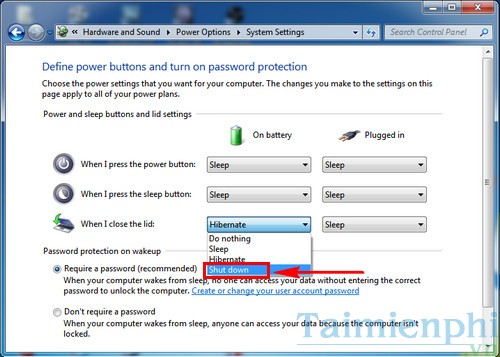
- Set the second power state if desired, then select Save changes.
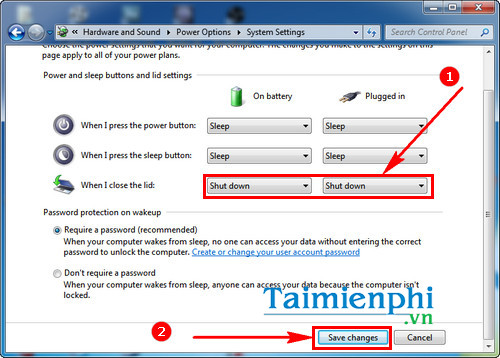
The same Control Panel path applies to Windows 11 and Windows 10. Microsoft also documents the lid and button controls in its guide to shutting down, sleeping, and hibernating a PC.
Choose the right lid action
| Option | What happens | Best use |
|---|---|---|
| Do nothing | The PC keeps running when the lid closes. | External monitor or dock, with adequate ventilation. |
| Sleep | The session remains in memory and uses a small amount of power. | Short breaks and quick resume. |
| Hibernate | The session is saved to storage and the PC uses little or no operating power. | Longer breaks when you want to resume apps later. |
| Shut down | Windows closes apps and ends the session. | When you want a fresh boot and do not need open apps preserved. |
If your goal is low battery use without closing every app, Hibernate may be more suitable than Shut down. See the comparison of Sleep and Hibernate in Windows.
Important precautions
- Save first: closing the lid can trigger shutdown immediately. Unsaved documents may prompt, delay shutdown, or lose changes depending on the app.
- Wait before packing the laptop: confirm that lights and fans have stopped before placing it in a bag. A blocked shutdown can leave the machine running and accumulating heat.
- Use separate battery and AC choices: for example, choose Sleep on battery and Do nothing while plugged into a dock.
- Closing the lid is not an emergency privacy control: shutdown may take time. Press Windows + L to lock the session immediately, and require sign-in after wake.
Keep the laptop running with the lid closed
If you use an external monitor, choose Do nothing under Plugged in. Keep the charger connected, make sure the external display is selected in Display settings, and place the laptop where its vents are not obstructed. The guide to turning off the laptop screen while the computer keeps running covers related options.
If the setting is missing or ignored
- Restart Windows and test again with the current power plan.
- Install Windows updates and the laptop manufacturer's current chipset and power-management drivers for the exact model.
- Check whether vendor software or an organization policy controls lid behavior.
- If the laptop does not detect lid movement at all, the lid sensor or its driver may need service.
Available options depend on the device's hardware and manufacturer. Avoid registry edits or copied powercfg commands until you have identified the supported sleep states and any management policy on the PC.
Related Articles
 7 Reasons Laptop Does Not Power up and How to Fix It6 minutes read
 Set Up a Separate Power Source for Windows 7 on Laptop?4 minutes read
 Tips for Optimizing Your Laptop's Power Source10 minutes read
 How to Adjust Power Settings in a Windows Vista Laptop3 minutes read
 How to Save Battery Power on a Windows 10 Laptop and Increase Battery Life5 minutes read
 Steps to Fix Charging Laptop Not to Power9 minutes read
Reader Comments 0
Sign in with email or Google to join the discussion.