Table of Contents
To cancel a pending Windows shutdown countdown, press Windows + R, enter shutdown /a, and press Enter. The command works only while a shutdown.exe timeout is still active. Windows displays a notification when the abort succeeds.

Cancel the shutdown from Run
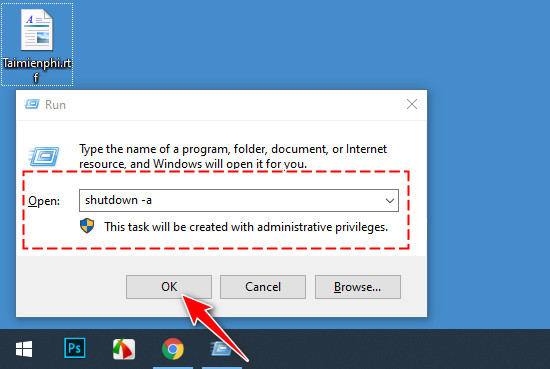
- Press Windows + R to open Run.
- Enter:
shutdown /a- Select OK or press Enter.
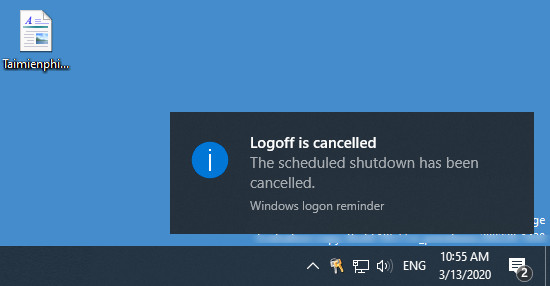
A Windows notification confirms that the pending sign-out or shutdown was canceled.
This is the fastest method and works in Windows 11, Windows 10, and earlier versions that support the shutdown command.
Cancel it from Command Prompt or Terminal
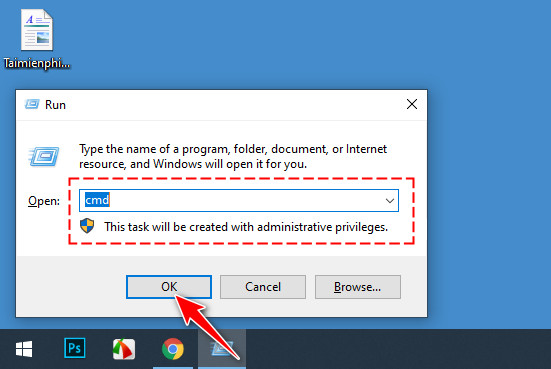
- Press Windows + R, enter
cmd, and press Enter. Windows Terminal or PowerShell also works.
- Enter
shutdown /aand press Enter.
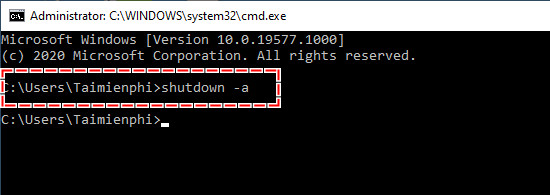
The /a switch means abort. Microsoft specifies that it must be run as a separate command in a new prompt during the timeout period; see the official shutdown command reference.
Why shutdown /a may not work
- The countdown already expired: once Windows has moved past the timeout and is closing the session, the abort command is too late.
- No shutdown is pending: Windows may report that it cannot abort because no shutdown was in progress.
- The action came from another system: an update, organization policy, remote-management tool, UPS utility, or third-party app may not use a cancelable local
shutdown.exetimer. - The shutdown is a future Task Scheduler task: before its trigger time, there is no active countdown for
/ato cancel. Disable or edit the scheduled task instead. - A program has its own “shut down when finished” option: cancel that option inside the program.
Restarting or signing out is not a useful way to cancel a shutdown timer: both actions interrupt the session and can close work. Use shutdown /a while there is still time.
Cancel a daily shutdown task
- Open Task Scheduler.
- Select Task Scheduler Library.
- Find the shutdown task by name and check its trigger and action.
- Select Disable to pause it, Properties to change it, or Delete to remove it.
If the task has already fired and started a visible countdown, run shutdown /a as well. The guide to daily shutdown tasks explains the idle, power, and missed-start settings that can cause unexpected behavior.
Cancel first, then create a new timer
Windows does not edit an active timeout in place. Abort it, then issue a new command. For example:
shutdown /a
shutdown /s /t 1800
The second command starts a new 30-minute countdown. A positive timeout implies forced application closure when it expires, so save documents before setting it. See the CMD shutdown-timer guide for time conversions, or review the complete shutdown command syntax.
If a shutdown keeps returning
Do not repeatedly abort an organization-managed restart or a security update without understanding the reason. Check Windows Update, Task Scheduler, installed maintenance software, and messages from the device administrator. Save your work and choose an approved maintenance time. If an unknown process repeatedly schedules shutdowns on a personal PC, run a Windows Security scan and review recently installed software rather than downloading a “shutdown blocker.”
Related Articles
 How to Cancel Scheduled Chkdsk Activity in Windows 105 minutes read
 How to Cancel the Shutdown Command Quickly3 minutes read
 How to Cancel Automatic Shutdown on Windows 104 minutes read
 Instructions to Prevent Shutdown on Windows 10 Computers5 minutes read
 How to Create Slide to Shutdown Function on Windows 104 minutes read
 How to Make a Shutdown Shortcut in Windows5 minutes read
Reader Comments 0
Sign in with email or Google to join the discussion.