Table of Contents
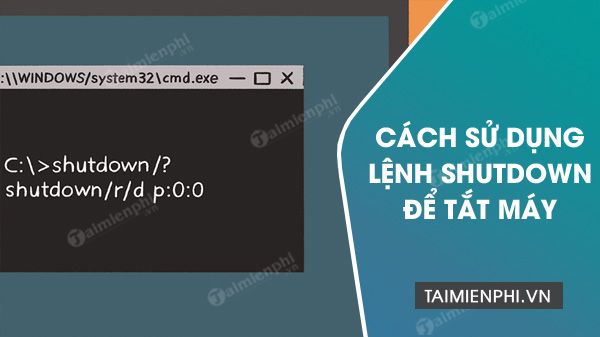
The Windows shutdown command can turn off, restart, or schedule the local PC from Run, Command Prompt, PowerShell, or Windows Terminal. For an immediate shutdown without explicitly forcing apps closed, use shutdown /s /t 0. Save your work first; any shutdown can close the current session.
Run a shutdown command without opening Command Prompt
- Press Windows + R.
- Enter
shutdown /s /t 0. - Press Enter.
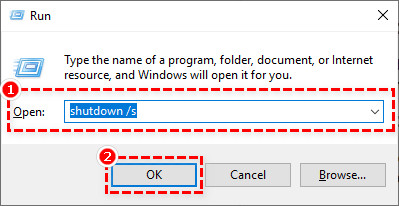
This is useful when the mouse is unavailable, but the standard Start-menu command is easier to cancel before you select it. If the desktop is frozen but Ctrl + Alt + Delete still works, use the power icon on that secure screen rather than forcing power off.
Use shutdown from Command Prompt or Terminal
- Press Windows + R, enter
cmd, and select OK. You can also open Windows Terminal or PowerShell.
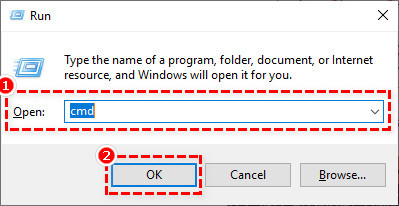
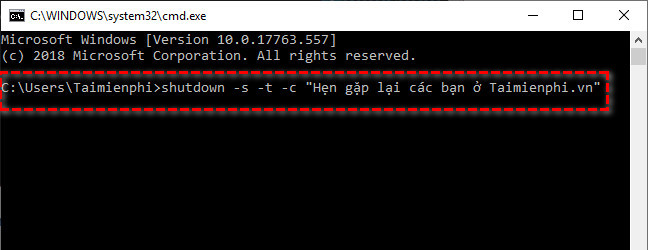
- Type the required command and press Enter.
Useful shutdown command examples
| Purpose | Command |
|---|---|
| Shut down now | shutdown /s /t 0 |
| Restart now | shutdown /r /t 0 |
| Shut down in 10 minutes | shutdown /s /t 600 |
| Restart in 15 minutes | shutdown /r /t 900 |
| Cancel a pending countdown | shutdown /a |
| Show built-in help | shutdown /? |
| Restart into advanced boot options | shutdown /r /o /t 0 |
Microsoft's shutdown command reference lists the supported switches for Windows 11 and Windows 10.
What the main switches mean
/sshuts down the computer./rshuts down and restarts it./t xxxsets the timeout in seconds. The supported range is 0 through 315,360,000; the default is 30 seconds./aaborts a pending shutdown during its timeout. Run it as a separate command./c "comment"adds a comment of up to 512 characters to a shutdown or restart request./fforces running applications to close without warning./oopens Advanced boot options after restart and must be used with/r.
Windows accepts slash-style switches shown in Microsoft's documentation; many older examples use hyphens for common options, but consistent slash syntax is clearer.
Important behavior of the timeout
If /t is greater than zero, Windows implies /f. That means applications can be forced closed when the countdown expires, potentially losing unsaved data. For example:
shutdown /s /t 600 /c "Scheduled shutdown in 10 minutes. Save your work."This gives a visible countdown but still forces closure at the deadline. Use shutdown /a to cancel it before time expires. For step-by-step timing examples, see how to schedule and cancel a CMD shutdown timer.
Avoid these common mistakes
- Incomplete syntax:
shutdown -s -t -cis invalid because both the timeout and comment values are missing. - Wrong unit: the timeout is in seconds, not minutes. Five minutes is 300 seconds.
- Using /f casually: it can discard unsaved changes and interrupt an installation, backup, export, or update.
- Assuming shutdown repairs a freeze: use the normal power menu when possible and troubleshoot repeated hangs separately.
- Running an unknown script: review any batch file or scheduled task that contains shutdown commands before executing it.
Choose the appropriate method
The command is helpful for a keyboard-only workflow, script, or one-time timer. For ordinary use, the Start menu or Win+X menu is more discoverable; compare the safe Windows shutdown methods. For a recurring time with idle and power conditions, use Task Scheduler for a daily shutdown rather than launching an untracked script.
Do not hold the physical power button unless Windows is completely unresponsive. A forced power-off bypasses the normal shutdown process and can lose data or interrupt system work.
Related Articles
 Shutdown Command - Schedule the Shutdown of Windows 10 with the Shutdown4 minutes read
 All Frequency Restart, Shutdown, Remote Off ... with Command6 minutes read
 How to Use the Shutdown Command to Schedule Shutdown and Restart the3 minutes read
 How to Shut Down a Computer5 minutes read
 How to Turn Off the Computer Automatically10 minutes read
 PC Shutdown Timer: Simple and Easy Ways to Schedule PC Shutdown8 minutes read
Reader Comments 0
Sign in with email or Google to join the discussion.