Table of Contents
The normal Start-menu shutdown is usually the safest and quickest option in Windows 10. Keyboard menus, the Run command, a desktop shortcut, and the physical power button can reduce clicks, but none should be used to bypass an update or force applications to close. Save your work before shutting down.
1. Use Start > Power > Shut down
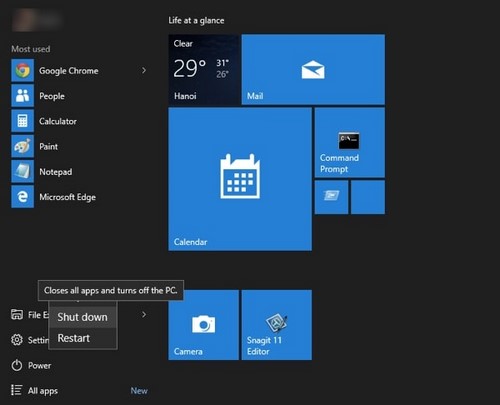
Select Start > Power > Shut down. This is the most recognizable method and lets Windows close the user session and prepare the device to power off.
2. Use the Win+X power menu
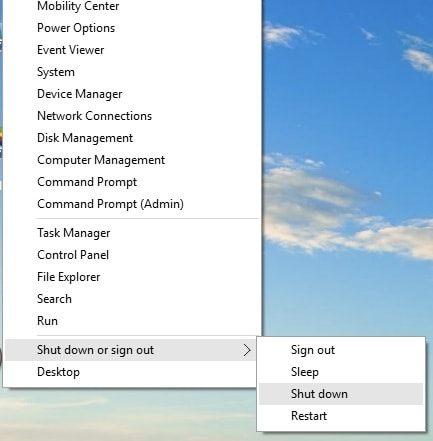
Right-click Start, or press Windows + X, then choose Shut down or sign out > Shut down. With the menu open, the key sequence U, then U selects Shut down on a standard English Windows installation.
3. Press Alt+F4 from the desktop
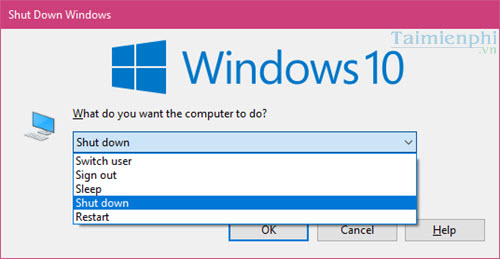
Press Windows + D to show the desktop, then press Alt + F4. Choose Shut down in the Windows dialog and select OK. If an application is focused instead of the desktop, Alt+F4 closes that application rather than opening the shutdown dialog.
4. Run the shutdown command
Press Windows + R, enter the following command, and select OK:
shutdown /s /t 0This requests an immediate shutdown without adding the explicit force-close option.
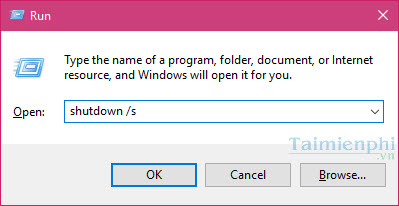
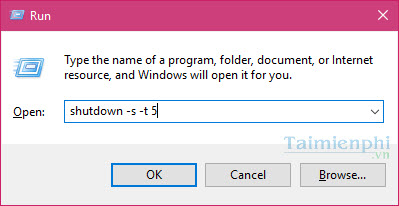
To schedule a one-minute delay, use shutdown /s /t 60. A positive timeout displays a notification, but Windows' command reference notes that it also implies forced application closure when the timeout expires. Save first, and cancel a pending timer with shutdown /a.
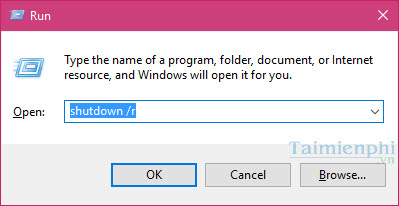
For a restart, use shutdown /r /t 0.
See the full guide to shutdown timers with CMD for delay calculations and cancellation.
5. Create a desktop shutdown shortcut
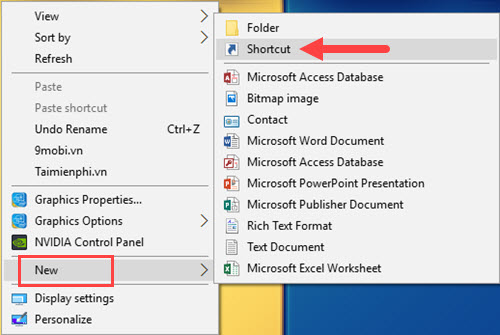
- Right-click an empty area of the desktop and choose New > Shortcut.
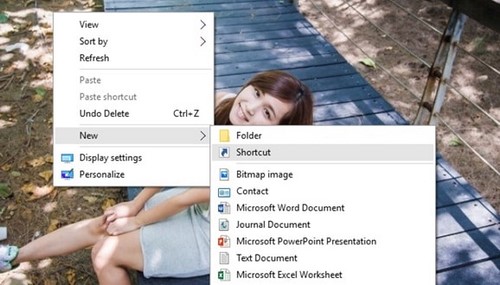
- For the location, enter:
%windir%\System32\shutdown.exe /s /t 0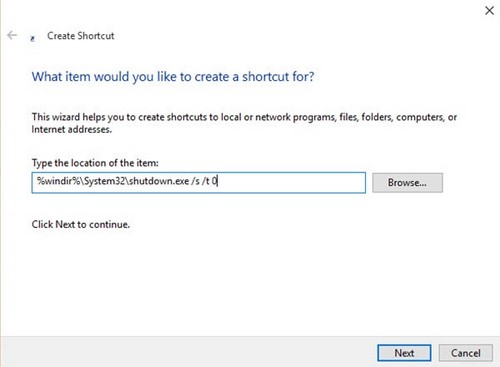
- Select Next, name the shortcut clearly—such as Shut down PC—and select Finish.
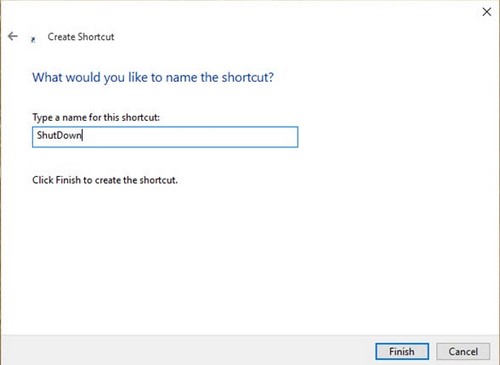
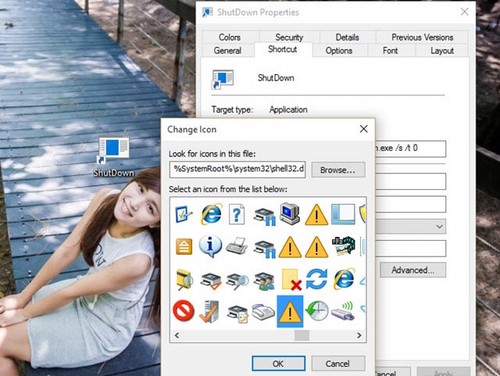
Double-clicking the shortcut starts shutdown immediately, so keep it away from frequently clicked files. You can open its Properties to assign a distinctive icon.
6. Create a Slide to Shut Down shortcut
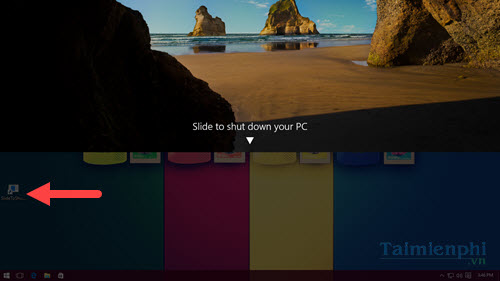
Windows includes SlideToShutDown.exe, which displays a full-screen panel you drag down to confirm shutdown. It is a different interface, not a faster shutdown process.
- Right-click the desktop and choose New > Shortcut.
- Enter this location:
%windir%\System32\SlideToShutDown.exe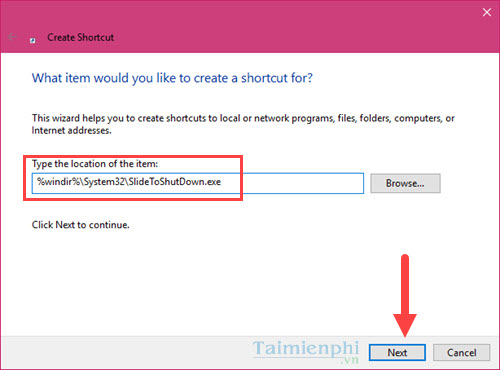
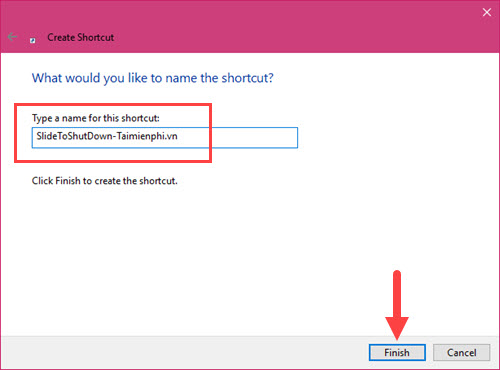
- Name the shortcut and select Finish.
Open it, then drag the lock-screen image downward to shut down or press Esc to cancel.
7. Assign Shut down to the physical power button
A normal short press can request a Windows shutdown:
- Open Control Panel > Hardware and Sound > Power Options.
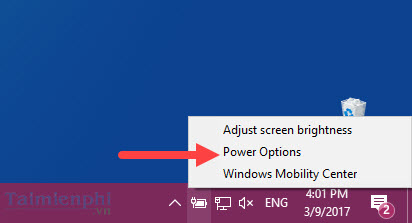
- Select Choose what the power buttons do.
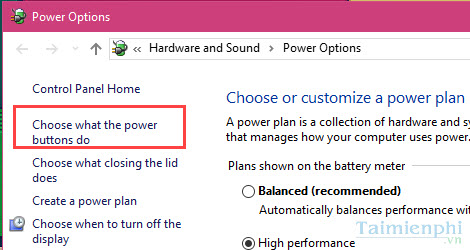
- Set When I press the power button to Shut down for battery or plugged-in power, then save changes.
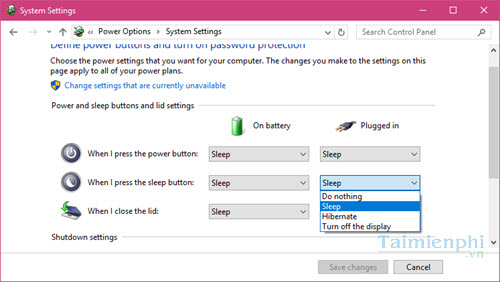
Press the button briefly. Holding it down performs a forced power-off on most PCs and should be reserved for a completely unresponsive system because it can lose data or interrupt an update. Microsoft documents the standard button settings in its Windows power-state guide.
8. Use the Ctrl+Alt+Delete screen
Press Ctrl + Alt + Delete, select the power icon at the lower-right, and choose Shut down. This is useful when the desktop or Start menu is not responding but the secure options screen still opens.
Shutdown, Sleep, or Hibernate?
| Choice | What it does | Use it when |
|---|---|---|
| Shut down | Closes apps and ends the Windows session. | You are finished or need the PC fully off. |
| Sleep | Keeps the session in memory with low power use. | You will return soon. |
| Hibernate | Saves the session to storage and powers down more fully. | You need a longer break but want apps restored. |
| Restart | Closes Windows and performs a fresh boot. | An update or troubleshooting step requires it. |
The comparison of Sleep and Hibernate explains the tradeoffs in more detail. A daily automatic schedule is covered separately in the Task Scheduler shutdown guide.
If Windows takes a long time to shut down
Do not add /f, alter shutdown timeout registry values, or hold the power button merely to make the process appear faster. Save and close documents, let installations and updates complete, and investigate the named app if Windows says it is preventing shutdown. A repeated hang may indicate a driver, update, storage, or system-file problem.
Windows 10 reached the end of standard support on October 14, 2025. It still runs, but Microsoft recommends moving eligible PCs to a supported Windows version; see the official Windows end-of-support information.
Related Articles
 Menu: How to Shut Down Windows6 minutes read
 Power: How to Shut Down Windows 84 minutes read
 7 Easy Ways to Shut Down Your Computer Using the Keyboard10 minutes read
 Learn About Options to Turn Off Your Computer in Windows 76 minutes read
 Shutdown Windows 10: Ways to Turn Off Windows 10 Computer9 minutes read
 How to Shut Down or Restart a Windows 10X Computer3 minutes read
Reader Comments 0
Sign in with email or Google to join the discussion.