Table of Contents
What is the best way to increase/decrease the C drive capacity in Windows 7, 8, and 8.1 without losing data? EaseUS Partition Master is the answer.
EaseUS Partition Master - Increase or Decrease C Drive Capacity Without: Overview
 EaseUS Partition Master is one of the options that helps you increase/decrease the C drive capacity in Windows 7, 8, and 8.1 without losing data. Of course, you can also apply this to all other drives on your computer. Instructions for increasing/decreasing the C drive capacity in Windows 7, 8, and 8.1 without losing data using EaseUS Partition Master : Step 1: Download and install the latest version of EaseUS Partition Master. Step 2: Install and launch the EaseUS Partition Master software. You will see the software interface as follows.
 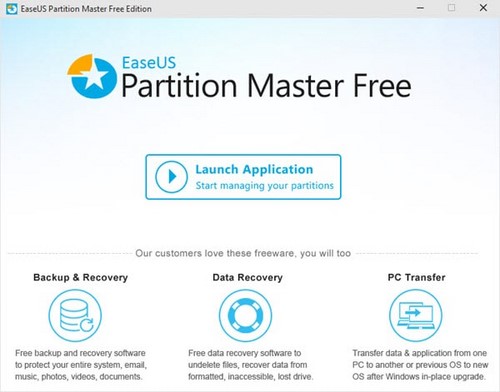 click "Launch Application" to proceed with the process of increasing/decreasing the drive capacity.
 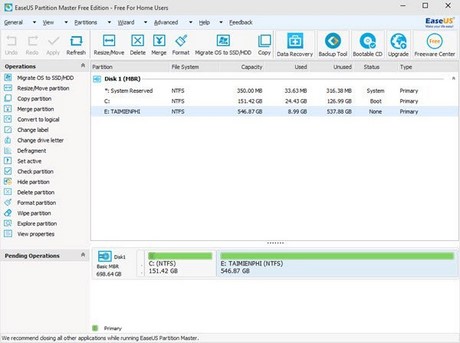 Step 3 : To decrease the C drive capacity, follow these steps: Find the C drive (in this case, I have 151.42 GB of space for the C drive).
 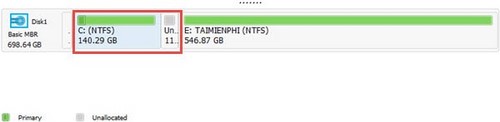 Click the " Apply" button to confirm.
  Step 4 : To increase the C drive capacity, reverse the steps above. Locate drive C; here I have 140 GB of drive space.
 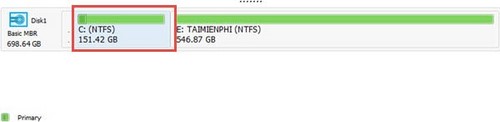 Click the Apply button to confirm
  . This concludes TipsMake's guide on how to increase/decrease C drive space in Windows 7, 8, and 8.1 using EaseUS Partition Master without losing data. Besides this function, EaseUS Partition Master also includes all the features of a partitioning software, such as creating drives, converting drive formats, converting drives from HDD to SSD, etc.
The above is how to increase or decrease the capacity of drive C. If you want to use another method to increase the capacity of drive C, you can refer to how to transfer the capacity of drive D and drive C without losing data.
FAQ
What should you know about easeus partition master - increase or decrease c drive capacity without?
What is the best way to increase/decrease the C drive capacity in Windows 7, 8, and 8.1 without losing data? EaseUS Partition Master is the answer.
Do the steps or features vary by device or software version?
They can. Menu names, available settings, and compatibility may differ by device, region, account type, or software version, so check the options shown on your own screen.
What should you do if the recommended method does not work?
Repeat the steps in order, confirm that the requirements are met, and restart the relevant app or device when appropriate. Also check for updates and review any error message before trying again.
Related Articles
 How to Split the Hard Drive, Merge the Partition on Windows XP8 minutes read
 Re-Share the Location Using EaseUS Partition Master3 minutes read
 EASEUS Partition Master - Download the Latest EASEUS Partition Master3 minutes read
 How to Split and Partition Hard Drive with EaseUS Partition Master Software4 minutes read
 (Giveaway) Copyright Free EaseUS Partition Master Professional Edition Best5 minutes read
 Instructions for Dividing Hard Drives Right in Windows 104 minutes read
Reader Comments 0
Sign in with email or Google to join the discussion.