Table of Contents
When a Windows PC will not start, the first useful question is how far it gets: no power, power but no picture, a “No bootable device” message, the Windows logo followed by a freeze, or a blue/black screen. Each symptom has different causes. Record the exact message and any recent hardware, driver, update, or firmware change before trying recovery.
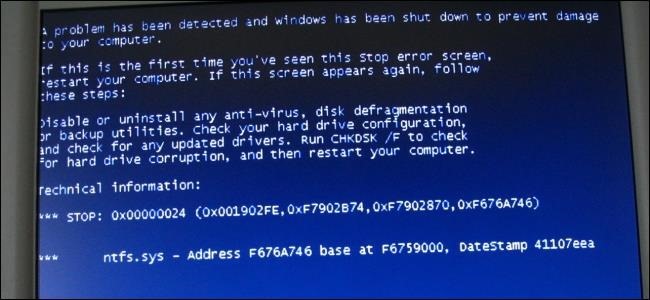
1. The computer shows no power
If there are no lights, fans, sounds, or screen activity:
- Check the wall outlet, power strip, charger, and cable connections.
- For a desktop, make sure the power-supply switch is on. Do not open a power-supply unit; it can retain dangerous voltage.
- For a laptop, disconnect accessories, connect the correct charger directly, and let a depleted battery charge before retrying.
- Remove only hardware you just added and are qualified to handle. Follow the manufacturer's service manual and warranty rules.
If the charger, battery, power supply, or mainboard appears damaged—or there is heat, a burning smell, liquid damage, or sparking—disconnect power and arrange professional service.
2. Power is on, but the display is blank
- Increase brightness and confirm the monitor is on and using the correct input.
- Disconnect docks and unnecessary displays. On a desktop, check that the display cable is connected to the intended graphics output.
- Listen for normal boot sounds and look for keyboard-light response. If Windows may be running, press Windows + Ctrl + Shift + B once to reset the graphics driver.
- Test an external display on a laptop if one is available.
Repeated beep or diagnostic-light patterns are hardware codes; look them up in the exact PC or motherboard manual. Do not repeatedly force power off while a firmware update is in progress.
3. “No bootable device” or “Operating system not found”
This message means the firmware did not find a usable operating-system loader.

- Disconnect external USB drives and memory cards, then restart.
- Open UEFI/BIOS and check whether the Windows SSD or hard drive is detected.
- If the drive is present, confirm that Windows Boot Manager is the normal boot choice. Do not switch randomly between UEFI and Legacy/CSM modes, change storage-controller mode, or disable Secure Boot; those changes can make a valid installation unbootable.
- If the drive is absent, run the manufacturer's hardware diagnostics. Stop if the drive makes unusual noises or repeatedly disappears.
The focused No Boot Device Found guide explains the detection and boot-order checks. Do not initialize or format a drive that contains needed files.
4. Windows freezes at the logo or enters an repair loop
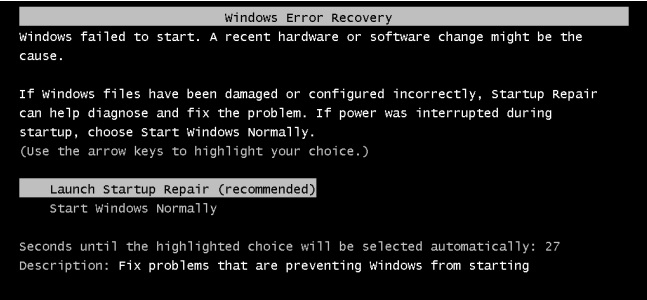
Windows may open the Recovery Environment automatically after failed starts. You can also start it from Windows installation or recovery media by choosing Repair your computer. Microsoft's Windows Recovery Environment guide lists supported access methods.
In Troubleshoot > Advanced options, try these in order:
- Startup Repair: use Startup Repair > Restart. It can address certain damaged system files and boot configuration problems. See Microsoft's Startup Repair instructions.
- Uninstall Updates: if the problem began immediately after an update, remove the latest quality update first. Do not remove updates routinely.
- System Restore or point-in-time restore: choose a restore point from before the failure. This changes system files, drivers, and installed apps, not ordinary personal documents, but a backup is still advisable.
- Startup Settings: restart into Safe Mode. If Safe Mode works, remove or roll back the specific recent driver, app, or update and scan for malware. TipsMake's Safe Mode guide provides additional context.
These recovery tools can request the BitLocker recovery key before accessing an encrypted system drive. Locate the correct key before proceeding; the BitLocker Recovery Guide explains legitimate places to check.
5. Windows shows a blue screen during every startup
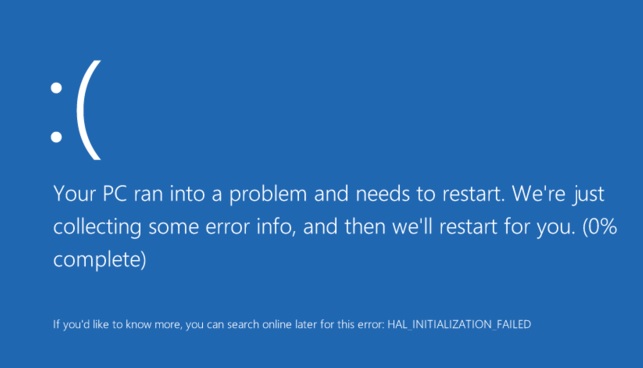
Write down the stop code and any driver filename. Disconnect newly added hardware and try Safe Mode. If a recent driver is the trigger, roll it back or uninstall that device's software; obtain replacements only from Windows Update or the hardware manufacturer's official support page.
Different stop codes suggest different areas to investigate. Use the Windows blue-screen error code table rather than applying unrelated registry or command-line fixes.
6. Windows reaches a black screen after sign-in
Press Ctrl + Alt + Delete. If the security screen appears, open Task Manager and restart Windows Explorer only if the desktop process is missing or unresponsive. Disconnect extra displays and use Windows + P to cycle display modes. Safe Mode can help remove a recently installed graphics driver or startup app.
If there is no response at all, follow Microsoft's blank-screen troubleshooting sequence.
Protect files before reset or reinstall
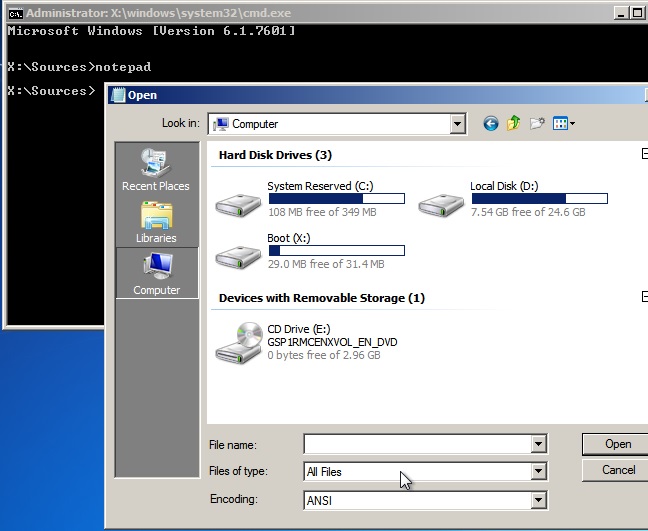
Reset this PC and a clean Windows installation are last-resort options. “Keep my files” still removes apps and resets many settings; other choices can erase personal data. Review Microsoft's Windows recovery options and confirm the exact consequences before continuing.
If files are not backed up, prioritize data recovery before writing to the drive. A healthy, unencrypted drive may be accessible from approved recovery media or another authorized PC, but BitLocker requires its recovery key. A clicking, intermittently detected, or diagnostically failed drive should be powered down and handled by a qualified data-recovery service; repeated boot attempts can worsen physical failure.
When to stop troubleshooting
- The storage drive is not detected or fails diagnostics.
- There is evidence of liquid, electrical, battery, or heat damage.
- UEFI changes, BitLocker, or organization management prevent safe access.
- The PC contains irreplaceable data that is not backed up.
At that point, provide a technician with the exact error, recent changes, diagnostic codes, BitLocker status, and steps already tried. That information is more useful—and safer—than repeating resets or unverified boot-repair commands.
Related Articles
 How to Fix Pin to Start Error on Windows 105 minutes read
 Disable Programs That Start with the System on Windows6 minutes read
 How to Turn Off Programs That Start with Windows 106 minutes read
 How to Put Windows 7 Start Button on Windows 10 Computer5 minutes read
 Add the Start Button for Windows 8 in Just a Few Minutes3 minutes read
 What to Do When the Computer Does Not Start?6 minutes read
Reader Comments 0
Sign in with email or Google to join the discussion.