Table of Contents
If a laptop remains on after you select Shut down or Restart, first wait a few minutes and read any message on the screen. An application may be saving data or Windows may be completing an update. If the same problem happens repeatedly, work through the checks below. Do not make Windows close every process through a registry tweak; that can hide the cause and discard unsaved work.
1. Close only the app that Windows identifies
If Windows says an app is preventing shutdown, select Cancel, return to the desktop, save your work, and close that app normally. An installer, document editor, virtual machine, backup, or update may need extra time.
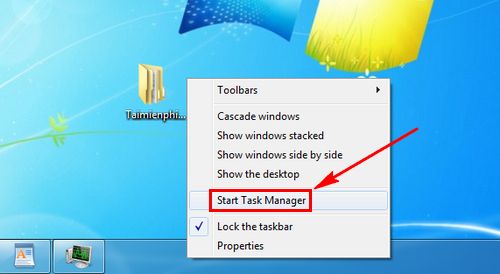
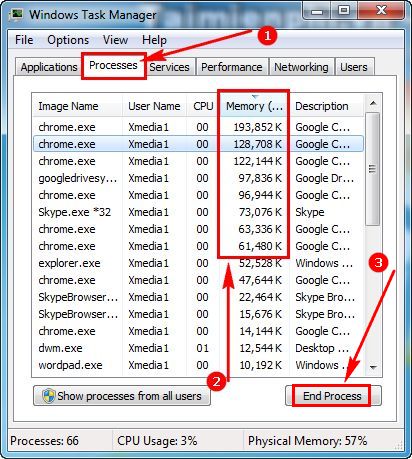
When an app will not respond, press Ctrl + Shift + Esc to open Task Manager. Select the known app under Processes and choose End task. End only software you recognize—high memory use alone does not prove that a process is blocking shutdown.
For a recurring Task Host message, use the focused guide to fixing Task Host errors that prevent shutdown.
2. Try Restart and disconnect external devices
Choose Restart from the Power menu. A restart performs a full Windows boot and can complete pending changes that an ordinary shutdown does not. If it succeeds, try Shut down again.
Disconnect nonessential USB drives, docks, printers, memory cards, controllers, and external displays for one test. A device or driver that does not respond to a power request can delay shutdown. Reconnect devices one at a time after the problem is resolved.
3. Install Windows and device updates
Open Settings > Windows Update, install available updates, and restart. Then check the laptop manufacturer's support page for current chipset, graphics, storage, and firmware updates for the exact model. Keep the charger connected during firmware updates and never interrupt them.
If the issue started immediately after a driver or application was installed, update, roll back, or uninstall that specific item. Avoid third-party driver-updater utilities.
4. Test Fast Startup
If Restart works but Shut down hangs, test without Fast Startup:
- Search for and open Control Panel.
- Select System and Security > Power Options > Choose what the power buttons do.
- Select Change settings that are currently unavailable.
- Clear Turn on fast startup, save the change, and test shutdown again.
Fast Startup uses a form of hibernation for the Windows system session. Microsoft has documented cases where it can contribute to shutdown or hibernation failure. If disabling it makes no difference, you may turn it back on.
5. Repair Windows system files
Corrupted Windows components can affect power transitions. Open Terminal (Admin) or Command Prompt (Admin), run the following commands in order, and let each finish:
DISM.exe /Online /Cleanup-Image /RestoreHealth
sfc /scannow
Restart after the scans. Do not close the terminal simply because a percentage appears to pause. Microsoft's DISM and System File Checker instructions explain the results and repair sequence.
6. Isolate a background-software conflict
If the failure continues, a clean boot can test whether a non-Microsoft service or startup app is responsible. Follow Microsoft's clean-boot procedure, record what you disable, and restore normal startup after testing. Re-enable groups of items to identify the specific conflict.
The broader Windows freezing guide is useful if the laptop also stops responding during normal use.
7. Check for a hardware or power problem
If Windows reaches a black screen but the power light and fans remain on, update the manufacturer-provided chipset, graphics, and power-management drivers. Run the laptop's built-in hardware diagnostics and check storage health. Overheating, failing storage, a problematic battery, or a mainboard power issue needs model-specific service.
If the PC restarts or loses power unexpectedly rather than hanging at shutdown, note any stop code. Windows Event Viewer may record an unexpected shutdown, but an Event ID 41 by itself only confirms that Windows did not shut down cleanly; it does not identify a single cause.
Use a forced power-off only as a last resort
If the computer is completely unresponsive and you cannot recover control, hold the physical power button until it turns off. This can lose unsaved data and may corrupt an active update or file operation, so do it only when normal shutdown, Task Manager, and restart are unavailable. Wait several seconds before turning the laptop on again.
After recovery, save work and shut down through Start > Power > Shut down. If even a clean boot cannot shut down reliably, back up important files and contact the laptop manufacturer or a qualified repair technician.
Related Articles
 Fixing a Computer That Keeps Restarting but Doesn't Display the BIOS Screen8 minutes read
 How to Fix an iPhone That Keeps Shutting Down4 minutes read
 The Y2k Problem Is Coming Back, After More Than 20 Years4 minutes read
 How Do I Close the Screen Without Shutting Down the Computer?3 minutes read
 How to Fix the Problem of Not Being Able to Adjust Laptop Screen Brightness6 minutes read
 6 Potential Hardware/software Issues That Cause Laptops to Overheat10 minutes read
Reader Comments 0
Sign in with email or Google to join the discussion.