Table of Contents
UltraISO can mount an ISO image as a virtual CD or DVD drive, so Windows can read the image without first burning it to physical media. This is useful when you already use UltraISO to inspect, edit, or create disc images.
Note: Current Windows versions can mount many ISO files directly from File Explorer. UltraISO is most useful when you need its additional image-management tools or are following a workflow built around the application.
1. Install UltraISO and check the virtual drive
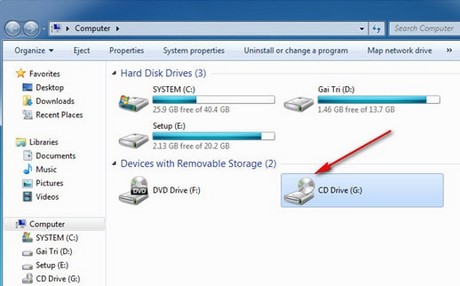
Install UltraISO from a source you trust, then restart Windows if the installer requests it. Open This PC (called Computer in older Windows versions) and look for the new virtual optical drive.
For an overview of the program's other features, see how to install and use UltraISO.
2. Open the Mount to Virtual Drive tool
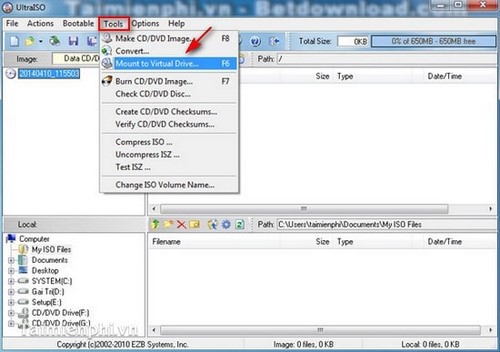
Launch UltraISO. Select Tools > Mount to Virtual Drive, or press F6.
3. Select the ISO image
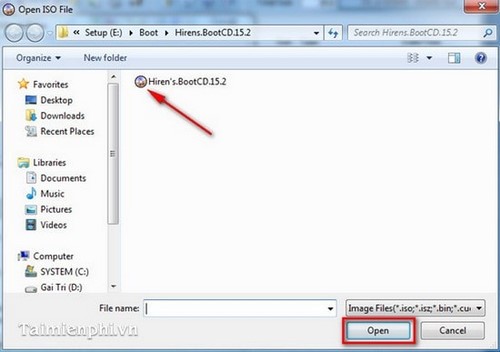
In the mount dialog, select the browse button highlighted in the screenshot.
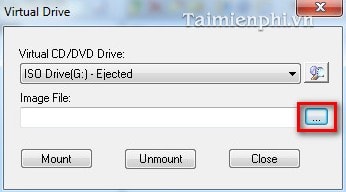
Locate the .iso file, select it, and choose Open. The screenshots use Hiren's BootCD 15.2 only as an example; choose the image you actually want to access.
4. Mount and open the image
Select Mount.
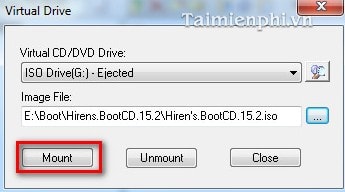
Wait for the operation to finish, then close the dialog. Open This PC and select the virtual CD/DVD drive. Its label may use the name of the mounted image.
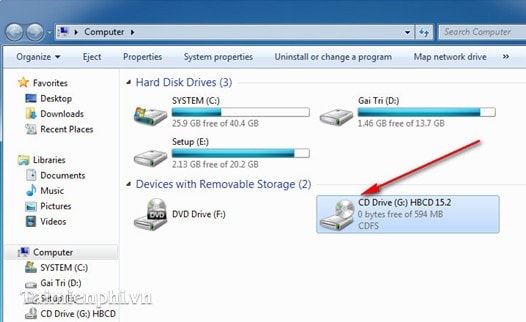
You can now browse or copy files from the mounted image as you would from an optical disc. Do not run unknown executables merely because they are inside an ISO; scan untrusted files and verify the source first.
How to unmount the ISO
When finished, right-click the virtual drive in File Explorer and choose Eject. If that option is unavailable, return to UltraISO's virtual-drive dialog and use its unmount control.
Other tools for ISO files
If you need to compare applications that can open or mount disc images, see TipsMake's list of ISO file reading software. Choose based on the features you need rather than installing several virtual-drive utilities at the same time.
Related Articles
 How to Install UltraISO and Creating Virtual Drives Using UltraISO3 minutes read
 How to Create a Virtual Drive with UltraISO Software3 minutes read
 Ultraiso - Download Ultraiso5 minutes read
 What Is UltraISO? Instructions for Downloading, Installing and Using6 minutes read
 How to Create and Edit ISO Files with Ultraiso5 minutes read
 Back Up DVD/CD/VCD Discs to ISO Using UltraISO4 minutes read
Reader Comments 0
Sign in with email or Google to join the discussion.