Table of Contents
PowerISO can open and edit disc images, mount ISO files as virtual drives, and create or burn image files. This guide covers the Windows installation screens shown in the original tutorial and the settings that matter when you want to use a virtual drive.
Before installing: Download the installer from PowerISO's official site or another source you trust. The screenshots are from an older release, so current labels may differ.
1. Start the PowerISO installer
Open the downloaded setup file. If Windows displays a User Account Control prompt, confirm only after checking that the publisher and file source are what you expect.
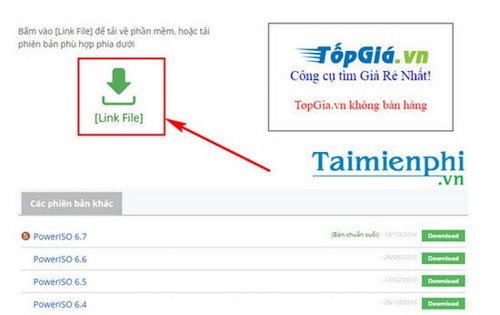
Read the license agreement and select I Agree if you accept its terms.
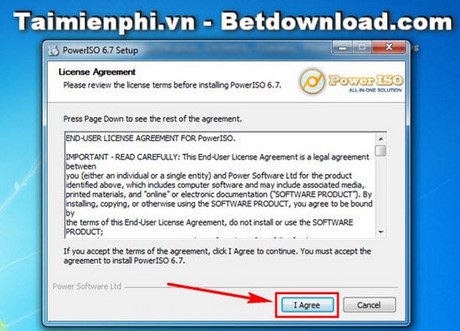
2. Choose the installation folder
Keep the default destination unless you have a specific reason to change it. Select Browse to use another folder, then choose Install.
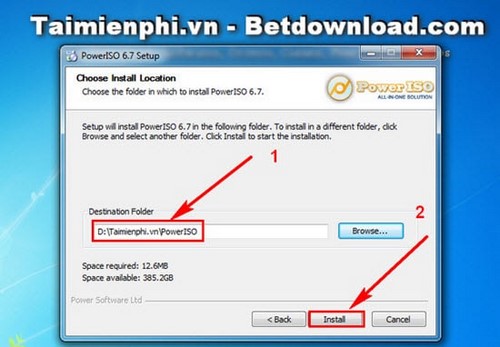
Wait for setup to copy the program files and virtual-drive components. When the installer reports completion, select Next.
3. Review file associations
PowerISO can become the default application for several disc-image formats. Select only the extensions you want PowerISO to open by default; Select All is optional and may replace associations used by other applications. Choose Close when finished.
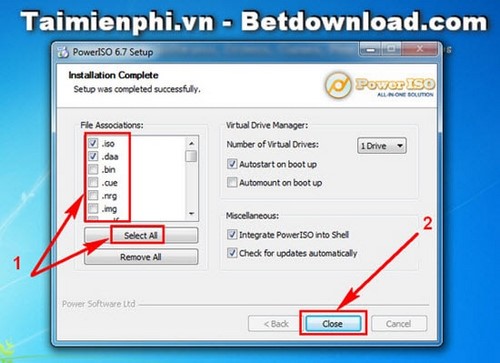
If setup requests a restart, save your work and restart Windows before using the virtual drive.
4. Create and use a virtual drive
Open PowerISO and look for its Mount or virtual-drive controls. Add a virtual drive if one is not already available, select an ISO image, and mount it. The image will appear in This PC as an optical drive.
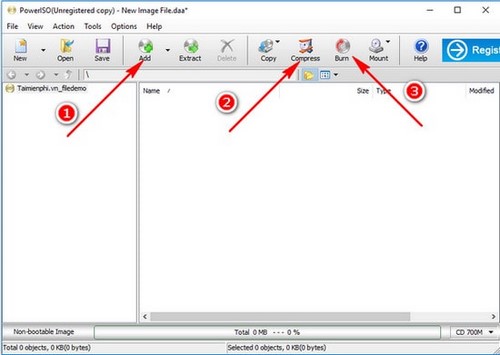
When you finish using the image, eject it from File Explorer or use PowerISO's unmount command. Avoid opening unknown executables from untrusted ISO files.
What PowerISO can do
- Open, extract, and edit supported disc-image files.
- Mount an image in a virtual optical drive.
- Create, convert, compress, or burn supported image formats.
If you only need to mount a standard ISO on a current Windows computer, File Explorer may already provide that feature. For alternatives, compare TipsMake's ISO file reading tools. You can also see how UltraISO handles disc images before choosing an application.
Related Articles
 How to Successfully Install Windows 7 on a Virtual Drive4 minutes read
 The Simplest Way to Create a Virtual Drive Using Virtual Drive5 minutes read
 Here's How to Create a Virtual Hard Disk on Windows 102 minutes read
 How to Create a Virtual Drive on Windows with Simple VHD Manager3 minutes read
 Create a Virtual Machine on a USB Drive with VirtualBox4 minutes read
 Delete the Virtual Drive in Windows 73 minutes read
Reader Comments 0
Sign in with email or Google to join the discussion.