Table of Contents
You can schedule a Windows shutdown without installing software in three ways: use shutdown.exe for a one-time countdown, create a reusable shortcut, or use Task Scheduler for a recurring clock time. Choose the method that matches the trigger; a fixed delay is not the same as “shut down when a download finishes.”

Which built-in method should you use?
| Need | Best method | Key limitation |
|---|---|---|
| Shut down once after a delay | Run shutdown /s /t seconds | You must calculate seconds. |
| Start the same countdown repeatedly | Desktop shortcut | Double-clicking it starts the timer immediately. |
| Shut down at a recurring clock time | Task Scheduler | The PC must be awake and conditions must be met. |
| Shut down when a specific job finishes | The app's own completion action | A clock timer cannot detect job completion. |
Save documents before using any automatic shutdown. A positive /t timeout implies forced application closure when it expires, and a scheduled task can still interrupt unattended work.
Method 1: Set a one-time shutdown countdown
- Press Windows + R to open Run.
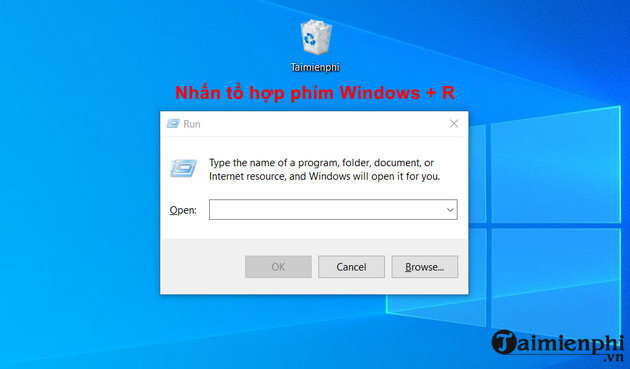
- Enter a command such as:
shutdown /s /t 600 /c "Scheduled shutdown in 10 minutes. Save your work."/s means shut down, /t 600 sets a 600-second—or 10-minute—countdown, and /c adds the quoted comment.
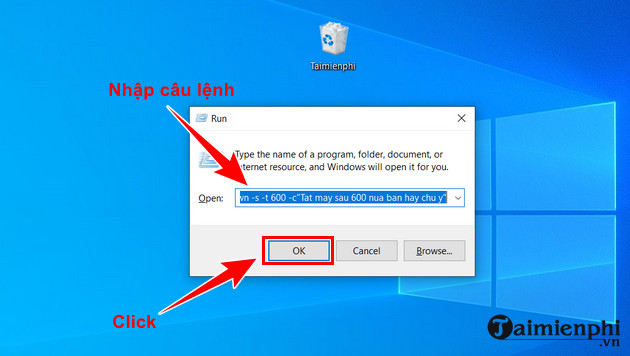
- Press Enter. Windows displays the pending shutdown time.
Common conversions are 300 seconds for 5 minutes, 1,800 for 30 minutes, 3,600 for 1 hour, and 7,200 for 2 hours. Microsoft's shutdown command reference documents the supported range and options.
Cancel or change the countdown
Before the timeout expires, open Run again and enter:
shutdown /a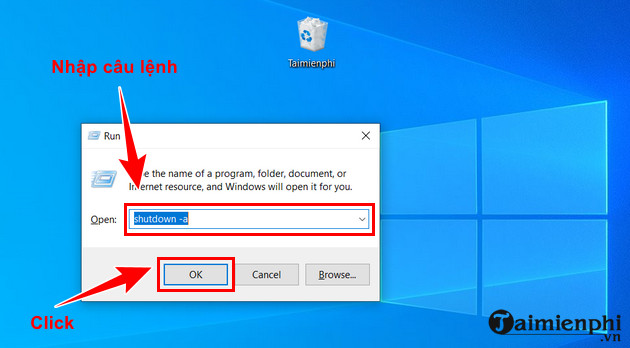
To change the time, cancel the active countdown first and then issue a new command. The detailed guide to canceling a Windows shutdown explains what to check if /a fails.
Method 2: Create a reusable countdown shortcut
- Right-click an empty area of the desktop and choose New > Shortcut.
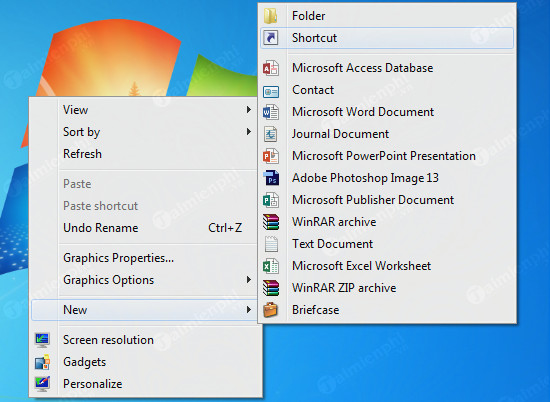
- In Type the location of the item, enter a clearly chosen delay. This example starts a 10-minute countdown:
%windir%\System32\shutdown.exe /s /t 600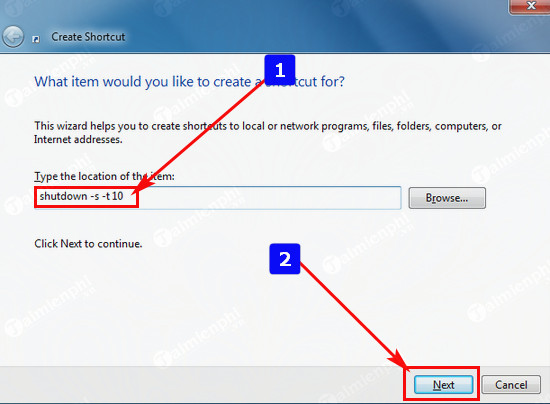
- Select Next, use an explicit name such as Shut down in 10 minutes, and select Finish.
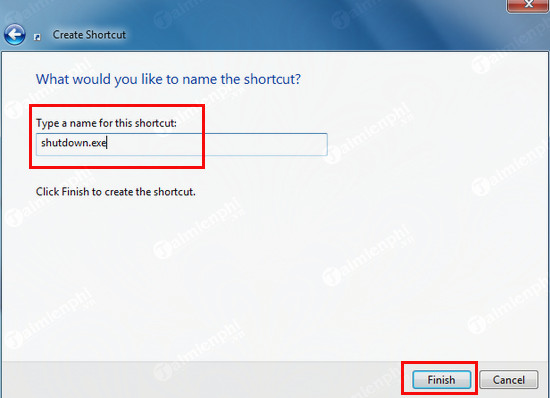
Double-clicking the shortcut immediately starts the countdown. Keep it away from commonly clicked files and use a distinct icon.
Edit the shortcut's delay
Right-click the shortcut, select Properties, and change only the number after /t in the Target field.
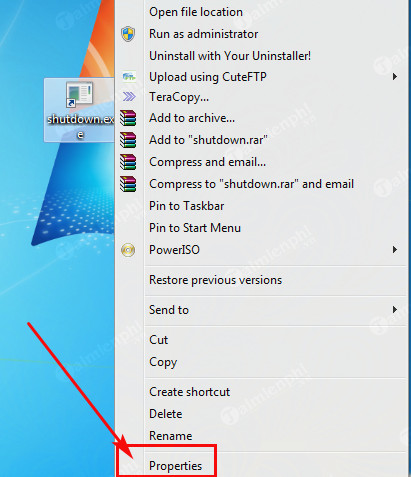
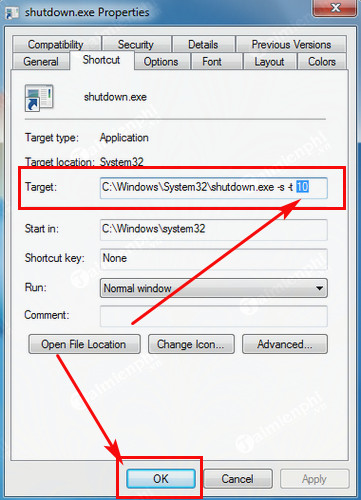
You can create a separate Cancel shutdown shortcut with this target:
%windir%\System32\shutdown.exe /aMethod 3: Schedule a recurring shutdown with Task Scheduler
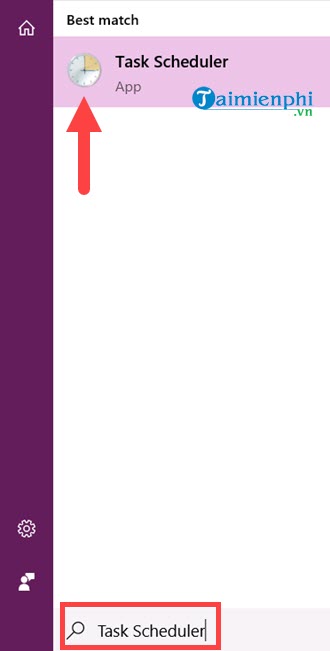
- Open Start, search for Task Scheduler, and open it.
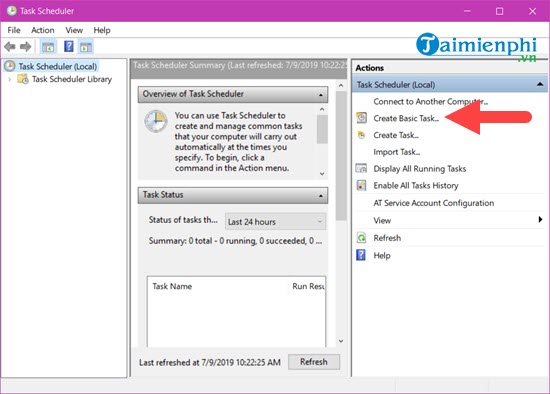
- Select Create Basic Task.
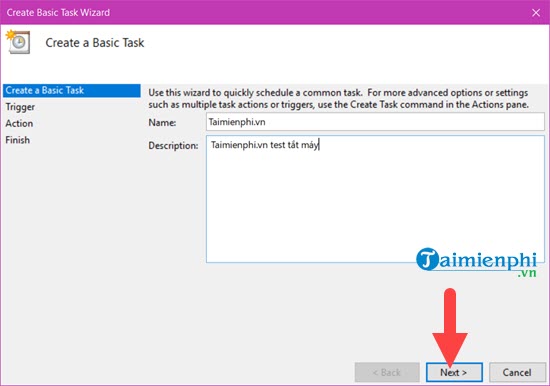
- Name it clearly, such as Weekday shutdown at 7:30 PM, and describe its purpose.
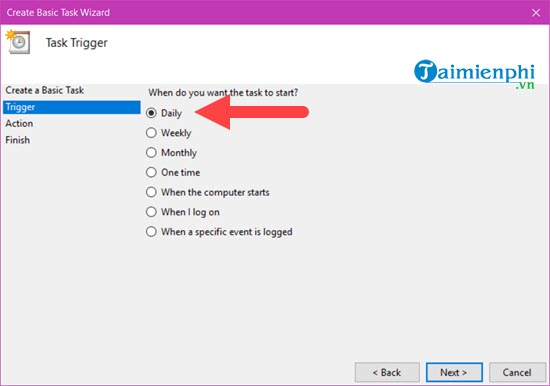
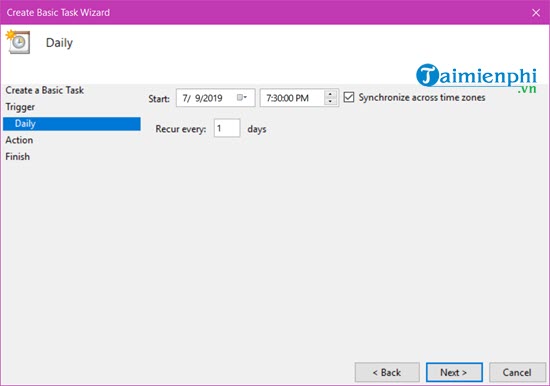
- Choose the recurrence: Daily, Weekly, or One time.
- Set the first date and time and verify the Windows time zone.
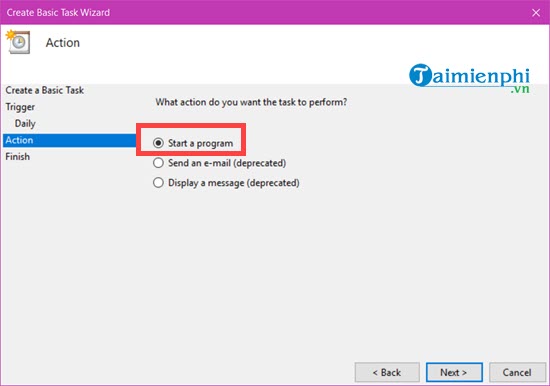
- Select Start a program.
- Set Program/script to
shutdown.exeand Add arguments to:
/s /t 0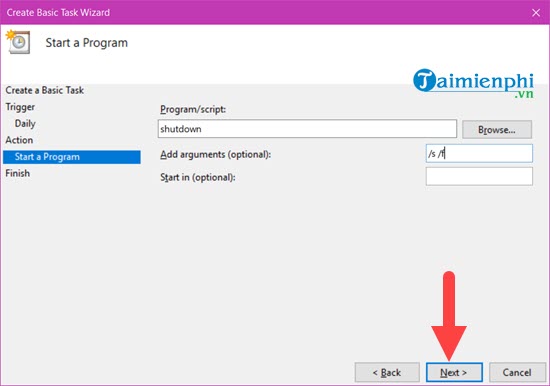
The older screenshot may show /s /f; do not copy /f unless you deliberately accept unsaved-data loss. It forces applications to exit without warning.
- Review the task and select Finish.
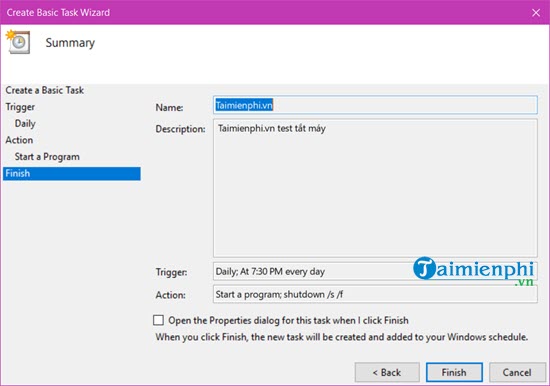
The task appears in Task Scheduler Library.
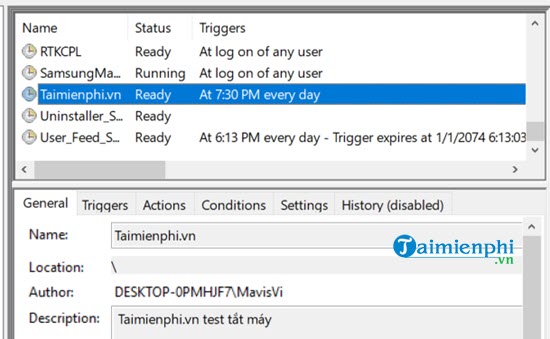
Set safer task conditions
Open the task's Properties and consider these choices:
- On Conditions, require 30 minutes of idle time so shutdown does not interrupt active use.
- For a laptop, keep the AC-power condition if shutdown should not run on battery.
- On Settings, normally clear Run task as soon as possible after a scheduled start is missed; otherwise a missed evening shutdown can run after the PC starts the next morning.
- Use Disable to pause the task without deleting it.
For every Task Scheduler setting and a safe test procedure, see how to schedule a daily Windows shutdown.
Important limitations
- A time-based command cannot know when a download, backup, update, installation, or video export is complete. Use the application's verified completion action when available.
- Do not select a “force processes to terminate” option merely for convenience. It can corrupt incomplete output or lose unsaved work.
- The PC generally must be awake for a scheduled task to run. Wake behavior depends on hardware and task conditions.
- Do not install a shutdown-timer app simply to reproduce these built-in functions. Unverified utility downloads add unnecessary risk.
For complete command syntax, including restart and Advanced boot options, read the Windows shutdown command guide. Choose an event-based setting rather than estimating time whenever the work itself determines when shutdown is safe.
Related Articles
 How to Schedule Your Computer to Shut Down Daily5 minutes read
 Instructions for Scheduling a Windows 10 Computer Shutdown7 minutes read
 4 Easiest, Quickest, and Simplest Ways to Schedule Your Computer to Shut Down29 minutes read
 How to Automatically Shut Down Windows 7, 8 and XP Computer3 minutes read
 How to Automatically Turn Off Software on Windows6 minutes read
 Shutdown Command - Schedule the Shutdown of Windows 10 with the Shutdown4 minutes read
Reader Comments 0
Sign in with email or Google to join the discussion.