Table of Contents
A computer can turn on at a fixed time only if its firmware or hardware supports a real-time clock alarm. In Windows, look in UEFI/BIOS for a setting such as Resume by RTC Alarm, Power On by RTC, or Wake System from S5. A Task Scheduler wake timer can wake a sleeping PC, but it normally cannot power on a computer that is fully off.

Schedule a Windows PC to power on in UEFI or BIOS
- Save your work, restart the PC, and enter its firmware settings. Common keys are Delete, F2, F10, Esc, or F12, but the correct key and menu differ by manufacturer. On Windows 11, you may also use Settings > System > Recovery > Advanced startup > Restart now, then choose Troubleshoot > Advanced options > UEFI Firmware Settings.
- Open a menu named Power Management, Advanced, APM Configuration, or similar.
- Find an RTC alarm option. Possible names include Resume by Alarm, Power On by RTC, Wake Up Event Setup, or Automatic Power On.
- Enable it and set the supported days and time. Use the correct 24-hour clock values.
- Save changes—often with F10—and shut down the PC to test the next scheduled event.
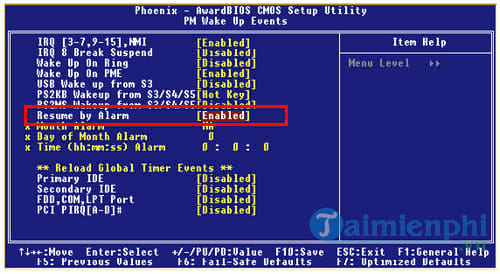
Not every motherboard exposes this feature. If there is no RTC, alarm, or automatic power-on setting in the official manual, Windows software cannot add the missing ability while the machine is fully off. The guide to understanding BIOS and UEFI explains why firmware operates before the operating system.
Conditions that must be met
- The desktop must stay connected to power, and a switched outlet or power strip must remain on.
- A laptop may need its charger connected; battery-only behavior varies by model.
- The firmware clock, date, and time zone must be correct.
- Some settings wake only from sleep or hibernation, while others can start from the S5 soft-off state. Check the exact wording in the manufacturer's manual.
- Full-disk encryption or a firmware password can still require manual authentication before the operating system loads.
Test the schedule a few minutes ahead before relying on it for unattended work. Avoid changing unrelated firmware settings.
Wake a sleeping Windows PC with Task Scheduler
If firmware cannot start the PC from full shutdown, sleep may be an alternative:
- Open Task Scheduler and select Create Task.
- On Triggers, create the daily or weekly time.
- On Actions, choose the program or script to run.
- On Conditions, enable Wake the computer to run this task.
- In the active power plan's advanced settings, make sure wake timers are allowed where appropriate.
This method depends on supported sleep hardware, power policy, and whether the laptop is plugged in. It wakes the machine to run a task; it does not bypass the Windows sign-in screen.
Open apps after Windows starts
For ordinary apps, open Settings > Apps > Startup and enable only the items you need. Another option is to press Windows + R, enter shell:startup, and place shortcuts in the current user's Startup folder. An app that requires administrator approval or an interactive sign-in may not start unattended.
If you need the opposite action, see how to schedule a Windows shutdown with CMD.
Schedule a Mac to wake or turn on
Current macOS versions use the pmset utility in Terminal. Open Terminal and check the existing schedule:
pmset -g schedFor example, this schedules a wake event every Monday at 8:00 AM:
sudo pmset repeat wake M 8:00:00Enter the administrator password when prompted; Terminal does not display password characters. To cancel the repeating schedule, use:
sudo pmset repeat cancelApple's Mac scheduling guide provides the current command examples and limitations. FileVault requires a user to log in after startup, and scheduled shutdown requires the Mac to be awake with a user logged in. Open documents with unsaved changes may also prevent sleep or shutdown.
Older macOS interface
Older macOS releases provided a graphical schedule under System Preferences > Energy Saver > Schedule. These screenshots apply only if that option still exists on the Mac.
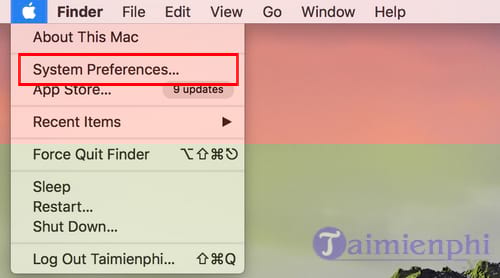
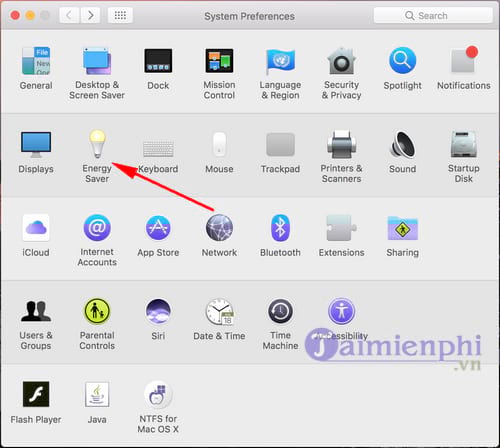
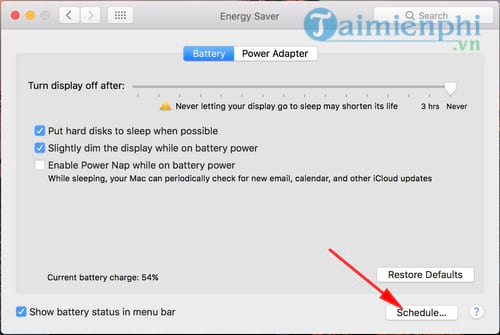
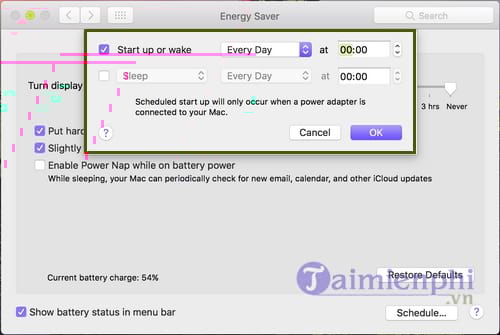
Keep a laptop connected to power for reliable unattended scheduling, and verify the result after operating-system or firmware updates.
Related Articles
 Instructions for Scheduling a Windows 10 Computer Shutdown7 minutes read
 How to Schedule Your Computer to Shut Down Automatically Without Software11 minutes read
 How to Automatically Turn on the Computer on Windows3 minutes read
 How to Automatically Turn Off Software on Windows6 minutes read
 How to Automatically Shut Down Windows 7, 8 and XP Computer3 minutes read
 How to Use Classic Shutdown Timer to Turn Off the Computer4 minutes read
Reader Comments 0
Sign in with email or Google to join the discussion.