Table of Contents
Windows has a built-in sleep timer for inactivity. In Windows 11, go to Settings > System > Power & battery > Screen, sleep & hibernate timeouts; in Windows 10, use Settings > System > Power & sleep. Choose how long the PC should be idle before it sleeps, with separate values for battery and AC power.

Set the sleep timer in Windows 11
- Open Settings.
- Select System > Power & battery.
- Expand Screen, sleep & hibernate timeouts.
- Set Make my device sleep after for battery power and plugged-in power.
The screen-off timer is separate. Turning off the display saves display power while apps and downloads can keep running; Sleep suspends normal activity. Microsoft's Windows 11 power settings guide explains both controls.
Set the sleep timer in Windows 10
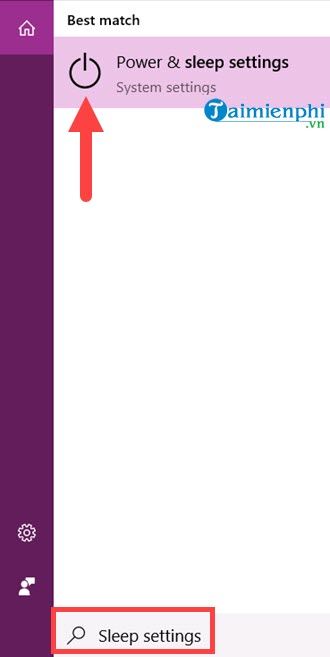
- Open Start and search for Power & sleep settings.
- Under Sleep, choose the idle time for On battery power and When plugged in.
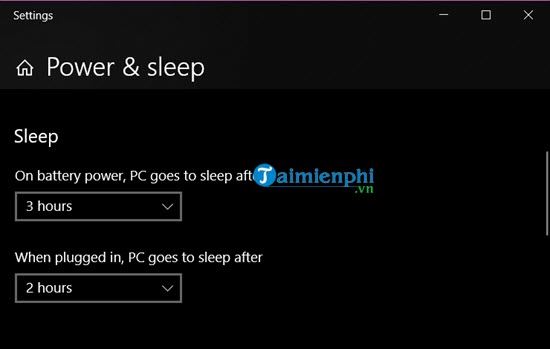
A shorter battery timeout conserves power, while a longer plugged-in timeout may suit a desktop replacement. Select Never only when you understand the extra power use and will manage sleep manually.
Set the sleep timer in Windows 7
Windows 7 is no longer supported, but the legacy setting remains under Control Panel > Hardware and Sound > Power Options. Next to the active plan, select Change plan settings, choose a time beside Put the computer to sleep, and save changes.
Make sure you edit the active power plan. Different plans can have different battery and plugged-in sleep values.
Change the timeout with powercfg
For a precise value in minutes, open Terminal (Admin) or Command Prompt (Admin). These examples set the current power plan to sleep after 30 idle minutes on AC power and 15 idle minutes on battery:
powercfg /change standby-timeout-ac 30
powercfg /change standby-timeout-dc 15
ac means plugged in and dc means battery power. The commands modify the active power scheme, so confirm the result in Settings or Control Panel. Microsoft's powercfg reference documents these timeout settings.
Sleep at a fixed clock time
The ordinary Windows sleep setting measures inactivity; it is not a daily clock alarm. For a fixed time on Windows 8.1 or later, Microsoft's PsShutdown utility supports a suspend action and can be called by Task Scheduler:
- Download PsTools from Microsoft Sysinternals, extract it to a permanent folder, and run PsShutdown once to review and accept its license prompt.
- Open Task Scheduler and create a daily task at the desired time.
- Choose Start a program and browse to
psshutdown.exe. - In Add arguments, enter
-d -t 0to request suspension immediately. - Save your work and test the task a few minutes ahead before relying on it.
A fixed-time sleep can interrupt a meeting, download, export, backup, or installation. Add an idle condition if the machine should sleep only when unattended. Hardware power states vary, so test wake behavior on the specific PC. For the Task Scheduler interface and safety choices, see the daily Windows scheduling guide.
Sleep, Hibernate, and Shut down are different
| Mode | Session | Power use | Typical use |
|---|---|---|---|
| Sleep | Kept ready in memory | Low | Short break and fast resume |
| Hibernate | Saved to storage | Lower than Sleep | Longer break, especially on a laptop |
| Shut down | Apps are closed | PC is off | End the session or perform a fresh start later |
Hibernate is not simply another name for Sleep. Review the Sleep and Hibernate comparison before using a timer for an unattended laptop. If you actually need the PC to turn off after a delay, use the Windows shutdown timer.
If the PC does not sleep on schedule
- Check that the correct power plan and AC/battery value are active.
- Some media, presentation, remote-access, or backup applications request that Windows stay awake. Pause the relevant task or close the app and test again.
- Disconnect unnecessary USB devices and update current chipset, graphics, and device drivers from Windows Update or the PC manufacturer's official support page.
- Run
powercfg /requestsin an elevated terminal to see whether a process or driver is making an active power request. Do not override a request until you understand what needs it. - On an organization-managed PC, policy may control sleep settings; contact the administrator instead of changing the registry.
Avoid old “sleep timer” downloads from unverified sites. The built-in inactivity timer, current Microsoft tools, and tested hardware behavior provide a clearer and safer setup.
Related Articles
 Best Sleep Application, Anyone Who Sleeps Must Download Immediately5 minutes read
 YouTube Is Testing a Built-in Sleep Timer, Only for Premium Subscribers: Explained4 minutes read
 Simple Windows 10 Computer Shutdown Timer Without Installing5 minutes read
 What You Need to Know About Sleep Needs by Age8 minutes read
 15 Truths Completely Wrong About Sleep (part 1)6 minutes read
 6 Ways to Restart Your Windows Computer from Simple to 'Pro'6 minutes read
Reader Comments 0
Sign in with email or Google to join the discussion.