Table of Contents
Windows can schedule a one-time shutdown with the built-in shutdown command. Open Command Prompt or the Run dialog and enter shutdown /s /t 3600 to shut down in 3,600 seconds, or one hour. Save your work first: when the timeout is greater than zero, Windows also forces running applications to close, which can discard unsaved changes.

Schedule a shutdown from Command Prompt
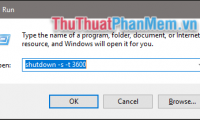
- Press Windows + R, enter cmd, and select OK. A normal Command Prompt is sufficient for shutting down your own PC if your account has the required permission.
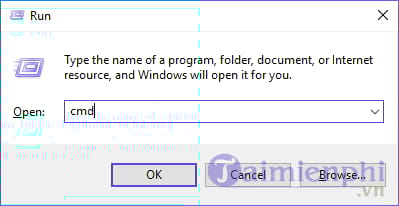
- Enter the command below and press Enter:
shutdown /s /t 3600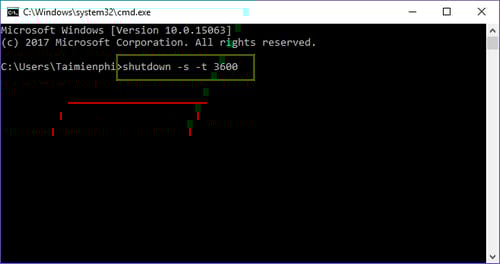
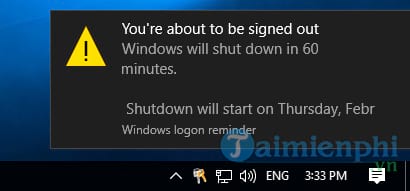
Windows displays a notification showing that sign-out or shutdown is scheduled.
Choose the correct number of seconds
The command has three important parts:
/stells Windows to shut down./tsets a timeout.- The number after
/tis the delay in seconds.
| Delay | Seconds | Command |
|---|---|---|
| 10 minutes | 600 | shutdown /s /t 600 |
| 30 minutes | 1,800 | shutdown /s /t 1800 |
| 1 hour | 3,600 | shutdown /s /t 3600 |
| 2 hours | 7,200 | shutdown /s /t 7200 |
Use a whole number from 0 through 315,360,000. A zero-second timeout starts the shutdown immediately. The same syntax works in recent Windows versions; Microsoft's shutdown command reference lists every supported option.
Cancel a scheduled shutdown
Before the countdown expires, open a new Command Prompt or Run dialog and enter:
shutdown /a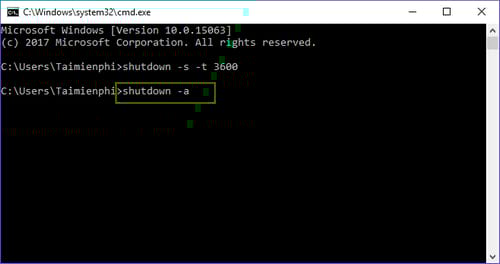
Windows confirms that the pending shutdown has been canceled.
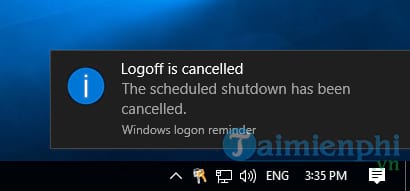
If you need more detail about stopping an active timer, see how to cancel automatic shutdown in Windows.
Useful variations
- Restart in 15 minutes:
shutdown /r /t 900 - Show command help:
shutdown /? - Add a visible comment:
shutdown /s /t 1800 /c "Shutting down after the task finishes"
A timer begins when the command is run; it is not a recurring schedule and it does not detect whether a download or export has completed. If a download manager offers a verified “shut down when finished” option, that event-based setting may be more suitable. For example, TipsMake has separate steps for shutting down after an IDM download.
Important cautions
- Save documents and close applications before the deadline. With a positive timeout, forced app closure is implied by Windows.
- Do not use
/funnecessarily; it explicitly forces applications to close and can lose unsaved work. - A shutdown timer may interrupt an update, backup, file transfer, video export, or disk operation. Estimate enough time or use software that can shut down after the specific task completes.
- The PC must remain awake for the timer to run. Sleep or hibernation changes how unattended tasks behave.
For an immediate manual shutdown, use the Start menu or one of the Windows shutdown keyboard shortcuts instead of creating a timer.
Related Articles
 4 Easiest, Quickest, and Simplest Ways to Schedule Your Computer to Shut Down29 minutes read
 Shutdown Command - Schedule the Shutdown of Windows 10 with the Shutdown4 minutes read
 PC Shutdown Timer: Simple and Easy Ways to Schedule PC Shutdown8 minutes read
 6 Quick Ways to Schedule Windows 10 Computer Shutdown: Best Options Compared9 minutes read
 How to Use the Shutdown Command to Schedule Shutdown and Restart the3 minutes read
 How to Turn Off the Computer Automatically10 minutes read
Reader Comments 0
Sign in with email or Google to join the discussion.