Table of Contents
Windows Task Scheduler can run a shutdown every day without third-party software. The safest setup uses a daily trigger plus an idle condition so the task does not interrupt someone actively working. The example below runs shutdown.exe /s /t 0: it starts a normal shutdown immediately but does not add the explicit force-close switch.

Create the daily shutdown task
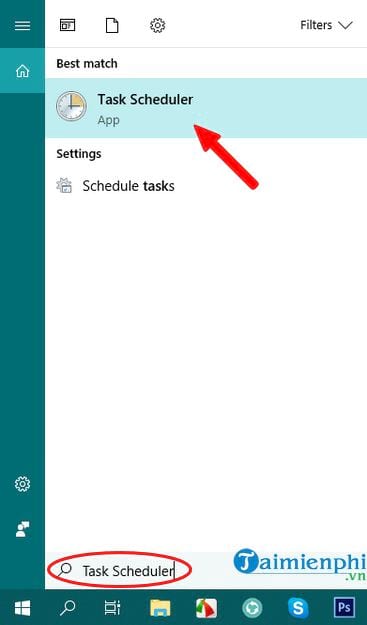
- Open Start, search for Task Scheduler, and open the matching result.
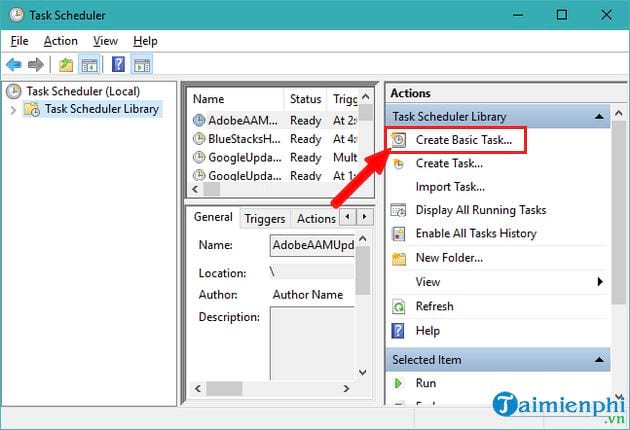
- In the Actions pane, select Create Basic Task.
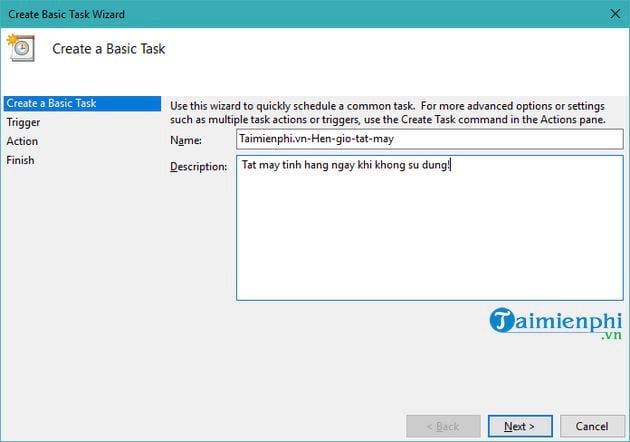
- Give the task a clear name such as Daily shutdown. Add a description that includes the intended time and whether the task should run only while idle.
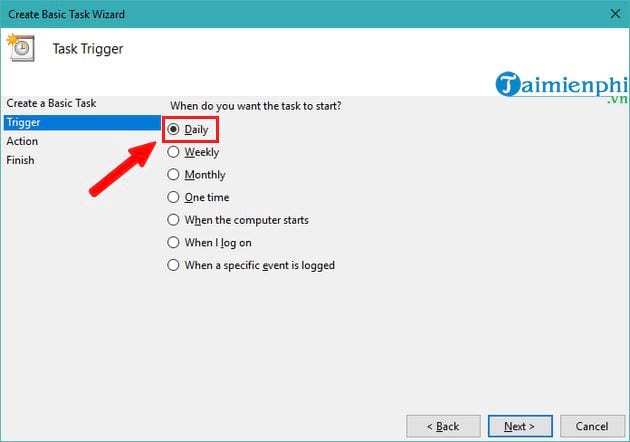
- Choose Daily as the trigger and select Next.
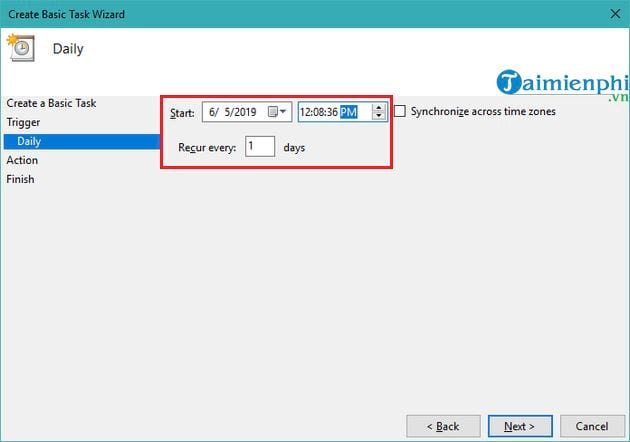
- Choose the first date and shutdown time. Confirm the PC's time zone and leave the recurrence at every 1 day.
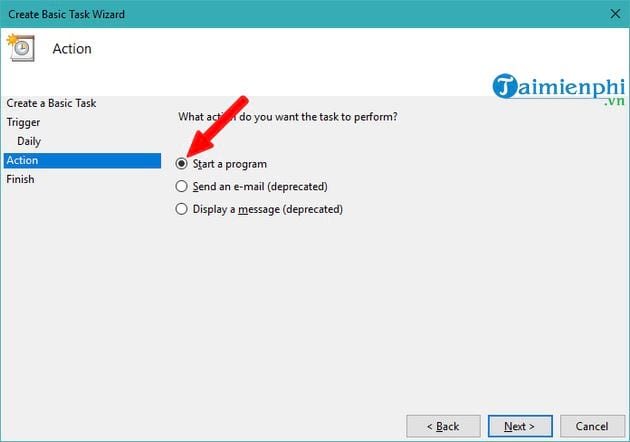
- For the action, choose Start a program.
- In Program/script, enter
shutdown.exe. In Add arguments, enter:
/s /t 0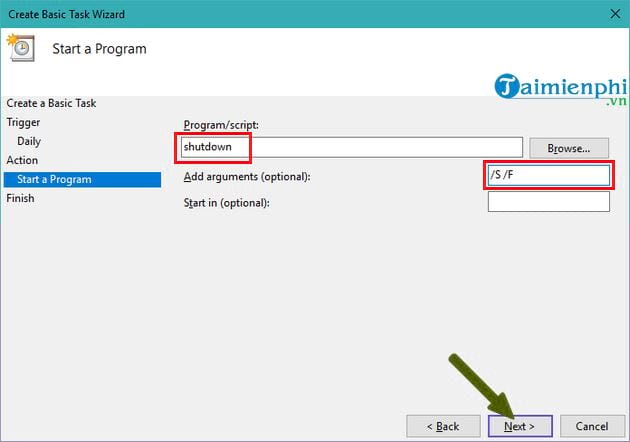
The /s option shuts down Windows and /t 0 sets a zero-second delay. Do not add /f unless you explicitly accept the risk of losing unsaved data; it forces applications to close without warning.
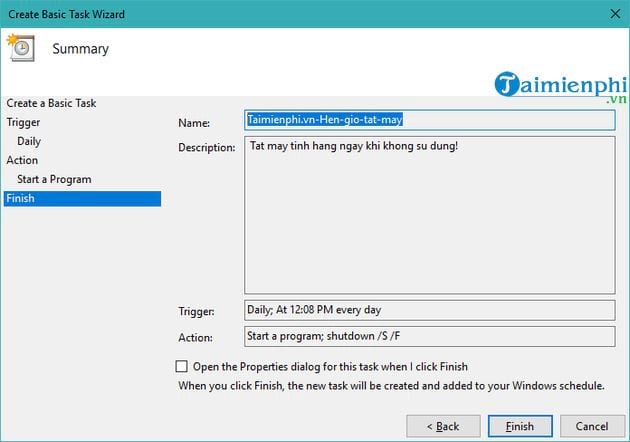
- Review the summary and select Finish.
Make shutdown conditional on inactivity
Return to Task Scheduler Library, find the task, right-click it, and select Properties.
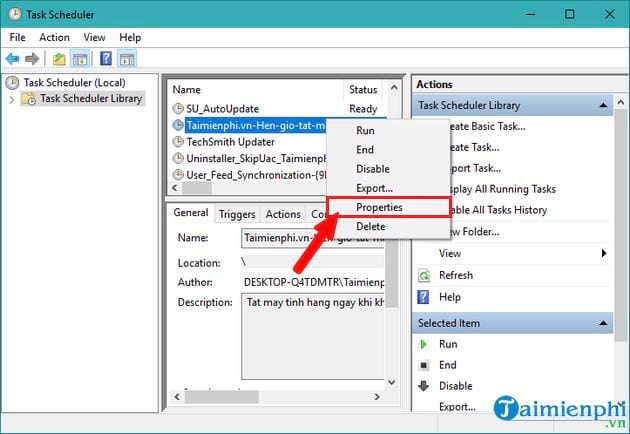
On General, Run only when user is logged on is easier to understand for a personal PC. Run with highest privileges is usually unnecessary for a local shutdown; enable it only if the task fails because the account lacks the required shutdown right.
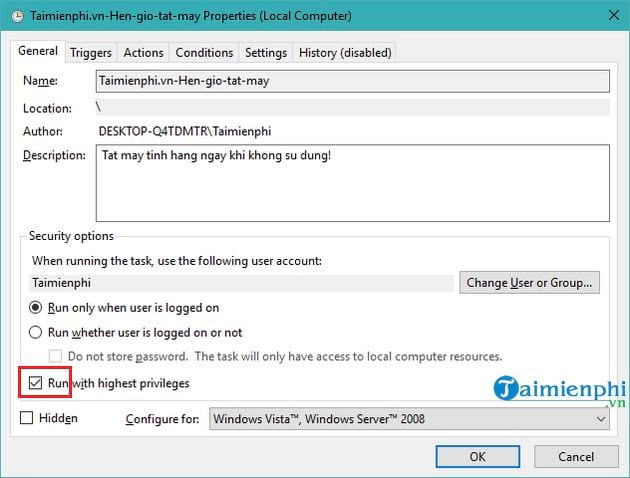
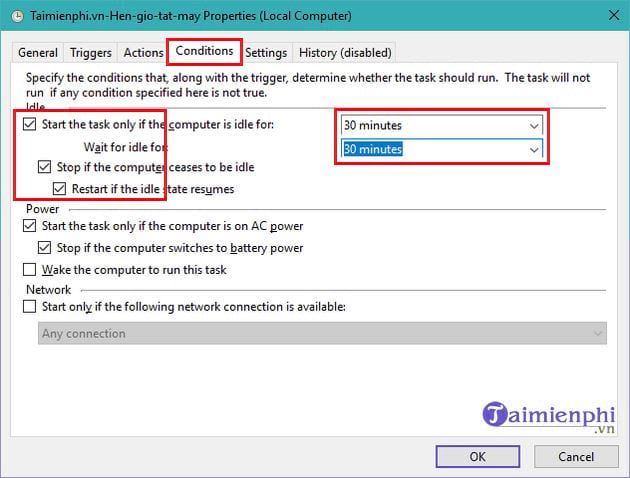
On Conditions, enable Start the task only if the computer is idle for and choose a period such as 30 minutes. Decide what should happen if activity resumes:
- Enable Stop if the computer ceases to be idle when you do not want shutdown to proceed after someone returns.
- Enable Restart if the idle state resumes only if you want the task to try again during its allowed waiting period.
- For a laptop, leave Start the task only if the computer is on AC power enabled if an automatic battery-powered shutdown is undesirable.
Microsoft explains that Task Scheduler runs actions when configured triggers and conditions are met in its Task Scheduler overview.
Avoid an unexpected shutdown the next morning
On the Settings tab, normally leave Run task as soon as possible after a scheduled start is missed cleared. If the computer was off at the scheduled time, enabling that option can cause the missed shutdown task to run soon after the next startup.
Retry settings are also unnecessary for a simple daily shutdown and can create surprise attempts later. Keep If the task is already running set to Do not start a new instance.
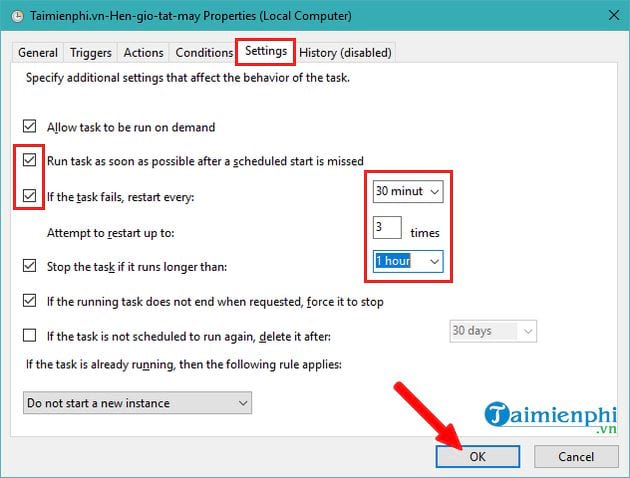
Select OK to save. Test safely by temporarily moving the trigger a few minutes ahead when no documents or installations are open. Do not right-click Run unless you are ready for an immediate shutdown.
Add a warning countdown instead
If you prefer a five-minute notification, replace the arguments with:
/s /t 300 /c "Scheduled shutdown in 5 minutes. Save your work."You can cancel during the countdown by opening Run or Command Prompt and entering shutdown /a. However, Windows' shutdown command reference notes that a timeout greater than zero implies forced application closure when it expires. Use this version only if that behavior is acceptable.
For a one-time timer rather than a daily task, follow the CMD shutdown-timer guide.
Change, disable, or delete the schedule
Open Task Scheduler Library, select Daily shutdown, and use Properties to edit its trigger, action, or conditions. Choose Disable to pause it without losing the configuration, or Delete to remove it permanently. If it did not run, check the task's Last Run Result, History, idle state, power condition, and whether the PC was awake at the trigger time.
If you also need a morning start, the separate guide to scheduling a PC or Mac to turn on automatically explains the hardware and firmware requirements.
A scheduled shutdown does not wake every sleeping PC or finish work safely on behalf of applications. Save documents, let updates and backups complete, and use an application-specific “shut down when finished” option when one is available.
Related Articles
 PC Shutdown Timer: Simple and Easy Ways to Schedule PC Shutdown8 minutes read
 4 Easiest, Quickest, and Simplest Ways to Schedule Your Computer to Shut Down29 minutes read
 How to Schedule Your Computer to Shut Down Automatically Without Software11 minutes read
 Instructions for Scheduling a Windows 10 Computer Shutdown7 minutes read
 Shutdown Command - Schedule the Shutdown of Windows 10 with the Shutdown4 minutes read
 Should I Turn Off My Mac After Each Use?6 minutes read
Reader Comments 0
Sign in with email or Google to join the discussion.