Table of Contents
In Windows 7, startup programs are managed from the Startup tab in System Configuration. Press Windows + R, enter msconfig, and clear only the entries you recognize and do not need at sign-in. This does not uninstall the program, and you can enable it again later.

Disable a Windows 7 startup program
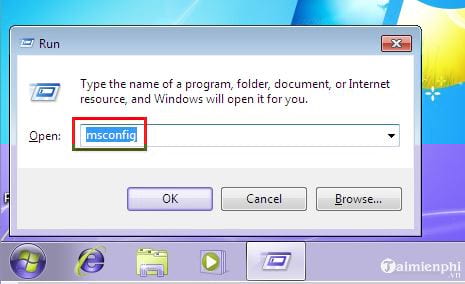
- Press Windows + R to open Run, enter
msconfig, and press Enter.
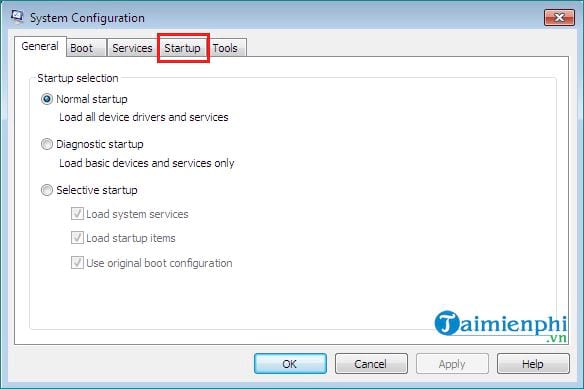
- In System Configuration, open the Startup tab.
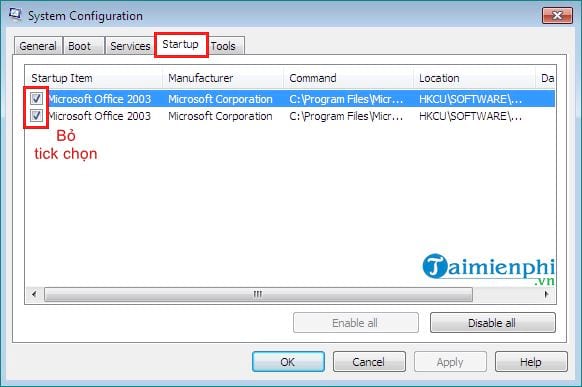
- Review the startup item, manufacturer, command, and location. Clear the box beside a nonessential program that you do not want to start automatically.
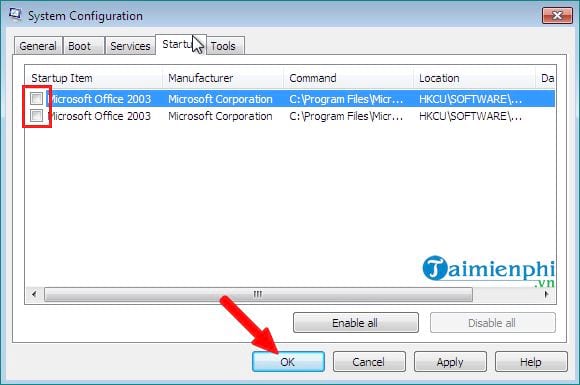
- Select Apply, then OK. Restart when convenient and confirm that the program no longer opens at sign-in.
After restart, Windows may report that selective startup is in use. That is expected after changing the startup list. Do not choose Normal startup unless you want to re-enable all previously disabled items.
Which startup items are safe to disable?
Start with software you recognize and can open manually when needed, such as chat clients, media launchers, game stores, cloud utilities you do not use, or vendor update assistants. Disable a few items at a time and restart so you can identify any missing feature.
Leave these alone until you verify their purpose:
- antivirus and endpoint-security software;
- touchpad, keyboard, hotkey, audio, and accessibility utilities you rely on;
- backup or disk-encryption components;
- organization-managed tools;
- entries with an unfamiliar name, manufacturer, or command path.
High memory use after Windows starts does not automatically mean an item is safe to disable. Search the exact filename and check its digital publisher before changing an unfamiliar entry. Avoid deleting startup registry values directly; msconfig provides a reversible control.
If the program still starts
- Open the program's own settings and turn off options such as Start with Windows or Launch at sign-in.
- Check the Start menu's Startup folder for a shortcut.
- Some scheduled tasks and services can launch software independently of the msconfig Startup list. Change them only after identifying the responsible application.
- Scan the PC with its current security software if an unknown process returns after being disabled.
Disabling startup items can shorten the time between signing in and reaching a usable desktop, but it will not repair a failing drive, insufficient memory, or malware. The broader guide to making Windows start faster safely covers those checks.
Windows 8.1, Windows 10, and Windows 11 are different
On Windows 8.1 and later, msconfig directs startup management to Task Manager. Press Ctrl + Shift + Esc, open Startup or Startup apps, select the app, and choose Disable. See the guide to startup applications in Windows 8 for that interface.
Windows 7 is no longer supported, and Windows 10's standard support has also ended. An unsupported PC can continue to run but lacks normal security fixes; review Microsoft's Windows end-of-support information and plan a supported upgrade where the hardware allows it.
Related Articles
 How to Turn on and Off IDM Starts with Windows 102 minutes read
 This Is the 'Culprit' That Makes Windows 10 Computers Boot Slowly3 minutes read
 How to Prevent Others from Installing Software on Windows3 minutes read
 How to Disable Hibernation Without Disabling the Fast Startup5 minutes read
 Ccleaner Setup Starts the Same System3 minutes read
 How to Disable Keyboard Shortcuts and Hotkeys on Windows 107 minutes read
Reader Comments 0
Sign in with email or Google to join the discussion.