Table of Contents
Last week, Microsoft released the first Dev Channel build of 2023 on the Windows 11 Insider channel to the internal tester community. Besides a series of major bug fixes, build 25272 also comes with hidden files inside. Going deeper into analysis, it was discovered that Microsoft seems to be quietly implementing behind the scenes a new, relatively comprehensive design overhaul of File Explorer on Windows 11. The leaked information has partly Which gives a pretty good idea of what Microsoft is working on, it is expected to have a new home page interface and many changes in the details pane including options:
Key Takeaways About File Explorer
- Last week, Microsoft released the first Dev Channel build of 2023 on the Windows 11 Insider channel to the internal tester community.
- Additionally, a series of major bug fixes, build 25272 also comes with hidden files inside.
- Going deeper into analysis, it was discovered that Microsoft seems to be quietly implementing behind the scenes a new, relatively comprehensive design overhaul of File Explorer on Windows
Key Details About File Explorer
- Insights
- Activities
- Properties
- Related Files
- Conversations
- Sharing status
As of today, January 14, Microsoft continues to release another Dev channel build - build 25276 - revealing more details about the improvements expected to apply to File Explorer in the near future. While we already have a rough idea of what the redesigned menus will look like, the latest batch of leaked screenshots shed more light on "Insights", "Activities" and "Conversations". . What is that.
Accordingly, while Activities appears to show modifications, etc., made in a file, the Conversations option appears to indicate messages or messages of which that file is a part.

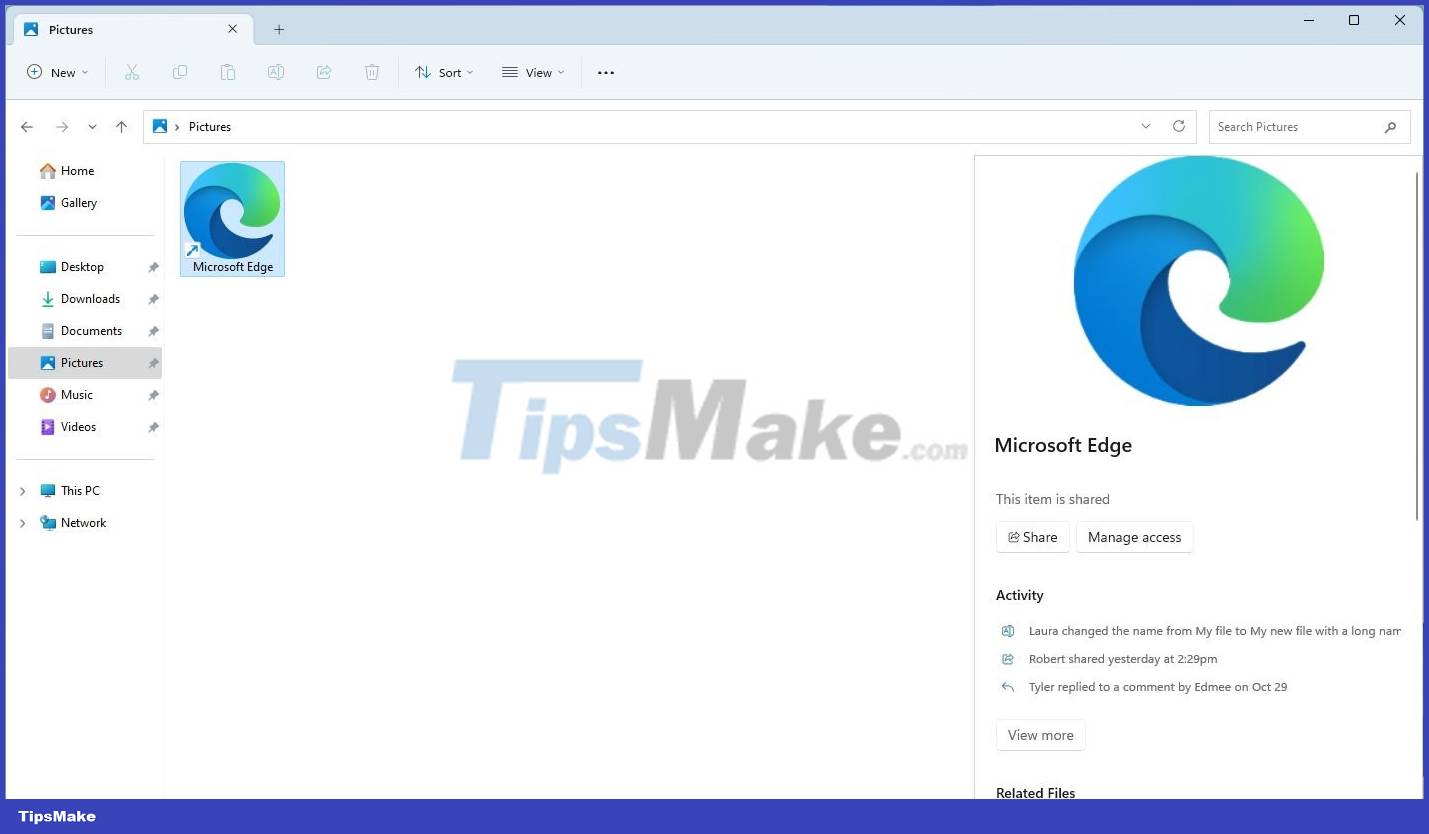
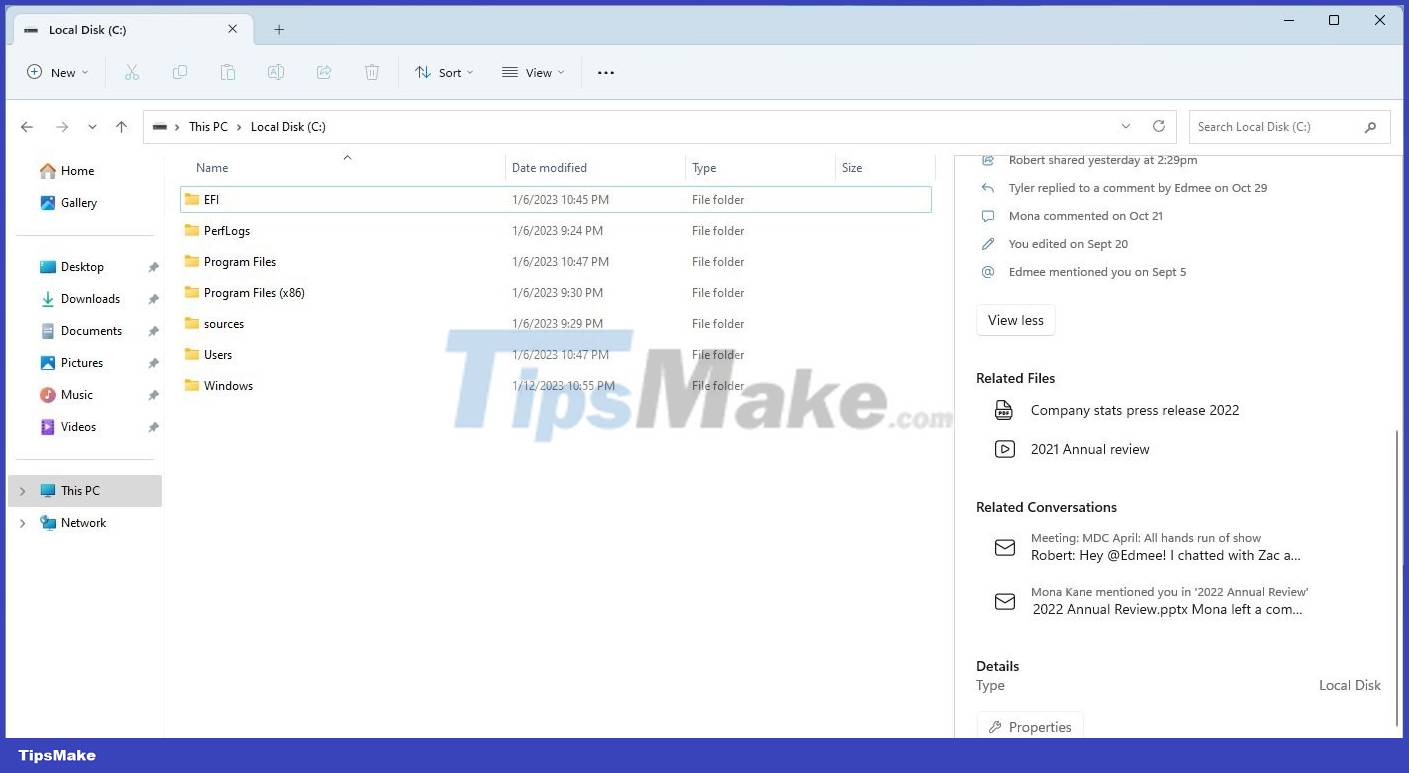
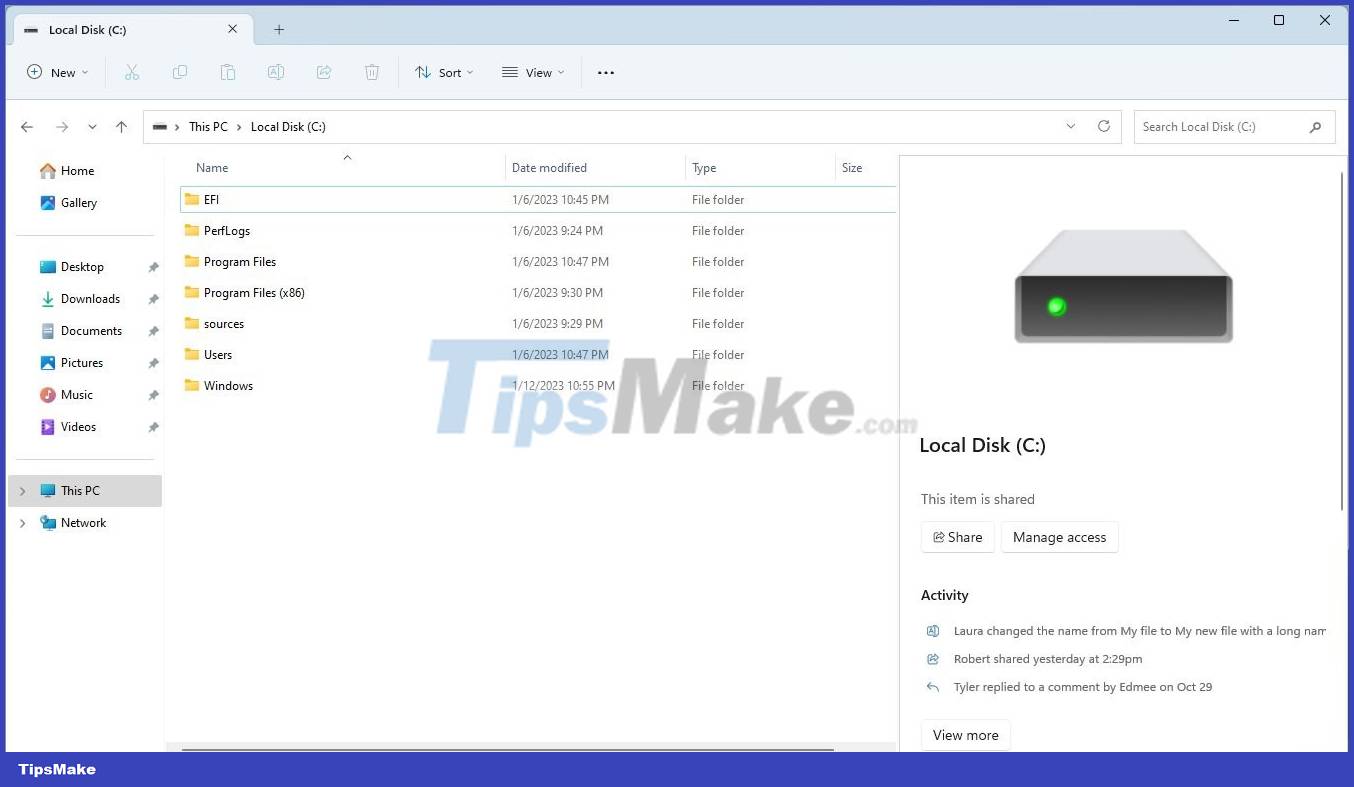
A technology blogger with the nickname PhantomOcean3 discovered that it is possible to enable the above changes with Insights ID "38613007", using a tool like ViVeTool. The steps are as follows:
Step 1: Download ViveTool from GitHub and extract the files in a convenient and easy-to-find folder.
Step 2: Press Win + X and select Terminal (Admin).
Step 3: Switch Windows Terminal to the Command Prompt configuration using the keyboard shortcut Ctrl + Shift + 2 or by clicking the down arrow button at the top of the window.
Step 4: Navigate to the folder containing the ViveTool files using the CD command. For example, if you placed ViveTool in C:Vive, enter CD C:Vive.
Step 5: Enter vivetool /enable /id:38613007 and press Enter. (For PowerShell, try: .vivetool /enable /id:38613007)
Step 6: Restart your PC.
Hope you are succesful.
FAQ
What is the main update about File Explorer?
Last week, Microsoft released the first Dev Channel build of 2023 on the Windows 11 Insider channel to the internal tester community.
Why does File Explorer matter?
Besides a series of major bug fixes, build 25272 also comes with hidden files inside.
What should readers know about File Explorer?
Going deeper into analysis, it was discovered that Microsoft seems to be quietly implementing behind the scenes a new, relatively comprehensive design overhaul of File Explorer on Windows 11.
Related Articles
 File Explorer: Complete Guide: Onedrive Is About to Become the Default3 minutes read
 New Look of Folders in File Explorer in Windows 103 minutes read
 How to Fix File Explorer Lag on Windows 11: Step-by-Step Guide8 minutes read
 6 Windows File Explorer Add-ons That Make Life Easier7 minutes read
 Files Is a Windows File Explorer Alternative That Meets All User Needs6 minutes read
 7 Notable Changes in File Explorer Windows 117 minutes read
Reader Comments 0
Sign in with email or Google to join the discussion.