Table of Contents
Microsoft Copilot is an AI assistant for tasks such as explaining information, drafting text, brainstorming, and working with content you provide. Copilot experiences also appear in Microsoft 365 applications, but access to those features depends on your account, subscription, app, and organization settings.
Start with a small task you can check easily. A useful first request is to turn a short set of notes into a checklist—not to hand over an entire inbox or accept unverified advice.
Choose the right Copilot experience
- Personal use: sign in to the official Copilot website or app with your personal account and inspect the features included.
- Work or school: use the account and service approved by your organization. Its access, data rules, and available integrations may differ.
- Inside Word, Excel, PowerPoint, or Outlook: check the exact Microsoft 365 license and supported application. A chat account does not automatically grant every in-app capability.
Microsoft's current individual plan comparison is the place to verify purchase terms. Do not assume an old Copilot Pro price, free trial, or model name still describes the offer.
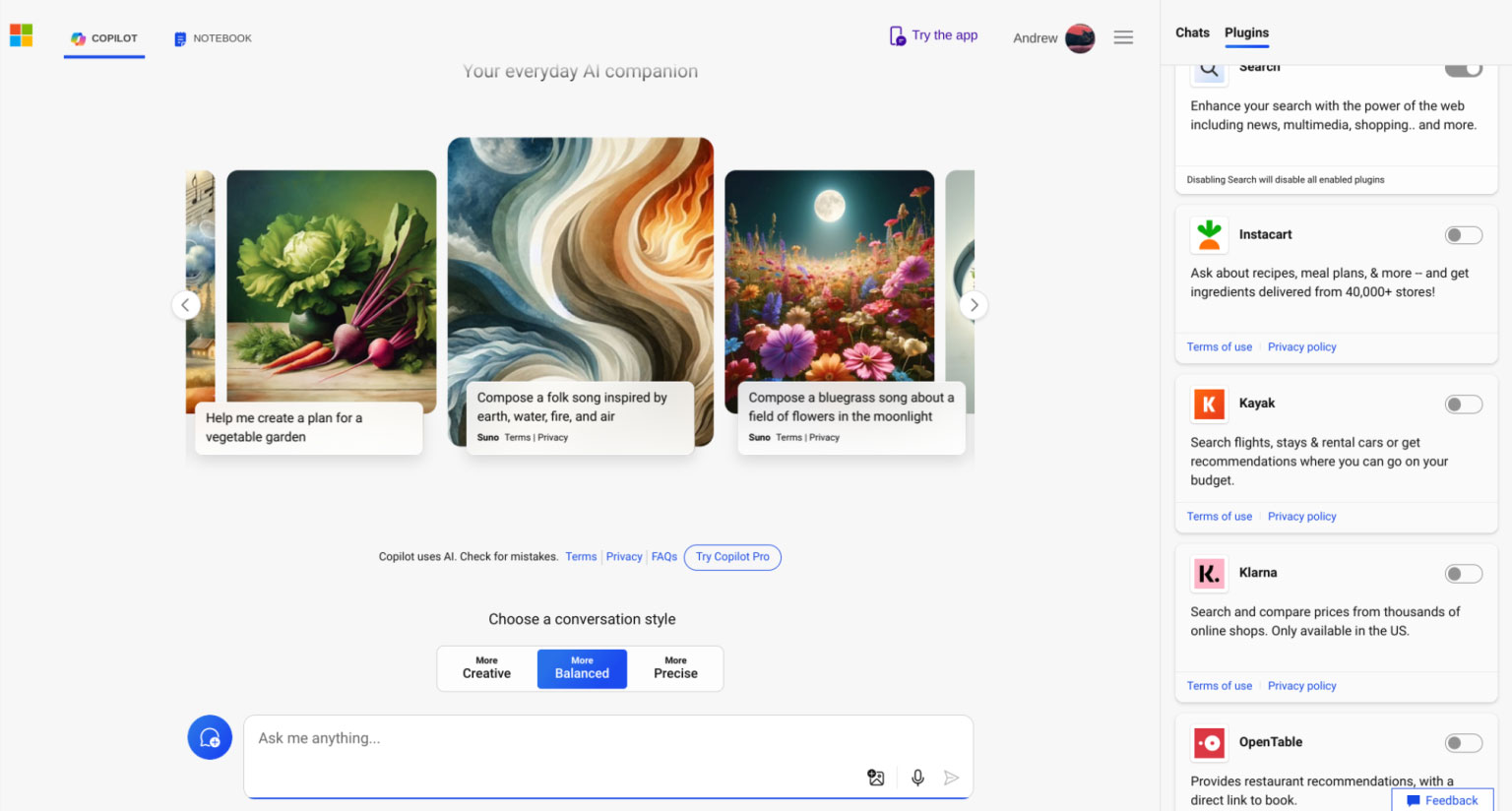
Write a prompt with a task, context, and format
You do not need elaborate wording. Explain what you want, supply the relevant material, and say what the result should look like.
Turn the notes below into a checklist for a first-time event volunteer. Use plain English, keep it under 200 words, and flag missing details instead of inventing them: [notes].
A specific request is easier to evaluate than “help with my event.” If the answer misses your intention, name the problem: “Keep the safety instructions, but remove the promotional language.”
For a document summary, ask it to separate what the document says from its own suggestions. For calculations or factual comparisons, request the assumptions and sources, then verify them yourself.
Use files and creative tools deliberately
If your version supports attachments, upload only material you are authorized to share. Ask a focused question about it, then compare the answer with the relevant section of the file.
For image generation, specify the subject, composition, visual style, and intended use. For example: “A frog in a top hat playing violin on a small theater stage, watercolor illustration, wide composition.” Inspect the result for unwanted details; there is no universal rule that every version produces four images or offers the same editing controls.

Review privacy settings before sensitive work
Personal and organizational accounts have different privacy arrangements. Microsoft's personal Copilot privacy controls describe available settings for conversation activity, training, and personalization.
Deleting a chat, changing a training preference, and managing memory or personalization are separate actions. Review the settings for the account actually in use. Do not paste passwords, private records, or confidential work material into an unapproved assistant.
Check the answer before using it
Review facts, citations, calculations, and any instructions that change files or settings. Copilot can generate plausible errors and cannot guarantee that a source says what the answer claims.
See how to verify AI-generated claims for a checking routine. If similar product names are causing confusion, read GitHub Copilot versus Microsoft Copilot.
Related Articles
 What is Copilot Labs, and how do its experiments work?
 What Is Microsoft Copilot Studio? Agents, Workflows, and Plans
 How is Copilot Pro different from Copilot? Should I upgrade?
 Microsoft upgrades Copilot with a series of new features: from Bing, OneDrive to Teams
 How to Use Microsoft Copilot Researcher and Analyst
 How to Use Copilot in PowerPoint: Draft, Refine, and Verify Slides
Reader Comments 0
Sign in with email or Google to join the discussion.