Table of Contents
Every time we finish a presentation, our brains start analyzing the awkward silences or the millions of ums and hums we utter. Eventually, we get tired of only finding things to improve after the presentation is over.
That's when a PowerPoint feature changed the game completely.
Why is practicing alone not enough?
People often spend years practicing in front of their bathroom mirrors, like motivational speakers in front of a makeup-filled crowd. Others may invite family members to watch them practice, hoping for helpful feedback. But all they get is vague comments like, 'That was great!' or 'Slow down a bit.'
Even if you try recording yourself and watching it over and over again, you're still limited by the errors you can catch. Unless you're also a speech coach, you're likely to miss most of your presentation's problems.
That's the problem with practicing or mumbling over your slides: It makes you think you're ready to deliver a killer presentation. You don't realize you're speaking at 200 words per minute when most people can only handle 150. You don't realize you're saying the same word 17 times in a 10-minute presentation. And you don't realize your voice will start to sound flat as soon as you start reading your bullet points.
What you need is objective, specific feedback that can help you improve your presentation without having to pay for a speech coach, sign up for a public speaking course, or take up a new hobby to improve your public speaking skills. Enter Speaker Coach, formerly known as Presenter Coach, a free and easy-to-use app that listens to your delivery, analyzing your pace, word choice, and tone, and showing you exactly what your audience hears and sees. In other words, it replaces your 'I think I sound okay' with 'This is your real voice.'
How to Integrate Speaker Coach into Your Workflow
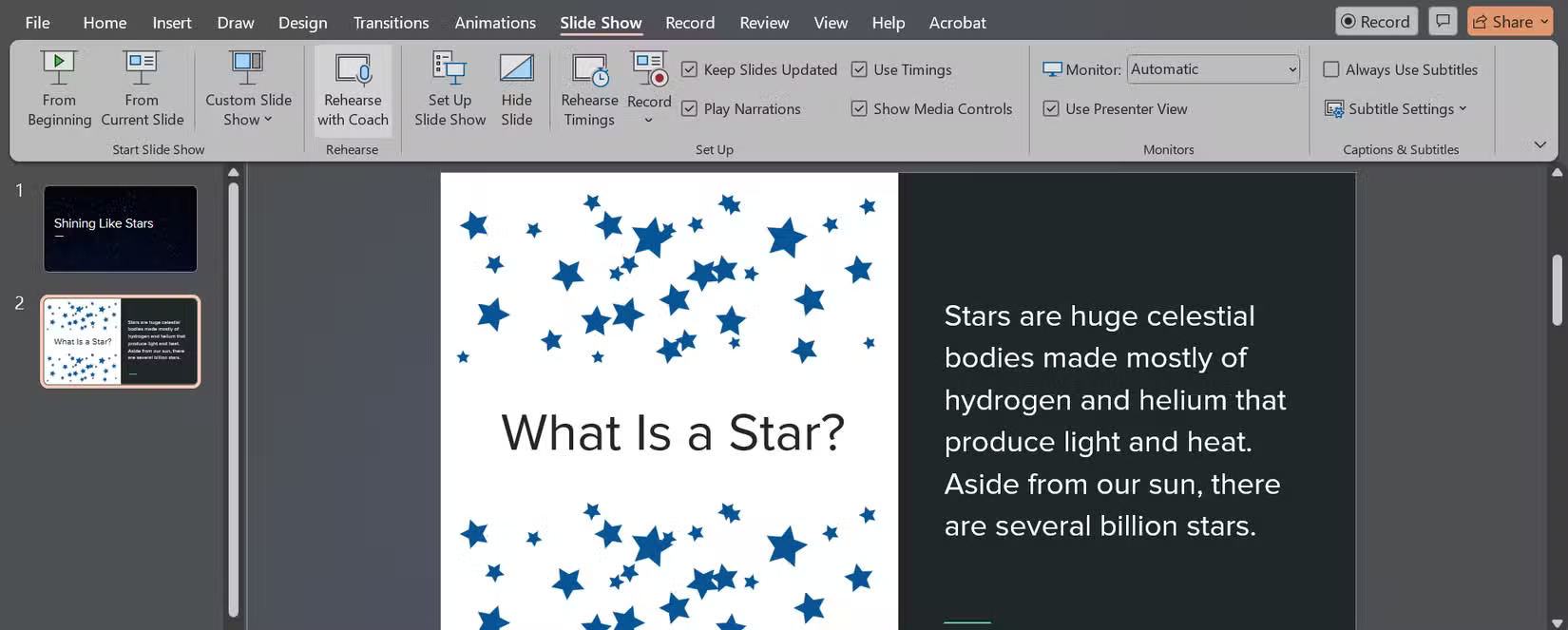
Once your slides are ready, go to the Slide Show tab and click Rehearse with Coach .
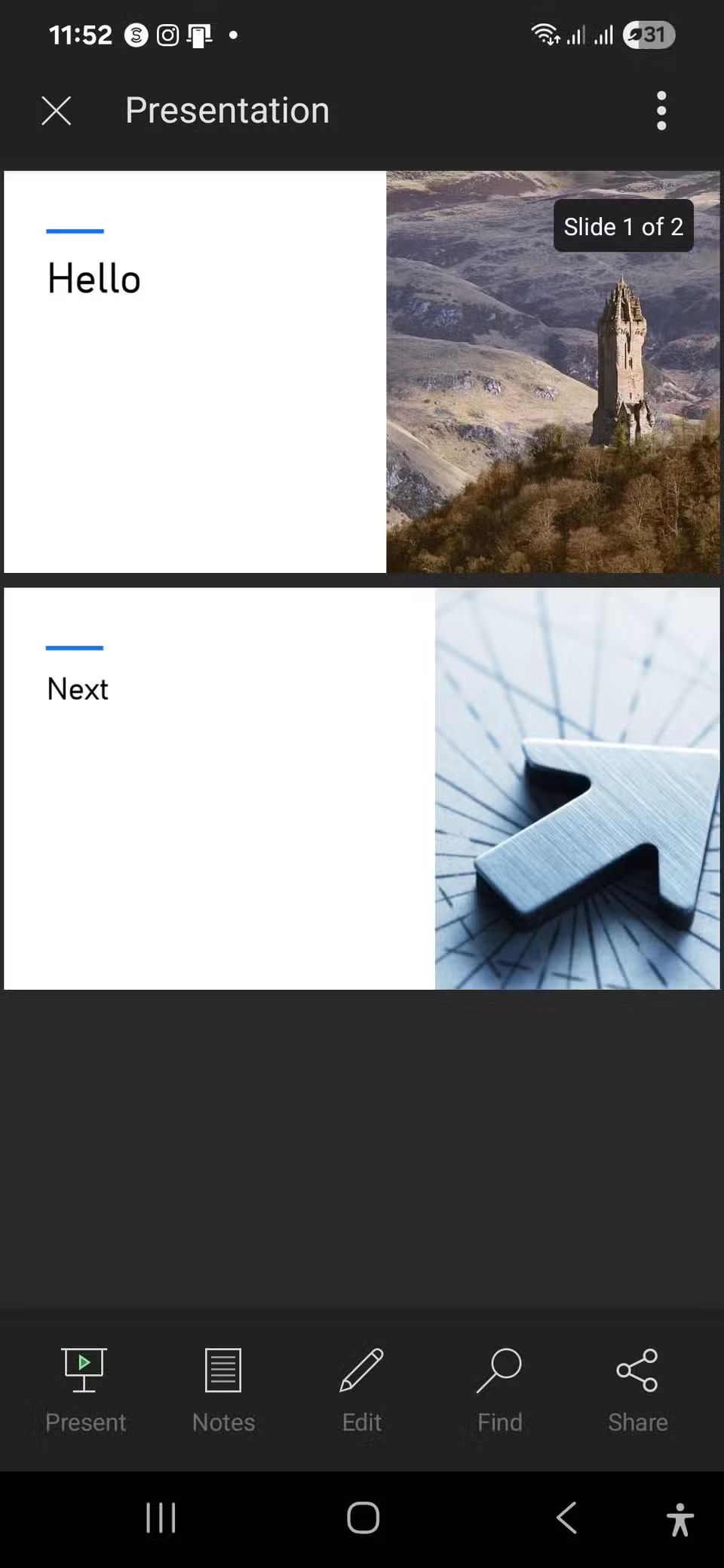
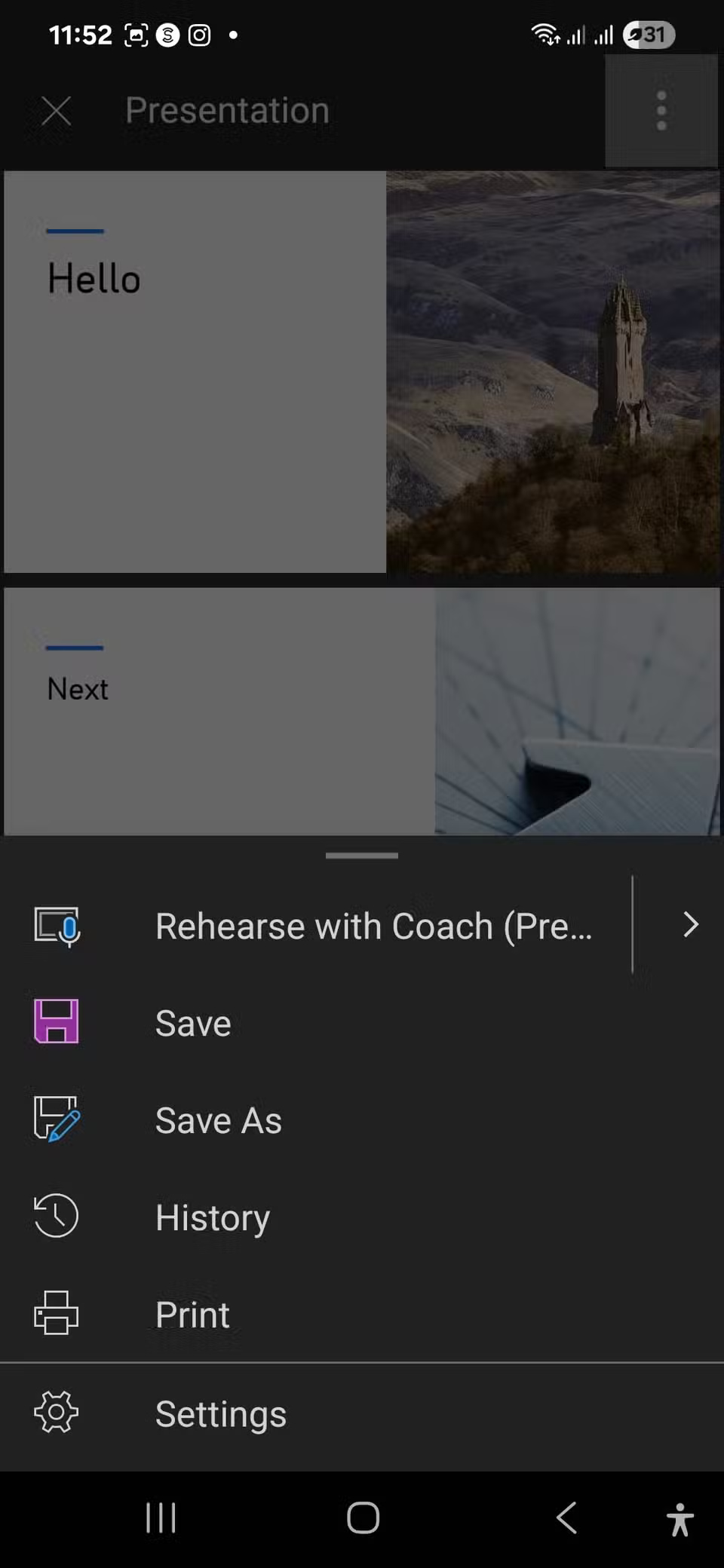
On mobile, it's just as simple. Tap the three vertical dots in the upper right corner, select Rehearse with Coach , and you'll be taken to Feedback Settings , where you can decide exactly what kind of feedback you want.
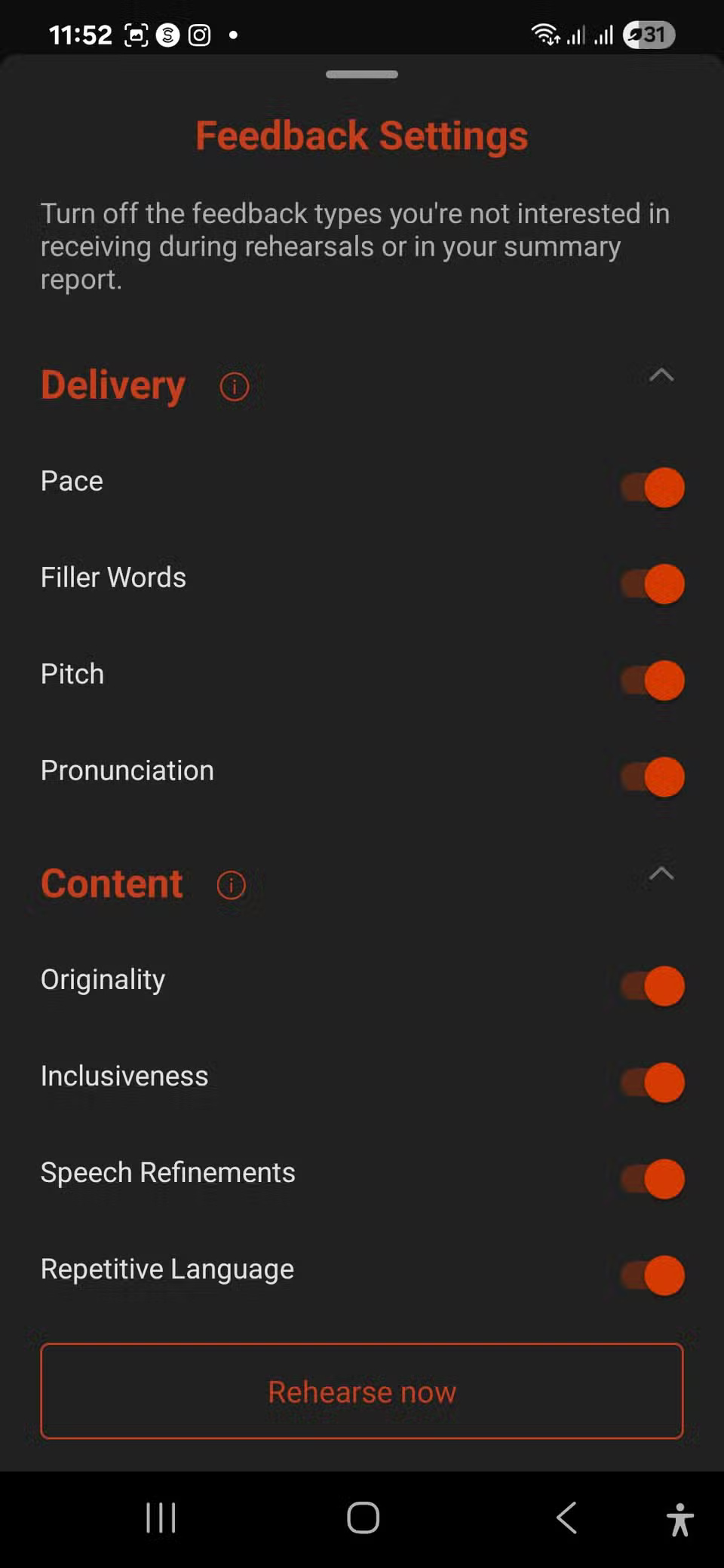
Speaker Coach looks at two main aspects: Delivery and Content . Delivery includes speed, filler words, pitch, and pronunciation. Content checks whether you read verbatim, repeat, use inclusive language, and even if your grammar is correct.
In the Feedback Settings on the mobile app, you can customize the type of feedback you get. On the desktop and web versions, you can't choose what to check, but they do have an additional feature: Body language .
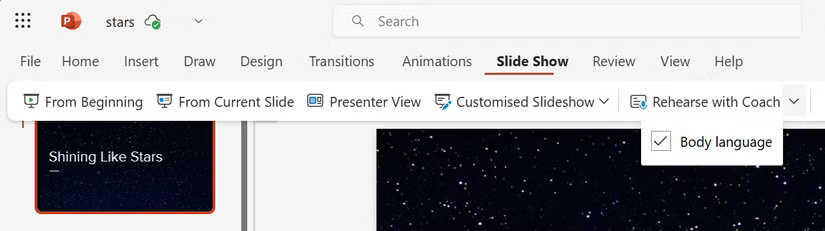
Start by manually enable body language review in PowerPoint for the web, but it's enabled by default on the desktop app. Once enabled, Speaker Coach will track your eye contact, how focused you are in the frame, and whether you're maintaining the correct distance from the camera.

There's also a Show real-time feedback option (web and desktop) so you can get reminders during your presentation instead of having to wait until the end.

Either way, you'll still get a detailed post-presentation report complete with stats, notes, and tips. Here's how the author uses Speaker Coach:
|
First time |
Check overall traffic and speed with your mobile phone. |
|
2nd time |
Use your phone or laptop to streamline your language and eliminate unnecessary words. |
|
3rd time |
Practice your presentation and body language by practicing on your laptop. |
The feedback you get after each run is quite accurate and helpful.
Final Thoughts
The development covered in this article is worth following, but specifications, dates, and feature details may change until the relevant company or organization publishes an official confirmation.
FAQ
What is the main development covered in this article?
Every time we finish a presentation, our brains start analyzing the awkward silences or the millions of ums and hums we utter. Eventually, we get tired of only finding things to improve after the presentation is over.
What should you know about Why is practicing alone not enough??
People often spend years practicing in front of their bathroom mirrors, like motivational speakers in front of a makeup-filled crowd. Others may invite family members to watch them practice, hoping for helpful feedback.
Is every reported detail officially confirmed?
Not necessarily. Product leaks, preview builds, research reports, and early announcements can change. Confirm important specifications, dates, and availability through an official source before making a decision.
Related Articles
 PowerPoint 2016: Reviewing Your Presentation6 minutes read
 Microsoft PowerPoint Is About to Have a Feature to Record3 minutes read
 PowerPoint 2019 (Part 1): Getting Started with PowerPoint: Explained7 minutes read
 10 Useful Tips for You When Presenting with Powerpoint15 minutes read
 50 Alternative Slideshow Applications for PowerPoint10 minutes read
 PowerPoint 2019 (Part 32): Sharing Presentations Online: Explained5 minutes read
Reader Comments 0
Sign in with email or Google to join the discussion.