Table of Contents
Telemetry is, in theory, how Microsoft collects information from users' computers. According to the company, this helps identify bugs, improve performance, and deliver updates that are tailored to the way people use Windows.
People spend many time tinkering with Windows settings to make their computers run faster, more smoothly, or simply less annoying. But there's a hidden setting that does the opposite of protecting us. It doesn't speed up or keep your system running smoothly. Instead, it silently sends information out of your computer without you even knowing.
What is Windows Telemetry?
Microsoft says it has improved updates, but the reality is different.
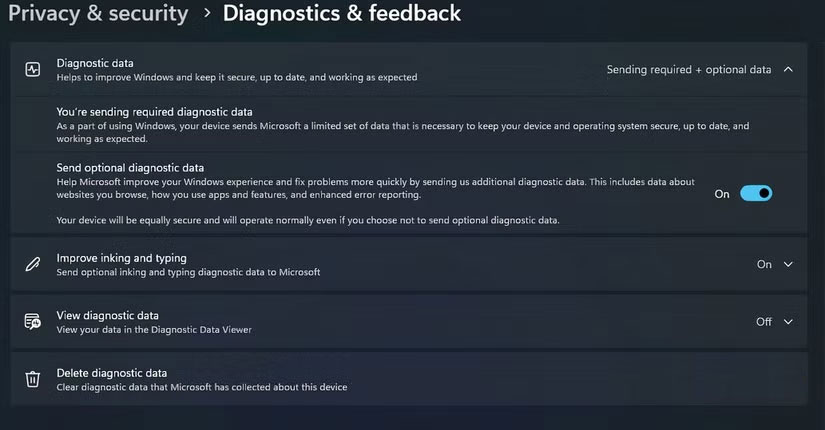
In theory, telemetry is how Microsoft collects information from users' computers. According to the company, this helps identify bugs, improve performance, and deliver updates that are tailored to the way people use Windows. The idea is that by studying millions of systems, Microsoft can identify problems faster and deliver fixes more effectively.
That's the official marketing message. In reality, it goes beyond bug reporting. Telemetry collects detailed information about your system configuration, the apps you install, how often you use them, the type of hardware you run, and even your daily activities. Microsoft assures us that the data is anonymized, but if you've ever dealt with so-called anonymized datasets, you know that's not always as trustworthy as you think.
When the Telemetry vulnerability was first discovered, many people were a bit surprised. They had always assumed that crash reporting was voluntary, something you submitted when a program crashed. Instead, Telemetry was built-in, turned on by default, and designed to run continuously in the background.
How to Turn Off Telemetry in Windows
You can't completely remove it, but you can minimize it.
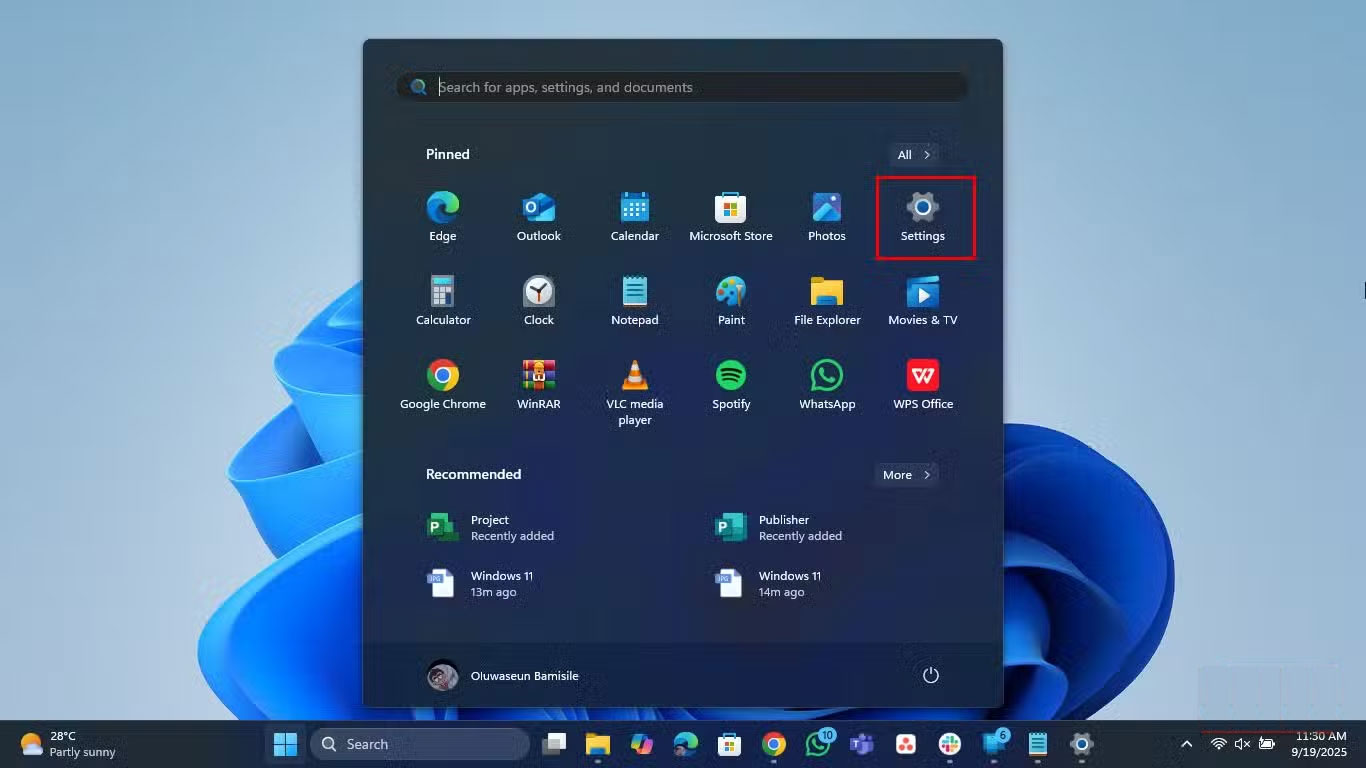
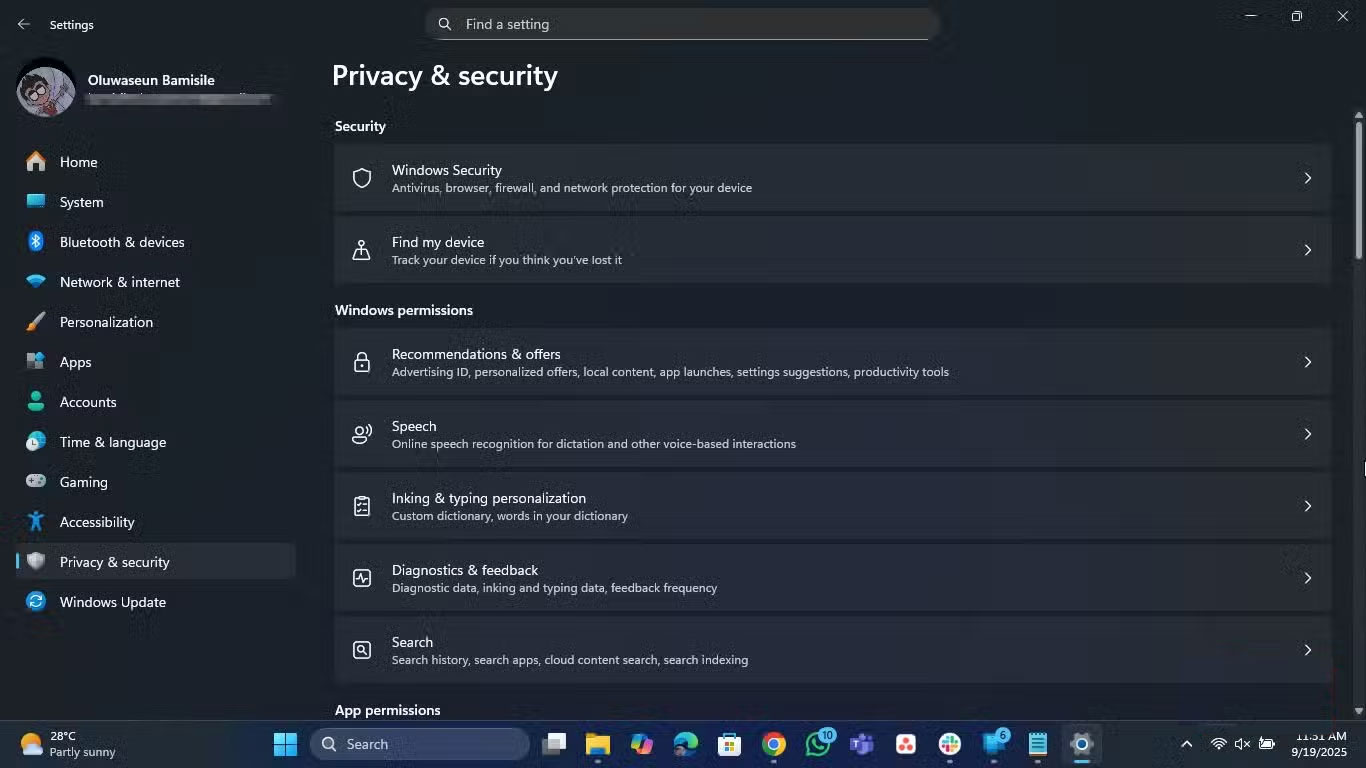
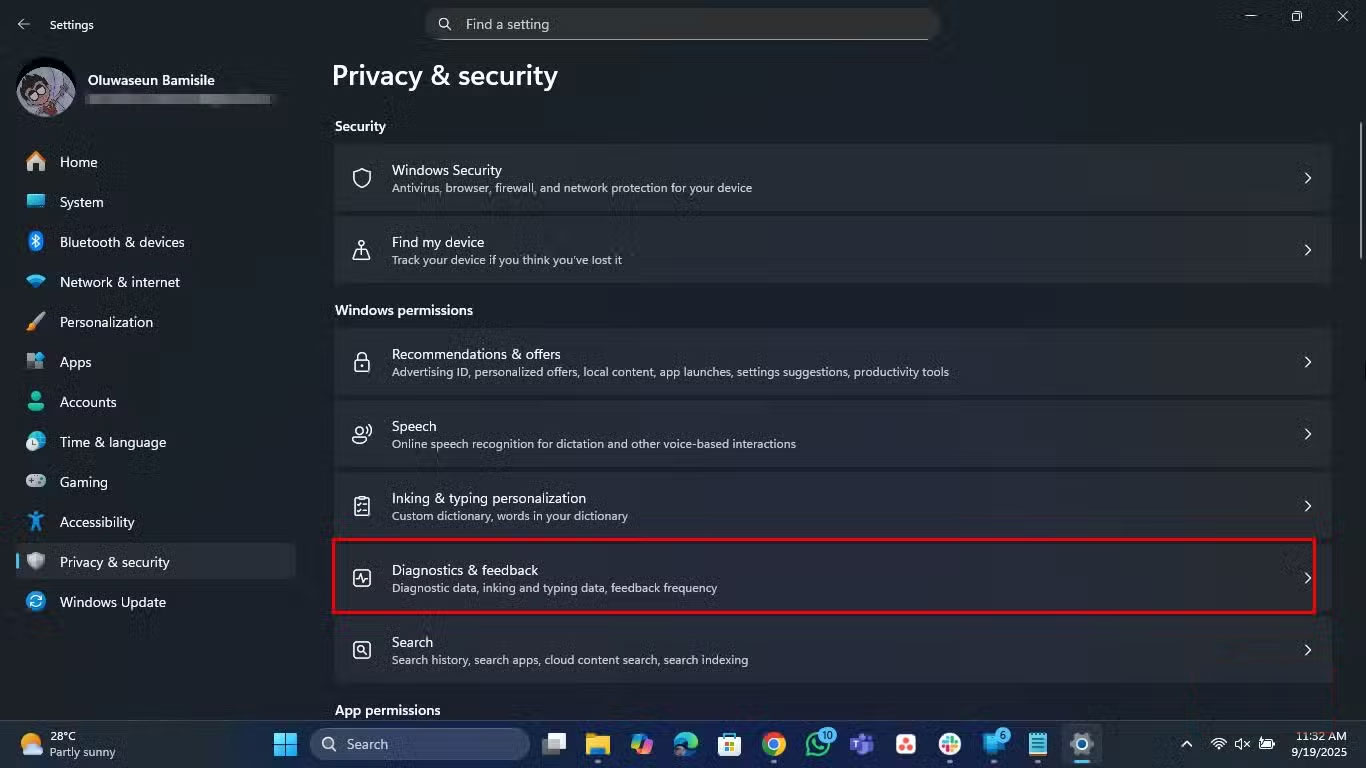
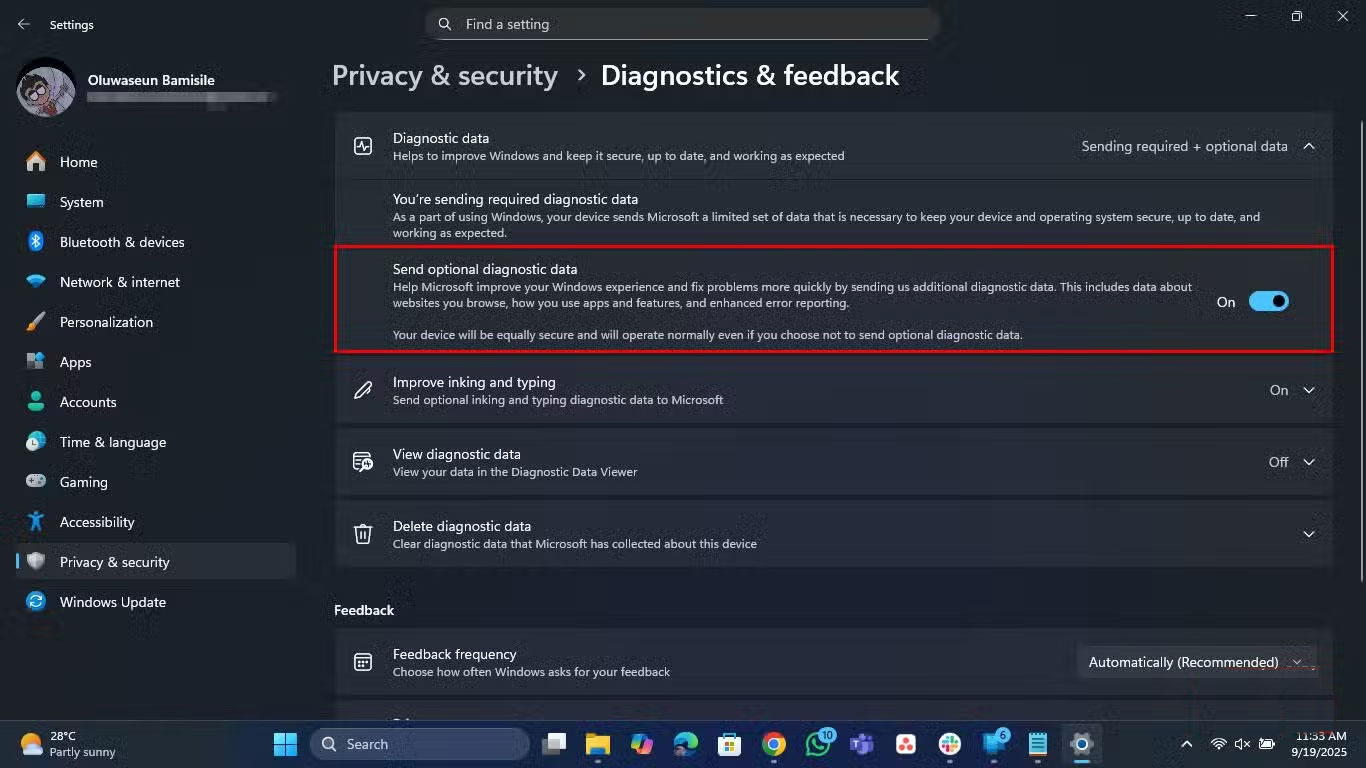
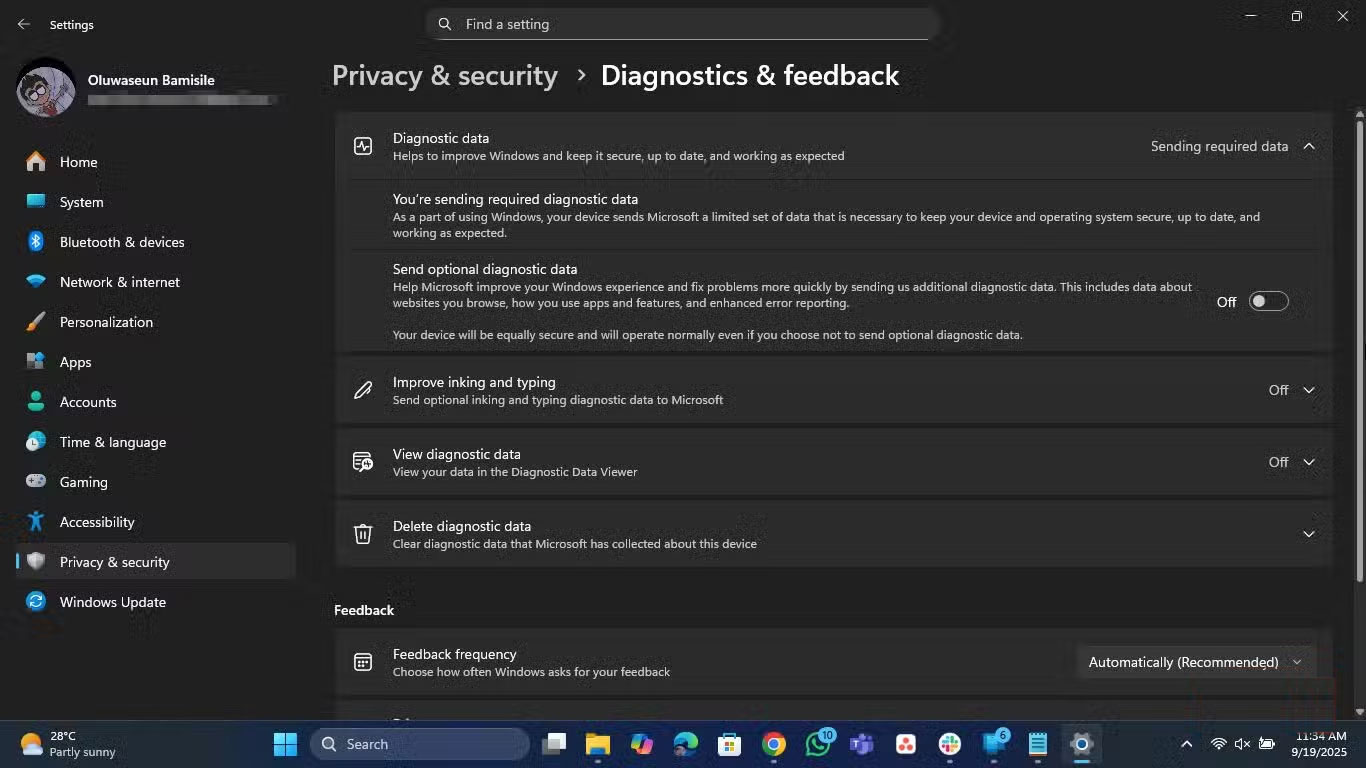
You can turn off most Telemetry data collection features, even if Microsoft doesn't explicitly state it.
- Open the Settings app
- Go to Privacy & Security
- Select Diagnostics & feedback
- Under Diagnostic data, turn off the Send optional diagnostic data Option.
That's step one, and it's already significantly reduced tracking. But if you're running Windows Pro, Enterprise, or Education, you can take it further using the Group Policy Editor.
How to do it:
- Press Win + R , type "gpedit.msc" And press Enter .
- Navigate to Computer Configuration -> Administrative Templates -> Windows Components -> Data Collection and Preview Builds .
- Double-click Allow Diagnostic Data (Windows 11) or Allow Telemetry (Windows 10) and set it to Disabled .
If you are familiar with Registry Editor, you can do the same thing by opening Registry Editor and adding a DWORD key named AllowTelemetry To HKEY_LOCAL_MACHINESOFTWAREPoliciesMicrosoftWindowsDataCollection And setting its value to 0 .
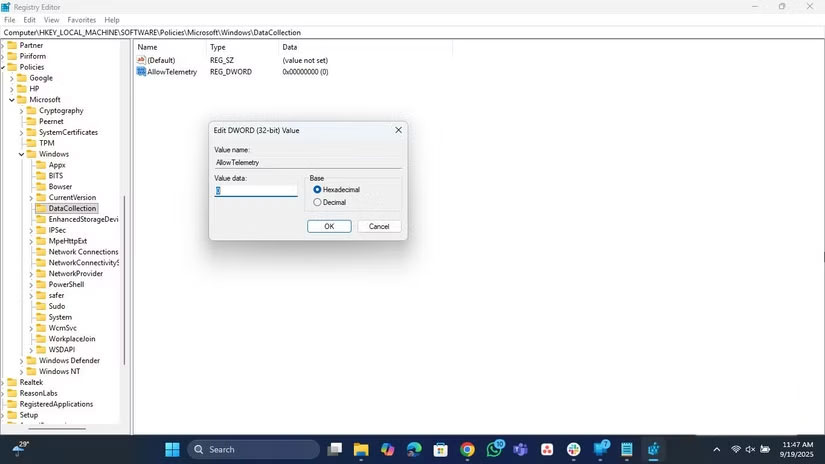
After doing this, your system will stop communicating back to the center for Telemetry data. Updates will still occur, but the constant background reporting noise will be significantly reduced. You should notice a difference almost immediately after disabling it - fewer random spikes in network usage and a smoother, quieter system.
Control your data
If you care about privacy in the slightest, turning off telemetry is non-negotiable. It may seem harsh, but you should still stand firm. Microsoft should be transparent and give users a clear 'off' button, but since it won't, we have to take control. No one wants to live in a world where every click and keystroke is silently recorded just to 'improve the user experience.' You deserve better. Your computer should serve you, not Microsoft.
FAQ
How do you turn off Windows telemetry to protect privacy: step-by-step guide?
In practical terms, telemetry is, in theory, how Microsoft collects information from users' computers. According to the company, this helps identify bugs, improve performance, and deliver updates that are tailored to the way people use Windows.
What should you check before getting started?
Review the requirements, compatible device or software version, and any warnings described in the guide before making changes.
What should you do if the steps do not work?
Repeat the steps in order, confirm that your app or system is up to date, and review the troubleshooting details provided above.
Related Articles
 How to Turn Off Data Collection and Telemetry in Windows 103 minutes read
 70% of Windows 10 Users Are Completely Satisfied with Microsoft's Data Collection5 minutes read
 How to Delete Telemetry Data on Mozilla Firefox3 minutes read
 A Tool to Help You Control Your Privacy in Windows 104 minutes read
 Click: How to Protect Your Privacy in Windows 1012 minutes read
 8 Ways to Protect Your Privacy on ChatGPT4 minutes read
Reader Comments 0
Sign in with email or Google to join the discussion.