Table of Contents
On Linux-based systems, the root account holds the highest level of privilege in the user role hierarchy. The root user has complete control over the system, including the ability to modify and override the privileges of other users. Normally, a user must have root privileges to make any changes to the system.
In Ubuntu systems, the root account is disabled by default. However, users can still make the necessary changes if they have access to the root password. Problems arise when the root password is forgotten. This article will guide you through the process of resetting the root password on an Ubuntu 24.04 system by changing the Grub boot loader configuration and booting Ubuntu in Rescue mode.
Change root password
To change the root password in your system, open a terminal window using the shortcut Ctrl + Alt + T . You can also access the terminal window by going to your system ApplicationsTerminal . Now, to change the root password, enter the following command in the terminal window.
$ sudo passwd root
The system will prompt the user to enter the new password they want to set. Then, when you press the key, the system will prompt the user to re-enter the new password again in the Retype new password field.

When you press the key on the keyboard, the password will be updated successfully.

Reset root password
When a user forgets the root password, they need to enter the user password.
Step 1: Boot into Recovery mode
To start with this method, the user needs to reboot the system. Press the key on the keyboard as soon as the boot screen appears. The GNU GRUB screen will appear as shown below:
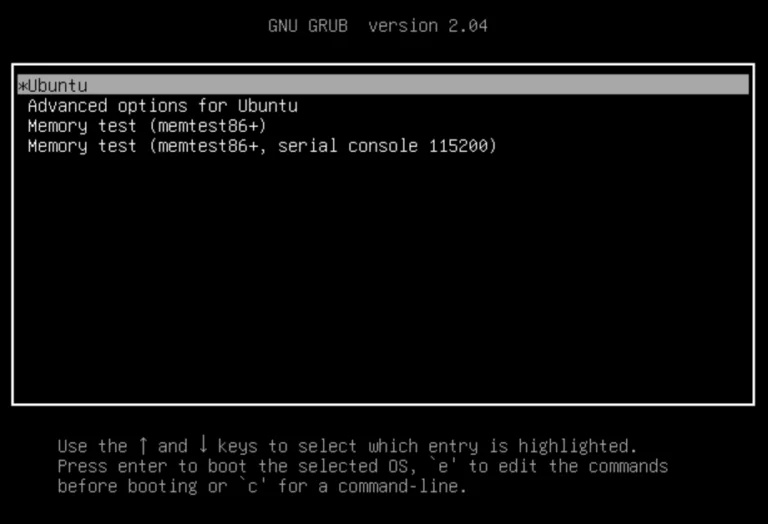
This is the Ubuntu boot menu, showing the kernel versions and different options. Select the Ubuntu option by pressing the. Once Ubuntu is selected, you need to press the "e" key to open the grub parameters to edit.
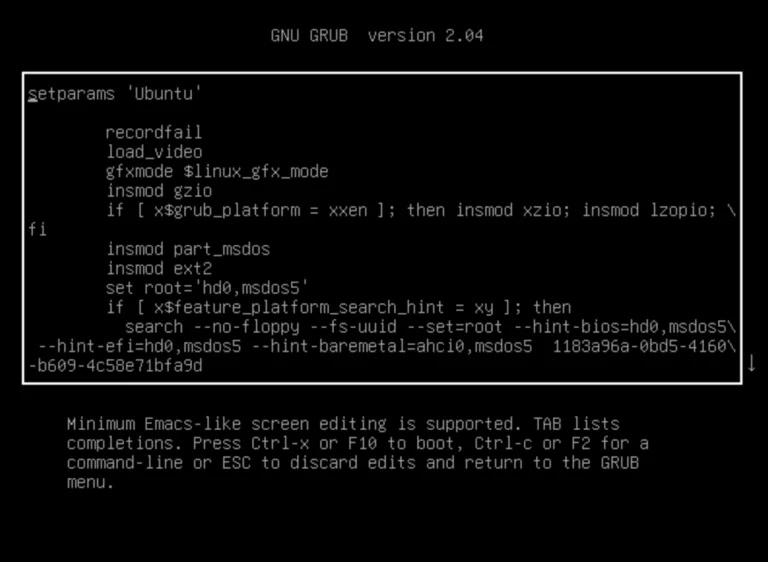
Step 2: Change configuration
Then use the arrow keys again and scroll down to the last line that starts with the keyword "Linux/boot/vmlinuz".
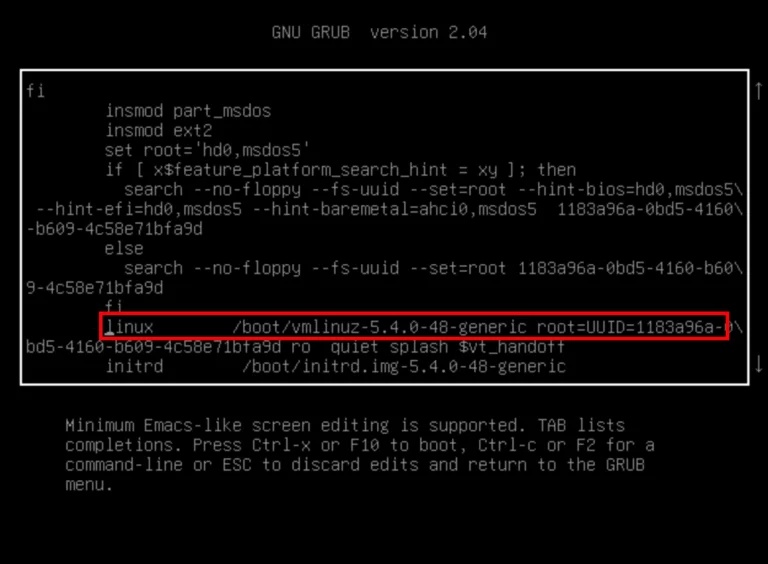
From the hghlighted line above, you need to replace the word "ro quiet splash $vt_handoff" with "rw init=/bin/bash" .
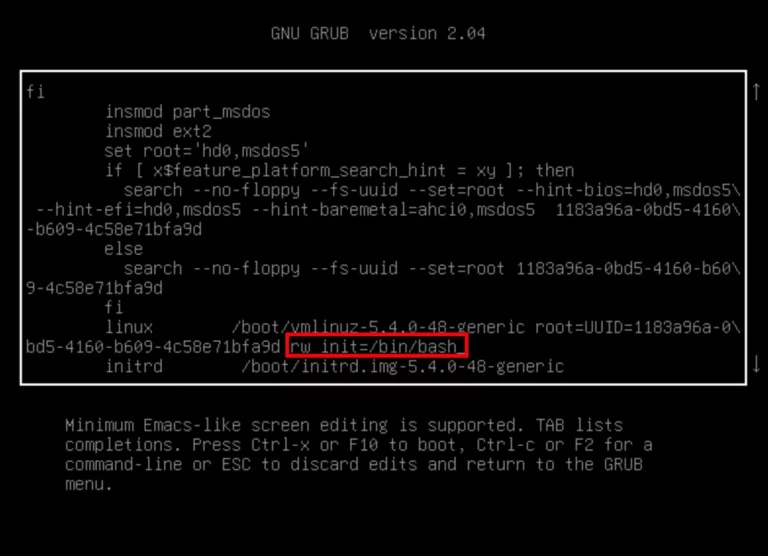
Step 3: Restart the system
The next step is to reboot the system. You can do this by using Ctrl + X or F10 . This will reboot your system with the updates applied. The system will reboot and you will be taken to the root shell. The shell will only appear once, and then it will appear normally.
To check if your root file system is mounted properly, add the following command to the shell.
$ mount | grep -w /
Step 4: Change root password
To change the root password, enter the following password command:
$ passwd
The system will then prompt you to enter a new password and after you press enter , the system will ask you to re-enter the password.

Once the password is updated, a success message will appear on the screen.

Password has now been successfully changed/reset. To confirm the update, you can restart the system.
In this article, we have learned how to reset the root password on Ubuntu 24.04 system. Forgetting the password is no longer a problem as you can easily follow this method to update and reset the root password.
Final Thoughts
Following the steps in order and checking version-specific settings should make it easier to Reset Forgotten Root Password in Ubuntu 24.04. If an option looks different, verify the device, app, or operating-system version before changing additional settings.
FAQ
What is the best way to Reset Forgotten Root Password in Ubuntu 24.04?
Start with the requirements described in the article and follow the steps in order. On Linux-based systems, the root account holds the highest level of privilege in the user role hierarchy. The root user has complete control over the system, including the ability to modify and override the privileges of other users.
What should you know about Change root password?
To change the root password in your system, open a terminal window using the shortcut Ctrl + Alt + T. You can also access the terminal window by going to your system ApplicationsTerminal.
What should you do if the instructions do not match your screen?
Check the device, software version, account permissions, and regional settings. Interfaces can change after updates, so use the closest matching option and consult the official support documentation when necessary.
Related Articles
 Use Guestfish to Reset the Forgotten Root Password for the3 minutes read
 Steps to Reset Forgotten Password on Windows 105 minutes read
 How to Reset Admin Password on Windows with Sticky Keys5 minutes read
 How to Become Root in Ubuntu5 minutes read
 How to Reset a Forgotten Password on Windows8 minutes read
 How to Reset a Windows 7 Password4 minutes read
Reader Comments 0
Sign in with email or Google to join the discussion.