Table of Contents
If you administer an ASUS router, check its firmware and remote access settings. In 2025, security researchers reported that some routers had been configured to allow unauthorized remote access. Owning an ASUS router alone does not tell you whether your device was affected.
Review your router’s administrator settings
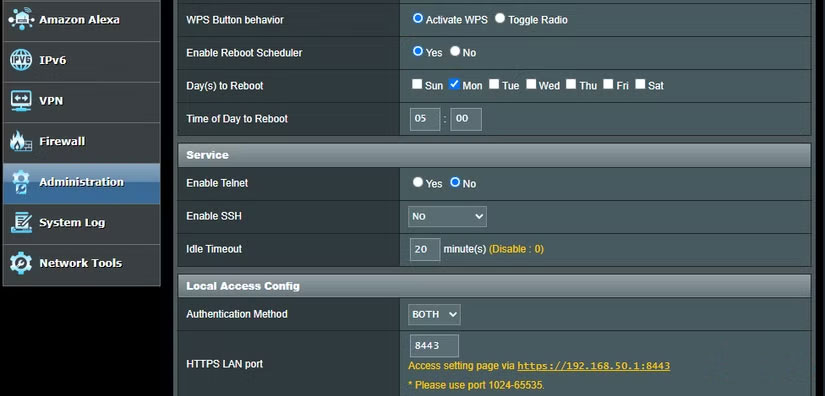
- Connect to your own network and sign in to the router’s local administration page.
- Look under Administration for SSH, remote administration, and authorized keys if your model displays them. If you never enabled these features, an unexpected setting or key warrants investigation.
- Check for the latest firmware for the exact model and hardware revision. Compare the settings with the defensive guidance in ASUS’s security statement.
If you find settings you did not authorize
Check whether your ISP or another authorized administrator configured them. If you suspect compromise, arrange a reset using the manufacturer’s instructions and configure the router from a clean state. Save any ISP connection details you need first. A firmware update can address vulnerabilities, but it may leave unauthorized settings in place.
After resetting, install the latest firmware and set a unique administrator password. Leave external administration disabled unless you need it and know how it is secured. See TipsMake’s home-network security guide for more checks.
Related Articles
 Does resetting a hacked router make it safe again?
 Asus RT-AC68U Review: Versatile Dual Band Mesh WiFi Router
 Hundreds of thousands of Wifi manufactured from 2015 and earlier were attacked
 10 best VPN routers 2020
 The list of nearly 600 MAC addresses was targeted in the recent hacking of millions of ASUS computer users
 8 best 802.11n routers in 2018
Reader Comments 0
Sign in with email or Google to join the discussion.