Table of Contents
If Bluetooth has disappeared from Windows 11—not just failed to connect to one accessory—start by checking whether Windows still detects the adapter. A missing toggle usually points to Airplane mode, a stopped or disabled adapter, a driver problem, a power-state issue, or hardware that is no longer being detected.
A missing Bluetooth control can indicate that Windows no longer detects the adapter.
If the toggle is present but only one headset, mouse, or keyboard fails, remove and pair that accessory again before changing the adapter driver. The steps below are for a missing Bluetooth option or adapter.
1. Restart and check the wireless controls
- Select Start > Power > Restart. Use Restart rather than only closing and reopening the lid.
- Press Windows+A to open Quick Settings.
- Make sure Airplane mode is off. If a Bluetooth tile is present, turn it off, wait 10 seconds, and turn it on again.
- Check the laptop for a hardware wireless switch or an Fn-key shortcut identified by the manufacturer.
Drivers, settings, power state, and hardware can all affect adapter detection.
Restart Windows before making deeper driver changes.
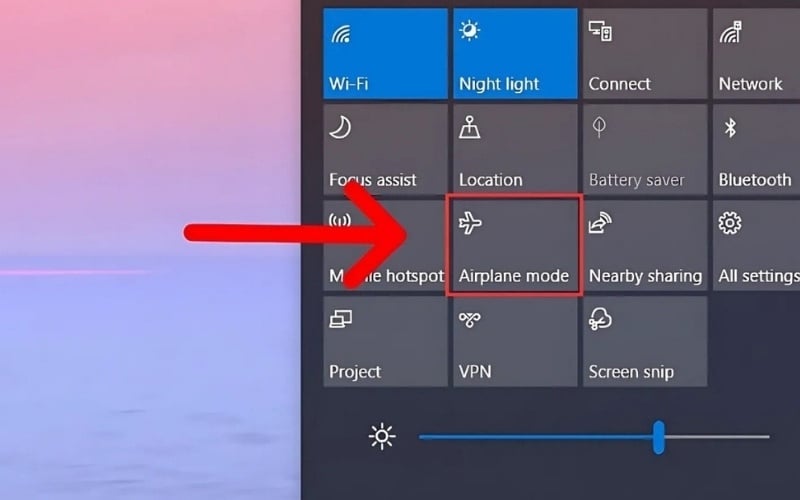
Confirm that Airplane mode is off.
2. See whether Device Manager detects Bluetooth
- Press Windows+X and select Device Manager.
- Look for Bluetooth. Expand it and identify the actual radio or adapter, which may include Intel, Realtek, MediaTek, Qualcomm, or the word “radio.”
- If the category is absent, select View > Show hidden devices, then Action > Scan for hardware changes.
- Also check Network adapters and Other devices for an unknown device or warning icon.
Open the adapter's Properties and read Device status. Record any Device Manager error code before reinstalling a driver; the code can distinguish a disabled device from a driver or hardware failure.
If Bluetooth appears only as a faded hidden device and scanning does not restore it, Windows remembers the old installation but is not currently detecting the hardware.
3. Run the current Windows Bluetooth troubleshooter
Microsoft now directs Windows 11 users to the automated troubleshooter in the Get Help app:
- Open Start and search for Get Help.
- In Get Help, enter Bluetooth troubleshooter.
- Follow the diagnostic steps and apply only fixes that match the detected problem.
You may also reach it through Settings > System > Troubleshoot > Other troubleshooters; selecting Bluetooth can open Get Help on current builds.
The next three screenshots show the older Update & Security > Troubleshoot route. That layout belongs to Windows 10 or older Windows builds and should not be used as the primary Windows 11 path.
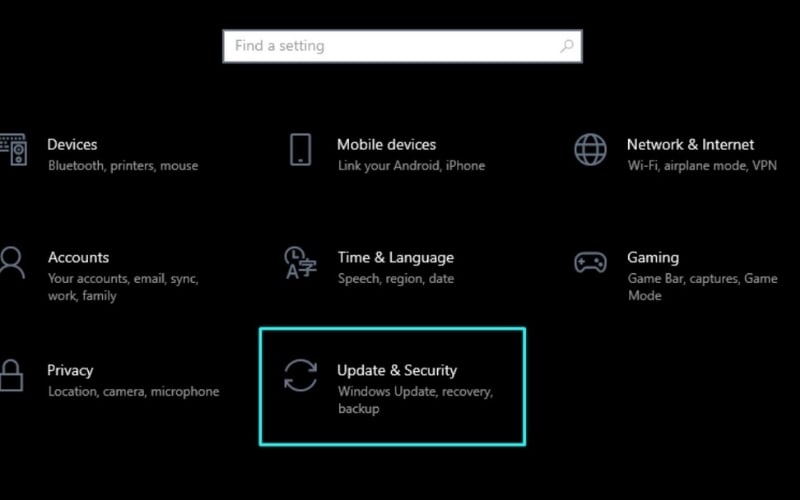
This is an older troubleshooting interface, not the current Windows 11 route.
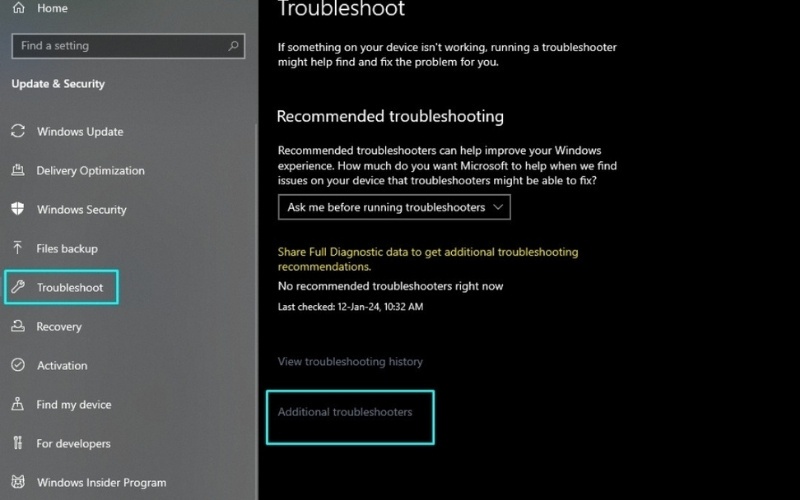
Legacy troubleshooters are being replaced by Get Help diagnostics.
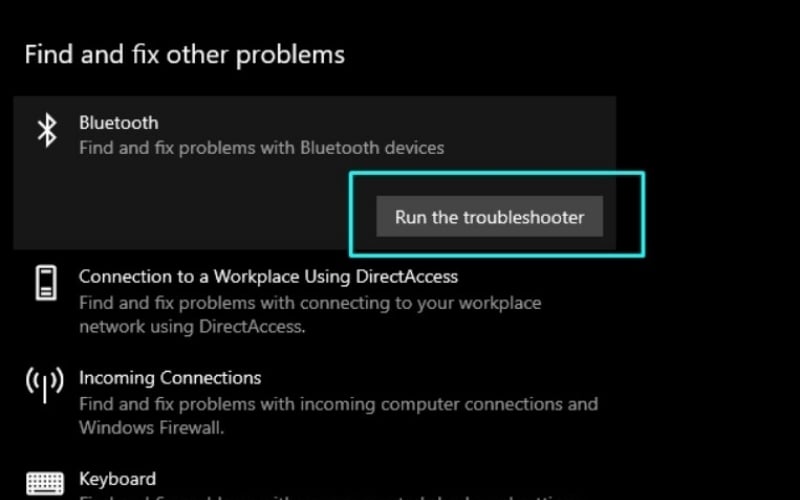
Use the Bluetooth troubleshooter in Get Help on current Windows 11.
4. Install Windows and manufacturer updates
- Open Settings > Windows Update and install available quality updates.
- Check Advanced options > Optional updates for a Bluetooth or wireless driver.
- Visit the laptop or motherboard manufacturer's support page, enter the exact model or serial number, and compare the current Bluetooth, Wi-Fi, chipset, and BIOS packages.
Prefer the computer maker's package when Bluetooth is part of a combined Wi-Fi/Bluetooth module or when a generic driver causes problems. Avoid third-party “driver updater” utilities.
5. Update, roll back, or reinstall the adapter driver
Update the driver
- In Device Manager, expand Bluetooth.
- Right-click the radio adapter—not a paired peripheral—and select Update driver > Search automatically for drivers.
- If you downloaded the manufacturer's package, install it according to that maker's instructions.
- Restart Windows.
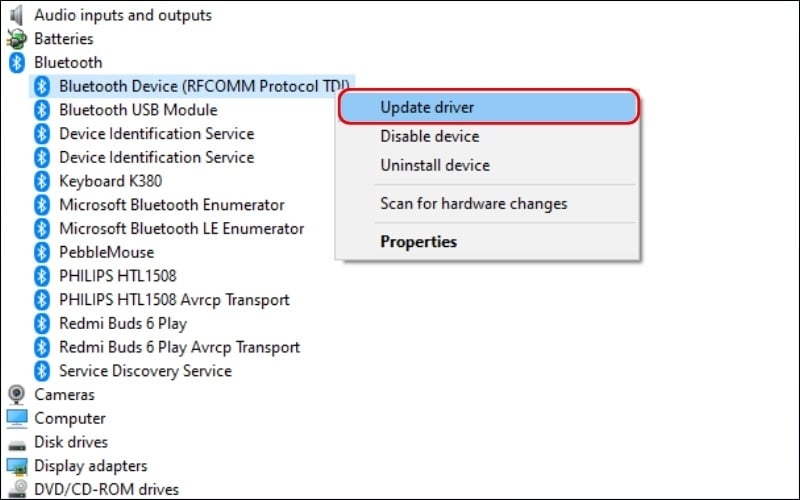
Update the radio adapter rather than an individual paired accessory.
Roll back after a bad update
If Bluetooth disappeared immediately after a driver update, open the adapter's Properties > Driver tab and select Roll Back Driver when available. Restart and test before making another change.
Reinstall the driver
- Download the correct driver from the manufacturer first so it is available if Windows cannot restore networking.
- In Device Manager, right-click the Bluetooth adapter and select Uninstall device.
- Do not select an option to remove a driver package unless you already have the correct replacement and the maker's instructions require it.
- Select Uninstall, then restart the PC. Windows normally redetects the adapter.
- If it does not return, use Action > Scan for hardware changes and install the downloaded package.
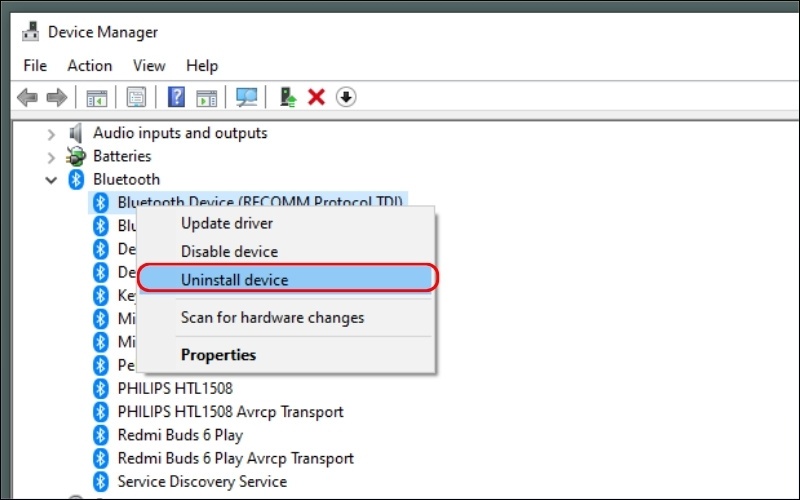
Uninstall the adapter only after obtaining the correct replacement driver.
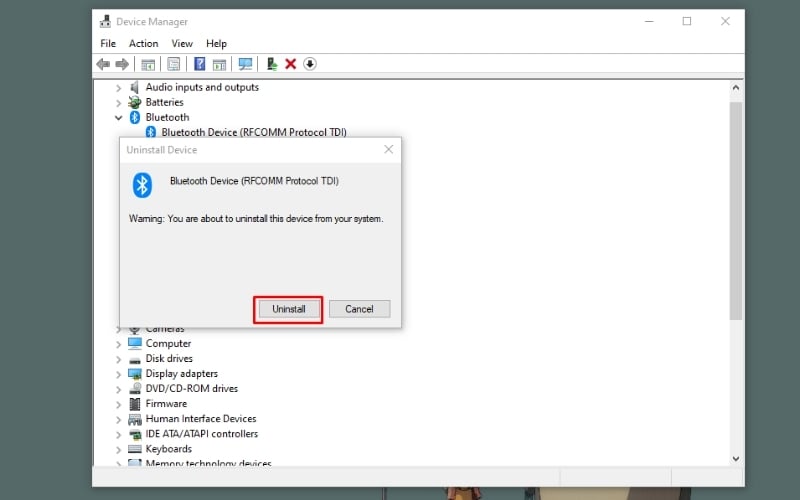
Restart Windows after confirming the adapter removal.
6. Check Bluetooth services without changing defaults blindly
Press Windows+R, enter services.msc, and locate Bluetooth Support Service. If it is stopped while Bluetooth should be available, start it; if it is running but unresponsive, restart it and test again.
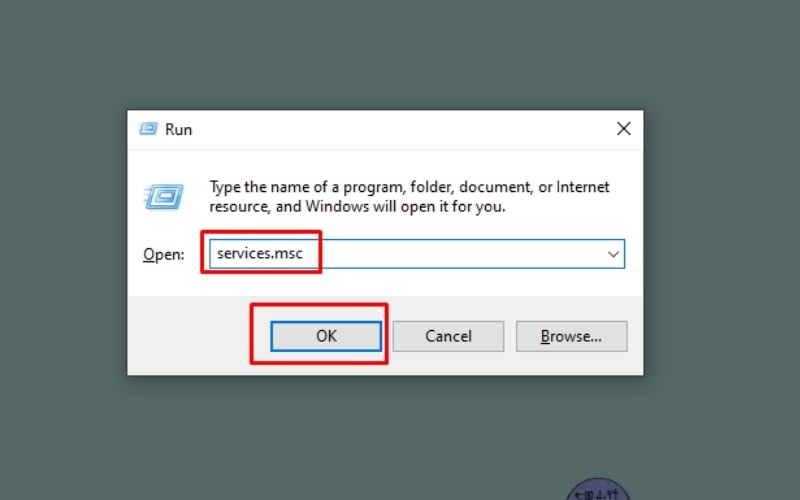
Use Services to inspect Bluetooth Support Service.
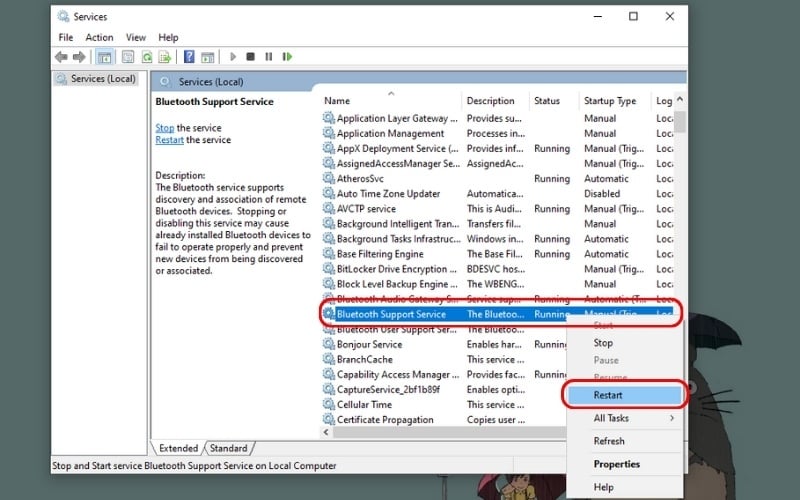
Restart the service only when it is present and relevant to the problem.
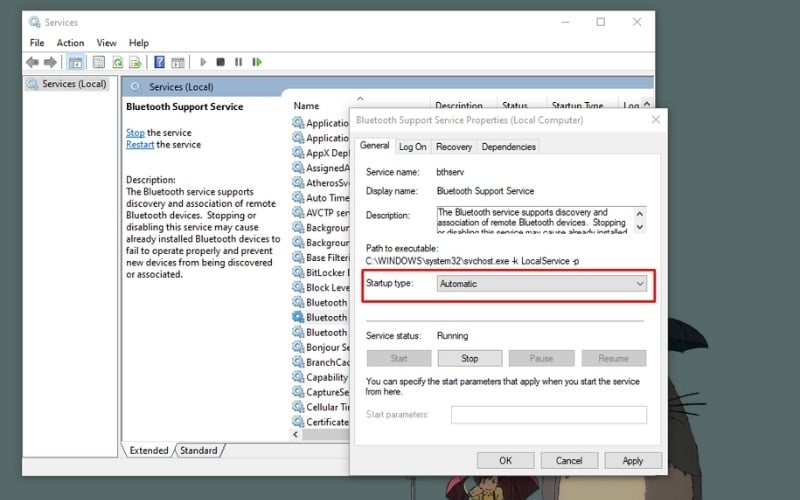
Do not force a startup type that conflicts with the device configuration.
Do not automatically change its Startup type to Automatic. Windows commonly uses trigger-start services that remain Manual until needed. Changing defaults can mask the real driver problem. If a service is disabled, restore the setting recommended by the PC maker or Microsoft support.
7. Check power management if Bluetooth vanishes after sleep
If the adapter disappears mainly after sleep or hibernation:
- Open Device Manager and the Bluetooth adapter's Properties.
- On the Power Management tab, clear Allow the computer to turn off this device to save power, if the tab and option are available.
- Restart and test sleep/wake behavior.
This option can increase idle power use slightly. If the problem started after a BIOS or chipset update, install the laptop maker's latest supported BIOS, chipset, and power-management components rather than changing unrelated power-plan settings.
8. Use System Restore only for a known recent change
System Restore can help when Bluetooth worked before a specific driver or software change and a suitable restore point already exists. It does not repair failed hardware and may remove apps, drivers, and settings installed after the selected point.
- Search Start for Create a restore point and open it.
- Select System Restore.
- Choose a point created before Bluetooth disappeared, review Scan for affected programs, and follow the prompts.
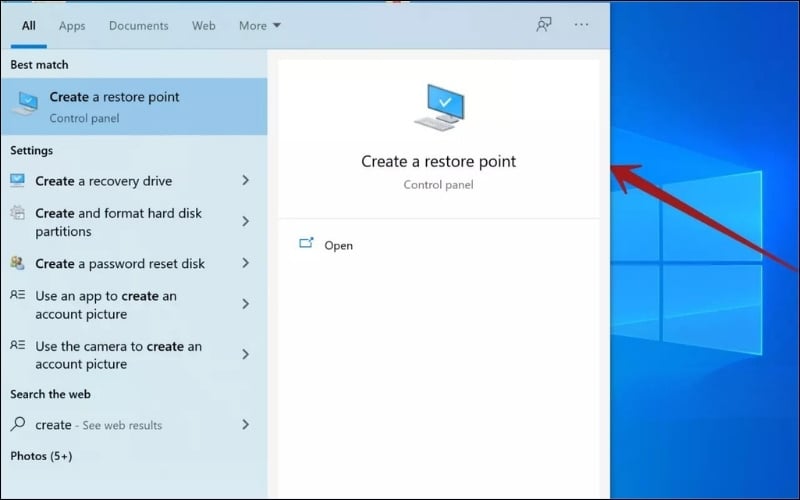
Use System Restore only when a relevant restore point already exists.
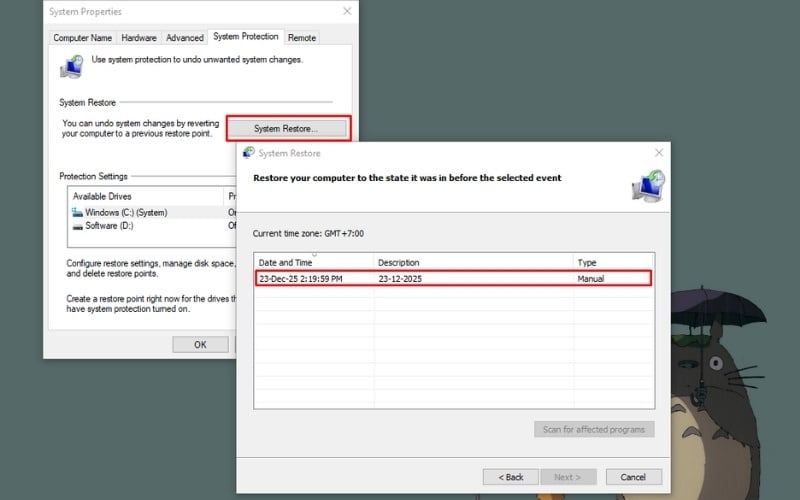
Review affected programs before restoring Windows.
Back up important files before recovery work. Enabling System Protection now cannot create a restore point in the past, so it will not help with an error that has already occurred.
9. Decide whether the fault is hardware
Hardware becomes more likely when the adapter is absent from Device Manager after a restart, BIOS and manufacturer drivers are current, and scanning for hardware changes finds nothing. On some laptops, Bluetooth shares the Wi-Fi card; simultaneous Wi-Fi problems are another clue, though not proof.
Check the BIOS/UEFI wireless settings and run the manufacturer's hardware diagnostics. Do not open a laptop still under warranty. A repair shop can inspect a replaceable wireless card, antenna leads, or motherboard fault.
A Windows 11-compatible USB Bluetooth adapter is a practical fallback. Choose one that supports the Bluetooth version and audio or input profiles you need, install its approved driver, and disable a malfunctioning built-in adapter if the two conflict.
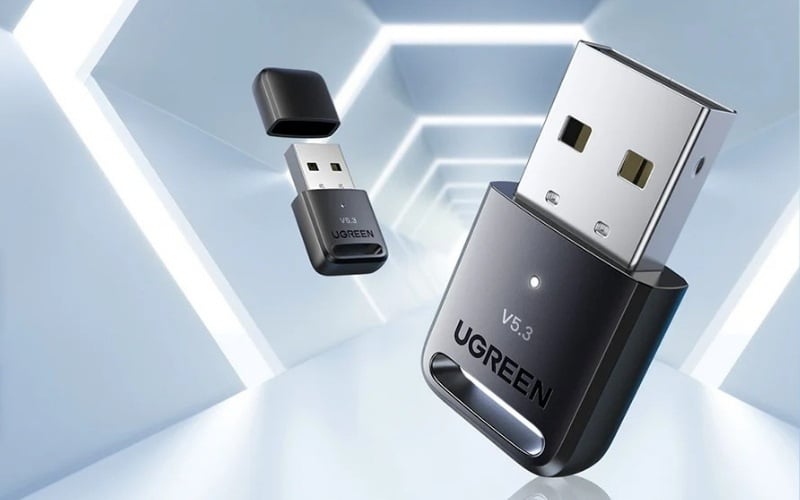
A compatible USB adapter can restore Bluetooth without internal repair.
What not to do
- Do not uninstall security software merely because Bluetooth failed; first use Device Manager and Microsoft diagnostics to identify evidence of a conflict.
- Do not download drivers from unverified driver sites.
- Do not change multiple services, registry values, and power settings at once—you will not know which change helped.
- Do not assume a USB adapter is the only answer until the built-in adapter has been checked in Device Manager and BIOS.
Microsoft's current procedures are documented in Fix Bluetooth disappeared in Windows and Update Bluetooth drivers in Windows.
Related Articles
 10 Ways to Fix Missing Bluetooth Option in Windows 118 minutes read
 How to Set Up and Manage Bluetooth Devices in Windows: Practical Guide9 minutes read
 Instructions on How to Set Up Bluetooth on Windows 108 minutes read
 Fix Bluetooth Error Does Not Work on Windows 7 or Windows 85 minutes read
 Desktop Without Bluetooth? This Is the Solution5 minutes read
 How to Connect a Bluetooth Device on Windows7 minutes read
Reader Comments 0
Sign in with email or Google to join the discussion.