Table of Contents
How to easily enable Bluetooth on Windows 10, 11, and MacBook laptops. It also fixes issues like the Bluetooth button not appearing and allows for easy.
Windows 11: Open Start > Settings > Bluetooth & devices and switch Bluetooth on, or open Quick Settings from the taskbar and select the Bluetooth tile. Mac: Open Apple menu > System Settings > Bluetooth and turn it on.
To pair an accessory, put the headphones, mouse, keyboard, or speaker into its discoverable pairing mode first. On Windows, select Add device; on a Mac, find it under Nearby Devices and select Connect. A device that is merely powered on may not be discoverable.
If the Bluetooth switch is missing
- Confirm the computer model actually includes Bluetooth and check for a physical wireless switch or airplane mode.
- On Windows, run the Bluetooth troubleshooter in the Get Help app, restart the computer, and check the Bluetooth adapter in Device Manager.
- Install the Bluetooth driver from Windows Update or the laptop manufacturer's support page. Avoid unrelated third-party driver-download sites.
- If the adapter is absent after a hardware or firmware change, check the manufacturer's diagnostics or use a compatible USB Bluetooth adapter.
Microsoft ended free support for Windows 10 in October 2025; the menus still work, but an eligible PC should use a supported operating system for ongoing security updates.
Official references: turn Bluetooth on in Windows, fix Windows Bluetooth problems, and connect a Bluetooth device to a Mac.
Related TipsMake guides explain how to restore missing Bluetooth in Windows 11, connect a wireless mouse, and understand Bluetooth LE Audio requirements in Windows.
Quick answer
- Bluetooth on laptops allows for convenient wireless connection with peripherals such as headphones, mice, and speakers at short distances.
- Windows you can quickly enable Bluetooth via the Quick Settings taskbar or in the system Settings.
- For MacBooks, Bluetooth can be easily enabled through System Settings or directly from the menu bar at the top.
- For successful pairing, the peripheral device needs to be put into pairing mode and placed near a laptop with Bluetooth enabled.
- Check for the existence of Bluetooth in Device Manager or System Information to determine whether the problem is due to hardware or a driver.
- If your laptop doesn't have built-in Bluetooth, you can use an additional USB Bluetooth adapter to connect normally.
1. What laptop Bluetooth is used for
Bluetooth on laptops is a short-range wireless connection used to pair computers with peripheral devices without needing to plug in cables. This is a convenient connection method for everyday needs, but it doesn't completely replace wired connections in all situations.
Devices typically connect via Bluetooth.
- Bluetooth headphones
- Bluetooth Speaker
- Bluetooth wireless mouse
- Bluetooth keyboard
- Phone
- The printer supports Bluetooth.
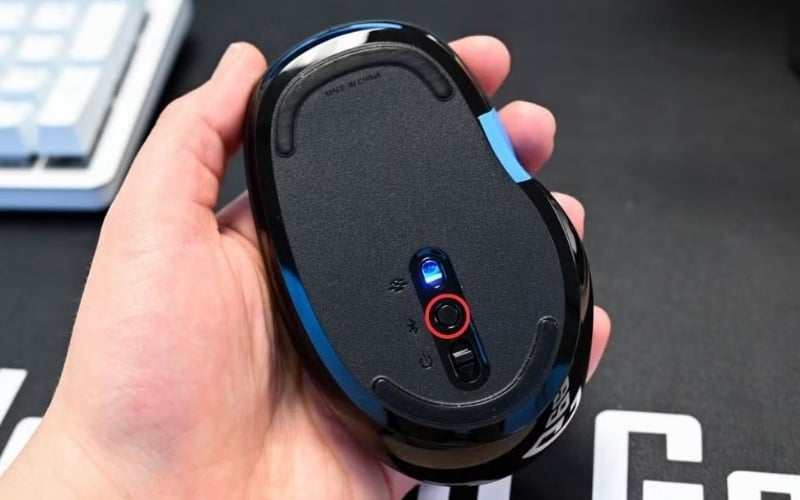
Bluetooth is used to pair laptops with external devices without needing to plug in cables.
2. Turn on Bluetooth in Windows
2.1. How to turn on Bluetooth from Quick Settings
- Step 1: Click on the notification icon cluster in the upper right corner of the taskbar.
- Step 2: The Quick Settings window will open.
- Step 3: Tap the Bluetooth button to turn it on.
- Step 4: If the box is lit up, Bluetooth is enabled.
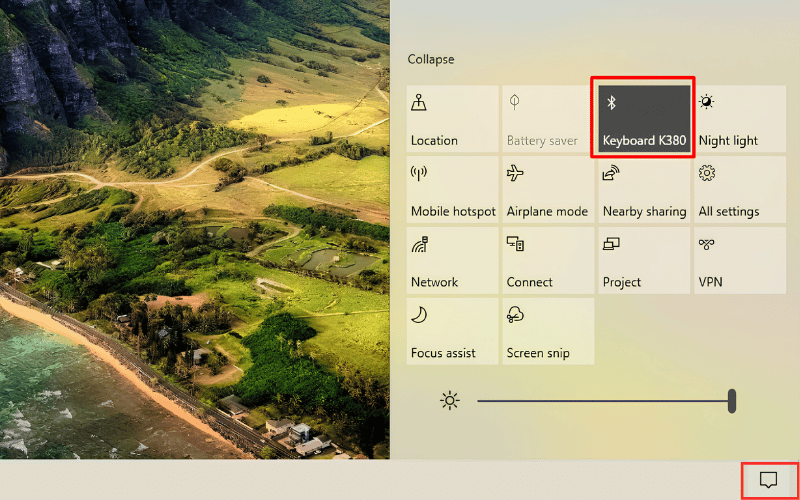
Tap the Bluetooth box in Quick Settings to turn it on.
2.2. How to turn on Bluetooth from Settings
- Step 1: Press the Windows + I key combination to open Settings.
- Step 2: Select Bluetooth & devices.
- Step 3: Flip the Bluetooth switch to On.
- Step 4: Wait for the device to start detecting nearby devices.
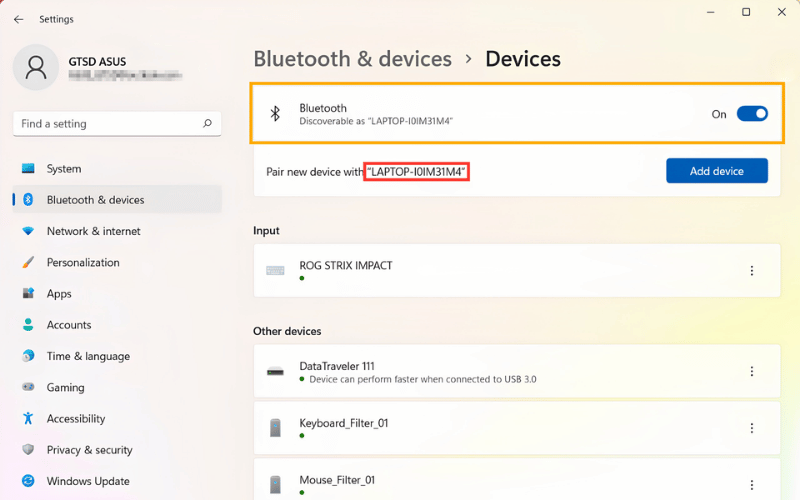
Flip the Bluetooth switch to On to turn it on.
3. Turn on Bluetooth on a Mac
3.1. Turn on Bluetooth in System Settings
- Step 1: Select the Apple icon.
- Step 2: Open System Preferences.
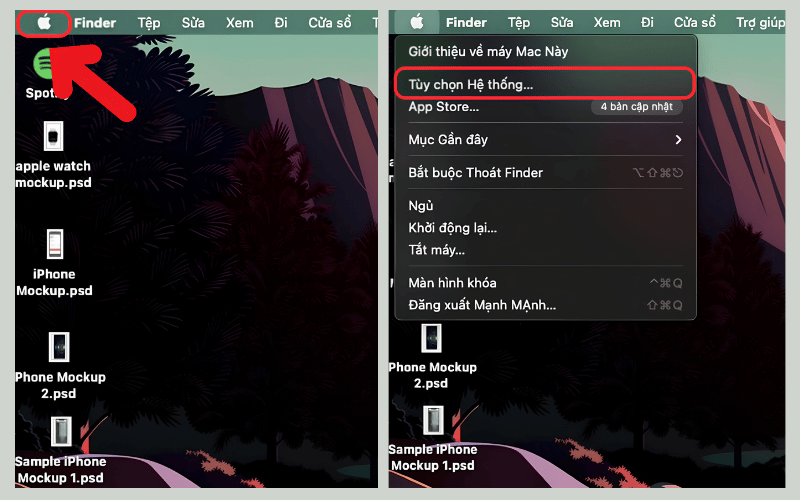
Select the Apple icon, open System Preferences.
- Step 3: Select Bluetooth.
- Step 4: Switch the status to Bluetooth On.
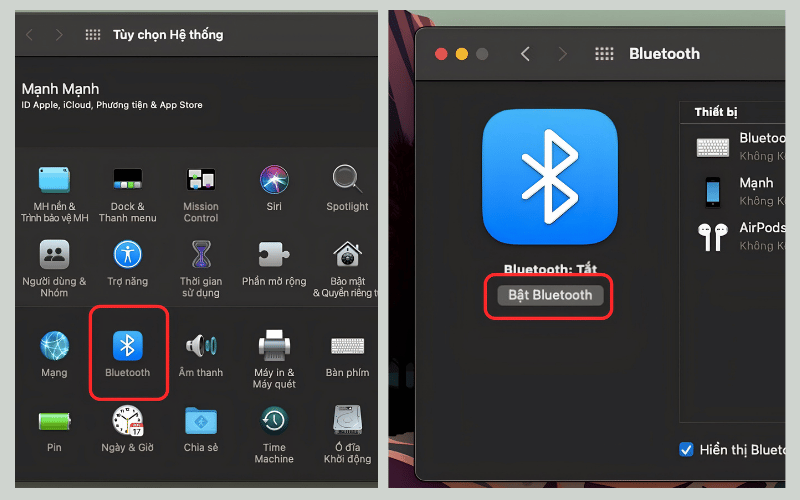
Switch the status to Bluetooth On.
3.2. Turn it on from the menu bar
- Step 1: Look at the menu bar at the top of the screen.
- Step 2: Tap the Bluetooth icon if it is displayed.
- Step 3: Slide the toggle switch to turn on Bluetooth.
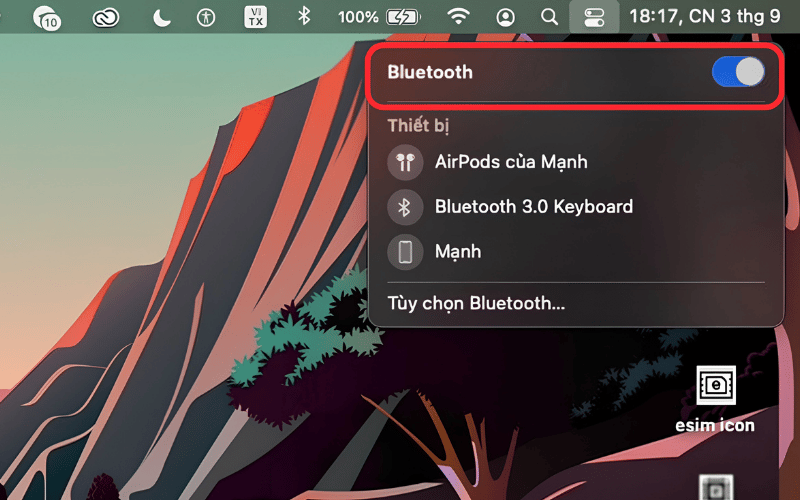
Slide the toggle switch to turn on Bluetooth.
4. How to connect a Bluetooth device to a laptop after turning it on
4.1. How to connect on Windows
- Step 1: Open Settings > Go to Bluetooth & devices.
- Step 2: Select Add device.
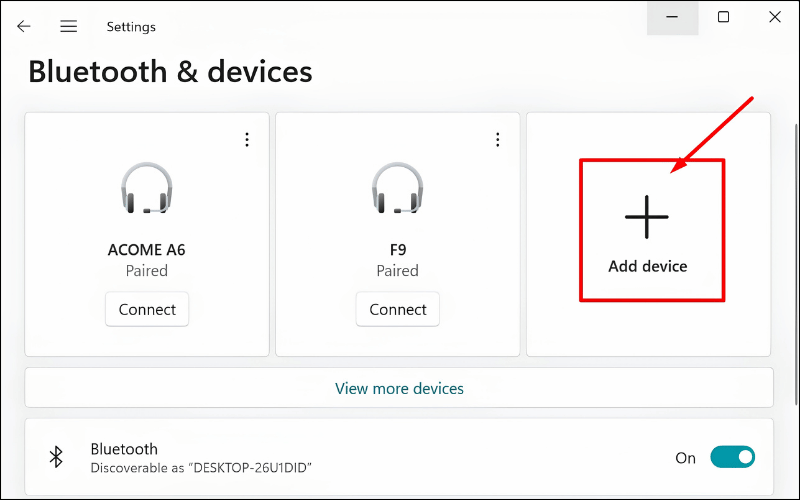
Select Add device
- Step 3: Select Bluetooth.
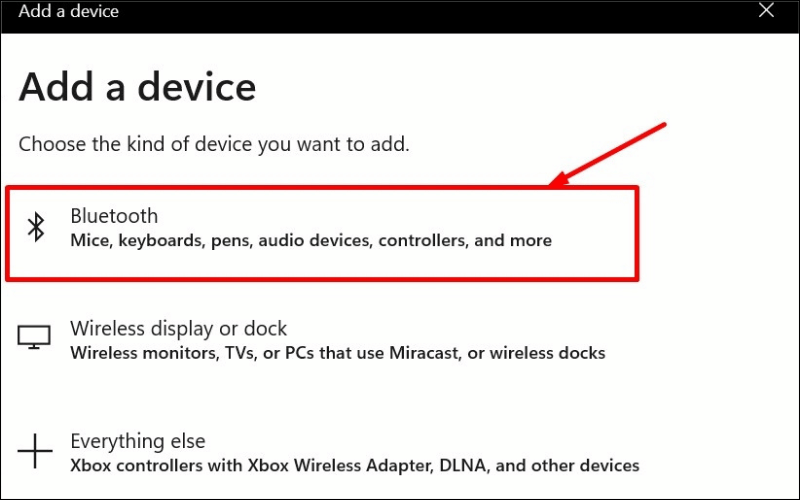
Select Bluetooth connection
- Step 4: Select the device name from the list.
- Step 5: Press Connect or Pair to complete the process.
4.2. How to connect on a MacBook
- Step 1: Open System Preferences. and go to Bluetooth.
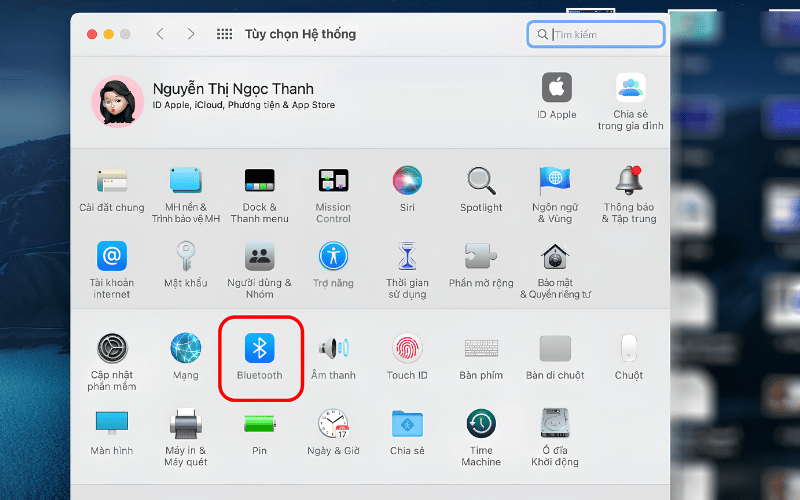
Open System Preferences. and go to Bluetooth
- Step 2: Put the device into pairing mode.
- Step 3: Wait for the device name to appear.
- Step 4: Press Connect to pair.
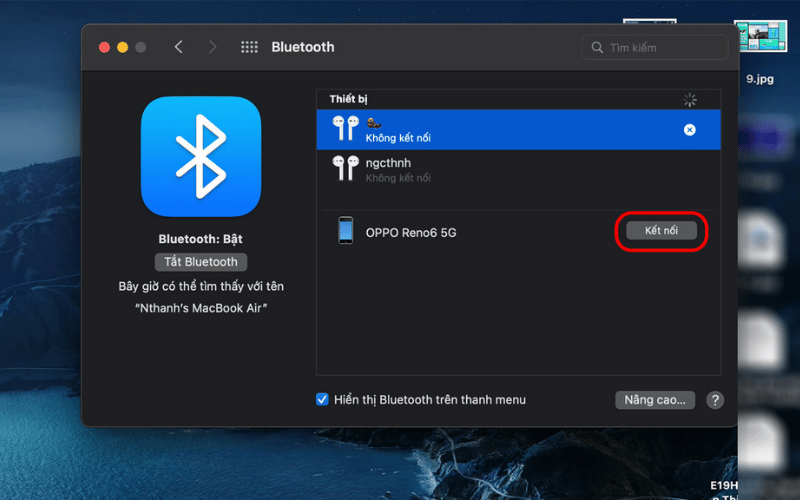
Press Connect to pair.
4.3. Notes before pairing
- The device must be in the correct pairing mode.
- The device's battery should have sufficient charge.
- Place the device near the laptop.
- If the device is currently connected to another computer, disconnect it first.
Place the device you want to connect near your laptop.
5. Check whether the laptop supports Bluetooth
5.1. Check on Windows
Open Device Manager > Find the Bluetooth item.
- If Bluetooth is listed: The device has Bluetooth hardware or is receiving Bluetooth signals.
- If there is an exclamation mark: The driver is likely malfunctioning.
- If you see "Unknown devices," it's possible your computer is missing a driver.
Additionally, check Network adapters or wireless adapters. If nothing related to Bluetooth is found, the device may not be recognizing the hardware or may not have built-in Bluetooth.
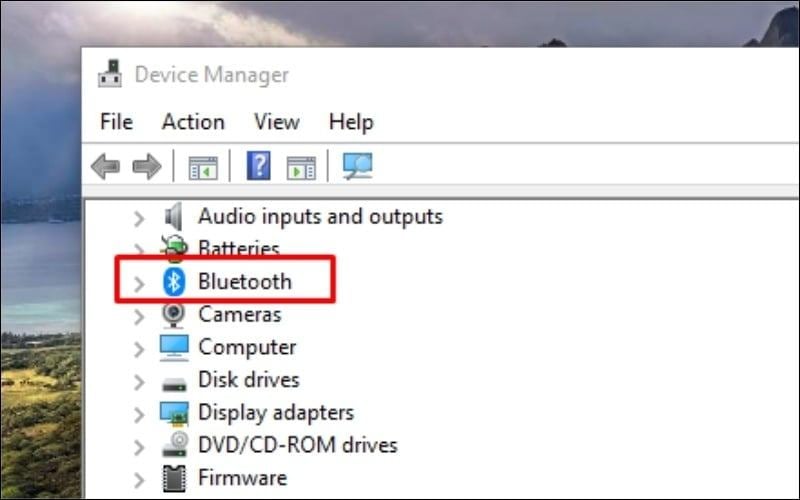
Check if your laptop has Bluetooth in Device Manager.
5.2. Check on a Mac
You can check in System Preferences. > Bluetooth or open System Information to see the hardware. Most MacBooks have built-in Bluetooth.
6. Bluetooth won't turn on on laptop and how to fix it
6.1. The Bluetooth button is not visible on the laptop
- Check if Airplane mode is turned on.
- Check Quick Settings or Action Center again.
- Go to Settings to find the Bluetooth toggle switch.
- Open Device Manager to see if the Bluetooth option appears.
- Update or reinstall the Bluetooth driver.
If Bluetooth disappears from both Settings and Device Manager, it's possible the device hasn't recognized the Bluetooth hardware or doesn't have built-in Bluetooth.
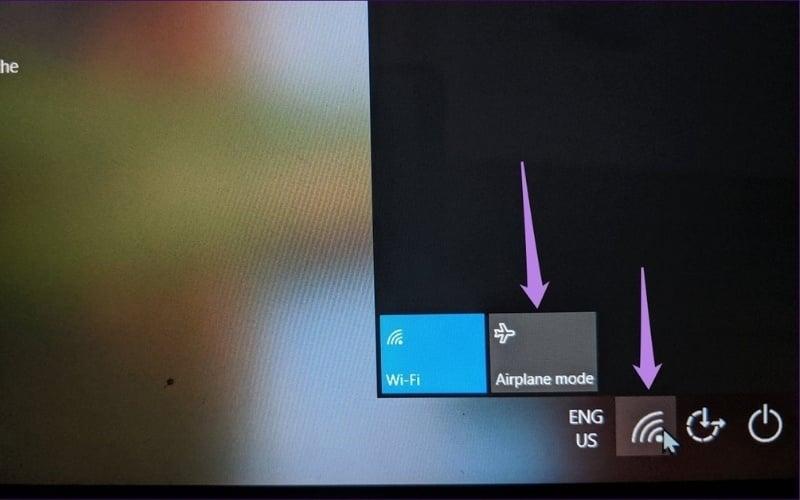
Check if Airplane mode is turned on.
6.2. Bluetooth is turned on but the device cannot be connected
- Put the device into the correct pairing mode.
- Delete the old device and then pair it again.
- Place the device close to the laptop.
- Turn Bluetooth off and then back on again.
- Restart your laptop.
Note: Bluetooth headphones may not appear on your laptop if they are automatically connected to a phone or other previously paired device.
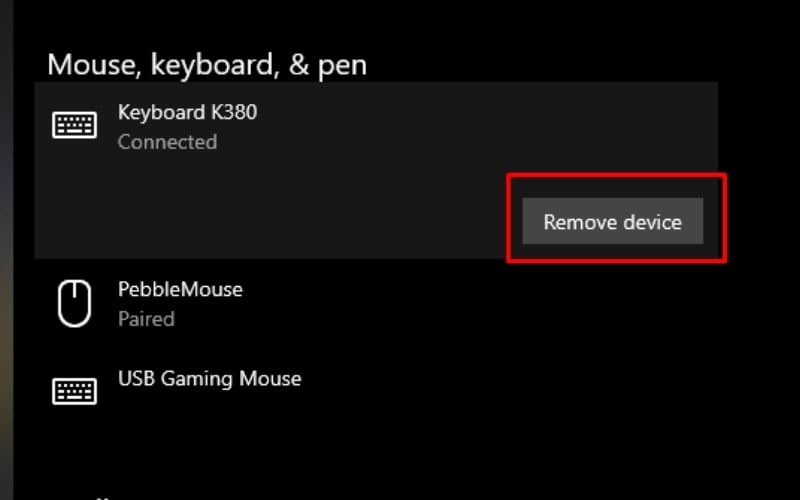
Remove the old device and then pair it again.
6.3. Basic methods have been tried but the error persists
- Run the troubleshooter on Windows if your system supports it.
- Check your Bluetooth Support Service.
- If your device doesn't have built-in Bluetooth, use a USB Bluetooth adapter.
- If that doesn't work, you should seek technical support.
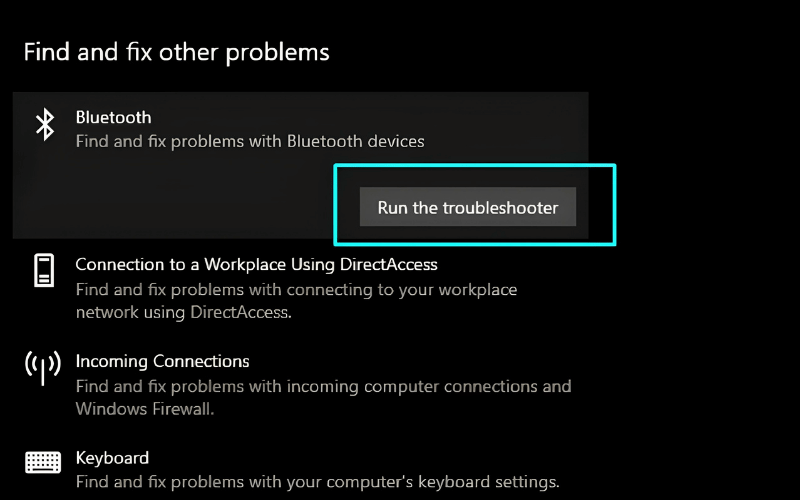
Run the troubleshooter on Windows to fix the problem.
7. Common Bluetooth questions
7.1. Why doesn't my laptop have a Bluetooth option in Settings?
There are three common possibilities. First, the driver is faulty or not installed. Second, Bluetooth is disabled in the system. Third, the device does not have built-in Bluetooth hardware.
7.2. What if I turn on Bluetooth but can't find the headphones?
Check if the headphones are in pairing mode, if the battery is sufficient, if the distance is too great, and if the headphones are connected to your phone or other device.
7.3. Do laptops with separate keyboards and mice need Bluetooth?
If your keyboard or mouse uses a separate USB receiver, your laptop doesn't need Bluetooth enabled. If it's a pure Bluetooth device, you'll need to turn Bluetooth on to pair.
7.4. Can I use Bluetooth headphones with a laptop that doesn't have Bluetooth?
Yes, you can absolutely use Bluetooth headphones on devices that don't support it by plugging in a USB Bluetooth adapter.
Enabling Bluetooth will be faster if you correctly identify your operating system and follow the installation path. After enabling it, put the device into pairing mode to pair. If you don't see Bluetooth, check Device Manager, the driver, or your machine may lack the necessary hardware. You can also find more information about Bluetooth accessories, USB Bluetooth adapters, and related guides at TipsMake to use your laptop more conveniently.
Related Articles
 How to Enable Bluetooth on Tvs and Laptops Running Windows 7 and Windows 104 minutes read
 How to Effectively Delete Applications on Windows Laptops and MacBooks14 minutes read
 How to Use Swift Pair for Super-fast Bluetooth Connection on Windows 103 minutes read
 Bluetooth Laptop Error, Cause and How to Fix: What You Need to Know7 minutes read
 How to Set Up and Manage Bluetooth Devices in Windows: Practical Guide9 minutes read
 How to Easily Connect Bluetooth on a Windows 10 or 11 Computer10 minutes read
Reader Comments 0
Sign in with email or Google to join the discussion.